How to Add or Subtract Percentages in Excel – Step by Step Guide

John Michaloudis
 Free Practice Workbook
You should know how to add or subtract percentages in Excel for accurate data analysis.
You will need to understand percentage calculations for adjusting prices, calculating discounts, or analyzing financial data.In this article, you will learn how to add or subtract percentages in Excel.
Add or Subtract Percentage in Excel
Addition
You can use basic arithmetic operations to add a percentage to a number. The formula will be:
= number * (1 + percentage)
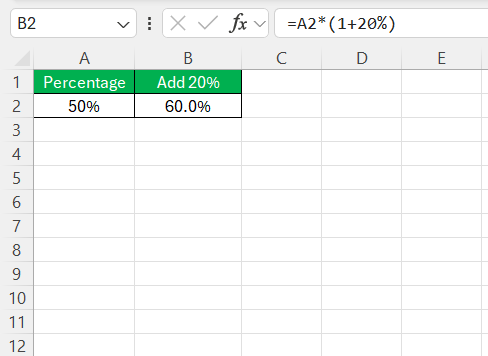
This method will efficiently add a percentage to the value.
Subtraction
To subtract a fixed percentage from a value, you can use the formula:
= number * (1 – percentage)
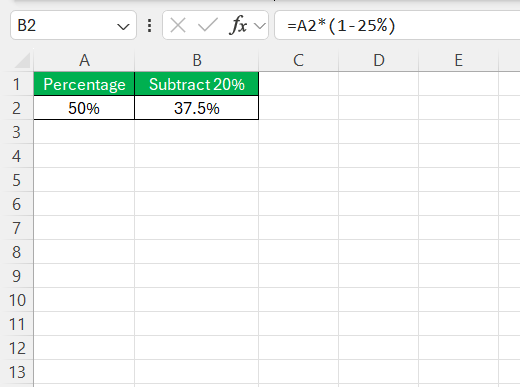
This formula is helpful when you need to reduce a price, budget, or any numerical value by a fixed percentage.
Tips & Tricks
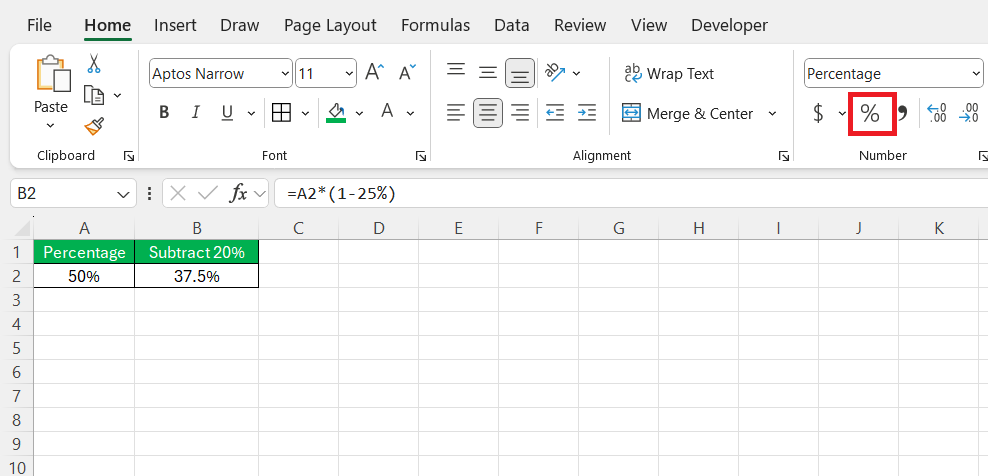
Format Numbers as Percentages
Clear data presentation is important in data analysis. You need to format numbers as percentages to make them easier to understand. This allows you to comminicate message clearly without any confusion.
Avoiding Common Errors
It is important to avoid common errors so that you get an accurate result in Excel. You should use brackets in the formula according to the order of operations. This forces Excel to follow the order as per the brackets only. This method is useful when your formula has multiple steps or combined calculations.
FAQs
How to add percentages in Excel?
You can add a percentage in Excel by multiplying the original number by (1 + percentage). For example, to add 10% to 100, you can use the formula:
= 100 * (1+ 0.1)
= 110
How to reduce a number by a fixed percentage?
You can subtract a percentage in Excel by multiplying the original number by (1 – percentage). For example, to subtract 10% to 100, you can use the formula:
= 100 * (1 – 0.1)
= 90
How to take 20% off a price in Excel?
You can reduce the price by 20% using this formula:
=Price*(1-0.20)
For example, if an item costs $50, the discounted price will be:
= 50 * (1 – 0.20)
= 40
How does Excel handle percentages?
Excel treats percentages as decimal values. For example, when you type 10% in a cell, Excel converts it to 0.1.
John Michaloudis is a former accountant and finance analyst at General Electric, a Microsoft MVP since 2020, an Amazon #1 bestselling author of 4 Microsoft Excel books and teacher of Microsoft Excel & Office over at his flagship MyExcelOnline Academy Online Course.

 30 Days - Full Access









