 Free Practice Workbook
One of the most commonly used operators by accountants and analysts is the square root. It is useful to calculate standard deviation, distance, variance, scientific value,s and more. So, it is important to understand how to calculate the square root. In this article, you will learn how to insert the square root symbol in Excel and calculate it as well.
Key Takeaways:
- Use keyboard shortcuts to insert square root symbols.
- Use the UNICHAR function to insert the symbol.
- The SQRT function can be used to calculate the square root in Excel.
- The POWER function and exponential operator are used for root calculations beyond square roots.
- Handle negative numbers by using the ABS function.
Table of Contents
Introduction to Square Roots
The square root of a number is a value that, when multiplied by itself, will return the original number.
For example:
- √25 = 5
- √100 = 10
Excel has a function called SQRT that can be used to calculate the square root of a number.
 this
this
Step-by-Step Guide: How to Type Square Root
Using Keyboard Shortcuts
Use keyboard shortcuts to speed up your calculations.
- For Windows: Press Alt + 251 to insert the square root symbol.
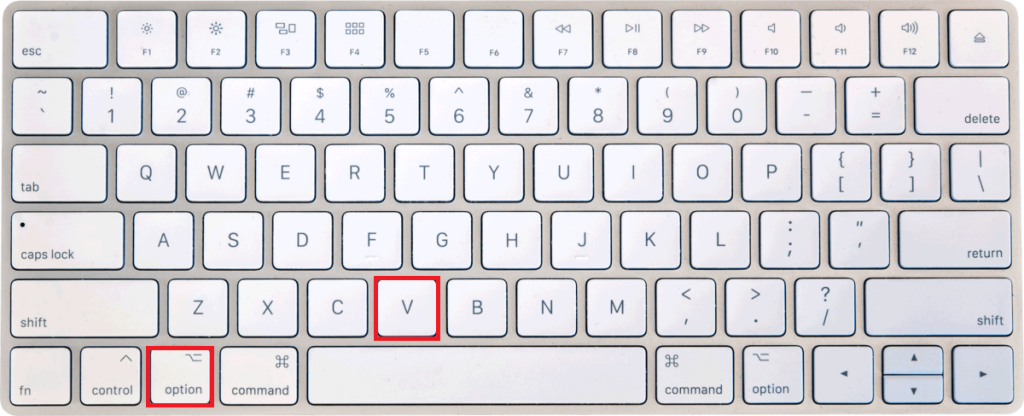
- For Mac: Press Option + V to insert the square root symbol.
UNICHAR Function
When precision is the name of the game, and you’re seeking a bit more control over your document’s appearance, diving into the Symbol insertion techniques is the way to go.
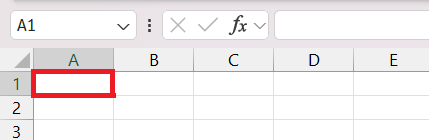
STEP 1: Select the cell where do you want to insert the square-root symbol.
STEP 2: Type in the formula “=UNICHAR(8730)“.
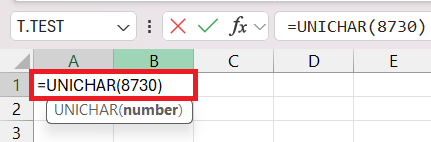
STEP 3: Press enter and Voila! The square root symbol will be inserted.
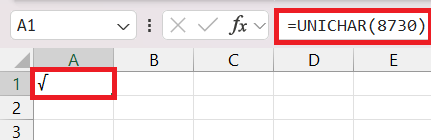
This method allows you to insert the symbol exactly where it suits you best, ensuring your work doesn’t just calculate right, it looks right too.
SQRT Function in Excel
Grasping the SQRT function syntax is like unlocking a secret mathematical door in Excel. With the simple formula =SQRT(number), a world of roots is at your fingertips. Remember, number is the hero in this tale and it’s the value of which you’re seeking the square root. Let’s find out the square root of 625 with the following steps:
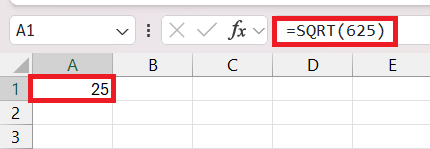
STEP 1: Let’s use the “=SQRT()” function in cell A1 and insert the formula “=SQRT(625)”.
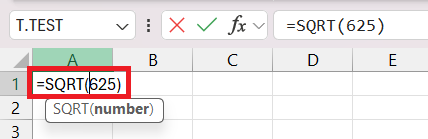
STEP 2: Press enter and check the result as 25, as it is the square root of 625.
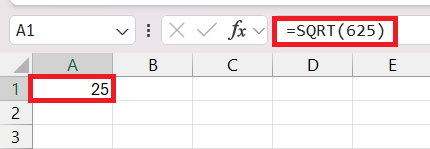
Alternative Methods for Square Root
POWER Function
Expand your numerical toolkit with the POWER function – it’s not just about exponents; it’s a master of roots as well! Dive into any root calculation with ease, plugging in the number and the reciprocal of the desired root into =POWER(number, power).
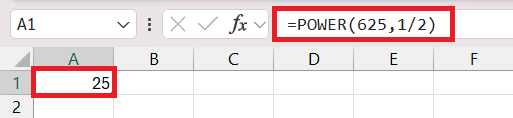
Think beyond squares and cubes; any root is now just a formula away, broadening the horizon of your data analysis potential. It’s a robust alternative to the SQRT function, especially when you need to explore beyond square roots. Use the formula “=POWER(625,1/2)” to find the square root of 625 using the POWER function.
Exponential Operator
Excel allows you to use an exponent operator to calculate the square root.
=number^(1/2)
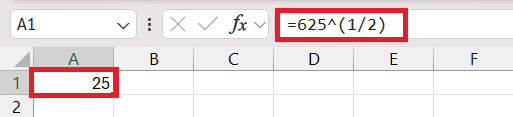
This method can be used to calculate cube roots, nth roots, or even squares by switching up the exponent.
Advanced Square Root Operations
Dealing with Negative Numbers and Errors
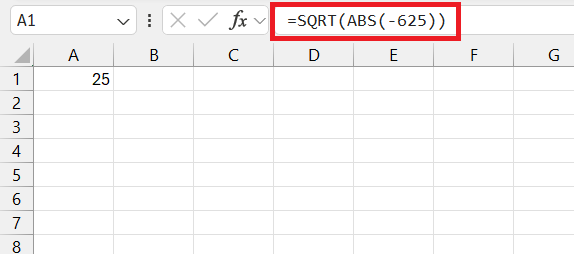
Wrestling with negative numbers and errors in Excel can be a real headache, but it doesn’t have to be. Always ensure the number you feed to the SQRT function is as positive as an optimist’s outlook. Facing negative numbers?
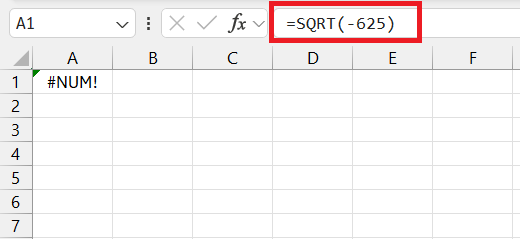
You can pair the SQRT function with ABS function to convert negative number to positive and then get square root of the converted number.
FAQs
How to write square root in Excel?
To write the square root in Excel, use the SQRT function. Enter =SQRT(cell), replacing ‘cell’ with the cell reference of the number you want to find the square root of. For direct numbers, type =SQRT(number), replacing ‘number’ with the actual digit.
What is the shortcut key for square root in Excel?
In Excel, there isn’t a direct shortcut key that inputs the square root symbol, but you can type ALT + 251 on the numeric keypad to insert it into a cell. Remember to enable Num Lock on your keyboard.
How to type 2 squared in Excel?
To type 2 squared in Excel, enter =2^2 in a cell. The caret symbol (^) represents exponentiation, raising the number 2 to the power of 2, which calculates to 4.

John Michaloudis is a former accountant and finance analyst at General Electric, a Microsoft MVP since 2020, an Amazon #1 bestselling author of 4 Microsoft Excel books and teacher of Microsoft Excel & Office over at his flagship MyExcelOnline Academy Online Course.

 30 Days - Full Access









