 Free Practice Workbook
The IF function is used to determine whether a condition is met or not. You can combine it with AND and OR functions to check multiple criteria. In this article, you can learn how to use IF with AND and OR functions in Excel.
Key Takeaways:
- IF function is used to check whether a condition is TRUE or FALSE
- The AND function is used when all conditions should be met.
- The OR function is used when at least one condition should be met.
- Apply the AND or OR function in the 1st argument of the IF function.
Table of Contents
Understand the functions
IF function
The IF function is used to check whether a condition is TRUE or FALSE. The syntax of the IF function is:
=IF(logical_test, value_if_true, value_if_false)
- logical test – It is the condition that you have to check.
- Value if true – The value that will be displayed if the condition is met.
- Value if false – The value that will be displayed if the condition is not met.
Suppose you have a list of student scores in a column. You can use the IF function to check the scores:
- Score > 60, student passes.
- Score <= 60, student fails.
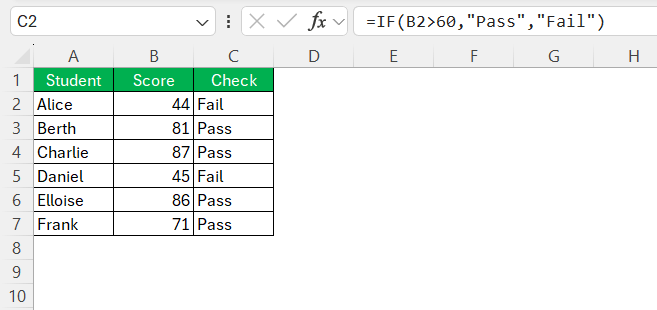
But the limitation of the IF function is that it can only test one condition.
AND Function
The AND function is a tool that is based on the logic of ‘all or nothing’. It checks multiple criteria and returns:
- TRUE – If all the conditions are met.
- FALSE – If even one condition is not met.
The syntax will be:
=AND(logical1, [logical2], …)
OR Function
The OR function is used when you need at least one of the conditions to be true. This function will return:
- TRUE – If at least one of the conditions is true.
- FALSE – If all the conditions are not met.
The syntax will be:
=OR(logical1, [logical2], …)
Combine IF with AND & OR
The real magic begins when you combine the IF function with AND & OR. You have to nest AND & OR inside the logical test argument of the IF function. This will allow you to test multiple complex rules at once, instead of being limited to a single condition.
IF with AND
Suppose you have to give an employee a bonus if the salary is over $5000 and they have worked for more than 100 hours. You can use the AND function to evaluate both conditions simultaneously and the IF function to return the result.
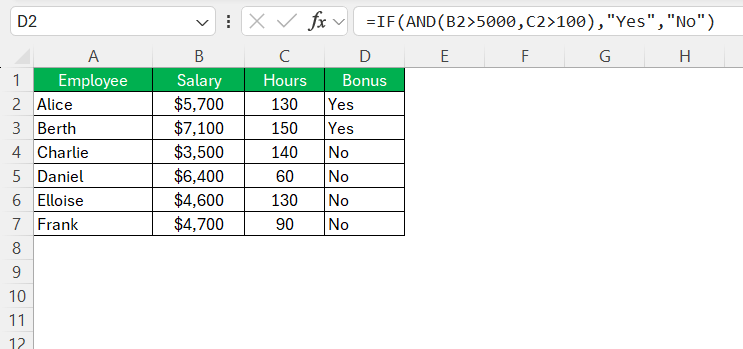
In this first scenario, the salary is $5,700, and the hours worked are 130. Both conditions are met, so Excel will return the value – Yes.
IF with OR
The company decides to give a bonus if an employee’s salary is over $5,000 OR if they have worked more than 100 hours. Only one of these needs to be true.
For Alice, the salary is $5,700, but the hours worked are only 50. One condition is met, so Excel will return the value – Yes.
Nesting Both Together
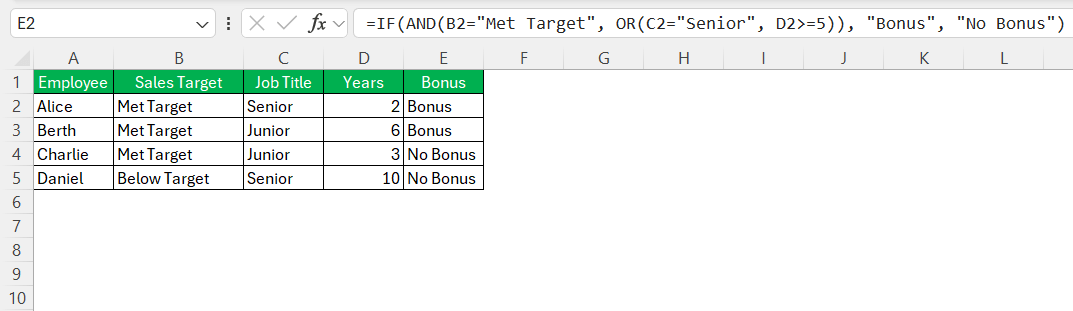
Imagine the company has decided to give a bonus to an employee if
- Primary Criteria – The sales target is met
- Secondary Criteria – The employee is a senior manager or has worked for more than 5 years.
The primary condition should be met, and one of the secondary criteria should be met.
For Alice, the sales target is met, and the title is senior manager, but the number of years worked is less than 5 years. The primary condition and one of the secondary condition is met, so the result will be yes.
Troubleshoot Common Errors
- #NAME? Error: If you spell the name of the function incorrectly, or you miss a quotation mark around a text.
- #VALUE! Error: If the logical test contains an error or incompatible data types.
- Wrong Result: The logic may be incorrect. It is important to remember that AND is exclusive and OR is inclusive.
FAQs
How many conditions can you check in the AND function?
When you are using an AND or OR function, you can test up to 255 individual conditions.
Can you keep the 3rd argument of the IF function empty?
Yes, you can keep the third argument (i.e. value if false) empty. If it is empty, Excel will return the value – FALSE.
Why is the IF function showing a #NAME? error?
This usually means there is a typo in the function name. If you type IFF instead of IF.
How to combine AND and OR in the same IF statement?
The 1st argument of the IF function can be used to combine AND and OR functions. You can create a formula to check that the primary condition is met and any of teh two secodnary conditions are met.
Is there a difference between using >60 and >=60?
Yes. >60 means the score must be 61 or higher to pass. >=60 means 60 itself is also a passing grade.

John Michaloudis is a former accountant and finance analyst at General Electric, a Microsoft MVP since 2020, an Amazon #1 bestselling author of 4 Microsoft Excel books and teacher of Microsoft Excel & Office over at his flagship MyExcelOnline Academy Online Course.

 30 Days - Full Access









