Key Takeaways
- To invert picture colors in PowerPoint, right-click the desired slide, choose “Save as Picture” to save the slide as an image and remember to name the file for easy identification.
- Open the saved image in Paint by right-clicking it and selecting “Open With > Paint,” use the ‘Ctrl + A’ shortcut to select the image, then right-click and choose “Invert Color.”
- After inverting the image in Paint, save it, and then insert it back into your PowerPoint by going to the “Insert” tab and clicking on “Pictures,” resize and adjust the placement as necessary on the slide
Using PowerPoint’s Built-In Features for Inversion
PowerPoint simplifies your life when you want to invert an image. There’s no need for an external editor; all the magic happens within the program!
STEP 1: Right-click the desired slide that contains the image, choose “Save as Picture” to save the slide as an image and remember to name the file for easy identification.
STEP 2: Open the saved image in Paint by right-clicking it and selecting “Open With > Paint,” use the ‘Ctrl + A’ shortcut to select the image, then right-click and choose “Invert Color.”
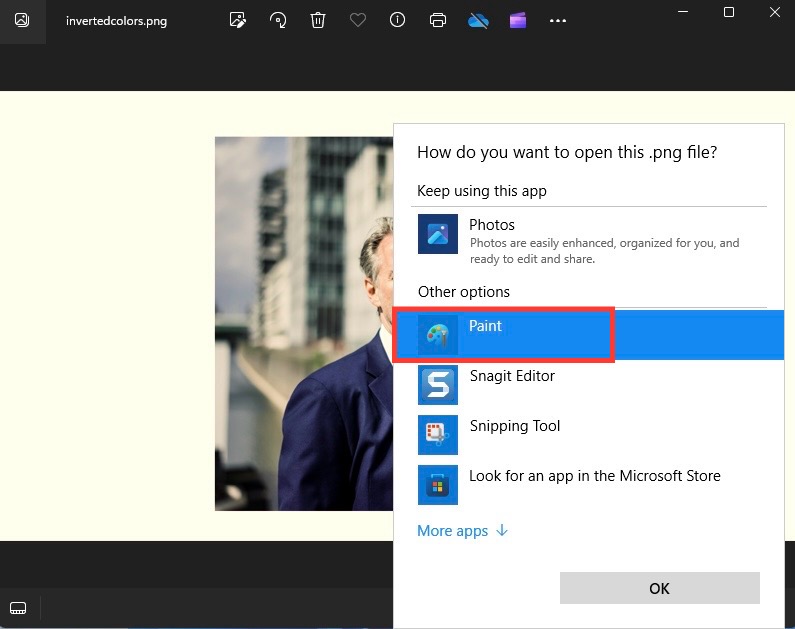
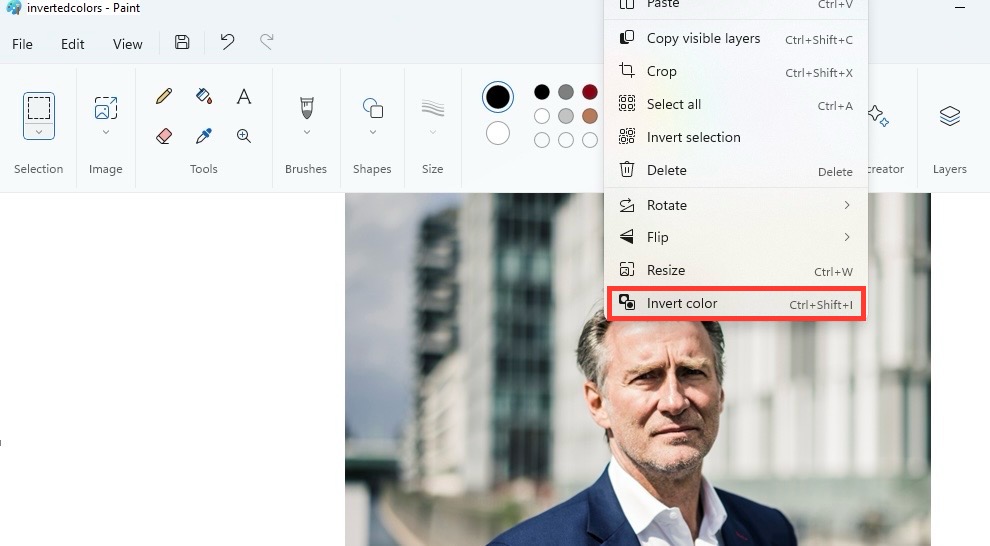
STEP 3: After inverting the image in Paint, save it, and then insert it back into your PowerPoint by going to the “Insert” tab and clicking on “Pictures,” resize and adjust the placement as necessary on the slide.
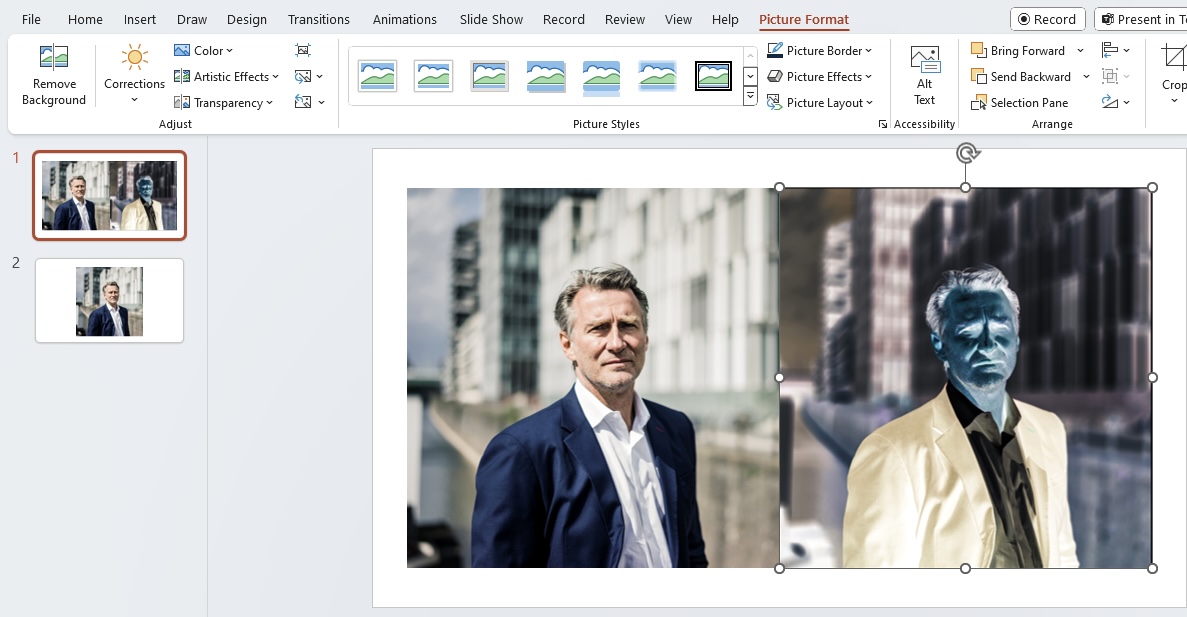
Adjusting Color Saturation and Tone after Inversion
Now, let’s talk about putting the finishing touches on your inverted images. Adjusting the color saturation and tone can drastically change the mood of your slide. To tweak these:
STEP 1: Click on your inverted picture and again head to the ‘Picture Format’ tab.
STEP 2: Use the ‘Color’ dropdown to toggle saturation
STEP 3: Select ‘Color Tone’ and pick a temperature that matches your slide’s color scheme.
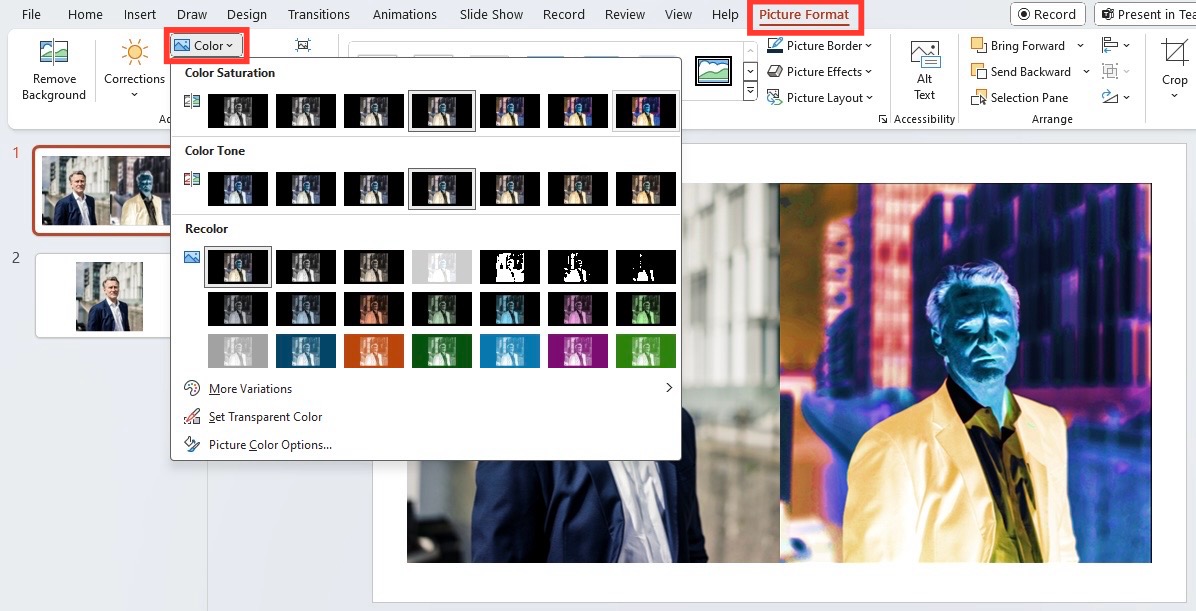
Resetting Images Back to Original Format
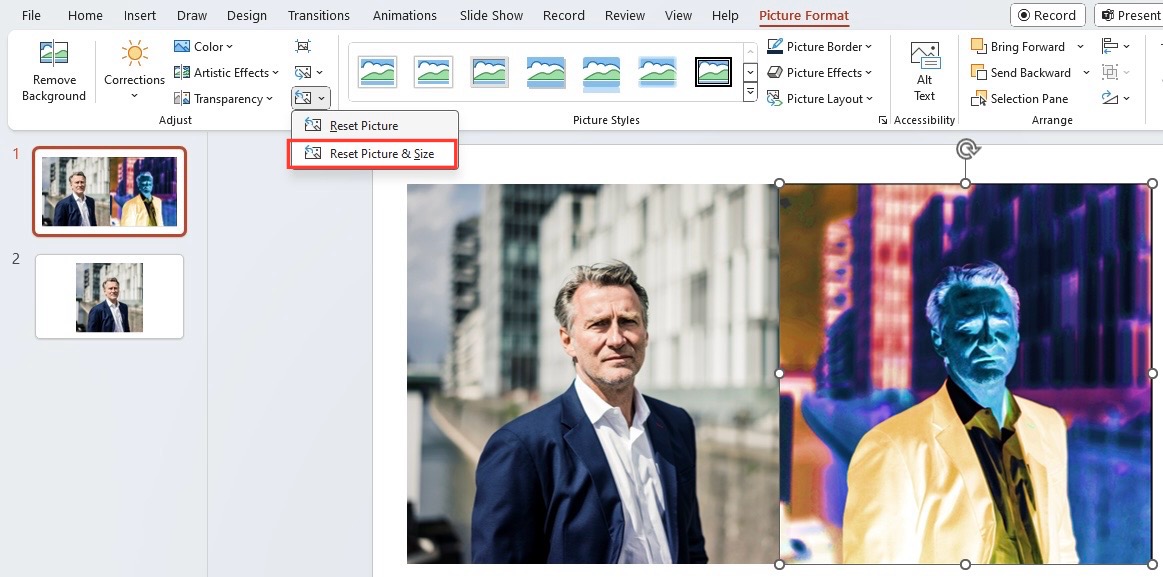
If you ever feel like your artistic venture didn’t pan out as expected, PowerPoint has your back! To revert your image to its original state:
STEP 1: Select the transformed image on your slide.
STEP 2: Click on the ‘Picture Format’ or ‘Format’ tab in the ribbon.
STEP 3: Find and click on the ‘Reset Picture’ button.
STEP 4: Choose ‘Reset Picture & Size’ .
Frequently Asked Questions
Is it possible to invert picture colors on PowerPoint for Mac?
Yes, inverting picture colors on PowerPoint for Mac follows a similar process to that on a PC—use the ‘Format Picture’ options to tweak and invert as needed.
What should I do if inverted images appear differently during presentations?
If inverted images appear differently, double-check them on various devices before presenting and adjust your presentation settings to match the display you’ll use most often.
Can I save an inverted image from PowerPoint to use elsewhere?
Yes, you can do this by right-clicking the inverted image, selecting ‘Save as Picture.’

John Michaloudis is a former accountant and finance analyst at General Electric, a Microsoft MVP since 2020, an Amazon #1 bestselling author of 4 Microsoft Excel books and teacher of Microsoft Excel & Office over at his flagship MyExcelOnline Academy Online Course.

 30 Days - Full Access









