 Free Practice Workbook
One of the most useful operators to manage data in Excel is the “less than or equal to” sign (≤). This symbol helps compare values and set conditions efficiently. In this guide, I will show you how to use the less than or equal to operator in Excel.
Key Takeaways:
- The less than or equal to operator in Excel helps compare values.
- You can insert the symbol using the Symbol dialog box, keyboard shortcuts, or AutoCorrect.
- The ≤ operator returns TRUE or FALSE based on value comparison.
- COUNTIF and SUMIF can be used to analyze and summarize data.
- Conditional formatting and IF statements use this symbol to categorize and automate decision-making
Table of Contents
Introduction to Less Than or Equal To Sign
The Less Than or Equal To sign (<=) is one of the most commonly used comparison operators in Excel. It can be used to compare whether one value is:
- Smaller than or
- Equal to another value
How to Use Less Than or Equal To
Symbol Dialog Box
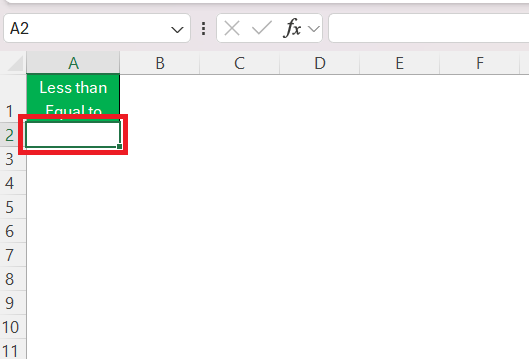
- Select the cell where you want the symbol.
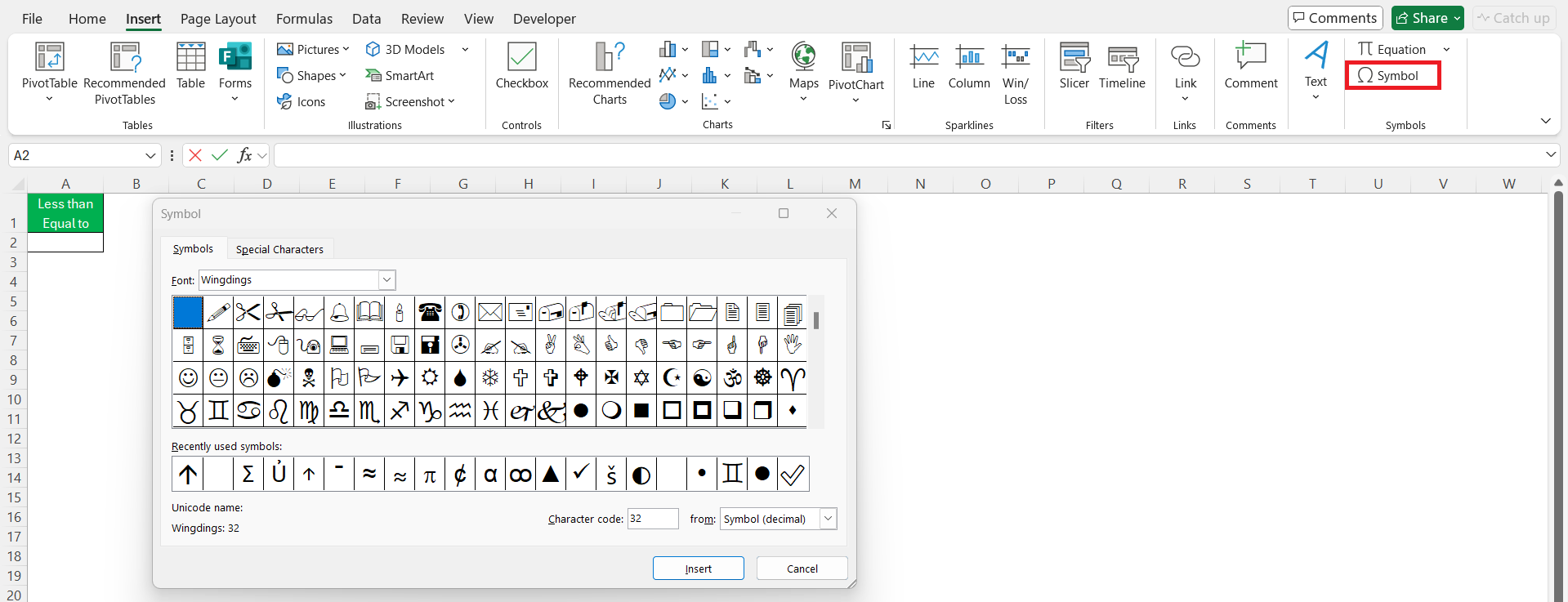
- Go to the Insert > Symbol.
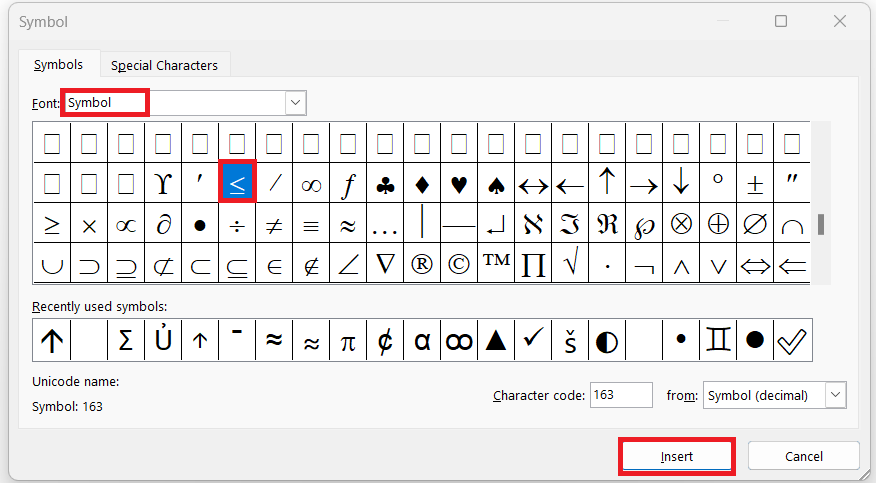
- In the dialog box, select the ≤ symbol and click Insert.
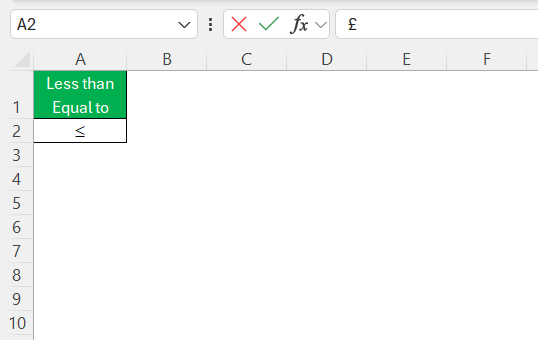
- Once inserted, you can close the dialog box.
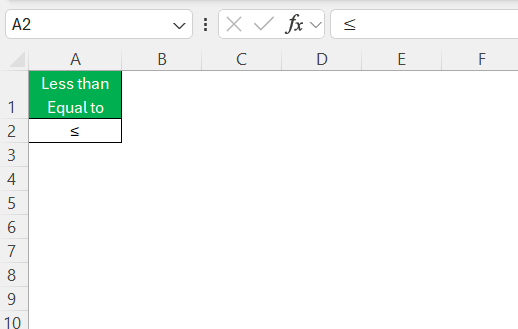
Keyboard Shortcuts
Keyboard shortcuts offer a quick way to insert the less than or equal to sign in Excel. On Windows,
- Hold the ALT key
- Press 243 on the numeric keypad
AutoCorrect Options
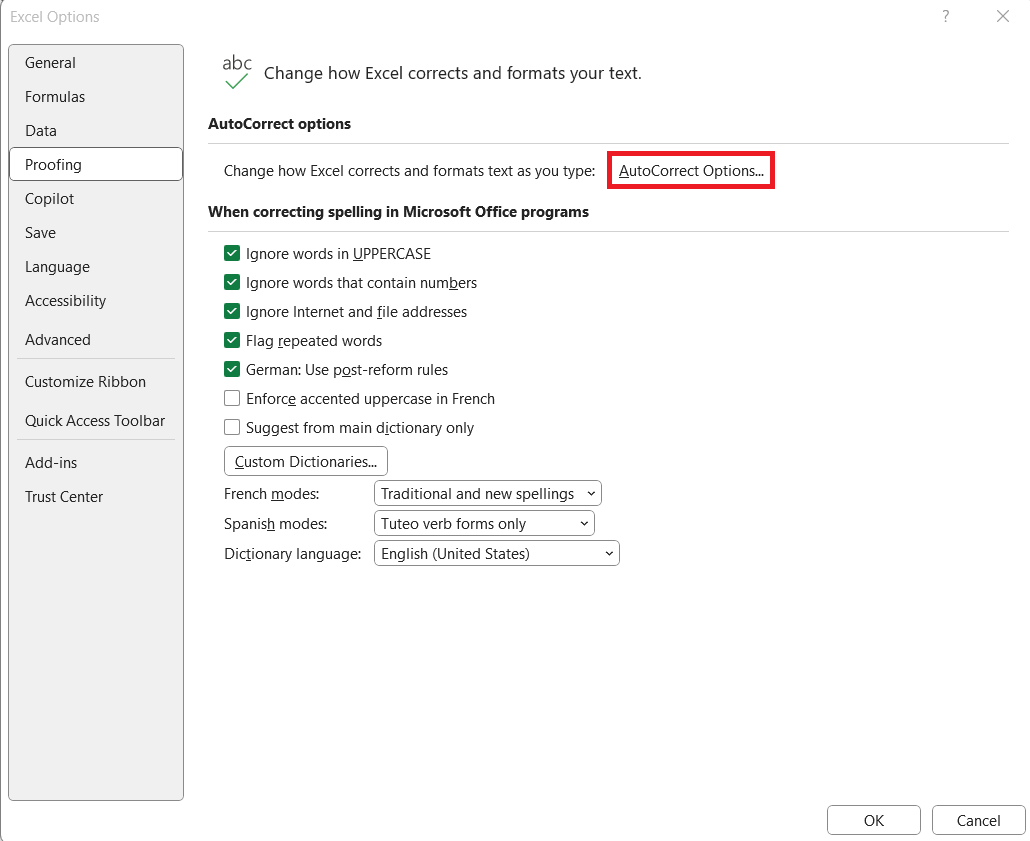
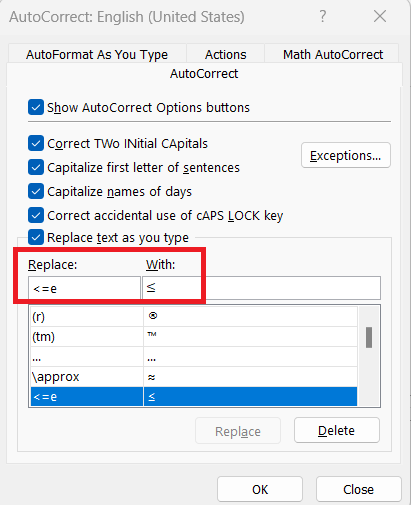
AutoCorrect shortcuts can be used to automatically convert a typed text string to a symbol.
- Go to the File tab
- Select Options
- Click on Proofing
- Choose AutoCorrect Options
- In the dialog box, select the AutoCorrect tab.
- In the replace field, type “<=e”
- In the with field, type the ≤ symbol
- Click Add
- Press OK
Use <= in Formulas
Suppose you want to check if a number is less than or equal to another number:
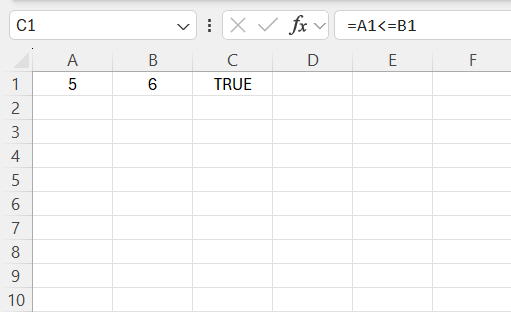
If A1 contains 5 and B1 contains 10, the formula will return TRUE. This is because the value in A1 is less than the value in cell B1.
Practical Uses
Combine with IF Statements
You can use the IF function in combination with the less than or equal to sign to perform logical tests.
=IF(logical_test, value_if_true, value_if_false)
Suppose you want to check whether a student’s test score is less than or equal to 40.
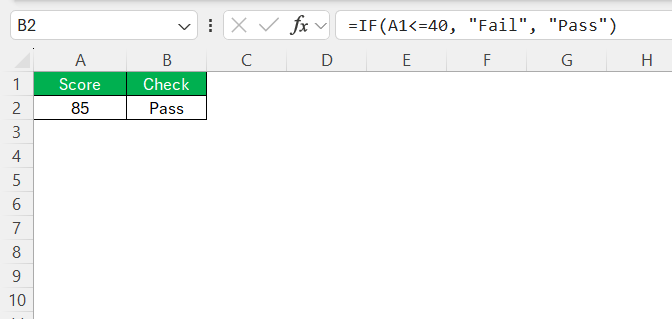
If the logical condition is met, Excel will return TRUE; else it will return FALSE.
Combine with COUNTIF and SUMIF
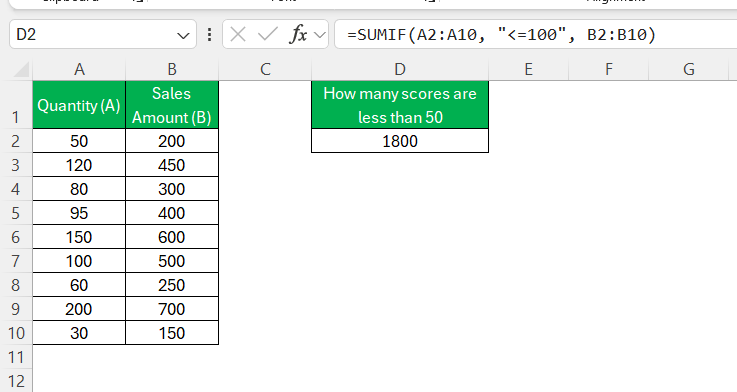
You can combine the COUNTIF and SUMIF functions with the less than or equal to sign to count or sum values that are below a certain threshold.
For instance, to count how many students scored below or equal to 50, you can use this formula:
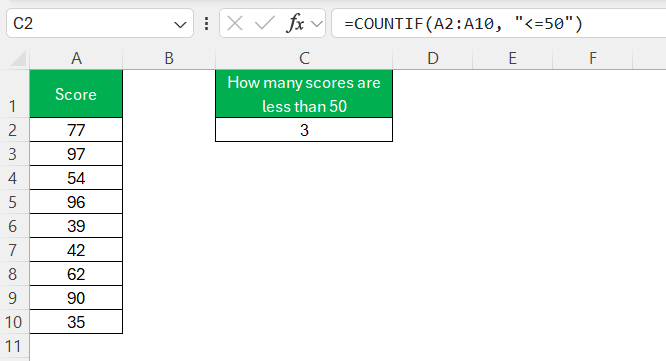
Similarly, SUMIF can be used to calculate the total of values associated with specific criteria. For example, if you want to sum the sales amounts for quantities that are 100 or less, the formula would be:
FAQs
How to use <= sign in Excel?
You can insert a “less than or equal to” sign in Excel by keyboard shortcuts. You can press ALT + 243 on Windows to insert this symbol.
How to use less than or equal to with logical operators?
You can combine the less than or equal to symbol with an IF statement to compare values.
=IF(A1<=10, "True", "False")
Why use less than or equal to symbol in conditional formatting?
You can use the “less than or equal to” symbol in conditional formatting to apply specific formatting to cells that meet the condition.
What shortcut to use to insert this symbol on a Mac?
To insert the “less than or equal to” symbol on a Mac, hold the “Option” key and press the comma (,) key.
What will the formula =a1>b1 return?
The formula =A1>B1 will return TRUE if the value in cell A1 is greater than the value in cell B1. If A1 is not greater than B1, it will return FALSE.

John Michaloudis is a former accountant and finance analyst at General Electric, a Microsoft MVP since 2020, an Amazon #1 bestselling author of 4 Microsoft Excel books and teacher of Microsoft Excel & Office over at his flagship MyExcelOnline Academy Online Course.

 30 Days - Full Access









