 Free Practice Workbook
Whether you’re dealing with data analysis, creating reports, or just managing lists, handling list of state abbreviations correctly can save you a lot of time and hassle. In this article, I’ll walk you through the steps and share some tips on how to manage state abbreviations efficiently in Excel.
Key Takeaways:
- Creating Lookup Tables: Establish a two-column lookup table with state names and their corresponding abbreviations to simplify conversions using the VLOOKUP function.
- Converting Abbreviations: Use the INDEX and MATCH functions to convert state abbreviations back to full state names.
- Named Ranges: Define and use named ranges to keep formulas clean
- Data Validation: Implement data validation to ensure that only valid state abbreviations are entered
Table of Contents
Getting Started with State Abbreviations
Converting State Names to Abbreviations
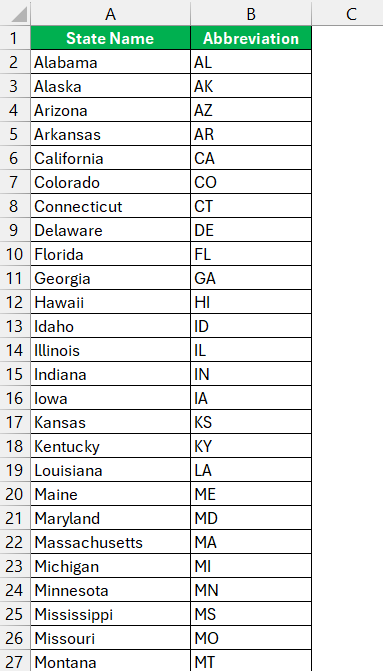
STEP 1: Create a two-column table with state names in one column and their abbreviations in the second column. See example below:
STEP 2: To convert the state names to abbreviations, I use the VLOOKUP function:
=VLOOKUP(B2, Sheet1!A:B, 2,0)
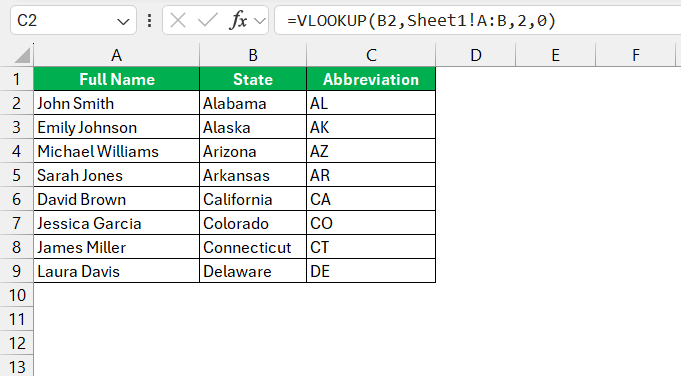
In this formula, let us break it down:
B2is the cell containing the state name I want to convertA:Bis the range of the lookup table2indicates the second column of the table (which contains the abbreviations)- and
0ensures an exact match.
Converting Abbreviations to State Names
For converting abbreviations back to full state names, I use the Index Match formula in Excel.
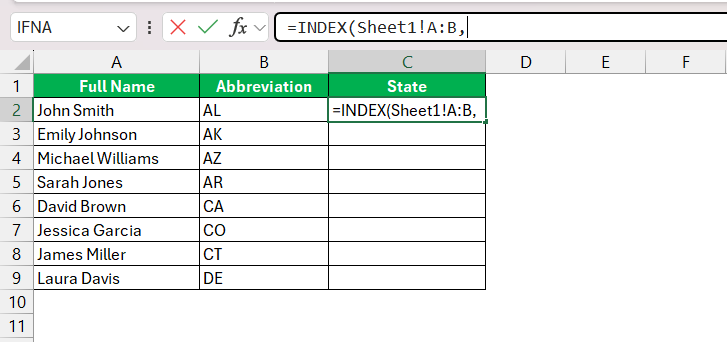
STEP 1: Enter the INDEX formula and the first argument of the INDEX formula – array.
=INDEX(Sheet1!A:B,
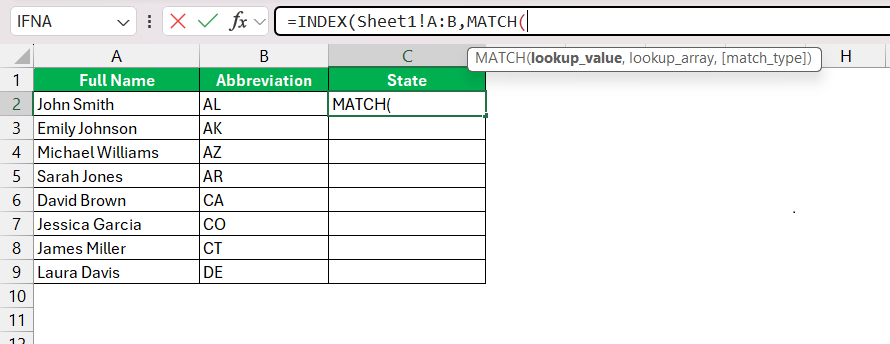
STEP 2: Enter the MATCH function
=INDEX(Sheet1!A:B,MATCH(
STEP 3: Enter the arguments –
- First argument of the MATCH function – lookup_value. This is the abbreviation mentioned in cell B2.
- Second argument of the MATCH function – lookup_array. This is the column containing the list of abbreviations i.e. B:B.
- Third argument of the MATCH function – match_type. This is 0 for an exact match.
=INDEX(Sheet1!A:B,MATCH(B2,Sheet1!B:B,0)
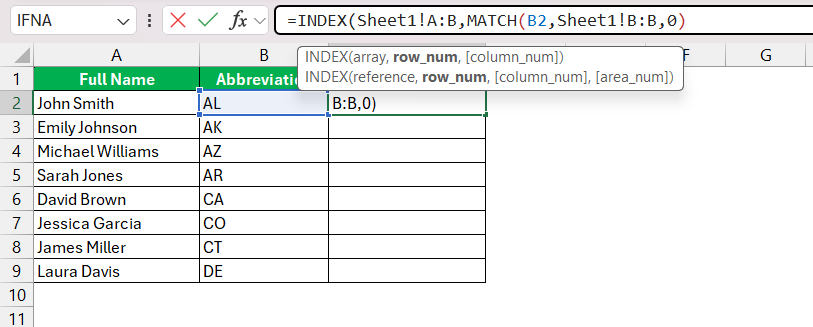
STEP 4: Enter the row number. Here, it is 1.
=INDEX(Sheet1!A:B,MATCH(B2,Sheet1!B:B,0),1)
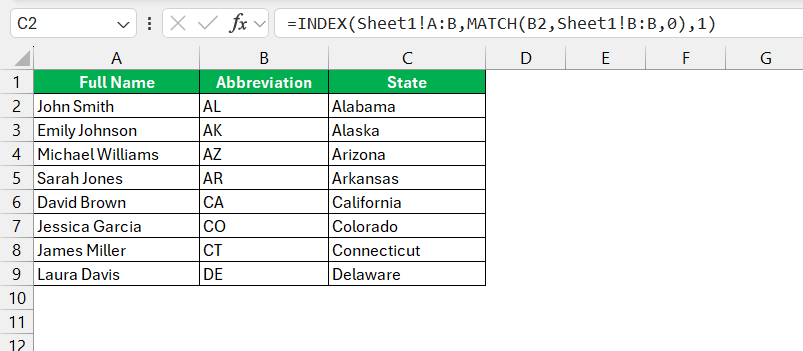
Advanced Techniques
Using Named Ranges
To make my formulas cleaner and easier to manage, I often use named ranges like this example below:
STEP 1: Select the lookup table (e.g., $A$1:$B$52) and assign it a name like “StateLookup”
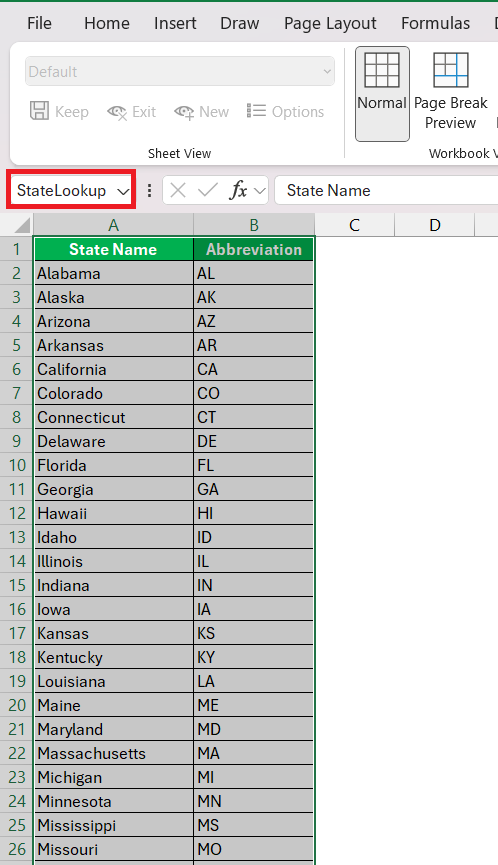
STEP 2: Update the VLOOKUP formulas to use this named range:
=VLOOKUP(B2, StateLookup, 2, FALSE)
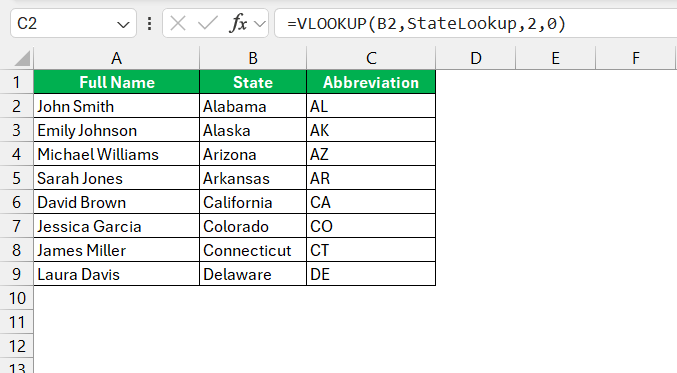
Data Validation for State Abbreviations
STEP 1: Select the cells where you want to enter state abbreviations.

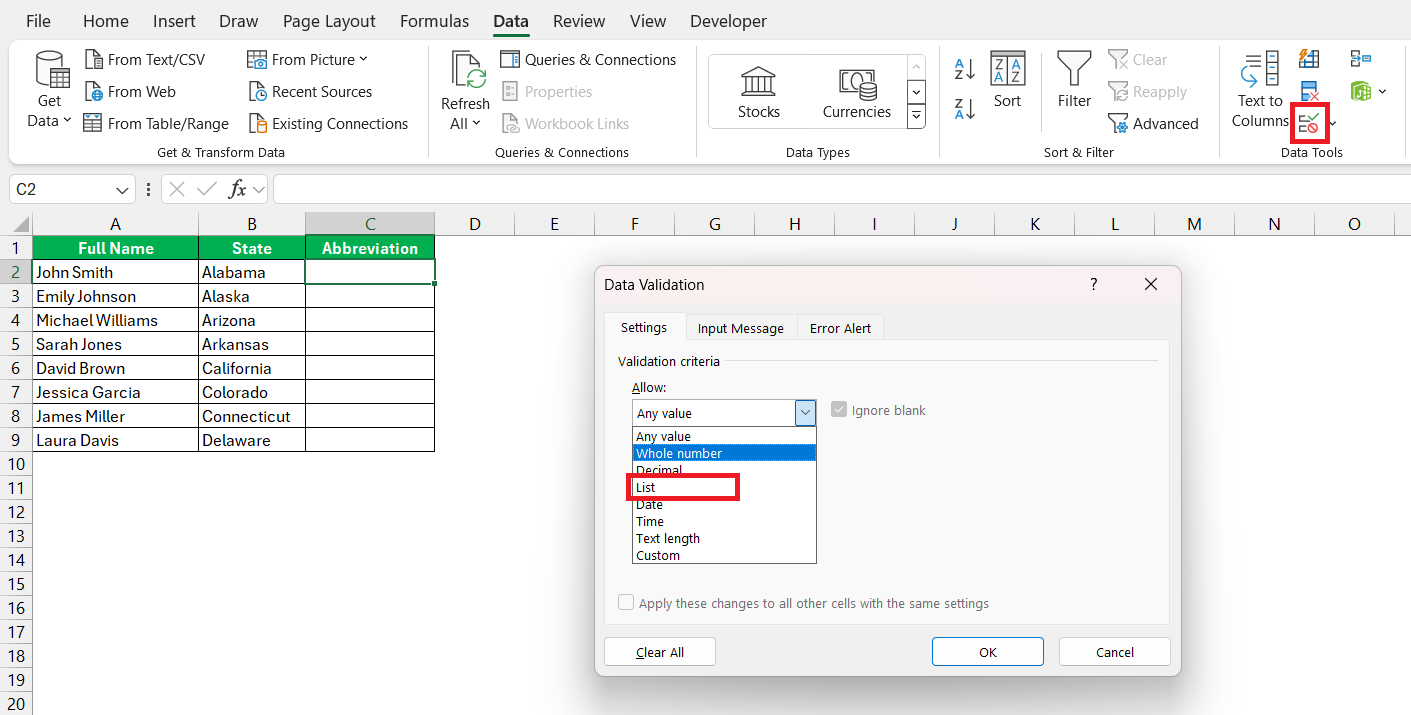
STEP 2: Go to Data > Data Validation and choose List from the Allow drop-down menu.
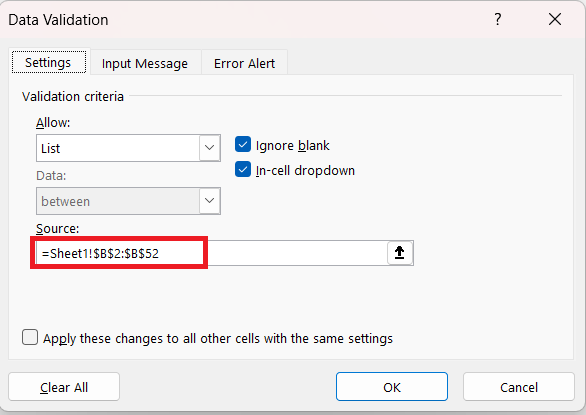
STEP 3: Enter the range containing my state abbreviations (e.g., $B$2:$B$52). This way, users can only enter valid state abbreviations.
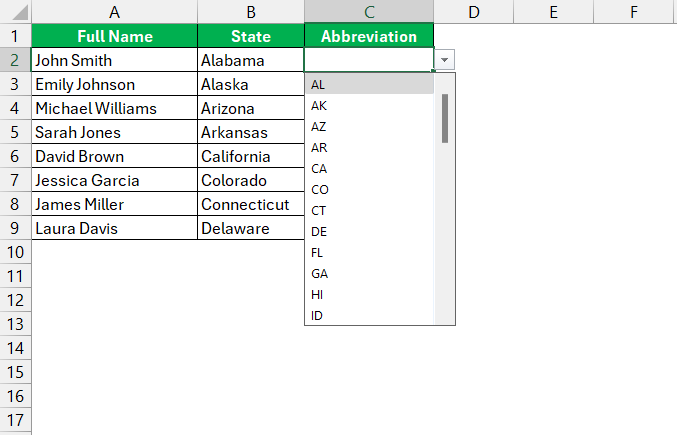
The abbreviation will be displayed in the list.
FAQs on US State Abbreviations for Excel
Is there an Excel formula for state abbreviations?
Yes, there is an Excel formula to convert state abbreviations to full names. You can use the VLOOKUP or XLOOKUP function alongside a lookup table that lists abbreviations and their corresponding full states. For instance, =VLOOKUP(A2, $D$1:$E$51, 2, FALSE) retrieves full state names based on abbreviations in column A. With XLOOKUP, use =XLOOKUP(A2, $D$1:$D$51, $E$1:$E$51, "Not Found") for a more flexible search.
Are there any exceptions to the two-letter abbreviation rule for states and territories?
Yes, there are exceptions to the two-letter abbreviation rule. Eight states, due to their short names, are never abbreviated in text: Alaska, Hawaii, Idaho, Iowa, Maine, Ohio, Texas, and Utah. Territories and commonwealths like Puerto Rico and Guam also have two-letter abbreviations, despite not being states.
How do I find abbreviations in Excel?
To find abbreviations in Excel, use the ‘Find’ function (Ctrl+F). Enter the abbreviation or full name you’re looking for in the search field. If dealing with a list of abbreviations, you can use filters to display only specific abbreviations or apply conditional formatting to highlight them.

John Michaloudis is a former accountant and finance analyst at General Electric, a Microsoft MVP since 2020, an Amazon #1 bestselling author of 4 Microsoft Excel books and teacher of Microsoft Excel & Office over at his flagship MyExcelOnline Academy Online Course.

 30 Days - Full Access









