 Free Practice Workbook
When working in Excel, I frequently find myself needing to round numbers up to a specific multiple. That is where the CEILING function comes in handy. In this article, I will show you how to use ceiling function in Excel.
Key Takeaways:
- The CEILING function is used to round numbers up to a specified multiple.
- It will always rounding upward.
- It is useful for avoiding underestimations.
- The CEILING function is useful for pricing strategies, time management, and inventory planning.
- Make sure to use the correct sign for both the number and significance.
Table of Contents
Understanding the Ceiling Function
What is Ceiling Function?
The Ceiling function is used to round up numbers based on a multiple.
Here’s the syntax:
=CEILING(number, significance)
For instance, when you want prices to round up to the next fifty cents:
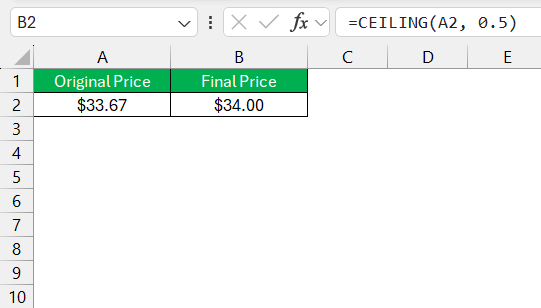
This particularly helps when you want to avoid underestimating costs, quantities, or time intervals.
How the Ceiling Function Differs from Other Rounding Functions
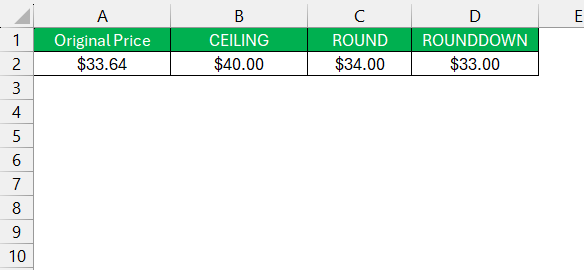
The Ceiling function stands out from other rounding functions mainly because it always rounds up to the nearest multiple that you’ve specified. Unlike the ROUND function, which can round digits up or down based on the value of the digit following the rounding digit, or the ROUNDDOWN function, which always rounds a number downwards.
How to use the CEILING function
Example 1: Pricing Strategies
When implementing pricing strategies, the Ceiling function is particularly handy for creating tiered pricing models or setting attractive price points.
By using the formula, I can convert any number in cell A1 to a price that ends in .99.
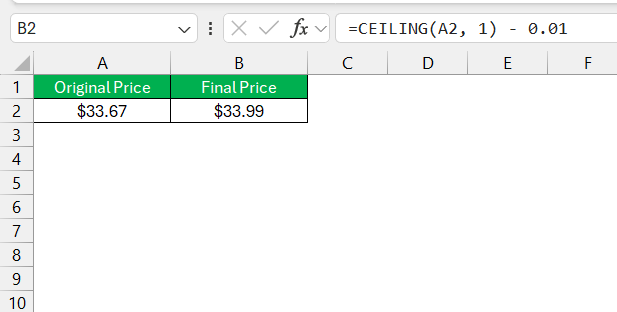
This strategy can stimulate purchases because prices ending in .99 tend to give the impression of a bargain. A similar approach can be used for wholesale or bulk pricing, rounding up to the nearest bundle unit and offering the product at a rate that encourages larger purchases while simplifying inventory management.
Example 2: Time Rounding
The Ceiling function is used to round up shift hours, appointments, or time-tracking entries.
By using =CEILING(A2, "0:15"), I can round up each log entry to the nearest quarter-hour.
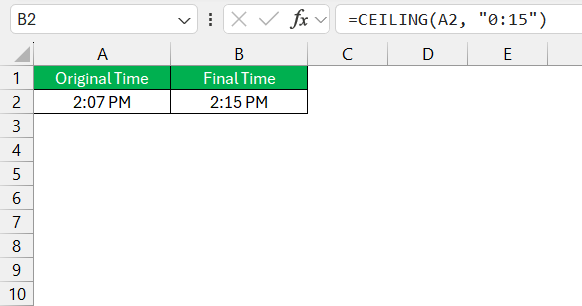
This will provide a standardized way of calculating billable hours or evaluating the time needed for tasks.. It simplifies time-related calculations and makes sure that employees are consistently compensated for their time,
Advanced Tips and Tricks
Round to Nearest Bundle Size or Multiple
Rounding to the nearest bundle size is a key aspect when dealing with products sold in specific quantities, like in bulk sales or when managing inventory levels.
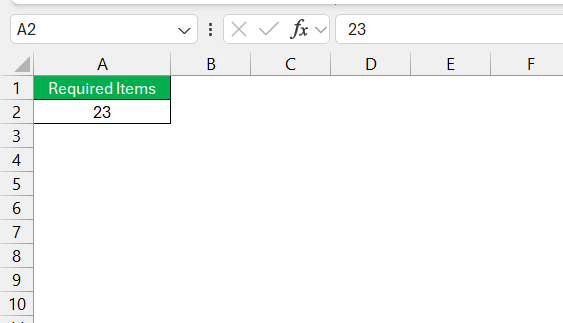
I employ the Ceiling function to determine the number of bundles needed to meet a particular demand. The significance value in the Ceiling formula represents the bundle size. If we’re looking at items bundled in groups of 5, and I need a total of 23 items, the formula =CEILING(A2, B2) will tell me exactly how many bundles to round up to.
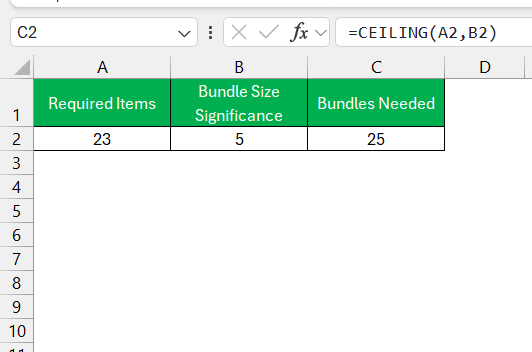
It simplifies order and inventory planning, ensuring businesses purchase or produce the correct amount without under or overstocking.
Common Missteps and Troubleshooting
Error Messages
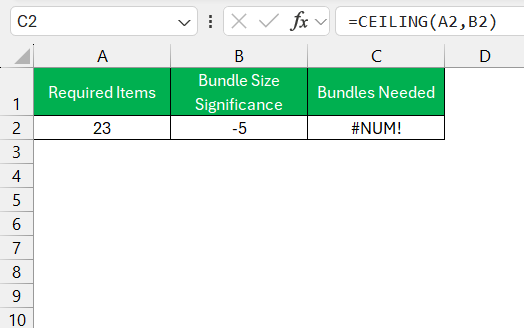
Encountering error messages while working with the Ceiling function in Excel can initially be disconcerting, but they’re usually straightforward to decode. A common error message is #NUM!, which occurs if the number and the significance parameters in the formula have different signs. This reminds me always to ensure that the sign (positive or negative) of the significance matches the number I’m rounding.
Another typical error is #VALUE!, which appears if the function contains non-numeric arguments. When this happens, I double-check the cell references and data types to make sure they’re appropriate for the function.
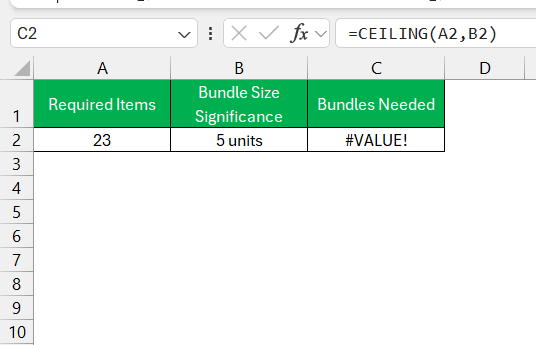
These error messages serve as helpful indicators that something in my formula needs adjustment. Once corrected, they disappear, and the Ceiling function operates as intended.
Ensuring Accuracy in Your Rounding Calculations
Ensuring accuracy in rounding calculations is paramount, especially when financial decisions or project estimations are at stake. To maintain precision in these calculations, I depend on the correct implementation of the Ceiling function considering every detail. This involves a clear understanding of the context and the significance value — the multiple to which you wish to round. Checking for consistency in the data types and avoiding mixing different units of measure is also crucial.
When entering formulas, I meticulously ensure that cell references are accurate and confirm that the formula is used consistently across the dataset. Another tip for ensuring accuracy is to use Excel’s auditing features to trace precedents and dependents, guaranteeing that the data input directly influences the expected cells.
Finally, setting up validation checks or conditional formatting rules to visually highlight any inconsistencies can further safeguard against inadvertent errors, providing an extra layer of confidence in the data’s reliability.
FAQs
How does ceiling function work in Excel?
The CEILING function in Excel works by rounding a number up to the nearest multiple of a specified significance. If I have a number that I want to round up to the nearest integer or decimal, CEILING is the function I use.
What is the syntax for the CEILING function in Excel?
The syntax for the CEILING function in Excel is quite straightforward: CEILING(number, significance). Here, number is the value I wish to round up, and significance is the multiple to which I want to round.
How to round a number up to the nearest 0.5 using the CEILING function?
To round a number up to the nearest 0.5 using the CEILING function, I would set the significance parameter to 0.5. The formula looks like =CEILING(number, 0.5). For example, to round 2.3 up to the nearest half, I would input =CEILING(2.3, 0.5) into Excel, which will return 2.5.
Can the CEILING function be used to round negative numbers?
Yes, the CEILING function can round negative numbers. However, when dealing with negative numbers in Excel’s CEILING function, the significance argument should also be negative to yield the expected results. The function will then round the number up towards zero. For example, =CEILING(-2.5, -1) would round -2.5 up to -2.
Are there any alternatives to the CEILING function for specific rounding requirements?
Yes, there are alternatives to the CEILING function for specific rounding requirements in Excel. The MROUND function rounds to the nearest specified multiple, which can go up or down. The FLOOR function is effectively the opposite of CEILING, always rounding down to the specified multiple.

John Michaloudis is a former accountant and finance analyst at General Electric, a Microsoft MVP since 2020, an Amazon #1 bestselling author of 4 Microsoft Excel books and teacher of Microsoft Excel & Office over at his flagship MyExcelOnline Academy Online Course.

 30 Days - Full Access









