 Free Practice Workbook
Table of Contents
Introduction to Midrange
Midrange is a statistical measure that represents the midpoint in a dataset. It is the average of the highest and lowest numbers.
Midrange = (Maximum + Minimum)/2
It is a useful measure that helps you provide a sense of the data spread. It helps you identify the overall variability of the data and also helps you spot any extreme value that can skew your data.
How to use the Midrange Formula
Follow the steps below to calculate the midrange formula:
STEP 1: Find the maximum value in your dataset using the MAX formula.
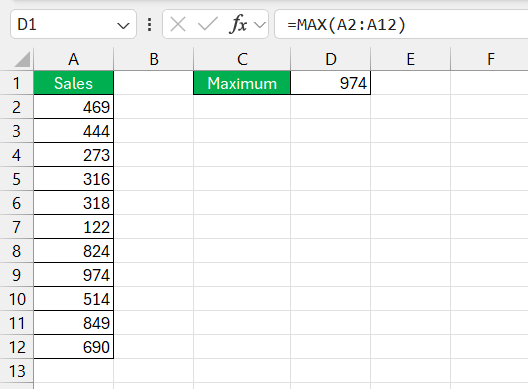
STEP 2: Find the minimum value using the MIN function.
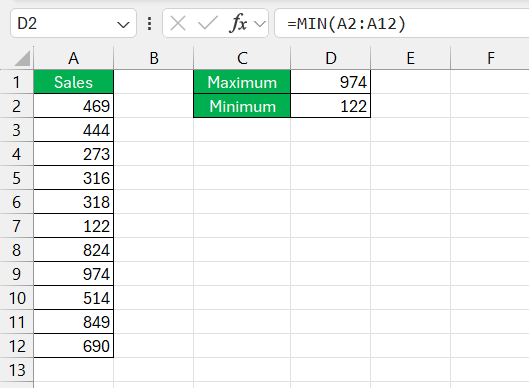
STEP 3: Add these two values together and divide by 2. The midrange value will be displayed.
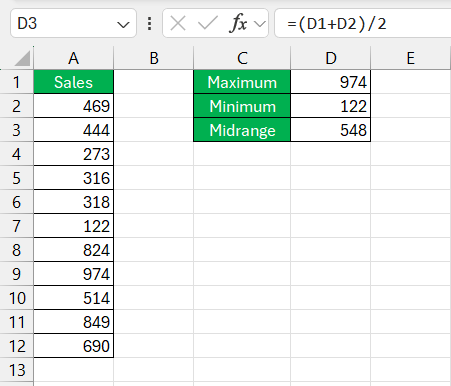
Remember to use parentheses so that the addition happens before division.
Midrange vs Other Statistical Measures
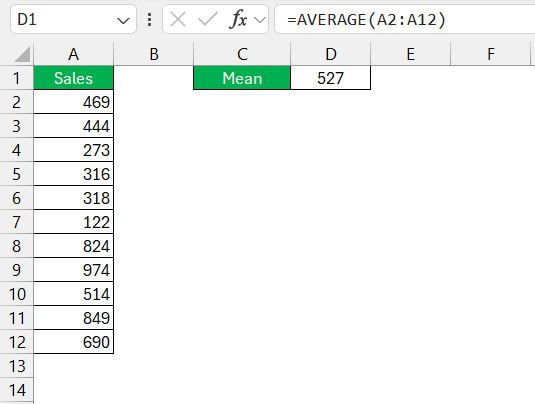
Mean, median, and midrange are statistical measures used to understand the data. Mean is the arithmetic average of the data. It is an all-inclusive average where all the data is included.
The median is the middle value when your data is lined up from smallest to largest.
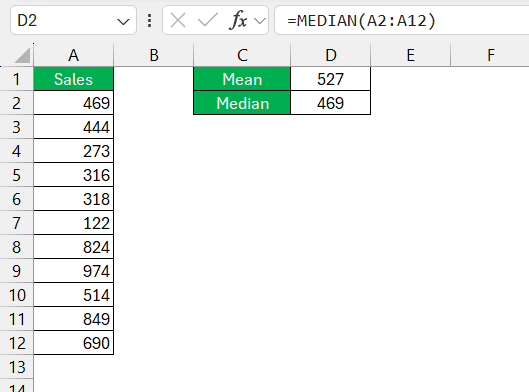
And the midrange?
It’s the harmonious midpoint, calculated from only the extremes. Each of these measures offers a unique take, with midrange standing out for its simplicity and utility in showing the spread of data, especially when speed trumps precision.
Opt for midrange when the clock’s ticking and you need a quick-and-dirty measure of your dataset’s centrality. It shines in those moments when precision can take a backseat to speed and simplicity. Whip it out during explorative phases of data analysis or when you’re comfortable that outliers won’t throw your conclusions out of whack.
But remember, the midrange is a bit like snorkeling in shallow waters—great for a surface look but not for the deep dive that some data sets require.
Advantages and Disadvantages of Using Midrange
The midrange is helpful as it tells you the middle value of the dataset. This method works best when the data is evenly spread and does not have any extreme values. Teachers can use it to know the test score range of their students. A stock analyst may use it to spot a stock’s trading band.
The value of the midrange can be misleading if the dataset contains any outliers. This is because midrange uses the smallest and largest values only. So, for a complex dataset, it is more reliable to use average or median values.
FAQs
What is the simplest way to calculate midrange in Excel?
The simplest way to calculate midrange in Excel is to use the formula: =(MAX(range) + MIN(range)) / 2. Replace ‘range’ with your actual range of cells containing the data. This formula combines the two essential Excel functions, MAX and MIN, to determine the midway point between the highest and lowest values in your data set.
What is the difference between midrange and median?
The midrange focuses on the outermost values of your dataset, while the median finds the middle value when the data is organized in order. Midrange can be influenced by extremes, but the median gives a better central value for skewed distributions.
How to calculate midrange in Excel?
To calculate midrange in Excel, you can use this formula:
=(MAX(range) + MIN(range)) / 2
What is the mid-function range in Excel?
The MID function in Excel isn’t actually related to calculating the midrange. Instead, it is used to extract a substring from the middle of a text string. To use the MID function, you specify the text string, the start position, and the number of characters to extract.

John Michaloudis is a former accountant and finance analyst at General Electric, a Microsoft MVP since 2020, an Amazon #1 bestselling author of 4 Microsoft Excel books and teacher of Microsoft Excel & Office over at his flagship MyExcelOnline Academy Online Course.

 30 Days - Full Access









