 Free Practice Workbook
Converting milliseconds to seconds in Microsoft Excel is a simple yet essential task for anyone working with time-based data. This process allows you to transform large millisecond values into more manageable and comprehensible seconds. By using Excel’s built-in functions and formulas, you can efficiently perform these conversions, streamlining data analysis and improving the clarity of your datasets. This guide will walk you through the steps needed to achieve this conversion seamlessly.
Key Takeaways:
- Converting milliseconds to seconds simplifies data analysis by making values more manageable.
- Use basic arithmetic or functions like CONVERT to efficiently convert milliseconds to seconds.
- Custom formatting and VBA macros can automate the time conversion process.
- Power Query is ideal for handling complex datasets or frequent time conversions.
- Real life uses include tracking event durations and analyzing response times.
Table of Contents
Methods to Convert Milliseconds to Seconds
Method 1: Simple Division
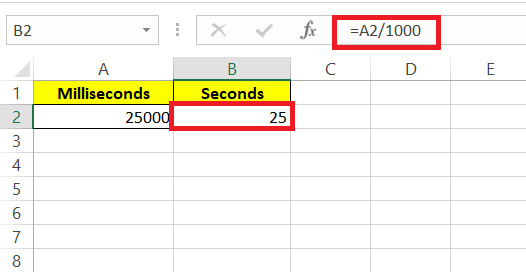
To transform time units in Excel, you’ll often start with simple arithmetic. Converting milliseconds to seconds might sound intimidating, but it’s just a matter of dividing your millisecond values by 1,000 because there are 1,000 milliseconds in a second. This can be done swiftly with a basic formula:
STEP 1: Select the cell where you want to compute.
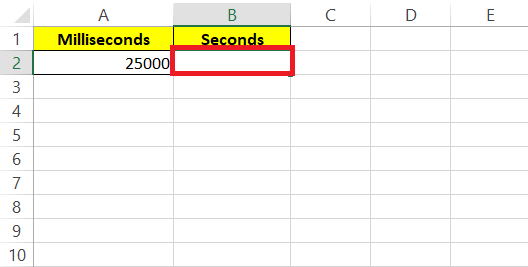
STEP 2: Now, in cell B2 type =A2/1000, then press enter for the result in Seconds.
Method 2: CONVERT Function
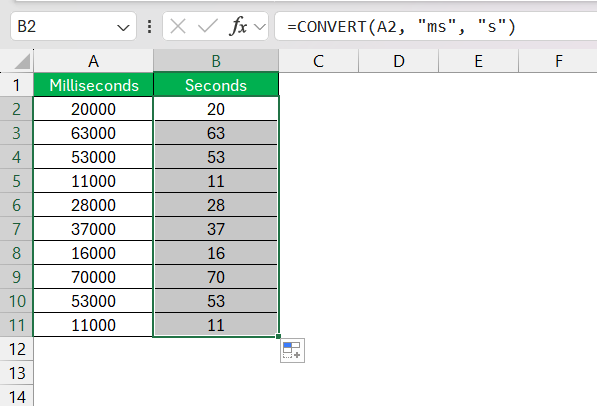
The CONVERT function in Excel can be used to change one unit of measurement to another.
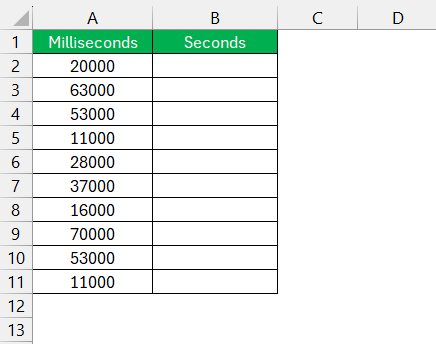
STEP 1: Enter time in milliseconds.
STEP 2: In the adjacent column, enter the formula:
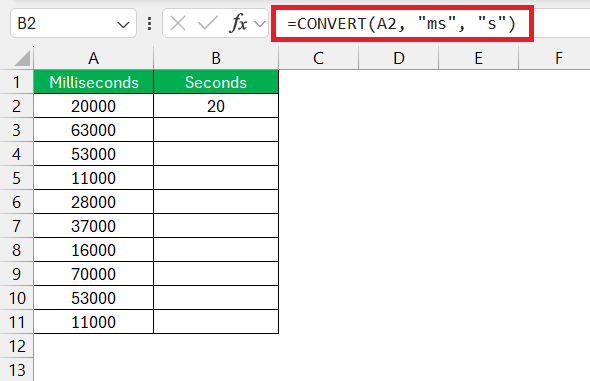
STEP 3: Drag the fill handle to the rest of the cells.
Method 3: Custom Format
While custom formatting itself doesn’t convert the values, it can be used to display the values in a more readable way. This method is more suitable when you want to display time in a human-readable format.
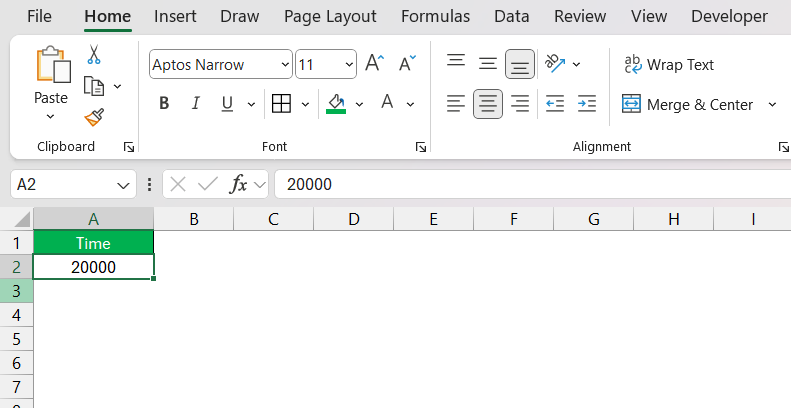
STEP 1: Select the cells with your milliseconds data.
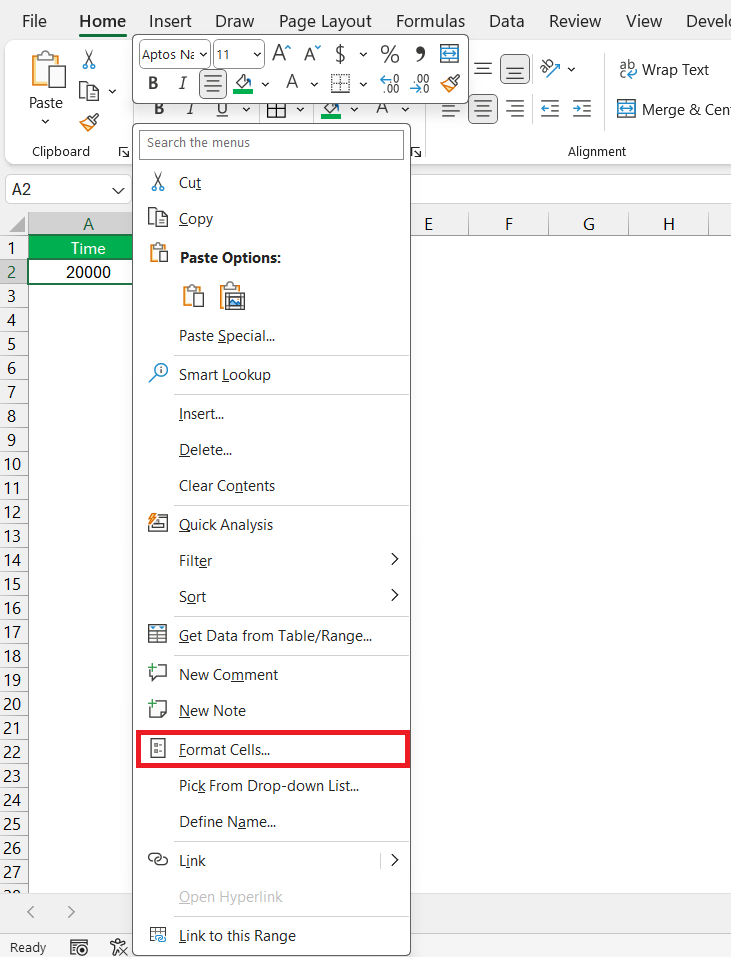
STEP 2: Right-click and choose “Format Cells.”
STEP 3: Go to the “Number” tab and select “Custom.”
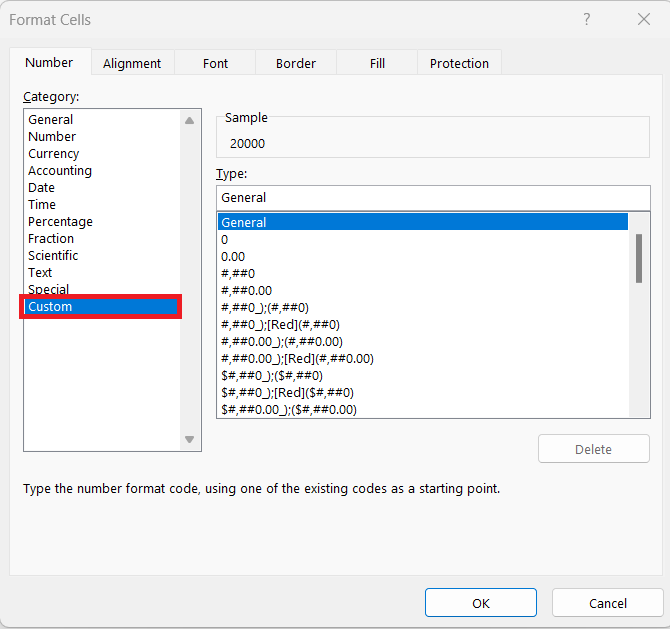
STEP 4: Type the format:
#,##0, “s”
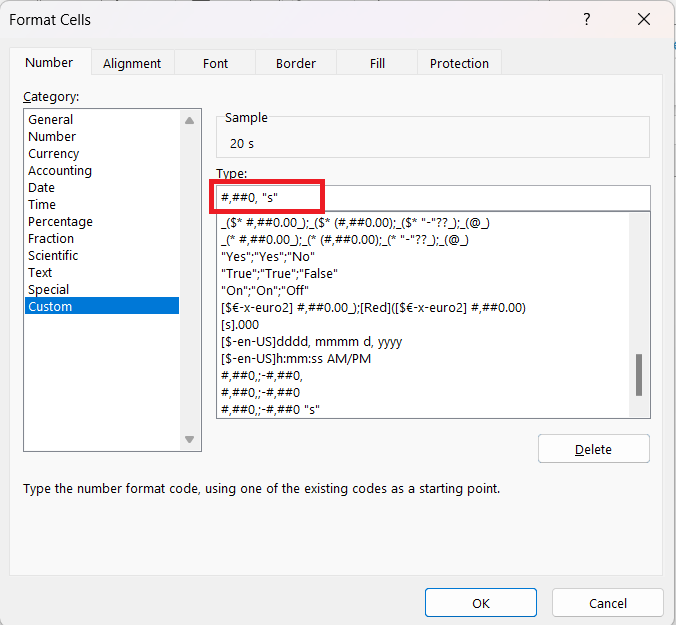
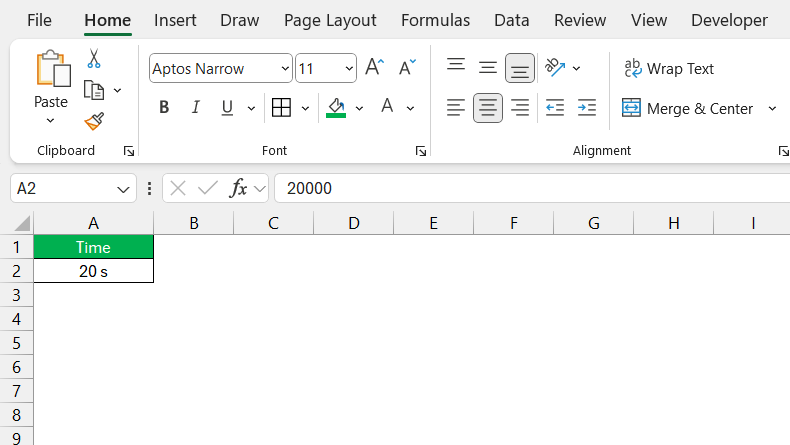
Click OK.
The entered number will be divided by 100, and then a letter s will be added at the end.
Method 4: Using VBA
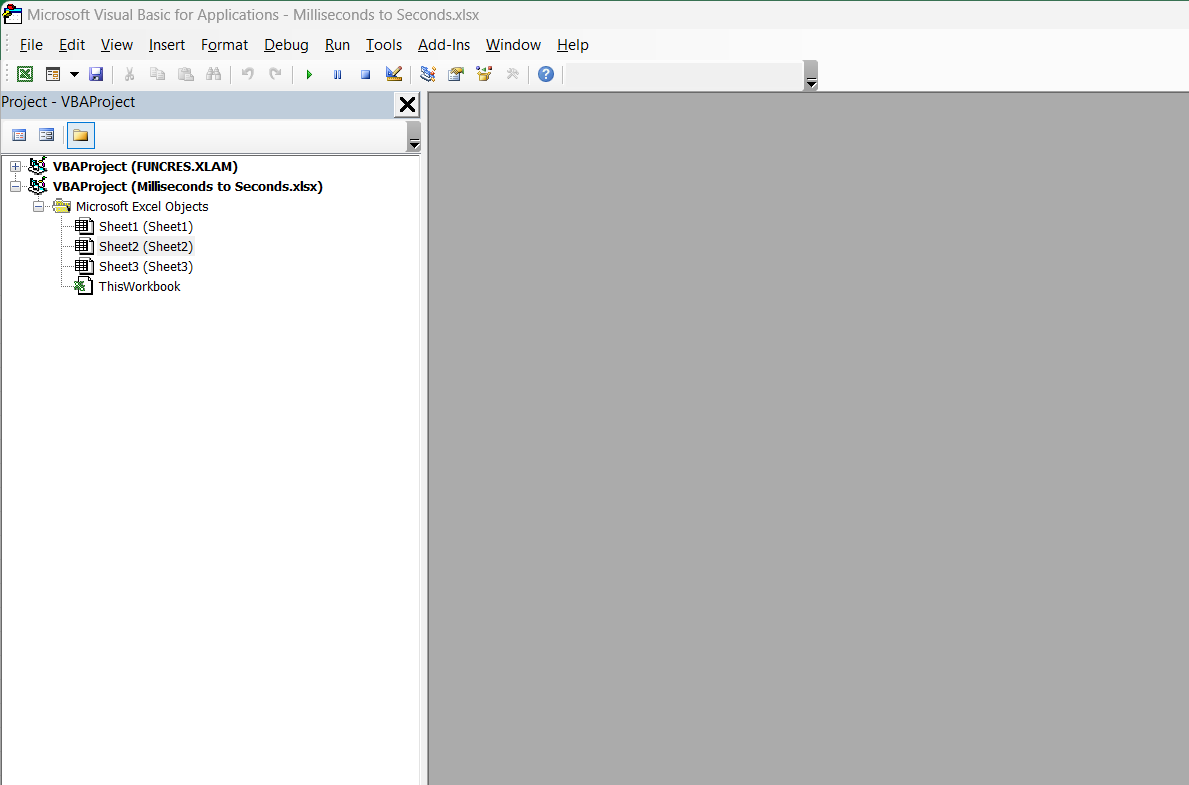
You can use VBA to automate the process of converting:
STEP 1: To open the VBA editor, press Alt with F11.
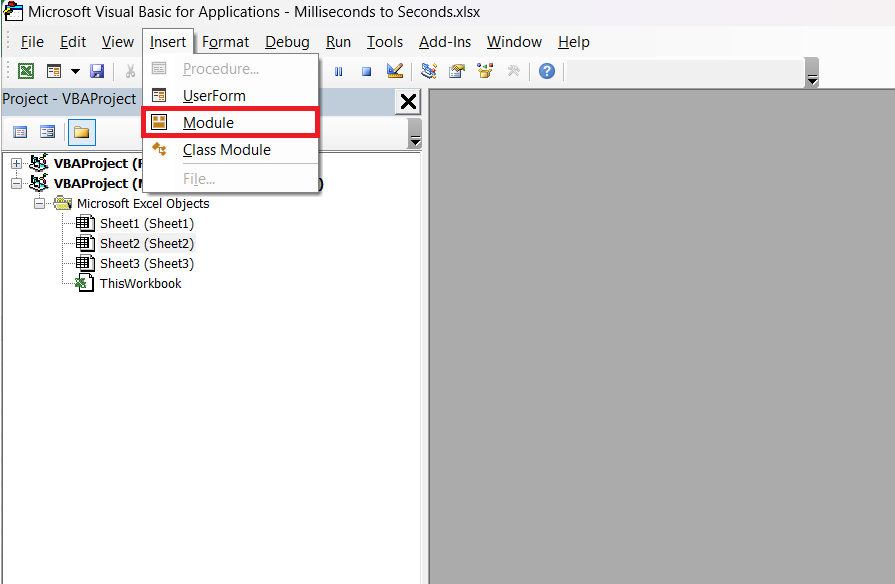
STEP 2: Go to Insert > Module.
STEP 3: Write the VBA Code:
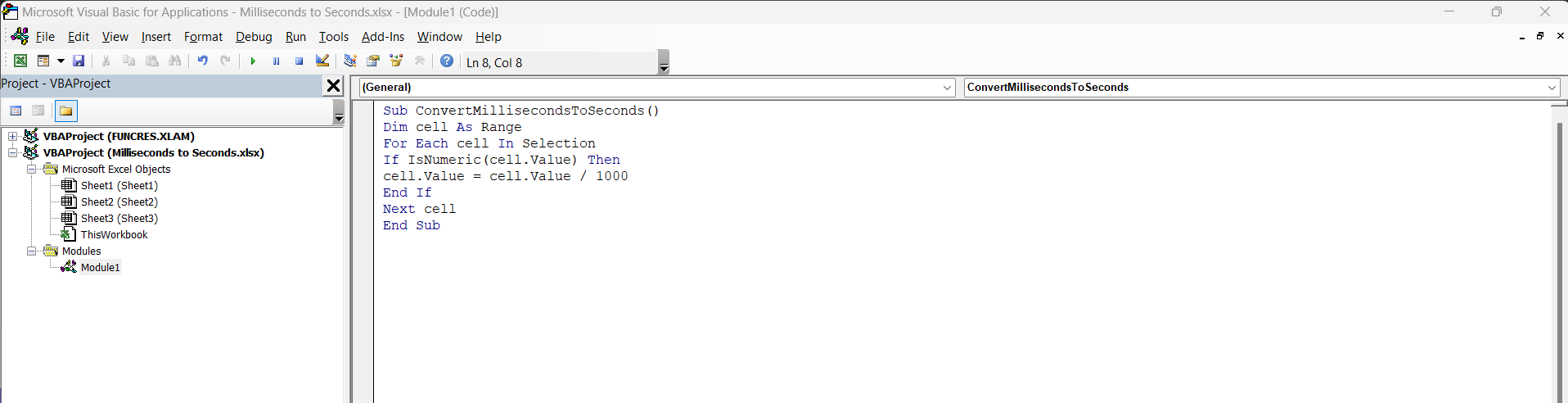
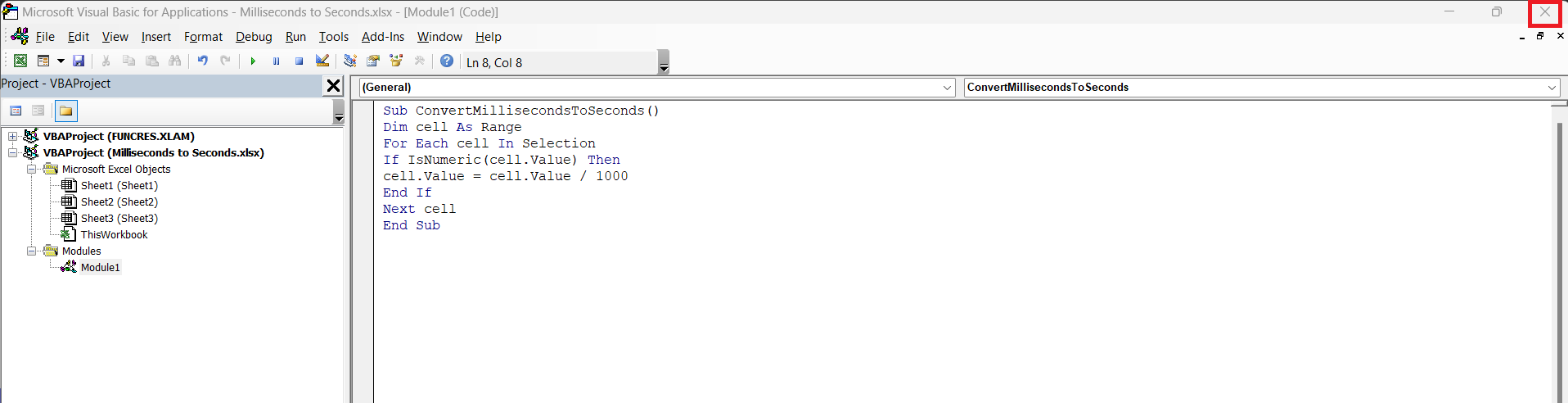
STEP 4: Close the VBA editor.
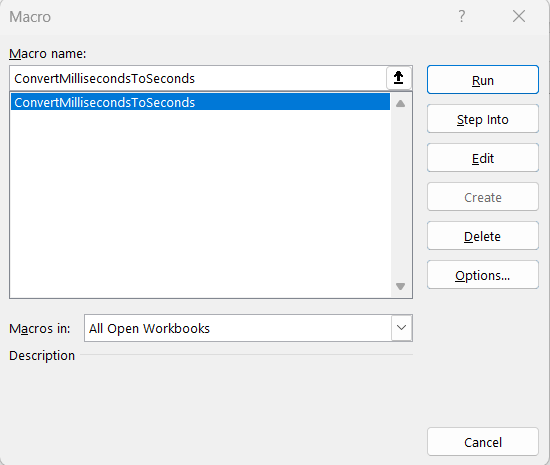
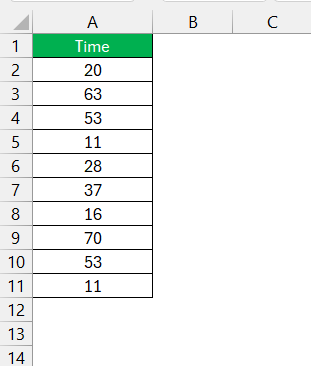
STEP 5: Select the cells with your milliseconds data. Press ALT + F8, select ConvertMillisecondsToSeconds, and click Run.
The time in milliseconds will be converted to seconds.
Method 5: PowerQuery
For more complex datasets or frequent conversions, Power Query can be used.
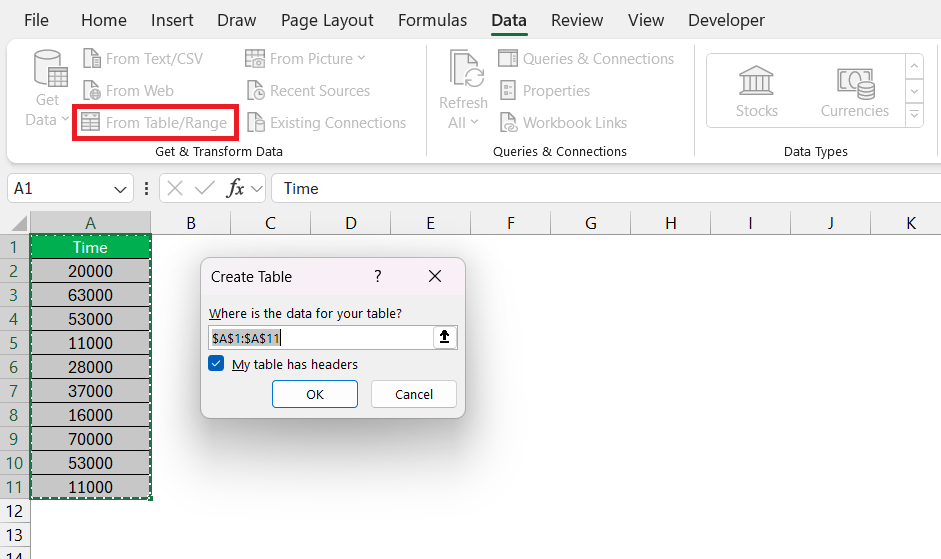
STEP 1: Select your data. Go to the Data tab and then select From Table/Range.
STEP 2: In Power Query Editor, select the column containing the values in milliseconds.
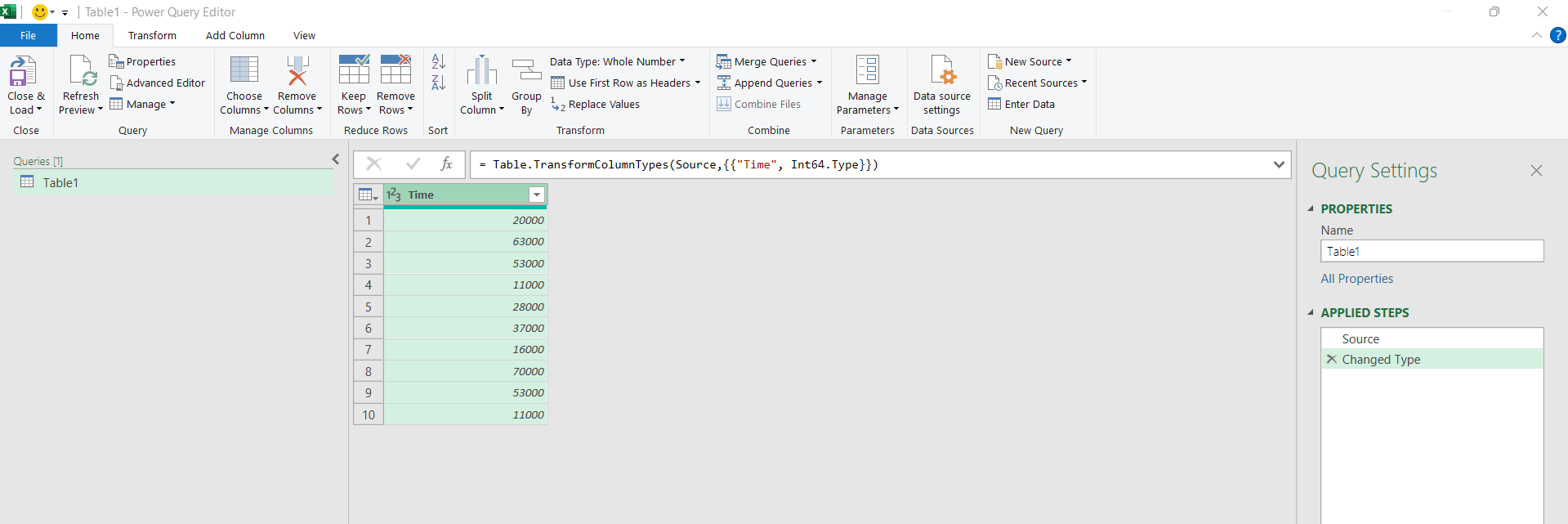
STEP 3: Go to Add Column > Custom Column.

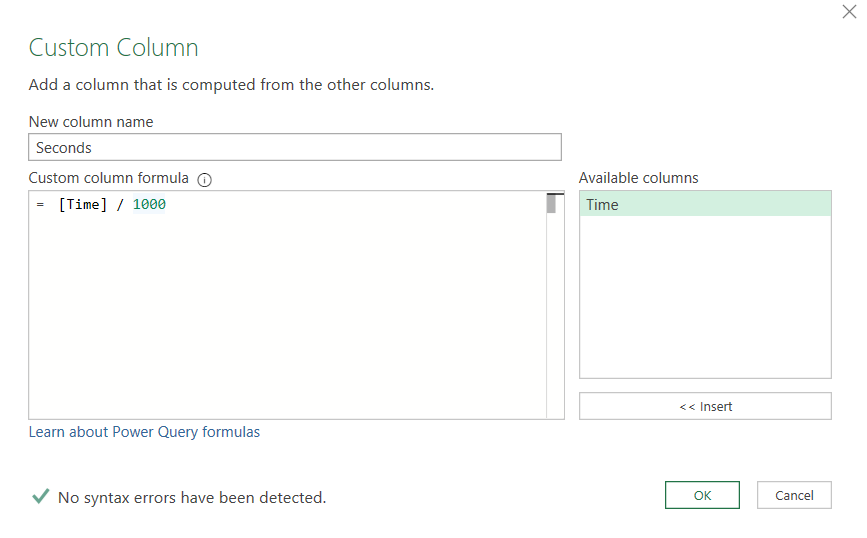
STEP 4:
- Enter New column name as Seconds
- Enter formula = [Time] / 1000
- Click OK.
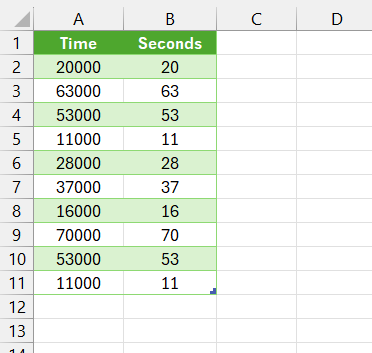
STEP 5: Click Close & Load.

The converted data will be displayed.
FAQs
Can you change milliseconds to seconds in Excel?
You can convert milliseconds to seconds in Excel by dividing milliseconds by 1000. For example, if you mention milliseconds in cell A1, you can use the formula:
= A1/1000
The time value will be converted to seconds.
How to convert time in bulk?
Enter the conversion formula in Excel and then use the autofill option to drag the formula down. This will copy the formula to all the rows below. This saves you the time and effort of converting time individually.
How to change time unit to milliseconds in Excel?
You can convert time units by following the steps below:
- Right-click on the cell
- Select Format Cells
- Go to Custom
- Type hh:mm:ss.000
Excel will convert the time unit to milliseconds.
How to change the format of milliseconds to general?
You can convert milliseconds toa general number by following the steps below:
- Right-click on the cell
- Select Format Cells
- Select General
- Click OK.
This will convert the millisecond format to general.

John Michaloudis is a former accountant and finance analyst at General Electric, a Microsoft MVP since 2020, an Amazon #1 bestselling author of 4 Microsoft Excel books and teacher of Microsoft Excel & Office over at his flagship MyExcelOnline Academy Online Course.

 30 Days - Full Access









