 Free Practice Workbook
When I first started working with Excel to manage project timelines and employee data, I often found myself juggling months and years. In this article, you will learn how to convert months to years in Excel.
Key Takeaways:
- Converting months to years can make your data easy to understand.
- You can divide months by 12 to get years.
- LAMBDA helps you reuse the same formula easily.
- Good formatting helps avoid mistakes in calculations.
- You can show results in years and months for better clarity.
Table of Contents
The Basics of Time Conversion in Excel
Understand Date Functions
The date functions in Excel are used to simplify tasks like converting time periods, calculating intervals, and analyzing durations. You can use the YEAR, MONTH, or DAY function to extract specific components from a date serial number. Functions like DATE and EDATE allows users to construct dates from individual components.
Why Convert Months to Years?
Converting months to years in Excel can be particularly useful for the following reasons:
- It allows you to understand trends, returns, or loan amortizations.
- It helps when assessing investments or projecting cash flows over more extended periods.
- It can simplify timelines and aid in long-term planning.
- It allows comparing project durations or amortizations in a standardized time frame.
- It assists in maintaining uniformity and straightforward interpretation of data.
How to Convert Months to Years
Set Up Your Data
- Organise your data in columns.
- Label one column “Months,” and input the number of months for conversion.
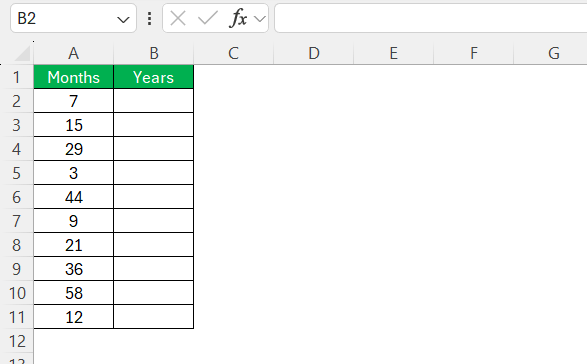
- Check that the input in the month column is stored as integers.
- Double-check the data for any inaccuracies or discrepancies.
Use Simple Formulas
STEP 1: Select the cell where you want the result of your conversion to appear.

STEP 2: Use the division formula to convert months into years.
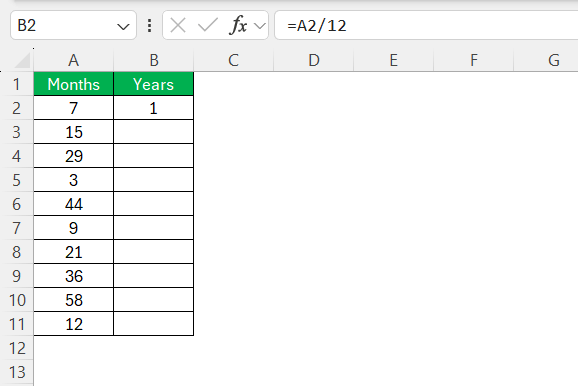
STEP 3: Drag the fill handle down to apply the formula to other cells.

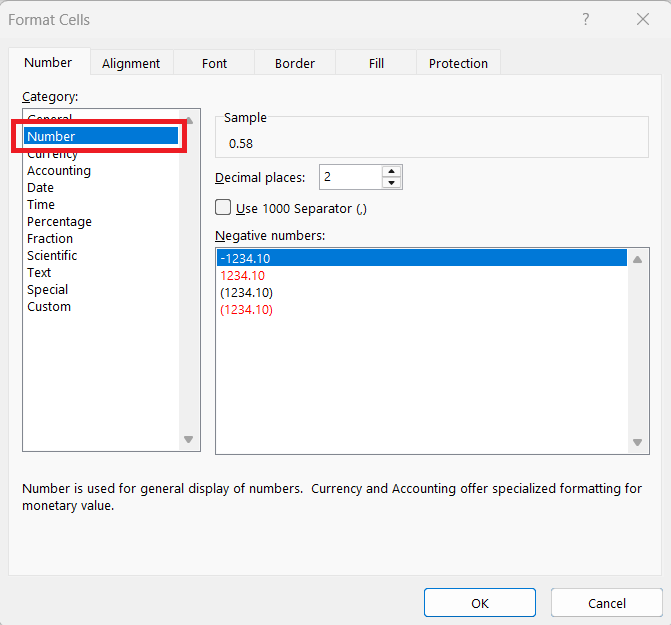
STEP 4: Right-click on the cells and select Format Cells.
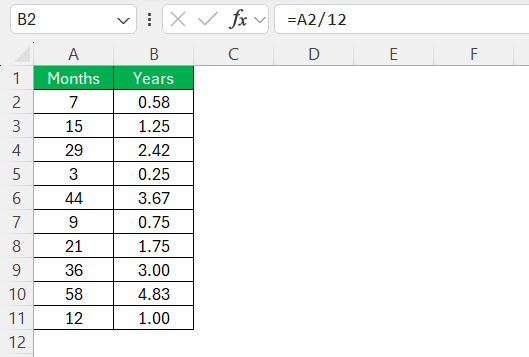
STEP 5: Choose “Number” or “Custom” category. Adjust the decimal places.

The result will be displayed in years.
Use LAMBDAs
The Lambda functions in Excel can be used to create reusable and custom formulas.
STEP 1: Go to Formulas > Name Manager.

STEP 2: Click New.
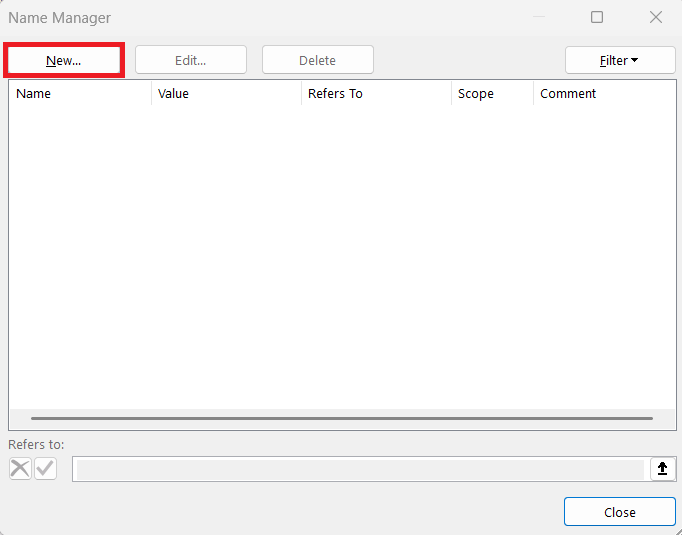
STEP 3: In the dialog box, for the Name field, enter:
MonthsToYears
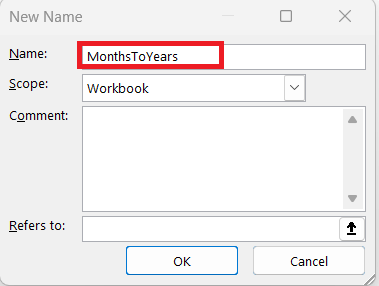
STEP 4: In the “Refers to” field, enter the following formula:

STEP 5: Click OK. Close the Name Manager.
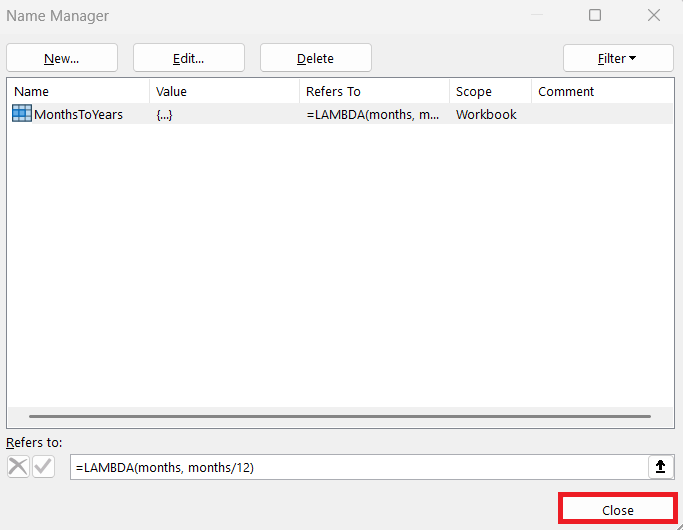
STEP 6: Use your new custom function just like any standard Excel formula.
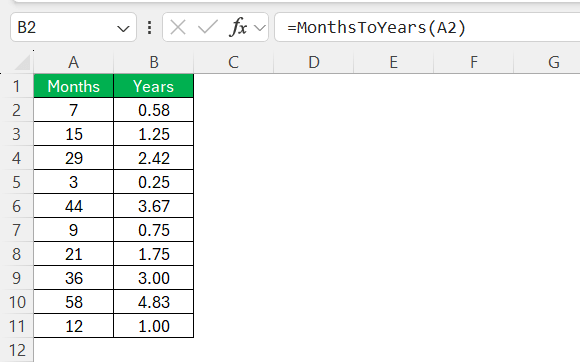
Creating a LAMBDA function to convert months to years simplifies data analysis and improves efficiency in Excel. It allows for cleaner workbooks and reusable logic across multiple sheets or files. This approach is particularly valuable when managing project timelines, employee records, or any scenario involving time-based calculations.
Common Errors and How to Fix Them
- The most common error is incorrect cell referencing. Check that the formula references the right cell, like
=A2/12, and adjust for other rows as necessary. - Non-integer entries or text strings in cells meant for numerical data can lead to errors. Check the formatting of your input cells to guarantee they’re set as ‘Number’ or ‘General’.
- Misplaced parentheses or syntax errors can disrupt calculations. Carefully check the formula syntax to make sure that all components are correctly arranged.
- Excel provides tools to identify erroneous formulas. Small green triangles in the corner of a cell indicate potential issues. Clicking on these cells offers options for troubleshooting and correcting problems.
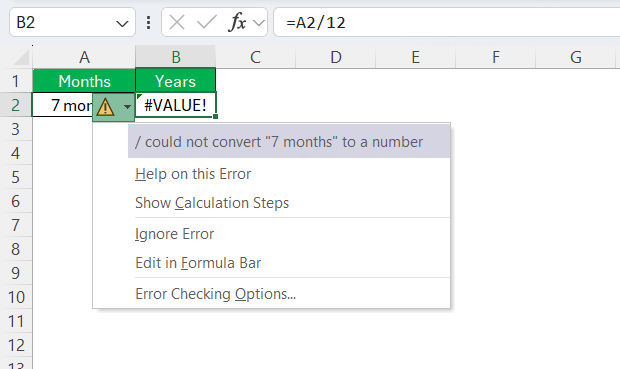
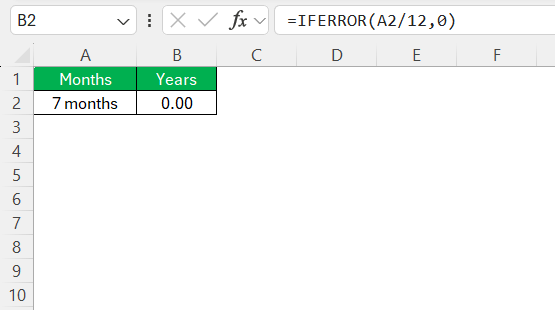
- If a formula includes division by zero, it will result in an error. You can use the IFERROR function to get custom result when there is an error.
FAQs
How to use the DATEDIF function for conversions?
To use the DATEDIF function in Excel for conversions, use the formula:
=DATEDIF(start_date, end_date, "y").
This calculates the complete years between two dates.
How to convert months into years without formulas?
You can convert months into years without formulas by manually calculating it. Divide the number of months by 12 to determine the total years.
How to convert years to days?
To convert years to days, multiply the number of years by 365 for a standard year or 366 if accounting for a leap year.
How to convert months to years and months in Excel?
To convert months into years and months in Excel, use the formula:
=INT(A1/12) & " years and " & MOD(A1,12) & " months"

John Michaloudis is a former accountant and finance analyst at General Electric, a Microsoft MVP since 2020, an Amazon #1 bestselling author of 4 Microsoft Excel books and teacher of Microsoft Excel & Office over at his flagship MyExcelOnline Academy Online Course.

 30 Days - Full Access









