 Free Practice Workbook
When working in Excel, one of the most common operations I perform is multiplication. But have you ever wondered what symbol Excel uses for multiplication? In contrast to conventional math, where we use the multiplication sign (×), Excel will use the asterisk (*) as the multiplier symbol.
In this article, I’ll walk you through how to use the multiplier symbol in Excel.
Key Takeaways:
- Excel uses the asterisk as the multiplier symbol.
- Multiplication formulas can involve direct numbers or cell references.
- Functions like PRODUCT() and MMULT() help with multiplying ranges and matrices.
- Common errors include incorrect cell references, using an ‘x’ instead of *, and ignoring the order of operations.
- Parentheses will make sure that Excel performs correct calculations.
Table of Contents
Multiplier Symbol in Excel
Multiply Using the Asterisk Symbol
To multiply using the asterisk symbol in Excel, we can press Shift + 8.
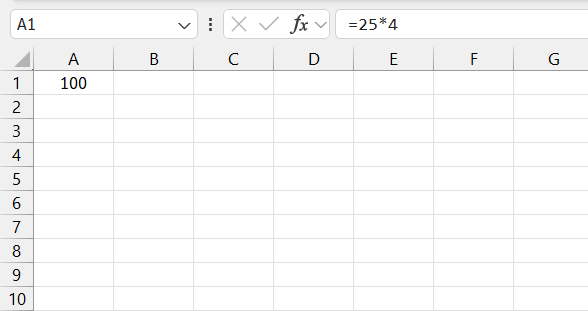
This will add a multiplication operator, which can be used within our formulas. For instance, if I want to multiply 25 by 4, I’d enter =25*4 into a cell and press Enter. It would calculate and display the product, 100.
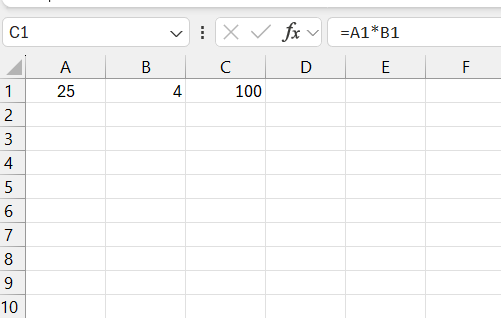
The asterisk can combine cell references such as =A1*B1 to multiply two cell values.
Special Multiplication Functions
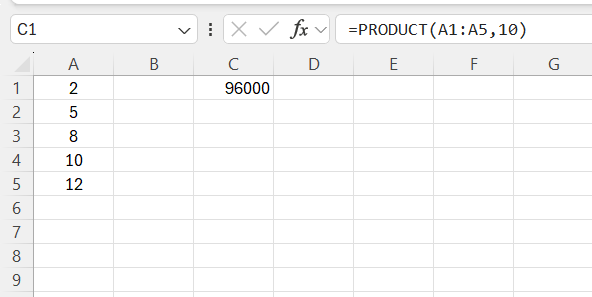
For more advanced multiplication needs, we can use functions, such as PRODUCT() and MMULT(). The PRODUCT() function allows us to multiply numbers, cells, and ranges together. For instance, the formula =PRODUCT(A1:A5,10) multiplies all numbers in the range A1 through A5 by 10.
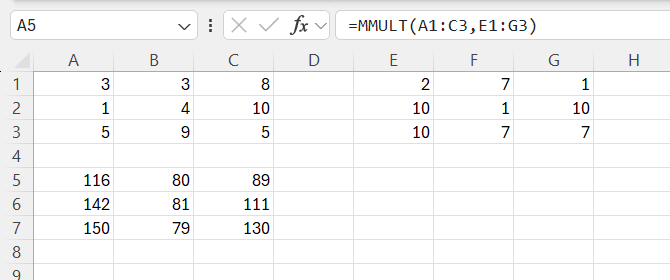
On the other hand, MMULT() allows matrix multiplication. This is useful when dealing with array operations in linear algebra. It requires the input of two arrays organized in rows and columns.
Avoiding Common Errors
One common pitfall when multiplying cells and numbers in Excel is using incorrect cell references or mistyping the formula.
Another mistake to watch out for is using a different symbol instead of the asterisk for multiplication. The use of a lower-case letter ‘x’ or a dot will result in errors. As previously stated, multiplication in Excel requires the asterisk (*) as the correct operator.
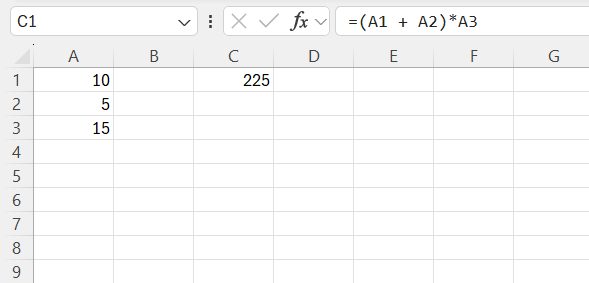
It is also important not to forget that Excel follows the order of operations in mathematics. When creating complex formulas involving multiple mathematical operators, use parentheses to group operations in the correct sequence.
For instance, if we need to add two numbers together before multiplying, we can use a formula like this
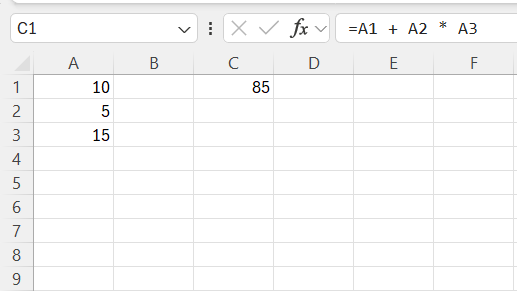
Without parentheses, the formula A1 + A2 * A3 would multiply A2 and A3 first, then add A1 to the product.
FAQs
How to type a multiplier symbol in Excel?
To type the multiply symbol in Excel, use the asterisk (*) on your keyboard. It can be accessed by holding Shift and pressing the number 8.
What is the Difference Between Multiplying Numbers and Multiplying Cells in Excel?
The difference between multiplying numbers and cells lies in the reference used. For numbers, you directly input values into a formula. For cells, you refer to the cell coordinates (like A1) instead of the numbers.
Where Can I Find the Multiplication Symbol on My Keyboard?
On a standard keyboard, the multiplication symbol is found by pressing Shift + 8.
What is the multiplier formula in Excel?
In Excel, the multiplier formula can be used by:
- applying the asterisk symbol
- using the PRODUCT or MMUL function.
Why can’t I multiply the other cells by my constant number?
If you are not able to multiply other cells by a constant number, it can be because of incorrect cell referencing. Make sure that you have locked the constant cell reference using dollar signs (e.g., $A$1) in your formula.

John Michaloudis is a former accountant and finance analyst at General Electric, a Microsoft MVP since 2020, an Amazon #1 bestselling author of 4 Microsoft Excel books and teacher of Microsoft Excel & Office over at his flagship MyExcelOnline Academy Online Course.

 30 Days - Full Access









