Free Practice Workbook
Writing multiple IF functions in one formula can make it difficult to read and manage. You can use nested IF formulas to check multiple conditions in Excel. You can describe the rules in plain language and ask Copilot to suggest the appropriate formula. In this article, you will learn how to create nested IF formula with Copilot in Excel.
Key Takeaways:
- Nested IF formula help you check multiple conditions in Excel.
- Copilot can generate nested IF formulas using simple text prompts.
- You can assign grades, categories, or labels based on multiple criteria.
- Convert your data into an Excel Table before using Copilot.
- Always review and test the suggested formula before applying it to your data.
Table of Contents
What is a Nested IF Formula?
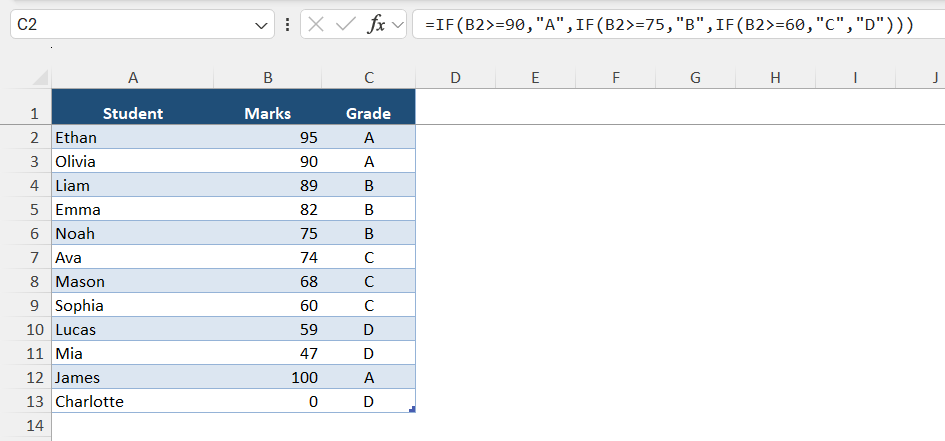
A nested IF is an IF function placed inside another IF. A single IF can only choose between two results. Nesting lets one formula choose between three or more. For example, suppose you have a student marksheet and want to assign grades based on students’ scores.
You can use the following conditions:
- Marks greater than or equal to 90: Grade A
- Marks greater than or equal to 75: Grade B
- Marks greater than or equal to 60: Grade C
- Marks below 60: Grade D
Instead of creating separate formulas for each condition, you can use a nested IF formula.
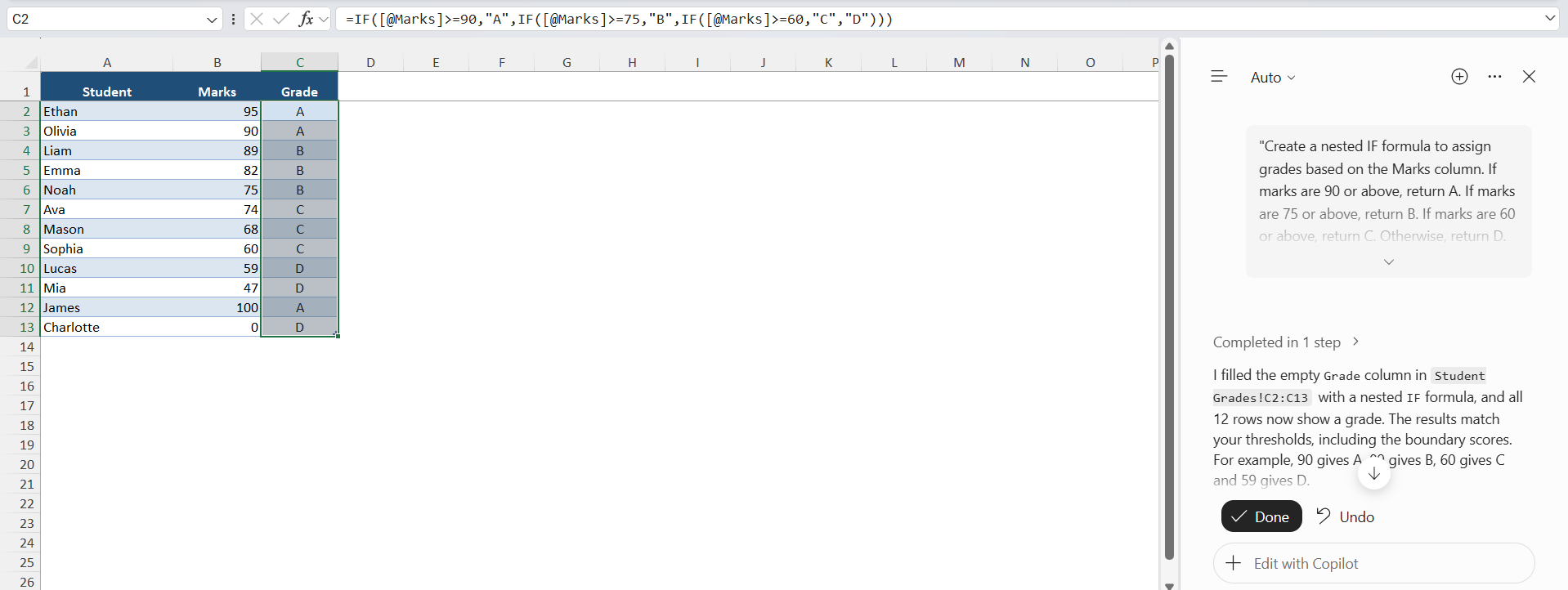
=IF(B2>=90,”A”,IF(B2>=75,”B”,IF(B2>=60,”C”,”D”)))
How to Create Nested IF Formula with Copilot
Step-by-Step Guide
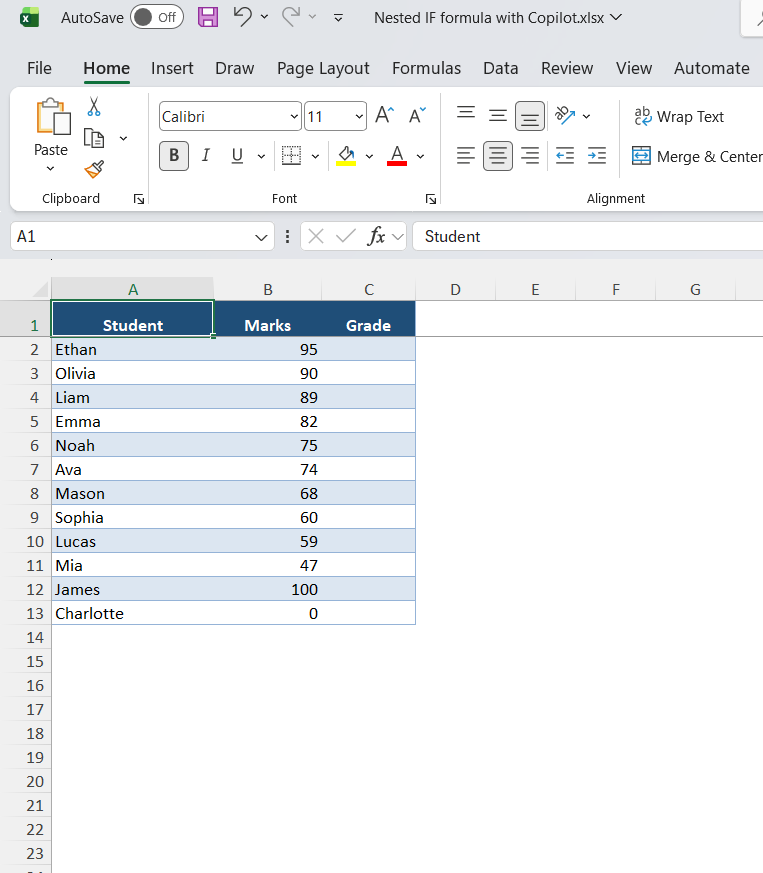
Suppose you have a list of scores obtained by students in a class, and you want to assign them grades using the nested IF formula.
STEP 1: Open your Excel workbook.
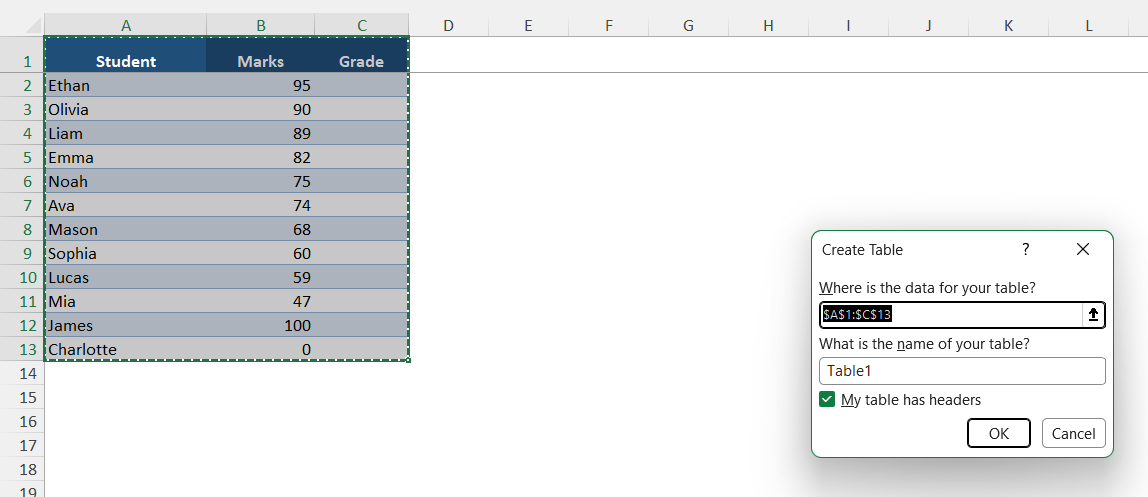
STEP 2: Press Ctrl + T to convert the data into a table.
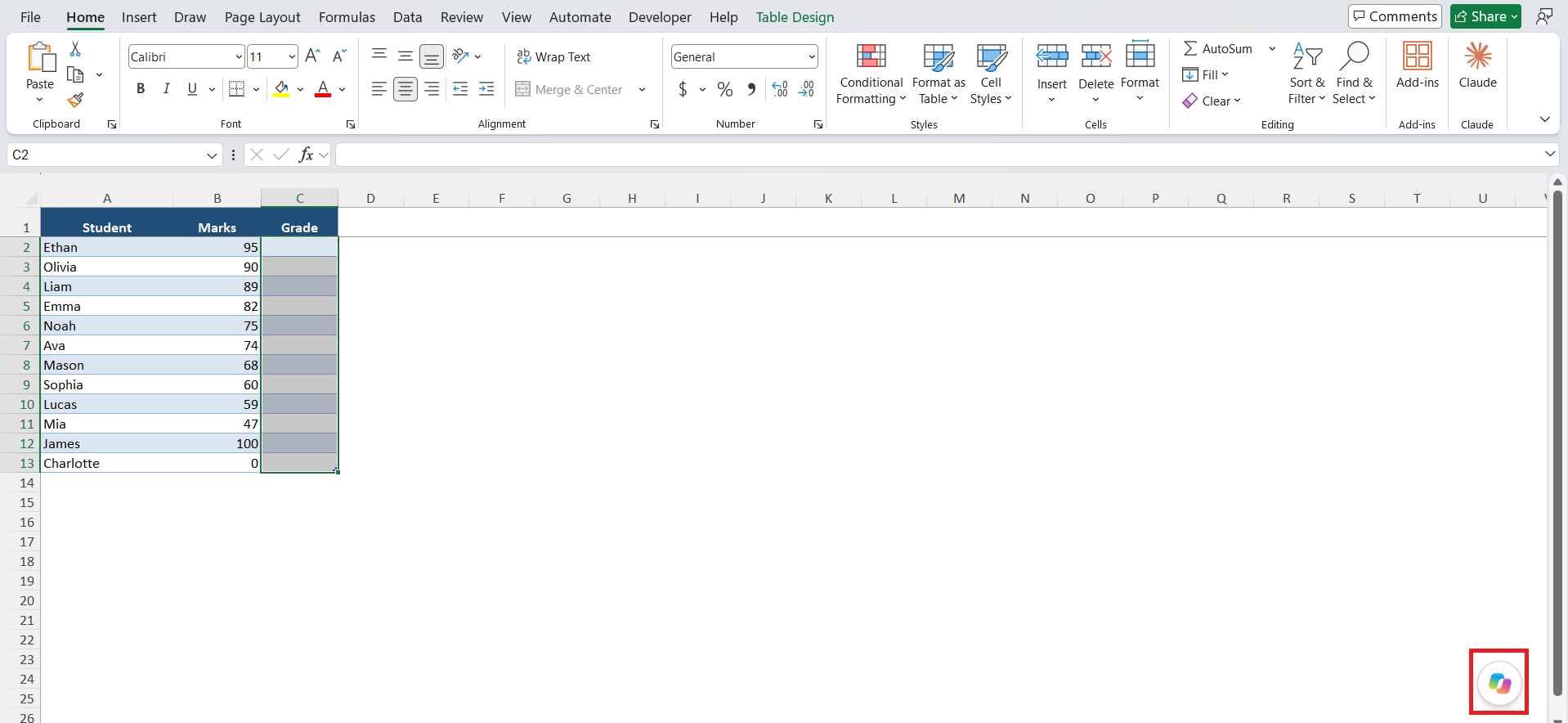
STEP 3: Click on the Copilot button at the lower-right corner of the Excel workbook.
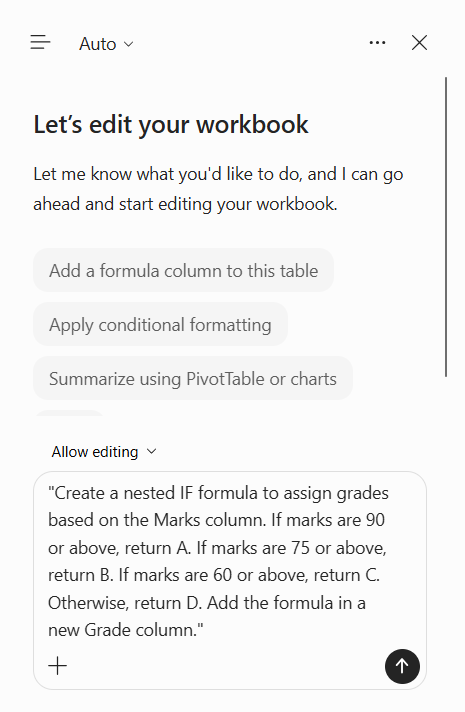
STEP 4: In the Copilot pane, enter the prompt:
“Create a nested IF formula to assign grades based on the Marks column. If marks are 90 or above, return A. If marks are 75 or above, return B. If marks are 60 or above, return C. Otherwise, return D. Add the formula in a new Grade column.”
STEP 5: Copilot will analyse the data and suggest a nested IF formula.
STEP 6: Review the suggested formula and press Done.
More Examples
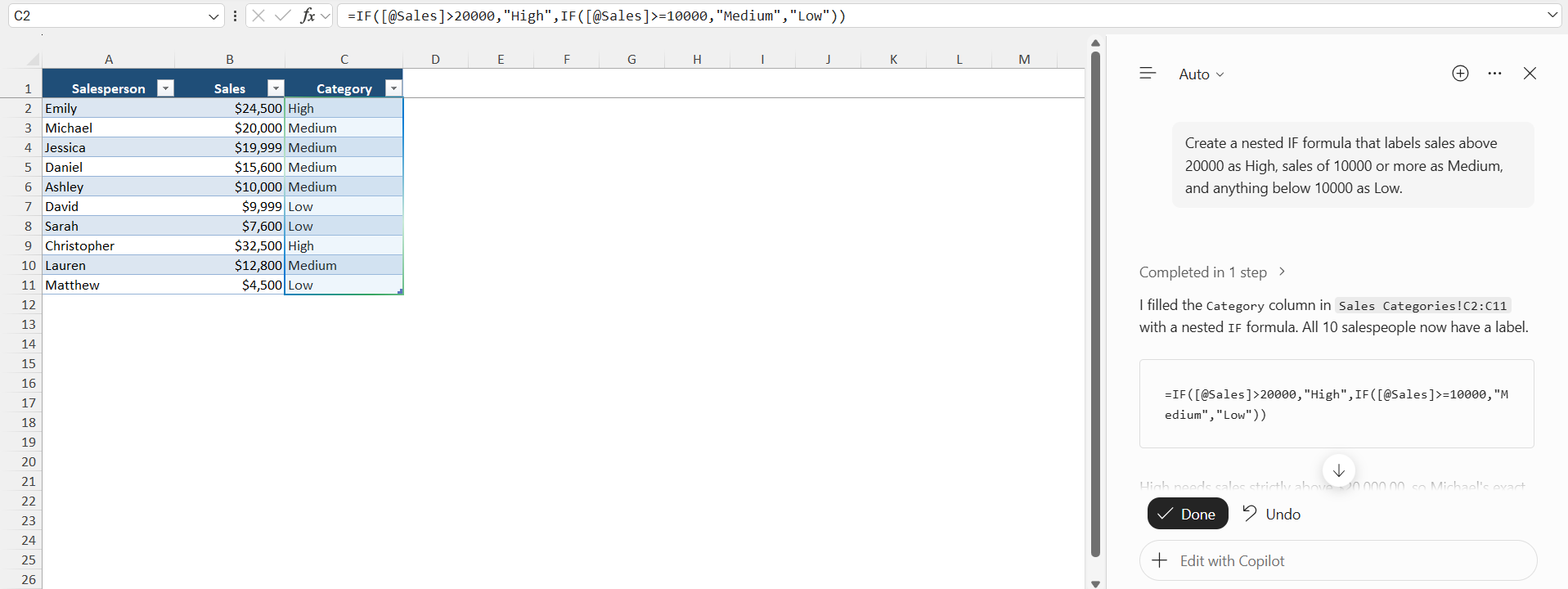
- Categorize sales – Create a nested IF formula that labels sales above 20000 as High, sales of 10000 or more as Medium, and anything below 10000 as Low.
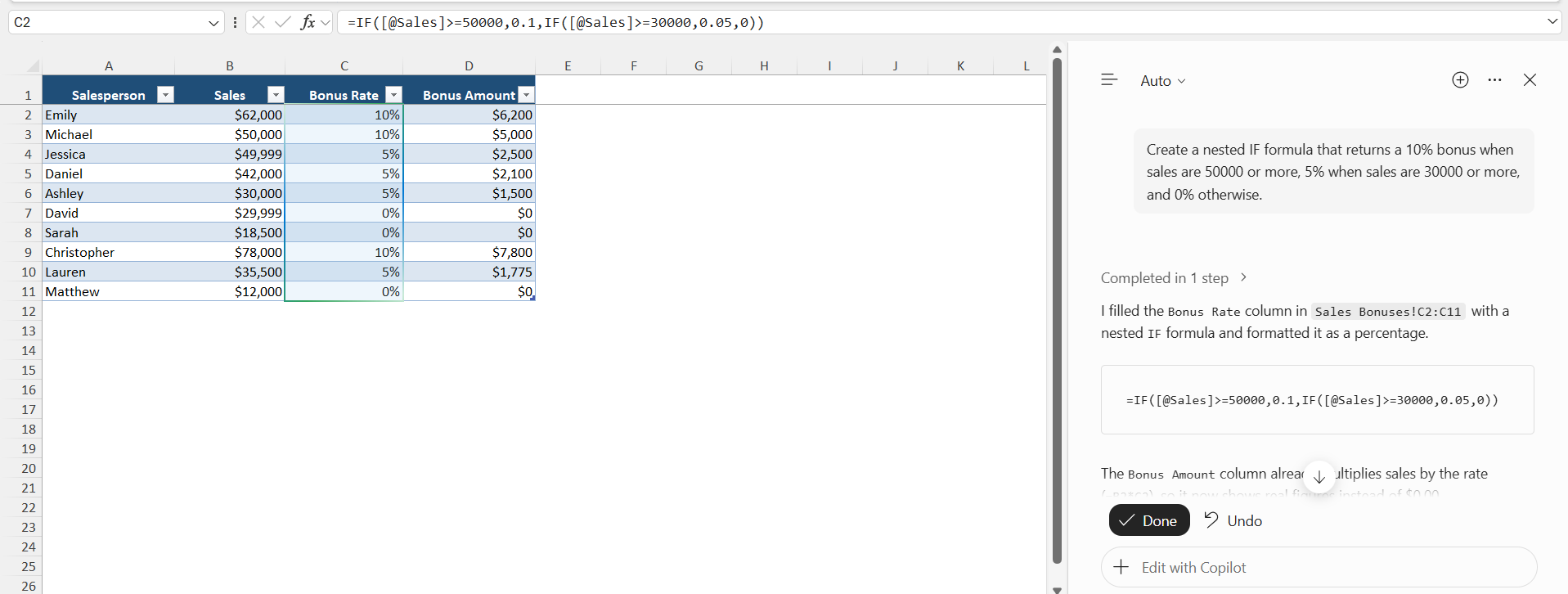
- Calculate bonuses – Create a nested IF formula that returns a 10% bonus when sales are 50000 or more, 5% when sales are 30000 or more, and 0% otherwise.
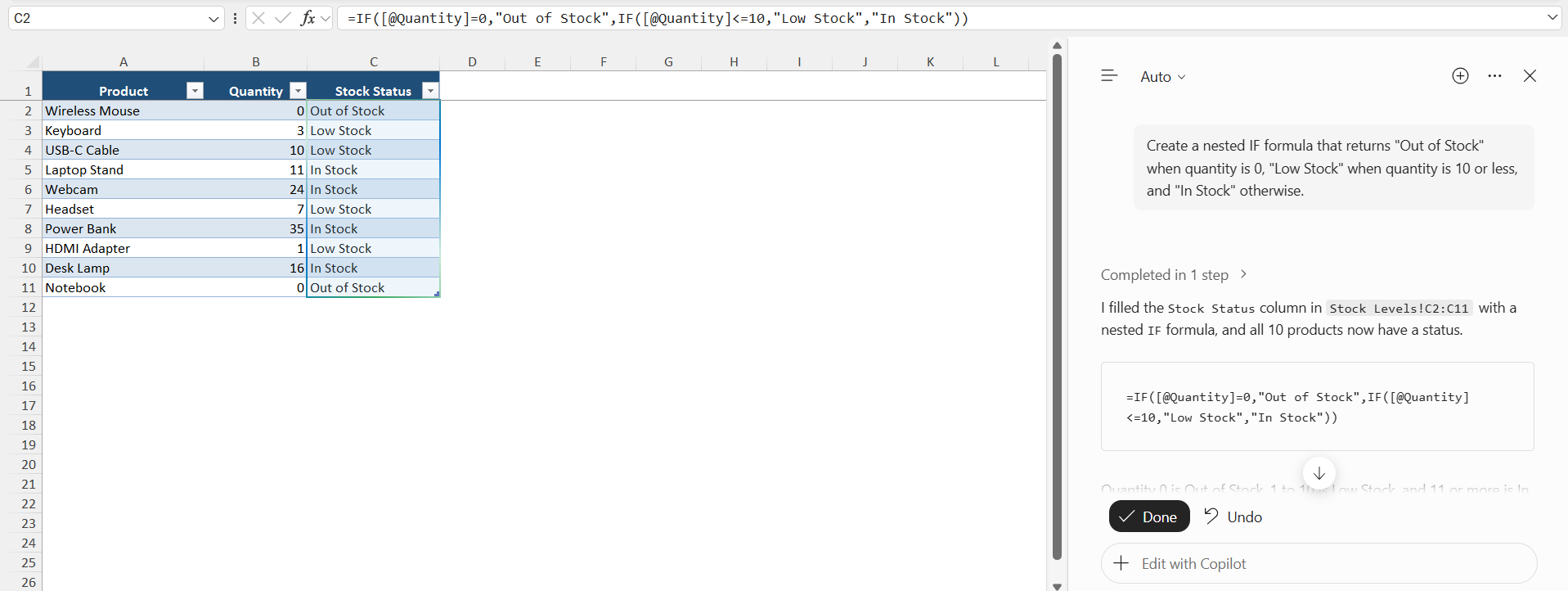
- Classify stock levels – Create a nested IF formula that returns “Out of Stock” when quantity is 0, “Low Stock” when quantity is 10 or less, and “In Stock” otherwise.
IFS formula – Alternative to Nested IF
You can also use the IFS function to check multiple conditions without nesting IF functions. It checks multiple conditions and returns the result corresponding to the first condition that evaluates to TRUE. Unlike nested IF formula, you do not need to place one IF function inside another.
For example, you can use the following IFS formula to assign grades based on students’ marks:
=IFS(B2>=90,”A”,B2>=75,”B”,B2>=60,”C”,B2<60,”D”)
You can also ask Copilot to create this formula for you.
“Create an IFS formula to assign grades based on the Marks column. If marks are 90 or above, return A. If marks are 75 or above, return B. If marks are 60 or above, return C. Otherwise, return D. Add the formula in a new Grade column.”
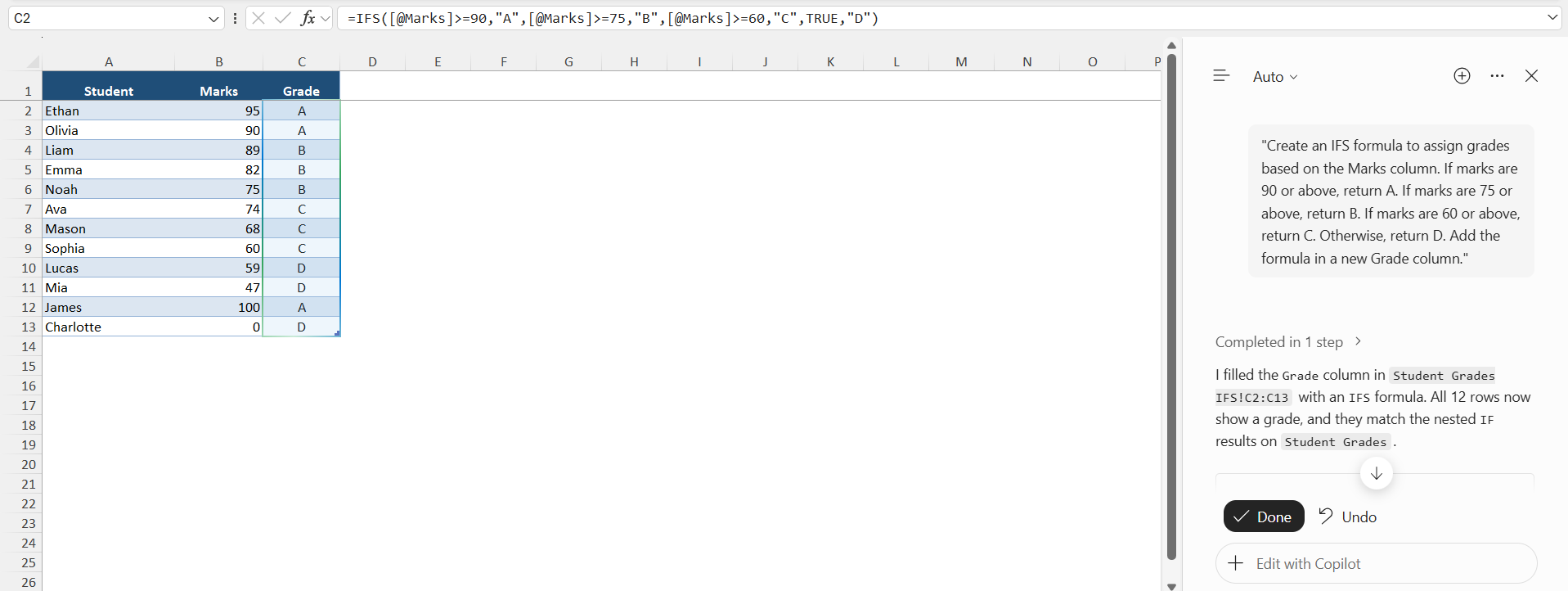
Check a few results to confirm that the grades are correct.
Tips & Tricks
- Make sure to convert the data into a table.
- Use clear column headings to help Copilot identify the data correctly.
- Mention the criteria properly in the Copilot prompt.
- Use terms such as greater than, less than, and equal to when describing numerical conditions.
- Check the ranges, criteria, and calculations before using the result.
FAQs
1. What is a nested IF formula in Excel?
A nested IF formula uses one IF function inside another to check multiple conditions and return different results.
2. How to create nested IF formula with Copilot in Excel?
To create a nested IF formula with Copilot, you need to describe the conditions in plain language. Copilot will suggest a formula based on the data and conditions provided. You can also ask Copilot to modify the formula if required.
3. How many IF functions can you nest in Excel?
Excel supports up to 64 levels of nested IF functions in a formula.
4. Can Copilot explain an existing nested IF formula?
Yes. You can ask Copilot to explain the formula and describe what each condition does.
5. What is the alternative to nested IF formulas in Excel?
You can use the IFS function when you need to check multiple conditions. It makes formulas easier to read because you do not need to nest multiple IF functions.

John Michaloudis is a former accountant and finance analyst at General Electric, a Microsoft MVP since 2020, an Amazon #1 bestselling author of 4 Microsoft Excel books and teacher of Microsoft Excel & Office over at his flagship MyExcelOnline Academy Online Course.

 30 Days - Full Access