Free Practice Workbook
You want to access Copilot in Excel, but you do not have access to your laptop or desktop? Not to worry! You can open Copilot in Excel on iPhone for efficient operation. In this article, you will learn all about using Copilot with Excel on iPhone.
Key Takeaways:
- Copilot in Excel on iPhone helps you analyse data using natural-language prompts.
- You can use Copilot to summarise data, spot trends, and understand formulas.
- Chat mode is available on iPhone, while Edit mode is rolling out.
- Copilot requires an eligible Microsoft 365 subscription.
- You need an internet connection to use Copilot in Excel on iPhone.
Table of Contents
Introduction to Copilot in Excel on iPhone
What is Copilot in Excel?
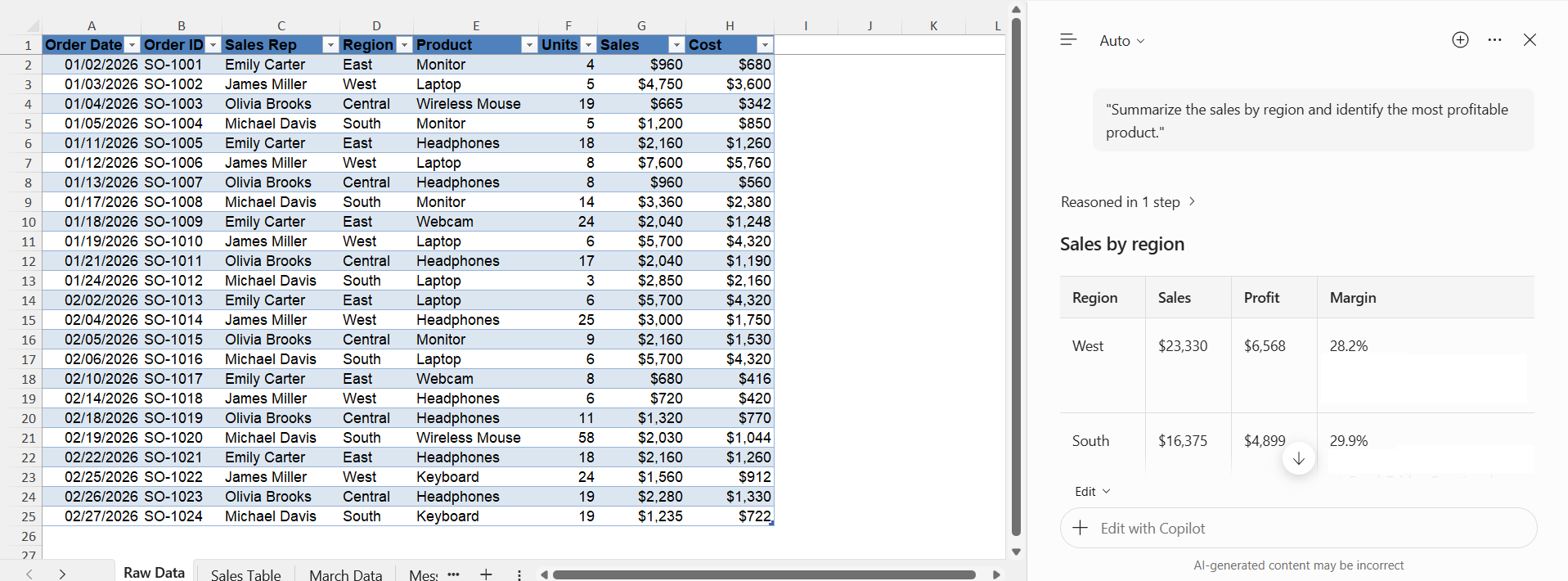
Copilot in Excel is built into Excel to help you work with your workbook using natural-language prompts. You can ask Copilot to generate formulas, update worksheets, create charts and PivotTables, summarize data, and spot trends or outliers.
For example, you could ask:
“Summarise the sales by region and identify the most profitable product.”
Is Copilot in Excel Available on iPhone?
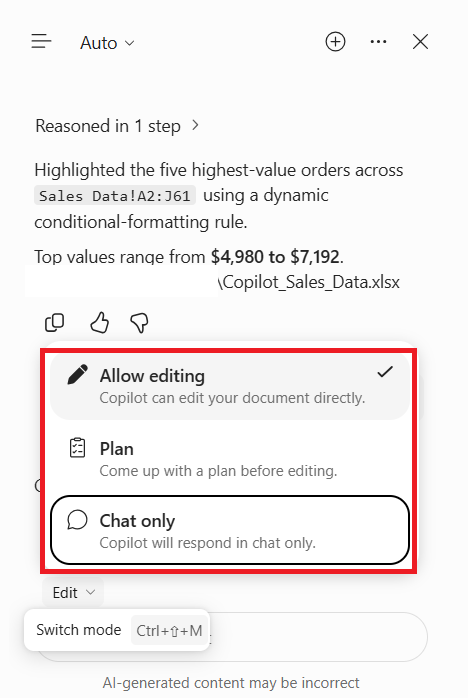
Yes, Microsoft has listed iPhone as a supported platform for Copilot in Excel. However, the experience on the mobile platform is not the same as Excel on Windows, Mac, or the web.
- Chat mode is available on iPhone.
- Edit mode support is rolling out to iPhone.
- Windows, Mac, and the web support Edit, Plan, and Chat modes.
How to Use Copilot in Excel on iPhone
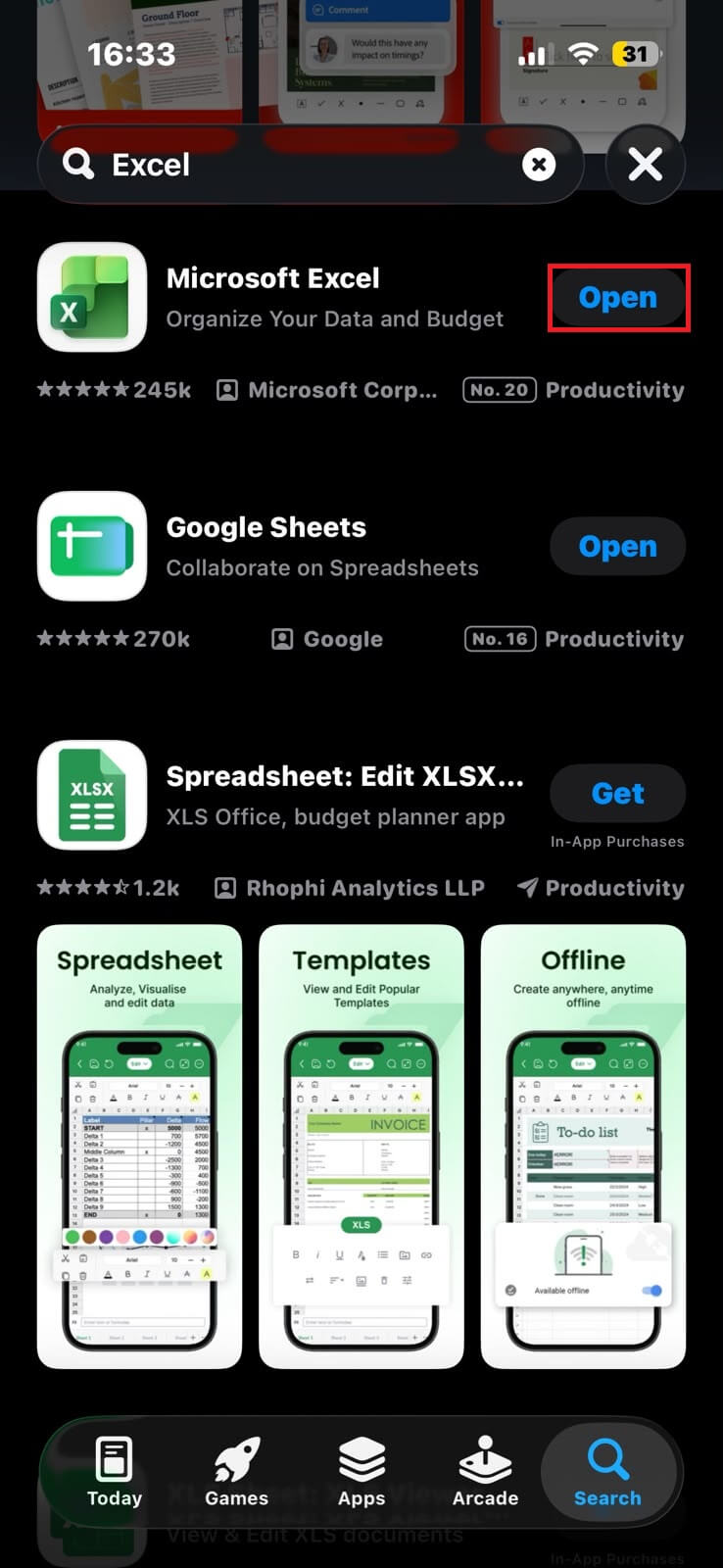
STEP 1: Open Excel on your iPhone.
Sign in to your account.

STEP 3: Look for the Copilot option in Excel.
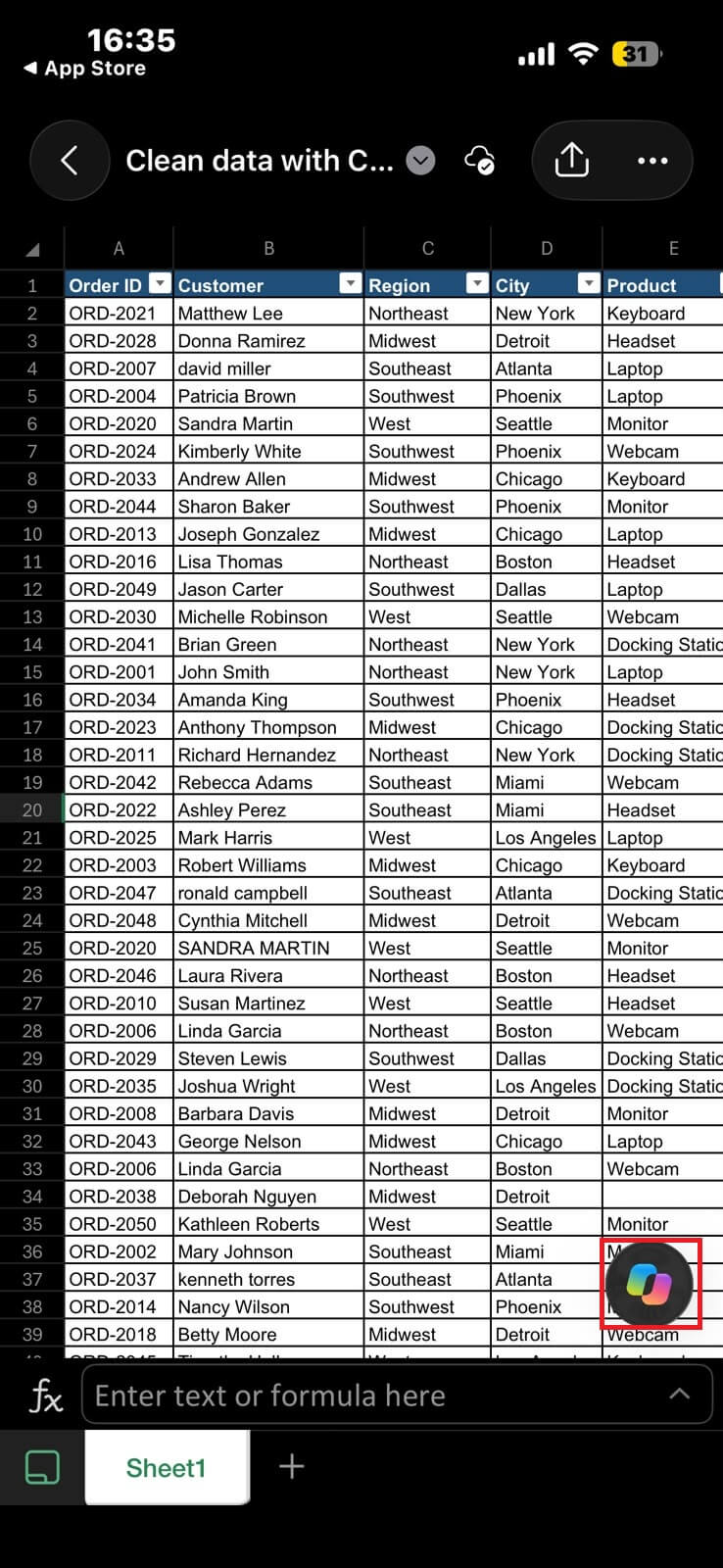
If you do not see Copilot, check whether your Microsoft 365 subscription supports the feature and whether your Excel app is up to date.
STEP 3: Enter a prompt related to your data.
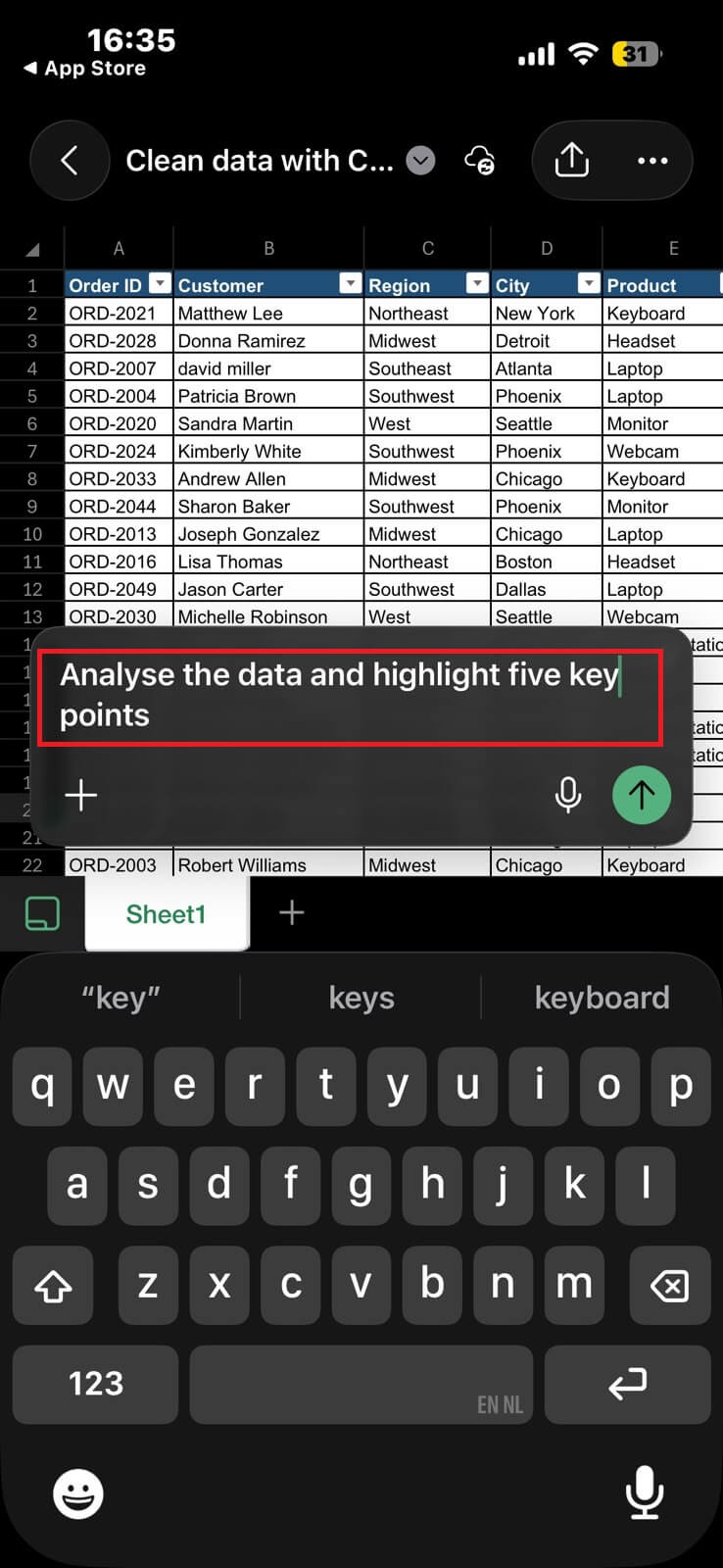
STEP 4: Review the response generated by Copilot.
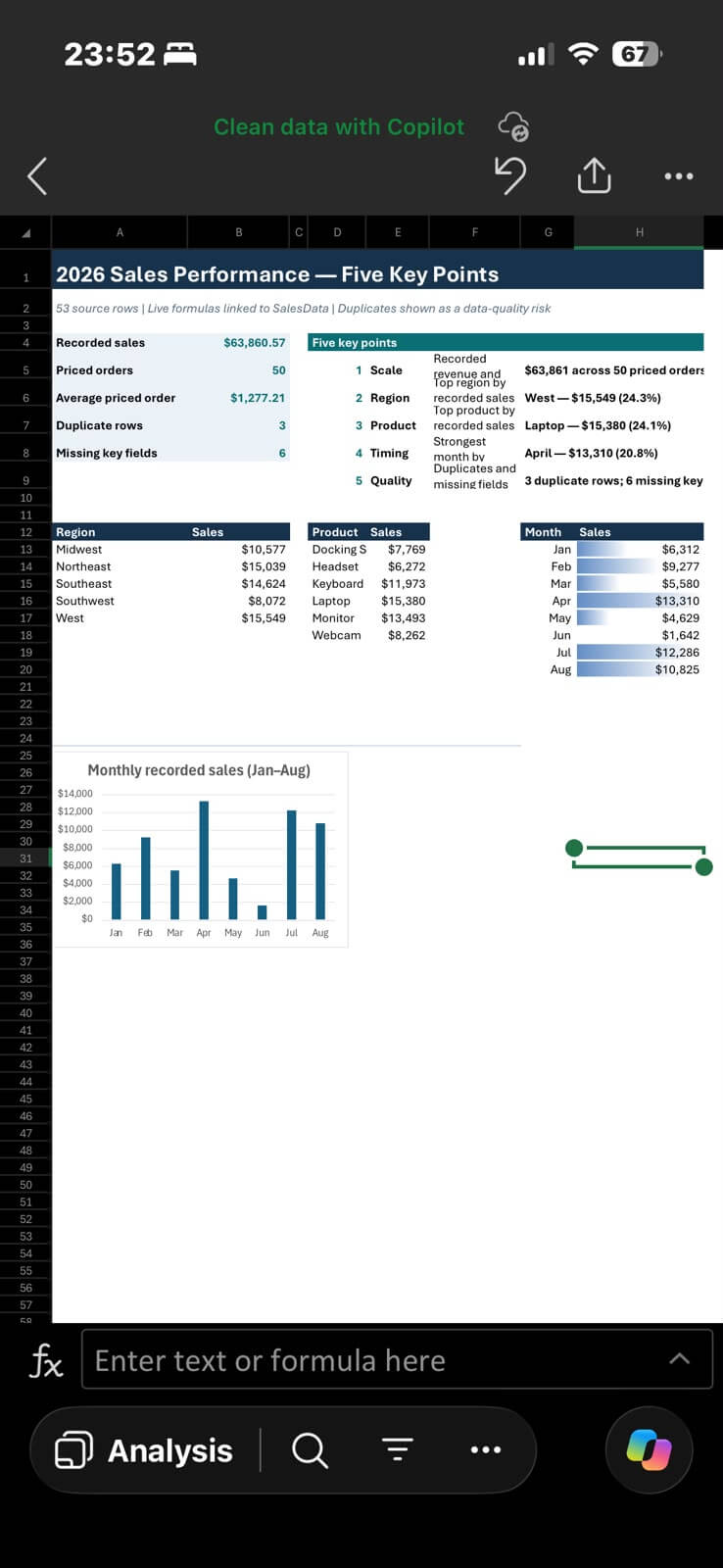
What Can You Do with Copilot in Excel on iPhone?
1. Analyse Data
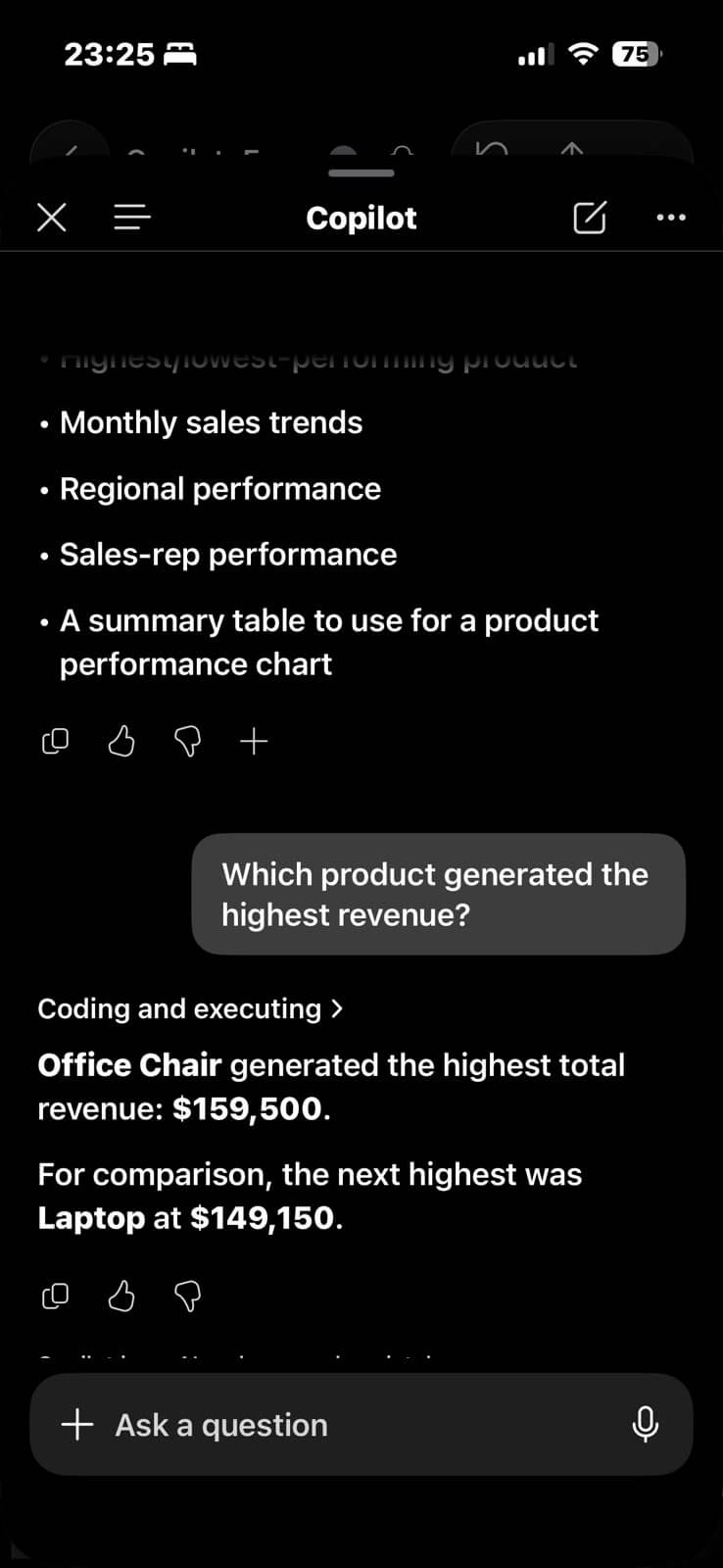
You can ask Copilot questions about your Excel data. For example, if you have a sales report, you can ask:
“Which product generated the highest revenue?”
2. Spot Trends
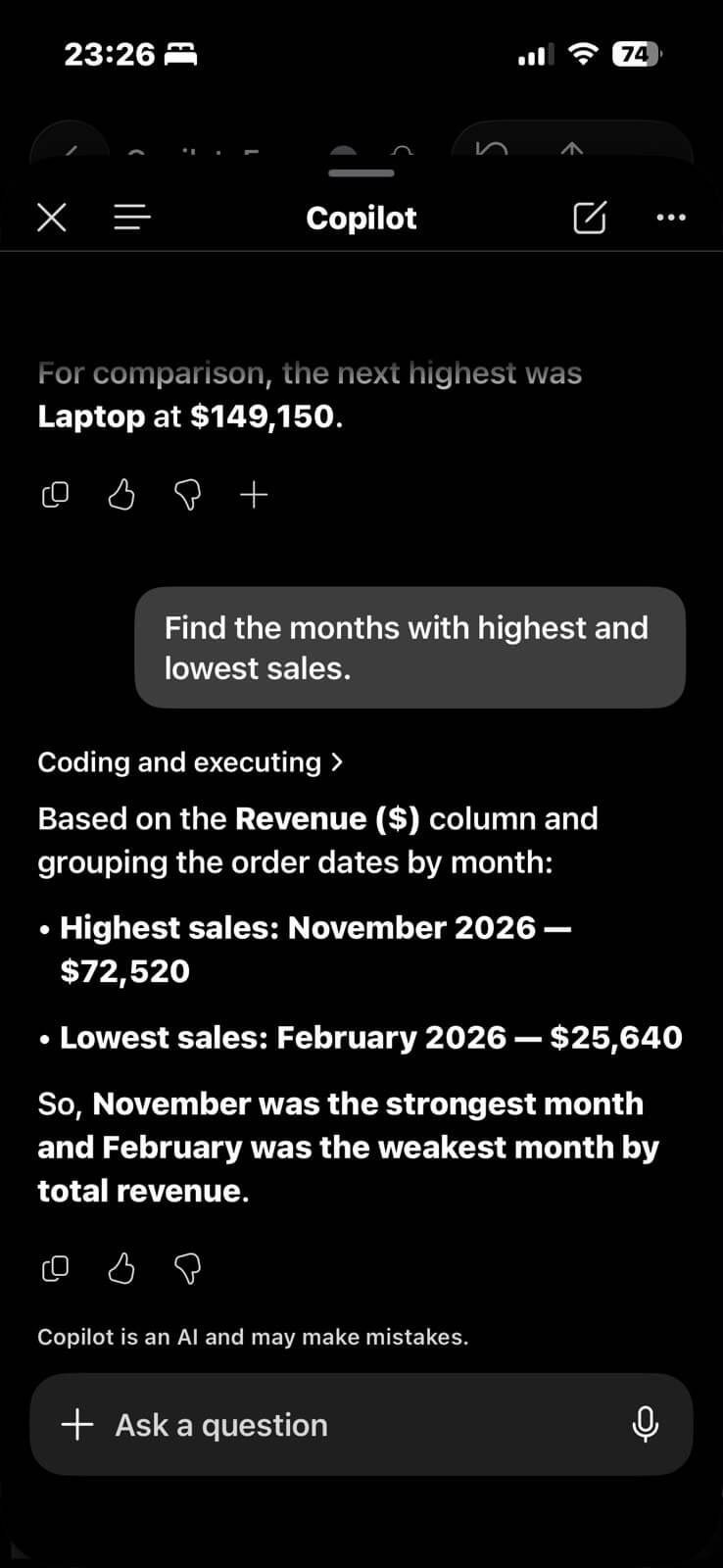
Copilot can help you spot patterns and trends in your data. For example, you can ask:
“Find the months with the highest and lowest sales.”
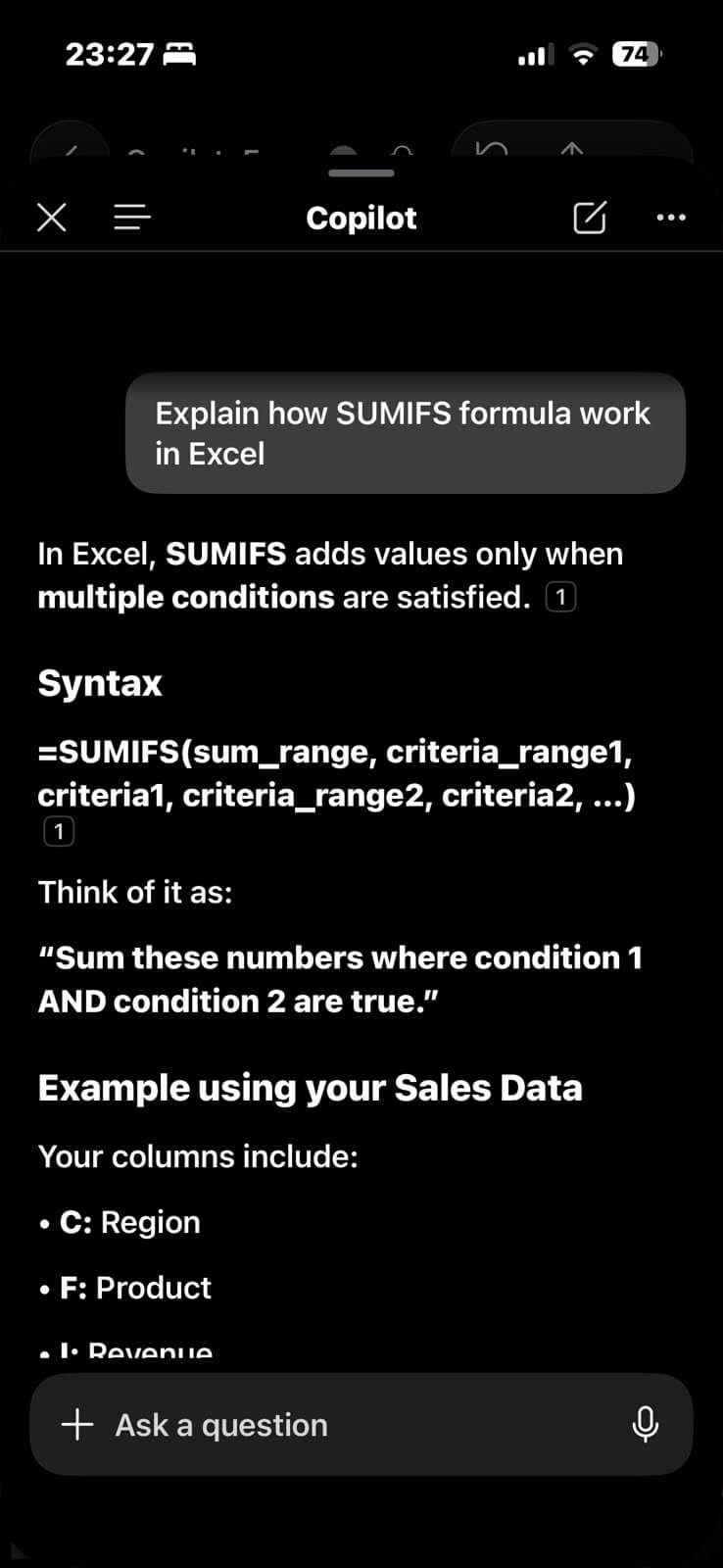
3. Understand Excel Formulas
You can use Copilot to understand Excel formulas. For example, you can ask:
“Explain how the SUMIFS function works in Excel.”
4. Summarise Data
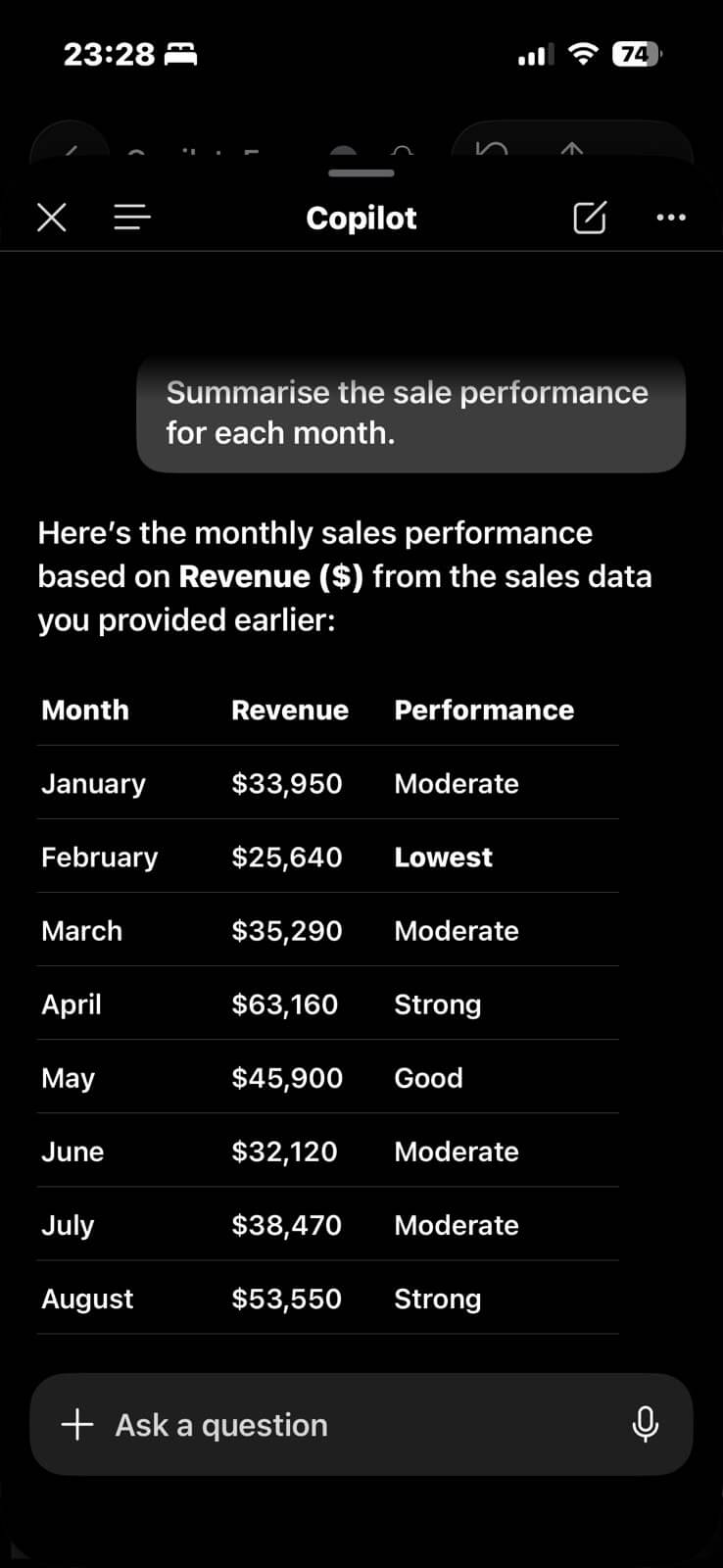
Copilot can help you summarise large amounts of information. For example, if your workbook contains monthly sales data, you can ask:
“Summarise the sales performance for each month.”
When to Use Copilot in Excel on iPhone
- It is a good option when you want to get a quick response.
- You can use it when you are on your way to the meeting and want a summary of the data.
- You want to understand what a sheet does or how a formula works in someone else’s workbook.
- Use it when you want to make a small fix on the go.
Limitations of Copilot in Excel on iPhone
- All the features of Excel may not be available in the mobile platform.
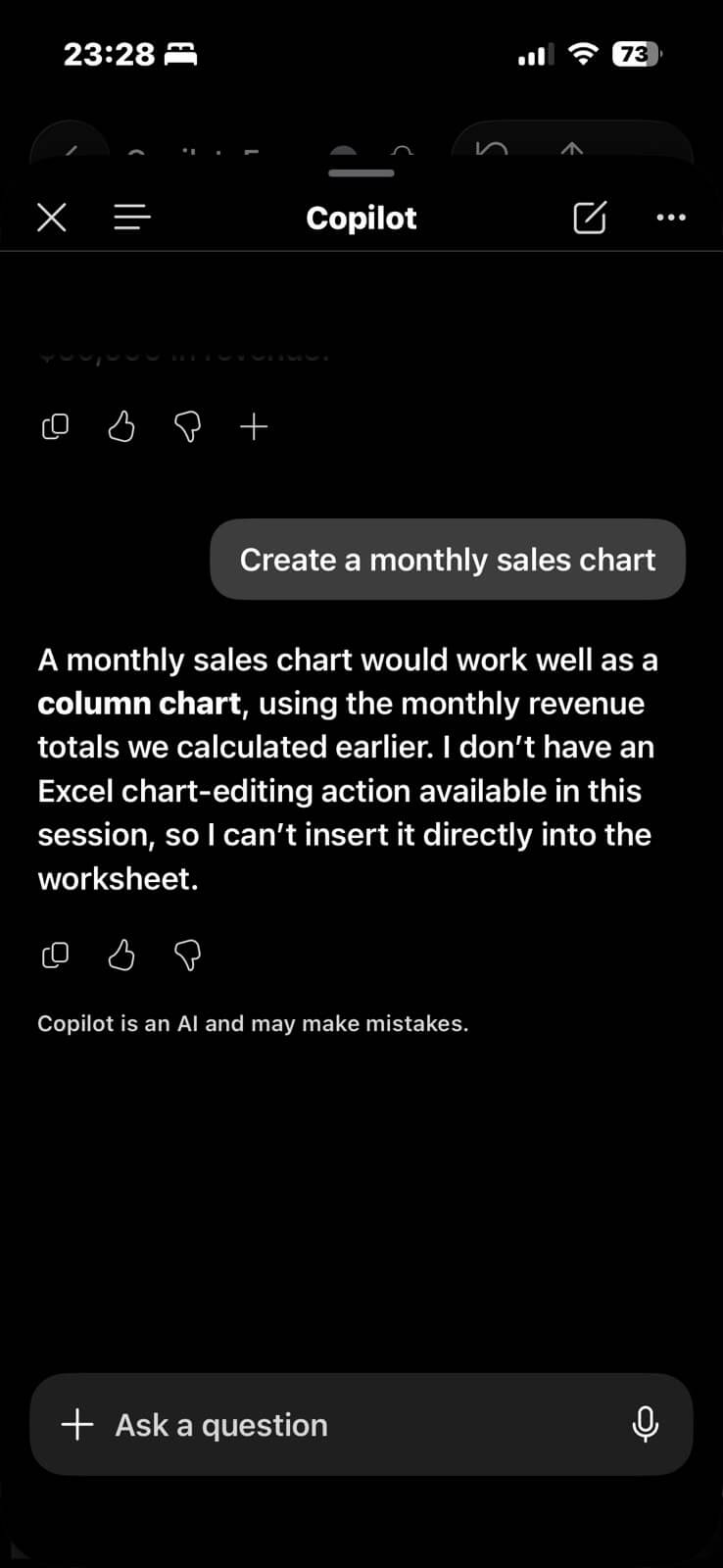
- To be able to use Copilot, you should have an eligible subscription like Microsoft 365 Personal or Family with an AI credits plan, or Microsoft 365 Premium.
- Working with large Excel workbooks on an iPhone can be difficult.
- Copilot may sometimes generate incorrect answers or misunderstand your prompts.
- Copilot requires an internet connection to process your prompts and generate responses.
FAQs
1. Is Copilot available in Excel on iPhone?
Yes, Copilot is available in Excel on iPhone. You can use Chat mode to ask questions about your data.
2. Can Copilot edit Excel files on iPhone?
Edit mode support is rolling out to Excel on iPhone. It allows Copilot to make changes to your workbook.
3. Can I use Copilot in Excel on iPhone for free?
Yes, you can use Copilot in Excel on iPhone. But its availability depends on your Microsoft 365 subscription and account eligibility.
4. What can Copilot do in Excel on iPhone?
Copilot in Excel on iPhone can help you analyse data, spot trends, summarise information, and understand formulas.
5. Why is Copilot not showing in Excel on my iPhone?
If the Copilot button is missing in Excel on iPhone, it can be because of one of these reasons:
- Your subscription does not include Copilot.
- The Excel app is outdated.
- Account settings are affecting Copilot availability.

John Michaloudis is a former accountant and finance analyst at General Electric, a Microsoft MVP since 2020, an Amazon #1 bestselling author of 4 Microsoft Excel books and teacher of Microsoft Excel & Office over at his flagship MyExcelOnline Academy Online Course.

 30 Days - Full Access