Free Practice Workbook
Microsoft Office supports Copilot in Excel for Mac, but access depends on your license, app version, network, privacy settings, and organizational settings. In this article, you will learn all about Copilot in Excel for Mac – What Works and What Doesn’t.
Key Takeaways:
- Copilot is available in Excel for Mac with an eligible Microsoft 365 subscription.
- Copilot can analyse data, write formulas, and create charts.
- You can use Edit, Chat, and Plan modes in Excel for Mac.
- Some features depend on your licence and Excel version.
- Always review Copilot’s results before using them.
Table of Contents
Introduction to Copilot in Excel for Mac
What is Copilot?
Copilot in Excel is an AI assistant built into Microsoft Excel. You type what task you want to perform in plain English, and Copilot will do it for you. There are three modes available:
- Edit Mode: Make changes to your workbook.
- Chat Mode: Ask questions about your data.
- Plan Mode: Plan complex Excel tasks.
How to Access Copilot in Excel for Mac
STEP 1: Open Microsoft Excel on your Mac.
STEP 2: Open an existing workbook or create a new one.
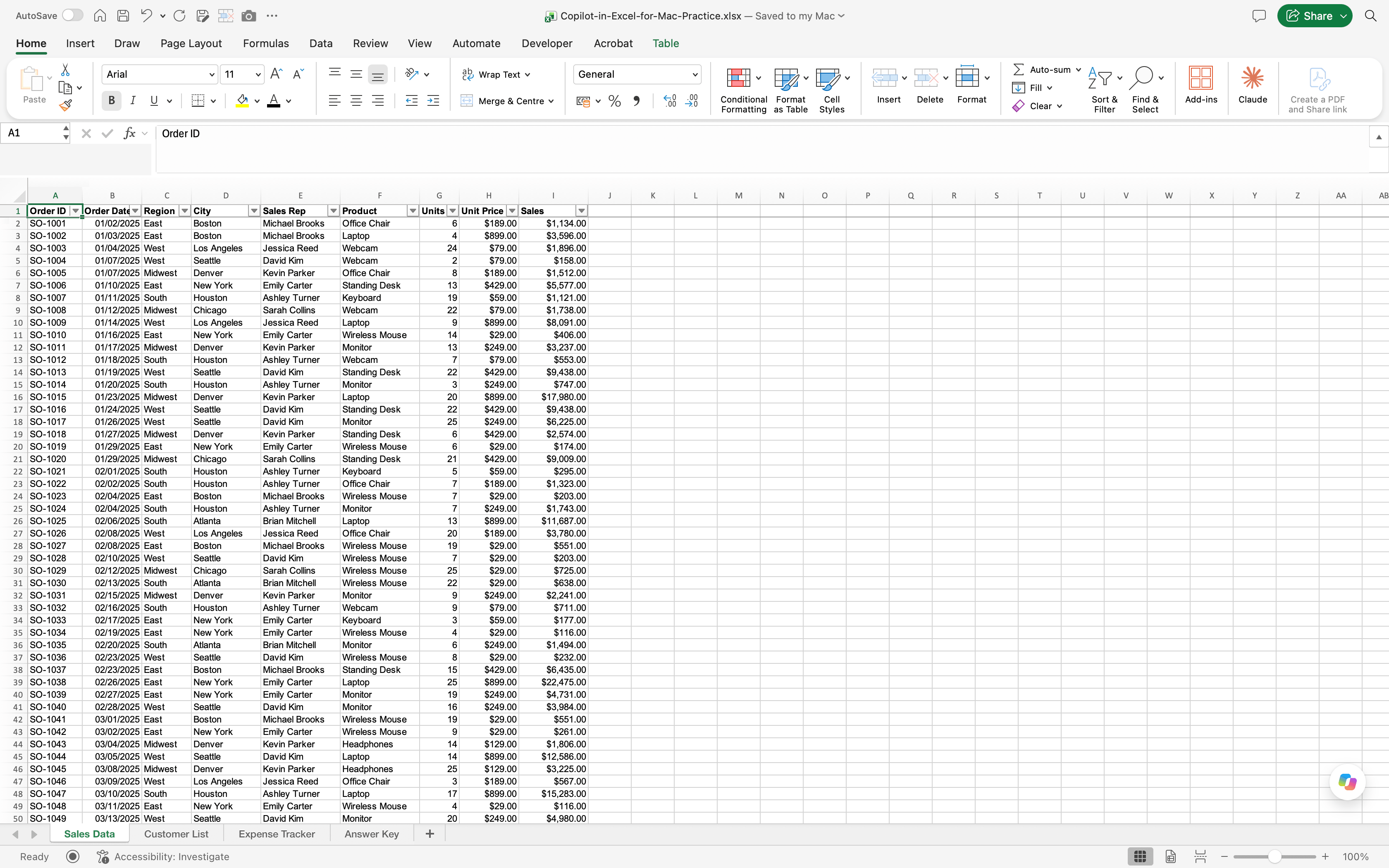
STEP 3: Go to the lower-right corner of the Excel window and select the Copilot button.
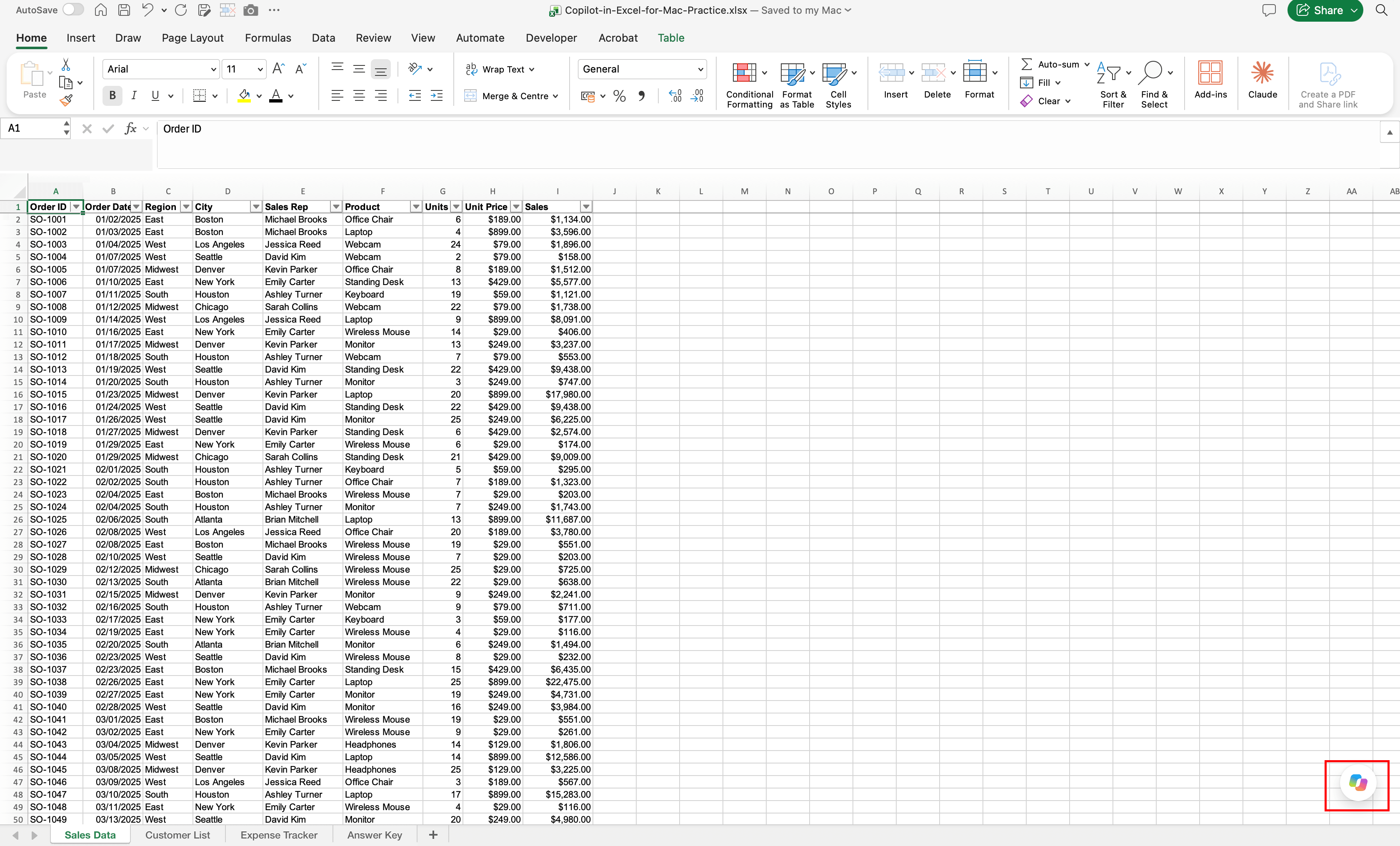
STEP 4: In the Copilot pane, enter a prompt.
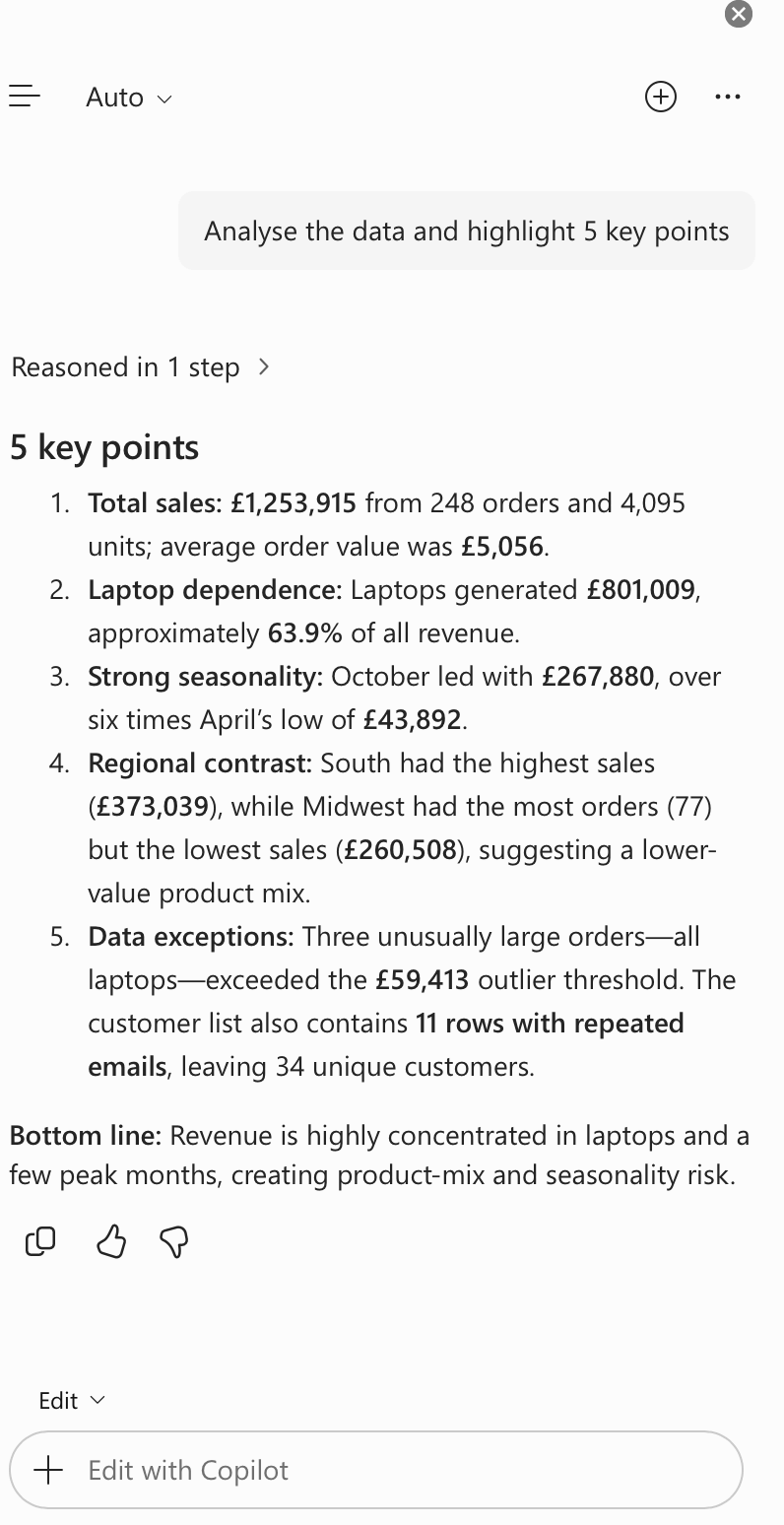
Copilot will work on the prompt and generate the result for you.
What works with Copilot in Excel for Mac?
1. Analyse Data and Find Insights
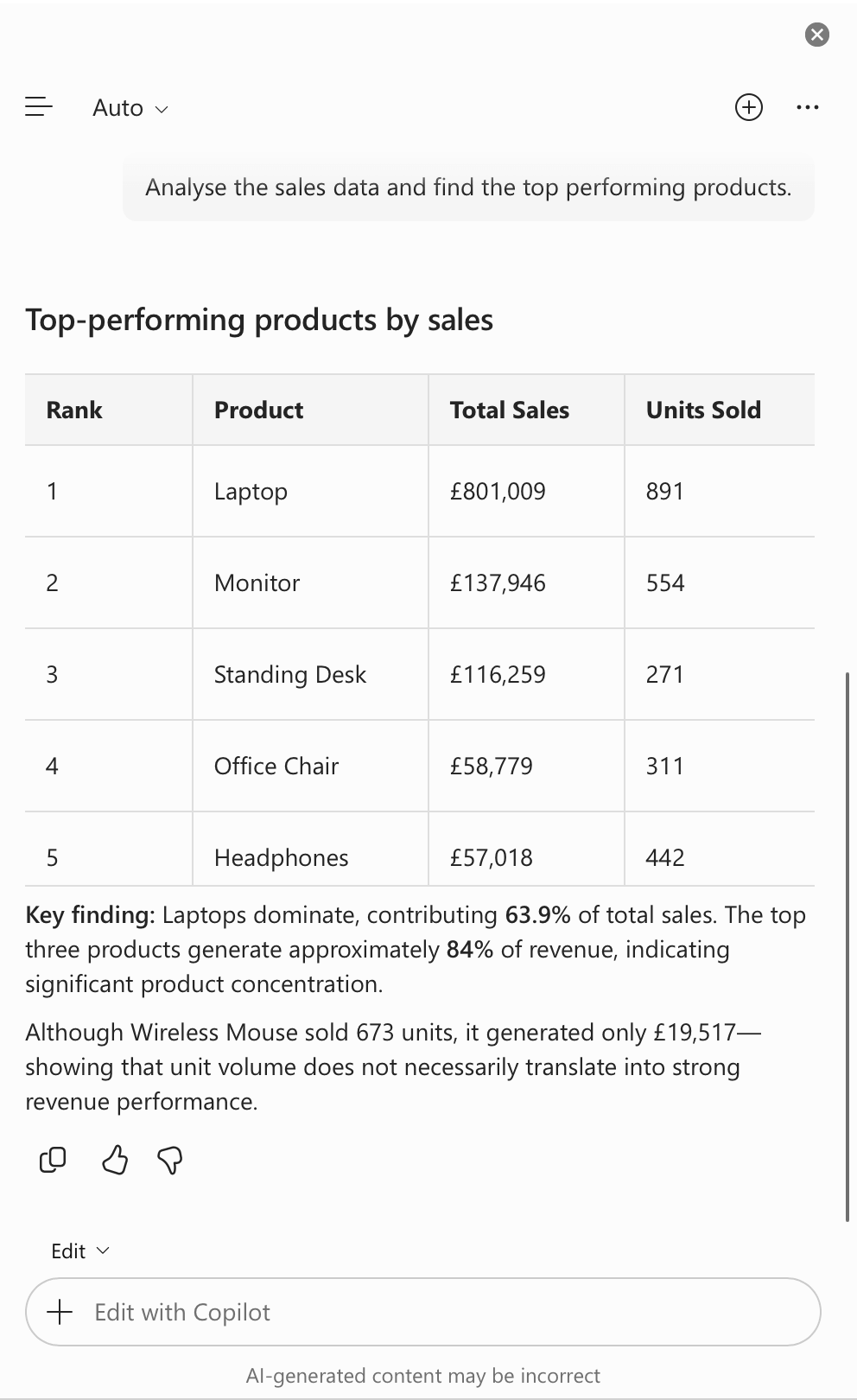
You can use Copilot to analyse datasets, spot trends, find unusual values, and summarise information. For example, if you have monthly sales data, you can ask:
“Analyse the sales data and find the top-performing products.”
2. Generate Excel Formulas
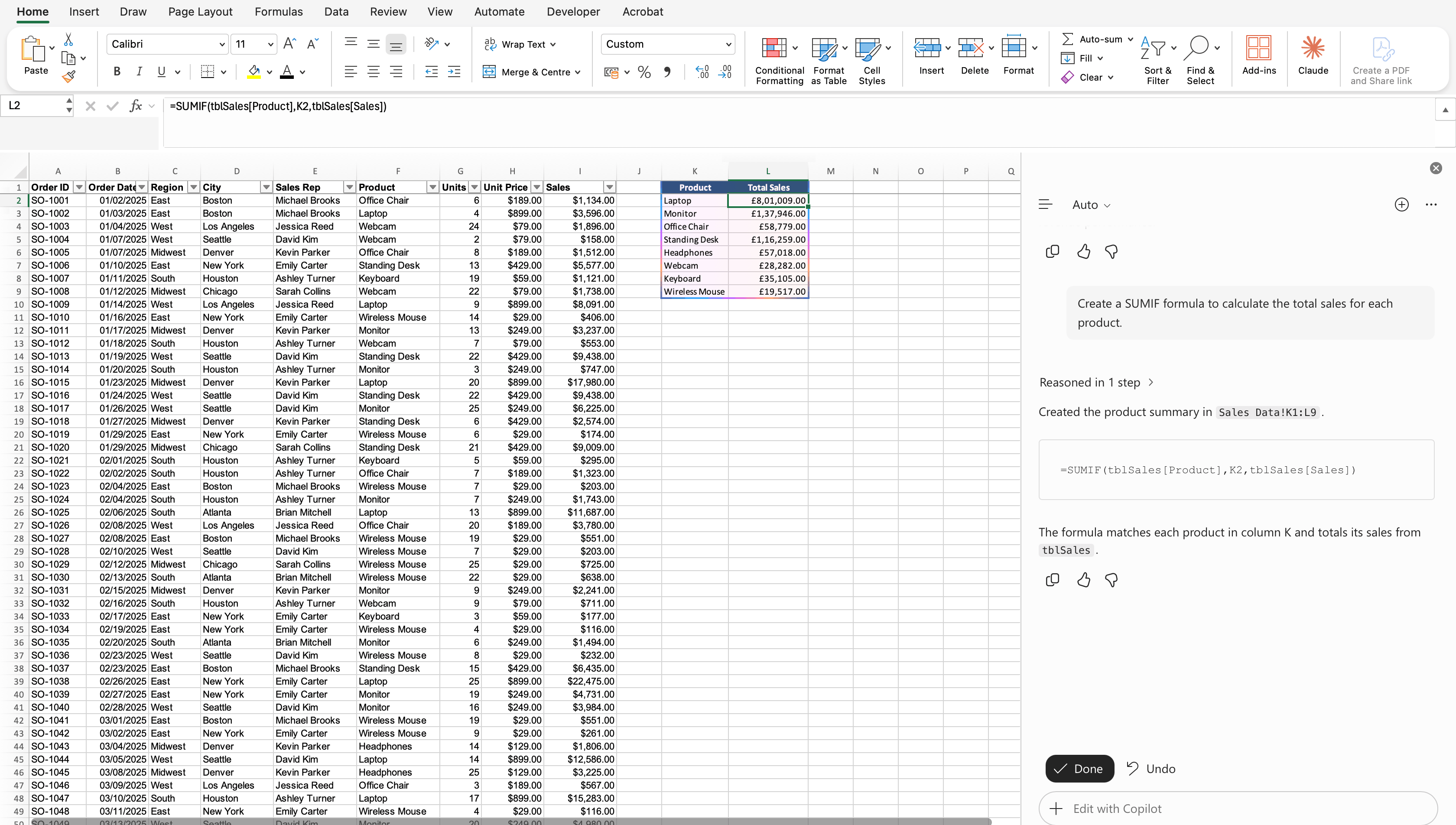
If you describe what you want in Copilot, it can write Excel formulas for it. There is no need to remember the syntax. For example, you can ask Copilot to:
“Create a SUMIF formula to calculate total sales for each product.”
3. Create Charts and PivotTables
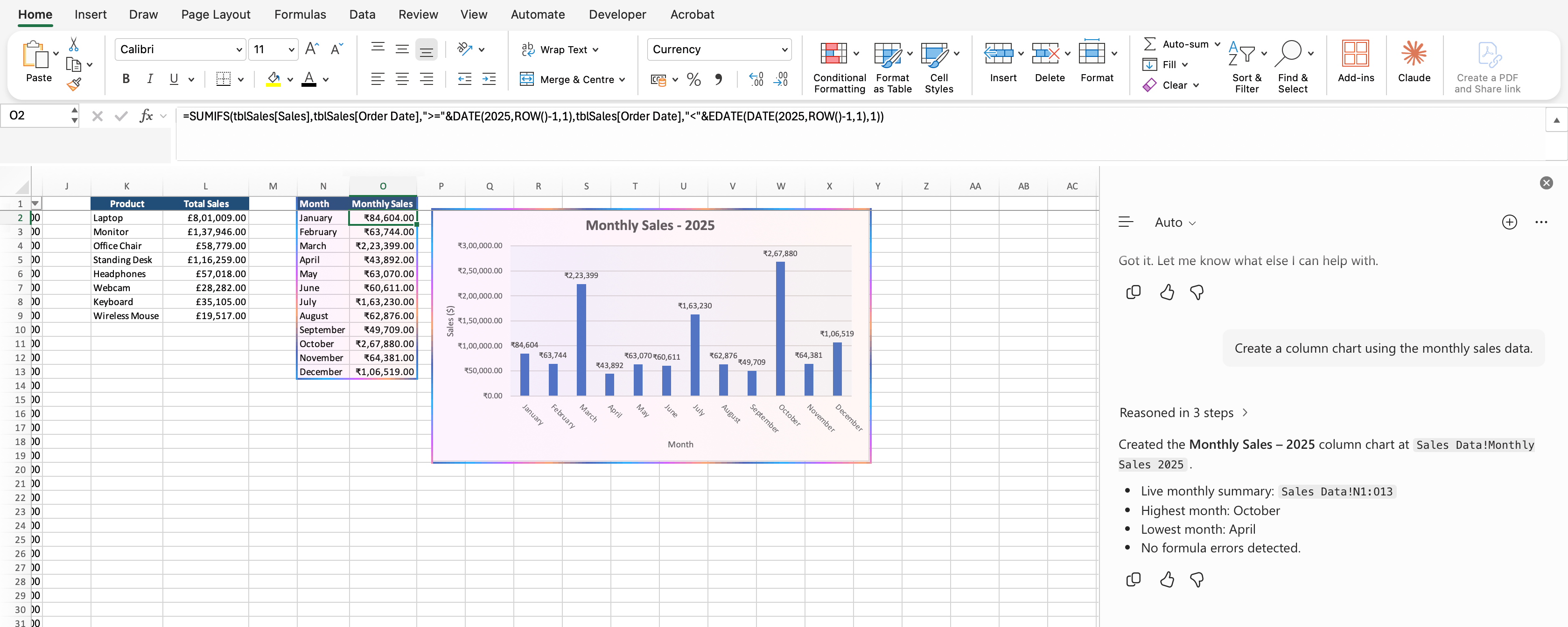
You can use Copilot to create charts and PivotTables in Excel. For example, you can ask Copilot to create a column chart using the monthly sales data.
4. Apply Formatting and Highlight Data
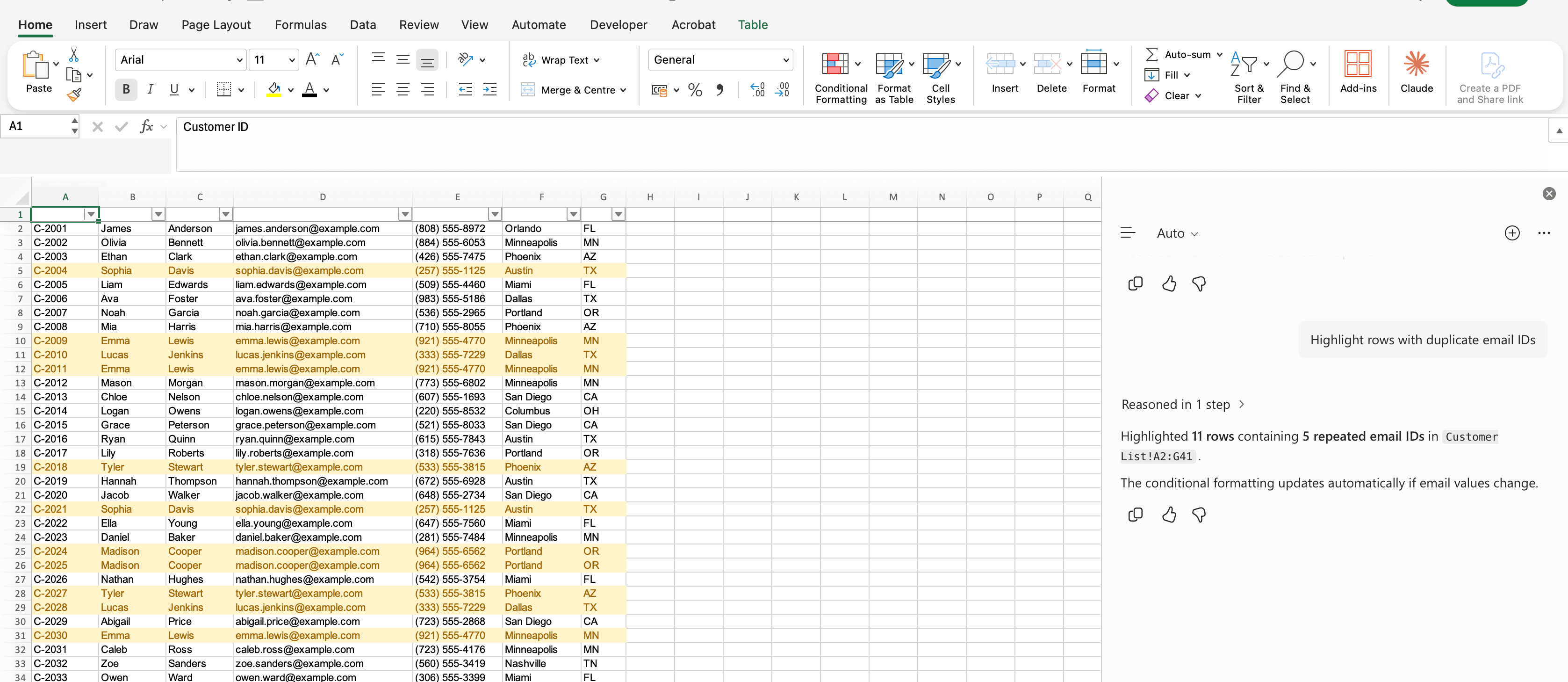
Copilot can help you format your data and highlight important information. For example, you can ask it to:
“Highlight rows with duplicate email IDs.”
5. Edit Worksheets and Generate Data
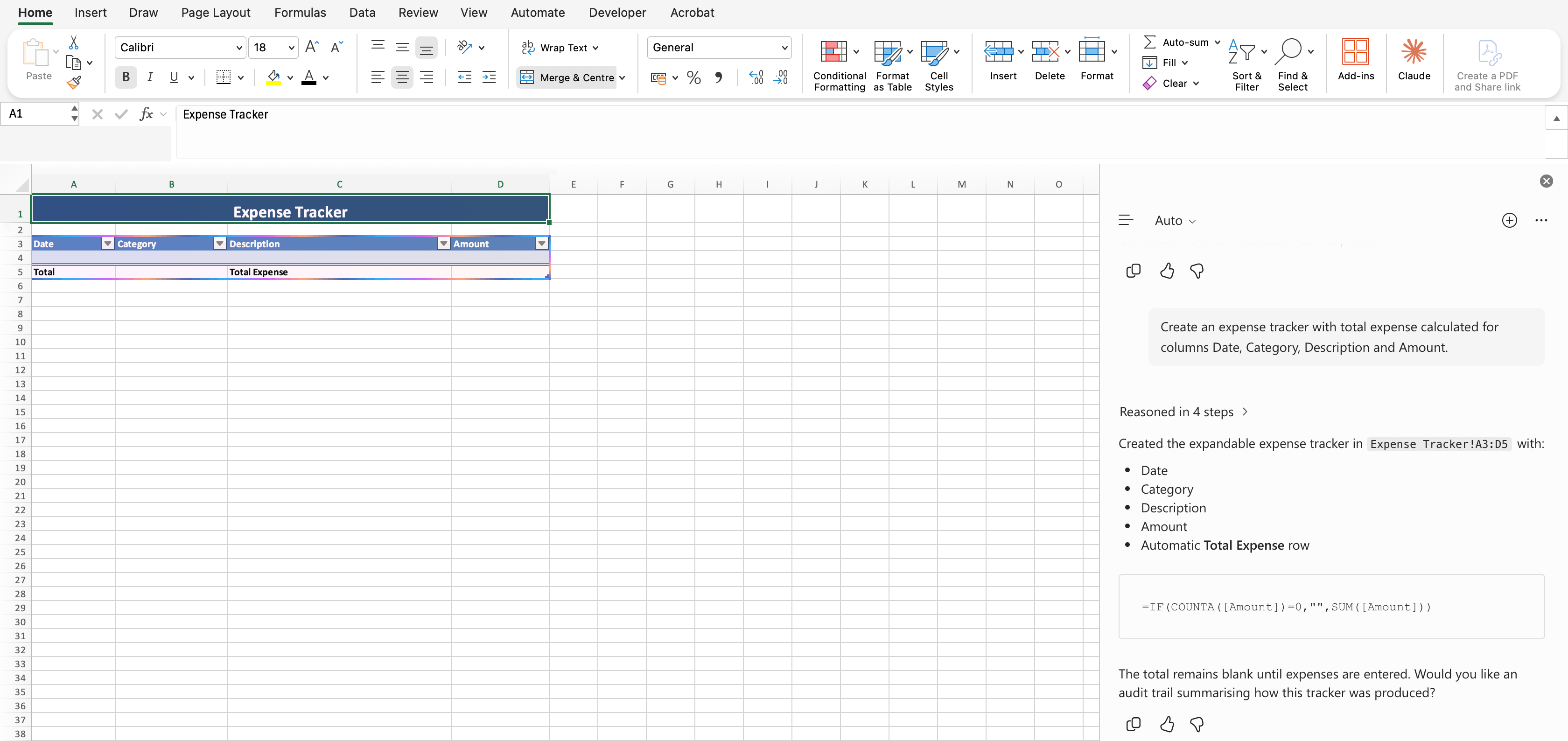
Copilot can make changes to your workbook based on your instructions. For example, you can ask Copilot to create an expense tracker with columns for Date, Category, Description, and Amount. You can then ask it to add formulas to calculate total expenses.
6. Use Python for Advanced Data Analysis
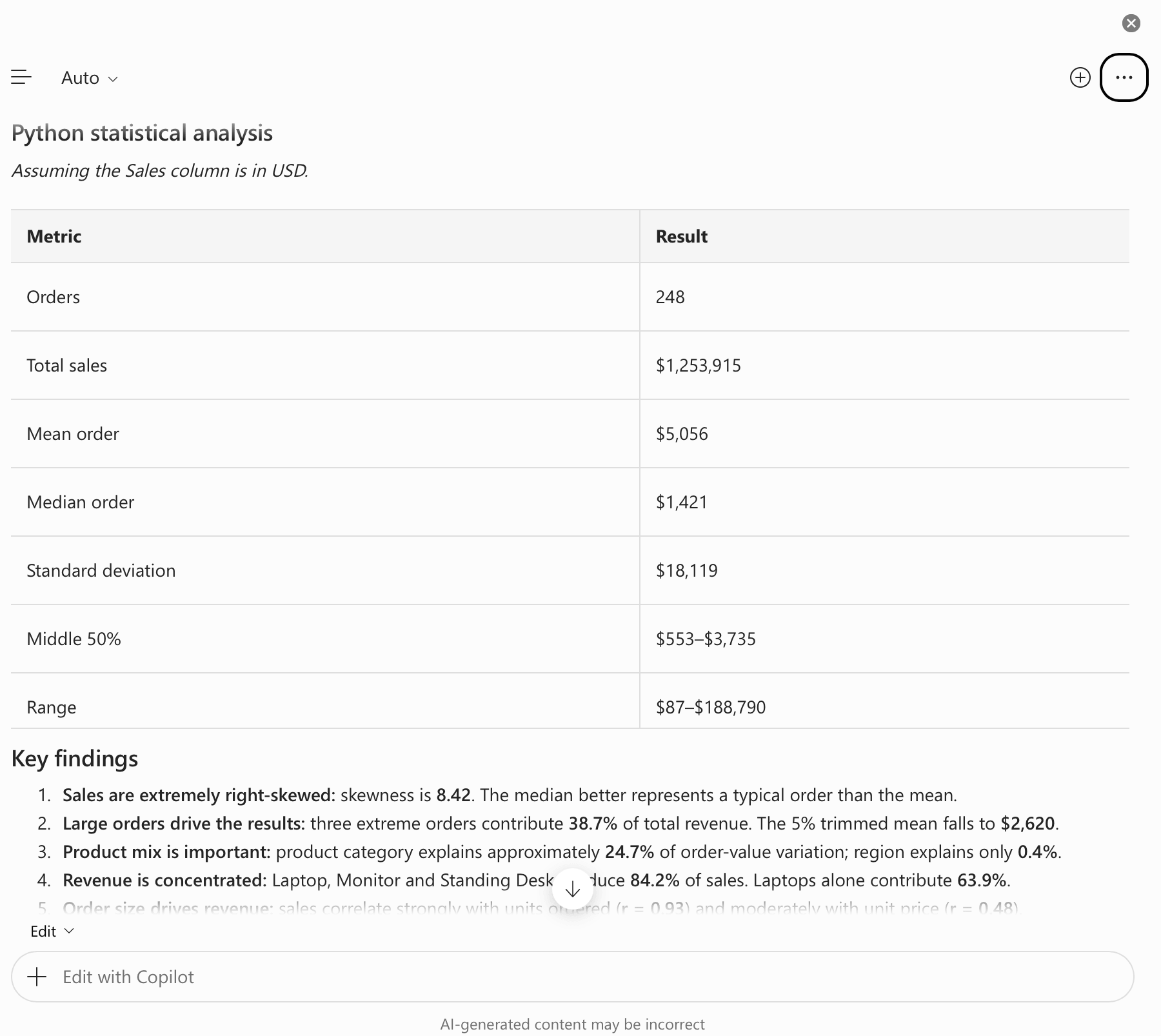
Copilot in Excel can also help you work with Python for advanced data analysis. You can ask Copilot to perform statistical analysis, clean data, spot patterns, or create visualisations using Python.
What Doesn’t Work with Copilot in Excel for Mac?
1. Not Every Feature Is Available on Every Account
Copilot availability depends on your Microsoft 365 subscription and account settings. For example, some features may require a commercial Copilot licence or Microsoft 365 Premium subscription.
2. Copilot Cannot Guarantee Accurate Results
Copilot uses AI to generate formulas or analyse data. However, it can sometimes produce incorrect results, so you should always review the results.
3. Copilot Requires Automatic Calculation
Copilot will require you to set the calculation mode to Automatic. If it is set to Manual, you may need to change the settings before using Copilot.
FAQs
1. Is Copilot available in Excel for Mac?
Yes, Copilot is available in Excel for Mac.
2. What can Copilot do in Excel for Mac?
Copilot can perform all of these tasks and much more in Excel for Mac:
- Analyse data
- Write formulas
- Create charts
- Edit workbooks
- Create Dashboards
3. Can Copilot create PivotTables on Mac?
Yes, you can use Copilot on Mac to create PivotTables and summarise the results.
4. Why is Copilot not showing in Excel for Mac?
If Copilot is not showing in Excel for Mac, it can be because of these reasons:
- The license does not include Copilot.
- Excel version is not updated.
- Account settings do not allow Copilot.
5. Does Copilot always provide accurate results?
No, Copilot produces results using AI. Make sure to review its results before using them.

John Michaloudis is a former accountant and finance analyst at General Electric, a Microsoft MVP since 2020, an Amazon #1 bestselling author of 4 Microsoft Excel books and teacher of Microsoft Excel & Office over at his flagship MyExcelOnline Academy Online Course.

 30 Days - Full Access