 Free Practice Workbook
Table of Contents
Power of Excel for Advanced Roots
Understand Nth Roots
When delving into the capabilities of Excel, it is important to know about nth roots. Simply put, the nth root of a number is that value which, when raised to the power of n, yields the original number. Think of it as the inverse operation of raising a number to a power.
For instance, if I’m looking to find the cube root of 27, I am searching for a number that when raised to the third power equals 27. It turns out to be 3, because 3^3 equals 27. In algebra, this operation is streamlined by representing the nth root of a number as the number raised to the fractional exponent of 1/n.
This mathematical operation isn’t just some arcane piece of trivia; it’s a fundamental part of more complex equations and various applications in fields ranging from physics to finance.
Formula for Nth Root
- Using POWER Function: =POWER(number, 1/n)
- Using the Caret Operator: =number^(1/n)
How to Calculate the Nth Root
POWER Function
The POWER function allows me to raise any number to the power of 1/n to find the nth root. To calculate the square root, cube root, or any other nth root, the POWER function requires two arguments:
- number
- power to which it is raised
=POWER(number, 1/n)
STEP 1: Click on the cell where you want the result to appear.
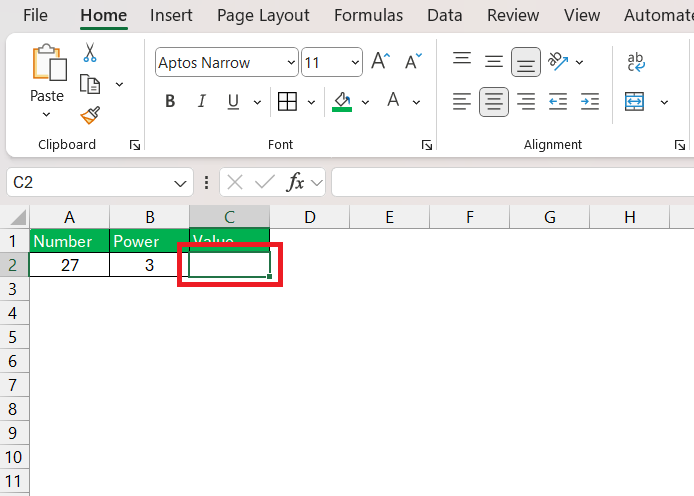
STEP 2: Enter the Formula: Type the formula =POWER(A2, 1/B2), where:
- A2 contains the number for which you want to calculate the nth root.
- B2 contains the value of “n” (the root).
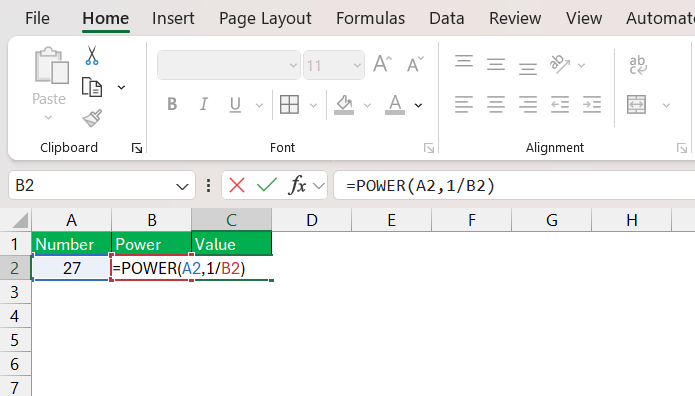
STEP 3: Excel will compute the result instantly.
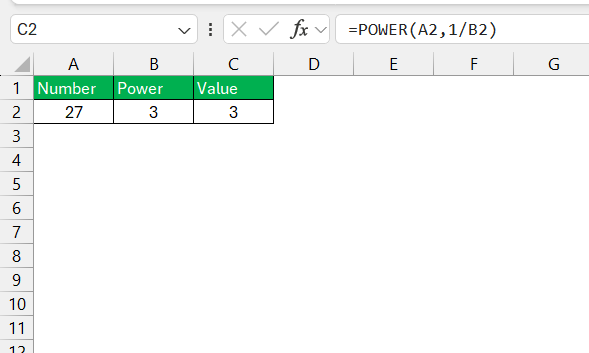
Exponent Operator (^)
The exponent operator (^) in Excel is another tool for nth root calculations. It’s a quicker way to compute roots without using any specific function.
STEP 1: Click on the cell where you want to calculate the nth root.
STEP 2: Type =A2^(1/B2).
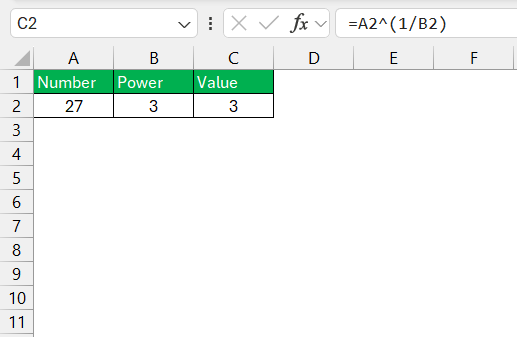
Excel will compute the nth root of the number. This method is particularly useful if you prefer a shorter formula.
Advanced Techniques
Negative Numbers
Handling nth roots for negative numbers in Excel requires a bit more attention to detail. Generally, raising a negative number to a fractional power may lead to a complex number. However, if I’m looking for a real number as a result, it is important to know that only odd roots of negative numbers are real numbers.
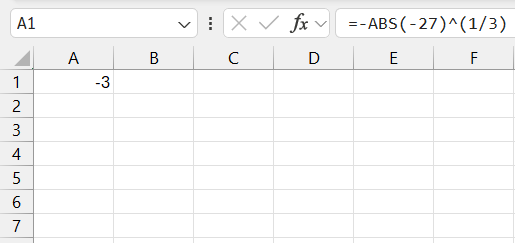
In Excel, I use the ABS function first to convert the negative number to its absolute positive number. Then, I can use either the POWER function or the exponent operator (^), followed by applying a negative sign to the result.
For example, to find the cube root of -27, the formula would be:
Fractional and Irrational Numbers
When it comes to fractional and irrational numbers, I am aware that they can be tricky to work with in Excel due to their infinite or non-repeating nature. However, Excel is designed to handle these numbers up to a significant degree of precision.
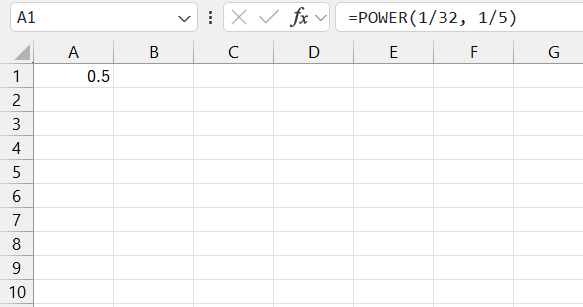
For fractional numbers, I use the POWER function or the exponent operator with carefully placed parentheses to maintain the correct order of operations.
To calculate the 5th root of 1/32, I use this formula:
For irrational numbers like the square root of pi, I often use Excel built-in constants (such as PI()) for most practical purposes.
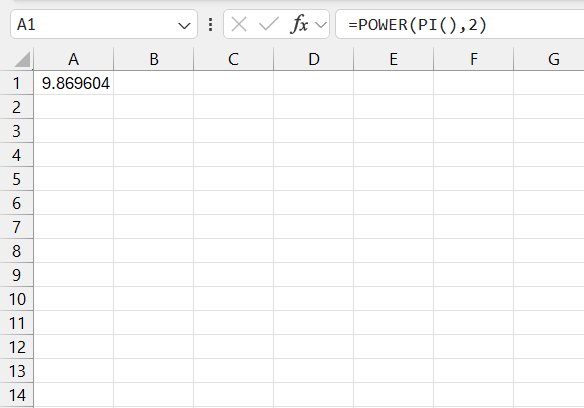
To mitigate any complication with fractional and irrational numbers, I also use Excel’s formatting options to control the number of decimal places displayed.
Troubleshooting Common Issues
When faced with error messages during nth root calculations in Excel, I take a systematic approach to resolve them. The ‘#NUM!’ error often appears if I attempt to calculate an even root of a negative number, as real results do not exist for this scenario.
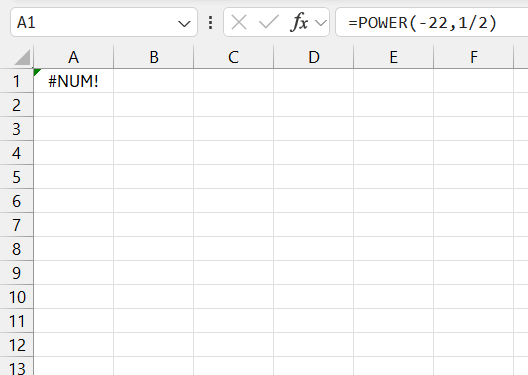
To address this, I ensure I’m either working with a positive number or adjusting the root to an odd number.
‘VALUE!’ error messages, on the other hand, flag that Excel doesn’t recognize the input as numeric. This could be due to formatting issues or incorrect formula syntax.
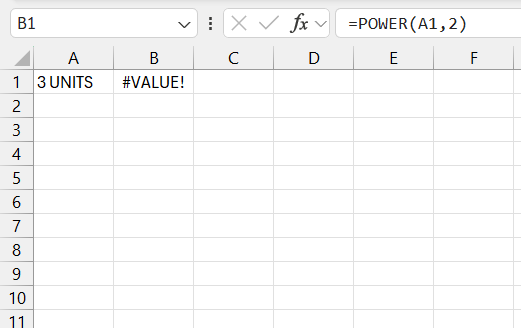
I carefully check the cell’s format and re-enter the formula or data correctly.
If I encounter the ‘#DIV/0!’ error, it indicates that I am attempting to divide by zero, which happens if my formula includes a zero in a denominator or an incorrect cell reference leading to a zero-value.
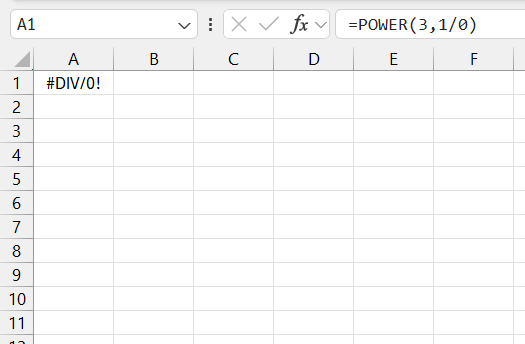
It’s essential to review the references and inputs to make sure they return a non-zero value.
I also keep an eye for the ‘#REF!’ error, which screams that a reference is invalid. Perhaps because I’ve deleted a cell or an entire row/column that was part of my formula.
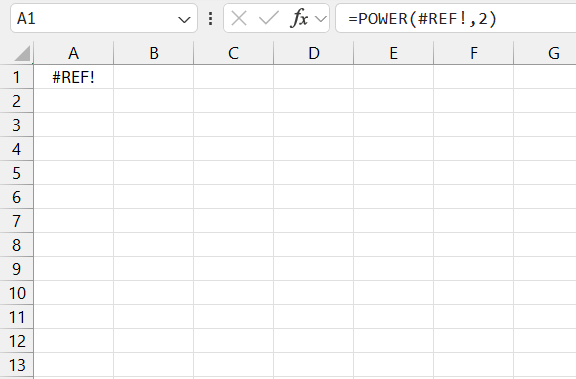
To fix it, I either undo the deletion or update the formula to reference the correct cells.
To nip these issues in the bud, I also exploit Excel’s built-in ‘Error Checking’ feature that helps in pinpointing and guiding the correction process.
FAQs
How to calculate the nth root?
To calculate the nth root of a number in Excel, use the =number^(1/n) formula. For instance, to find the 5th root of 32, enter:
=32^(1/5)
What is the syntax of the POWER function?
The syntax of the POWER function is:
=POWER(number, 1/n)
- number is the value
- n is the root
Can Excel handle negative numbers for roots?
Yes, but only for odd roots like the cube root.
How to overcome errors when calculating Nth roots in Excel?
To overcome errors when calculating nth roots in Excel,
- Make sure your number is positive when calculating even roots
- Enclose the
1/nexpression in parentheses - Recheck cell references

John Michaloudis is a former accountant and finance analyst at General Electric, a Microsoft MVP since 2020, an Amazon #1 bestselling author of 4 Microsoft Excel books and teacher of Microsoft Excel & Office over at his flagship MyExcelOnline Academy Online Course.

 30 Days - Full Access









