As a dedicated enthusiast of productivity tools, I’ve found that an organized OneNote to-do list is the backbone of any efficient workflow. Incorporating them effectively can transform overwhelming days into structured sequences of accomplishments. In the swirl of our daily commitments, they act as a reliable anchor, ensuring that nothing slips through the cracks.
Key Takeaways
- OneNote is a flexible tool to create to do list.
- Add checkboxes by using the tag button.
- Tags, sub-tasks, and drag-and-drop can help you organize your list.
- Attach files and links to tasks so that you have everything in one place.
- OneNote allows real-time syncing so that you can access it across multiple devices.
Overview of OneNote as a Productivity Tool
OneNote excels as a productivity powerhouse within the Microsoft suite of tools, uniquely positioned for those seeking flexibility and seamless integration. Unlike rigid task management systems, OneNote offers a versatile canvas—whether you’re jotting down quick notes, compiling research, or tracking long-term projects. It provides an easy integration with other Microsoft applications, enhancing its appeal, and embedding into a workflow that likely already includes tools like Word, Excel, or Outlook. With OneNote’s capacity for multimedia content and its user-friendly platform, I’ve witnessed firsthand how it can cater to a variety of organizational styles.
Table of Contents
Getting Started with OneNote for Task Management
Basic Features
Some of the basic features of OneNote are:
- To-Do Tag Button: You can add checkboxes next to each item to create a checklist.
- Drag-and-Drop Functionality: Tasks aren’t set in stone. You can reorder them as priorities shift.
- Sub-Tasks: By indenting items, you can create hierarchy in your list, making sub-tasks clear.
- Tags: These allow for easy categorization and retrieval of tasks, beyond just your to-do lists, enhancing searching and sorting.
Through my regular use, I’ve discovered these features don’t just make list creation intuitive; they also add layers of structure to each project’s complexities.
Setting Up Your First Onenote To-Do List
To start your journey toward an organized life with OneNote, follow these steps:
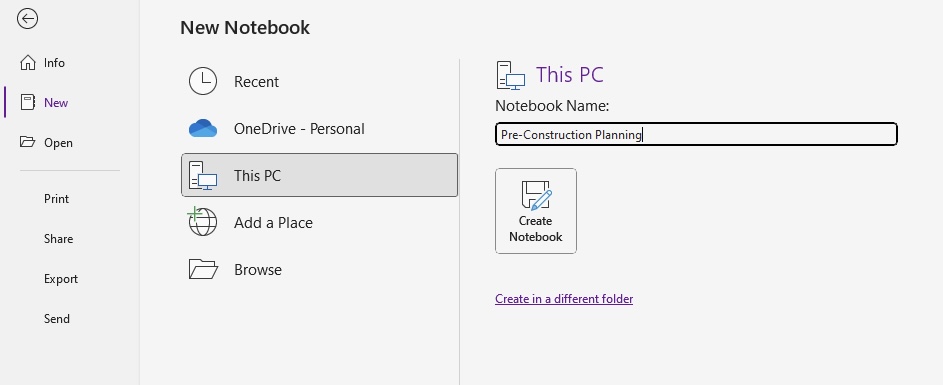
STEP 1: Open OneNote and create a new note. Give it a practical title that intuitively reflects its contents.
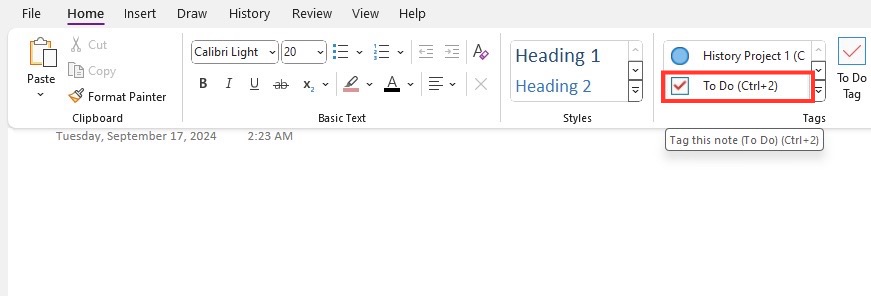
STEP 2: Select the Home Tab. Here you’ll find the To Do Tag button, which is the starting point for your list.
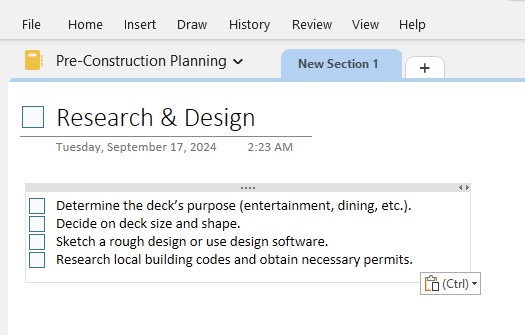
STEP 3: Click the To Do Tag button and begin typing your tasks. Each time you hit Enter, a new checkbox appears, ready for your next item.
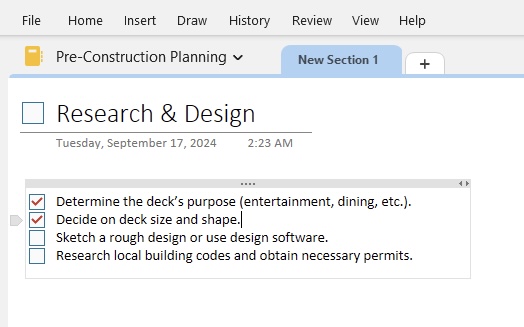
STEP 4: As you complete each task, click the box to achieve that satisfying checkmark. It gives a visual progress indicator and a boost to morale.
STEP 5: Right-click to rename pages within your list, helping you organize tasks by categories like ‘Urgent,’ ‘Follow-Up,’ or by project names.
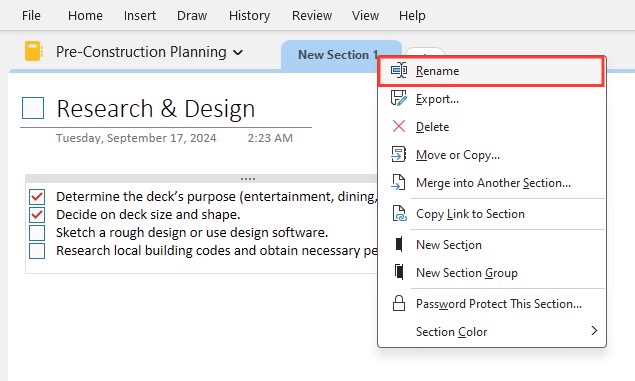
With those steps, you’ll have a functioning to-do list that should start bringing clarity to your workday almost immediately.
Streamline Your Tasks with Onenote Hacks
Leveraging Tags and Checklists for Seamless Organization
Tags and checklists within OneNote serve as a fundamental duo for streamlining task management. Here’s how I leverage these features for seamless organization:
Custom Tags: I create custom tags for specific projects or task types, like ‘Urgent,’ ‘Client Request,’ or ‘Idea’. This not only helps in quick identification but also in searching tasks through the Tags Summary pane.
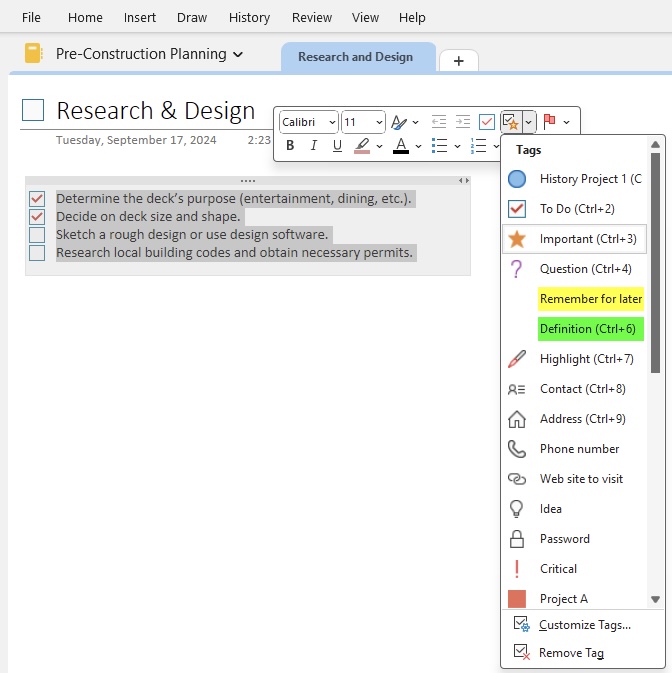
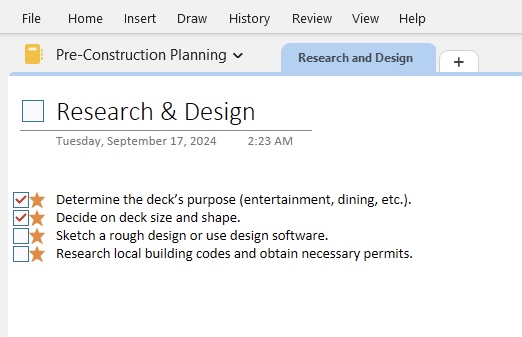
Checklists as Milestones: For complex tasks, I break them down into smaller, manageable steps in a checklist. Each completed checkbox feels like hitting a mini-milestone, propelling motivation and keeping progress transparent.
Strategically used, these tags and checklists render chaos into clarity, perfect for when our mental bandwidth is spread thin across multiple domains.
Incorporating Files and Links into Your To-Do Items
Merging files and links into OneNote to-do lists elevates their functionality substantially. I often make my lists more actionable by:
Embedding File Links: Next to a task, I click Insert > File to add links or attachments, providing all necessary documentation at the task’s location. With this, I ensure context is never lost.
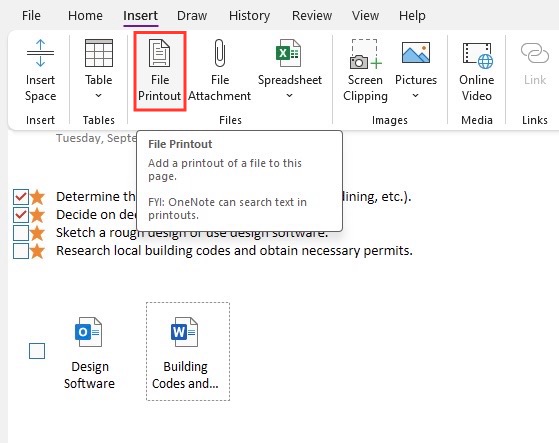
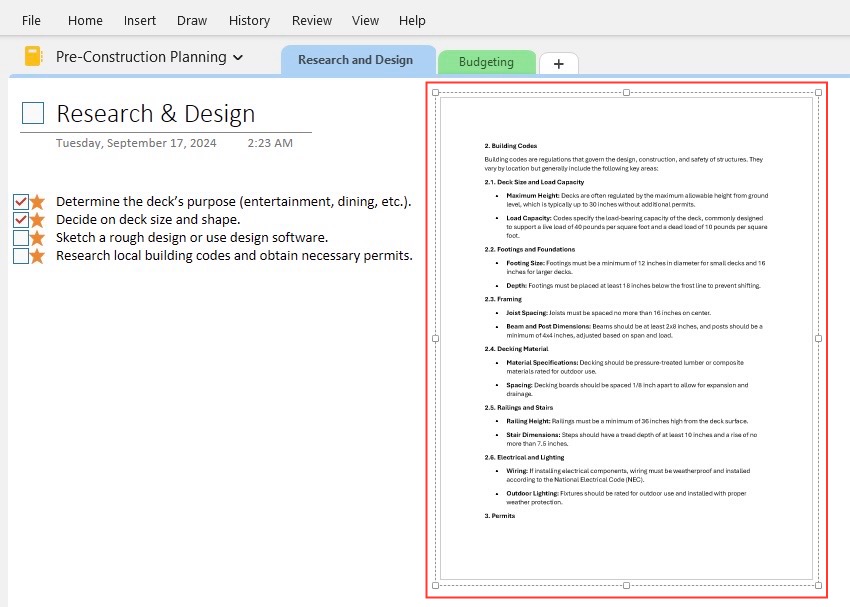
Inserting File Printouts: For quick reference, I sometimes choose ‘Insert as a printout’, making the contents of a document directly visible within the note.
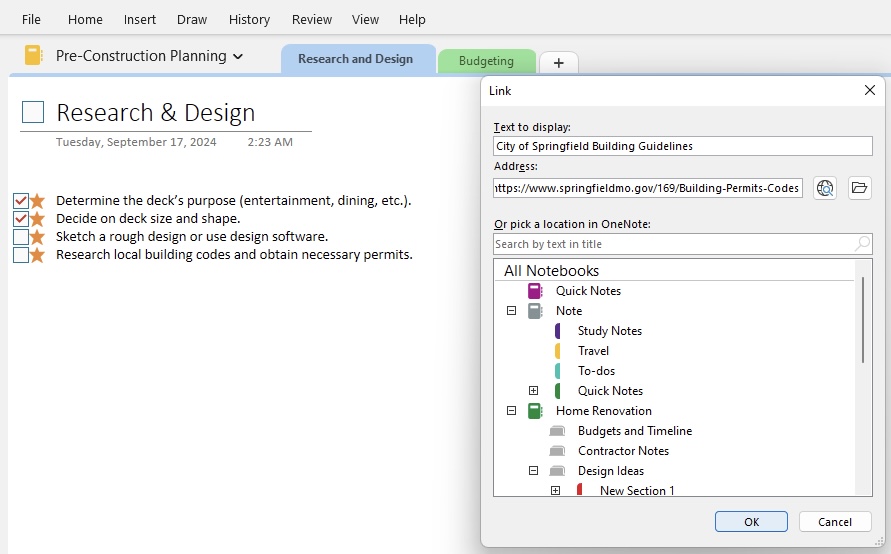
Linking Existing Content: By Ctrl-clicking any text, I transform it into a hyperlink to other pages or notebooks. This creates an interconnected web of notes, invaluable for complex projects.
Seamlessly incorporating these elements ensures that I have all pertinent information at my fingertips, directly linked to the relevant task.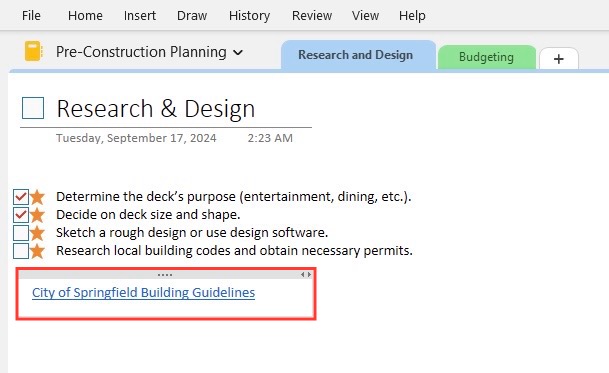
Collaborative To-Do Lists in Onenote
Sharing Your OneNote Lists for Team Collaboration
Sharing OneNote lists for team collaboration unlocks a powerful synergy in project management. The shared task lists can be both ticked off and added to by all with access, nurturing a truly collaborative environment. Here’s what I do to ensure we work together seamlessly:
- Utilize OneDrive or Teams: I share my OneNote notebook through Microsoft OneDrive or Teams, making it accessible to relevant team members.
- Set Permissions: I assign permissions thoughtfully, deciding who can view or edit the notebook, to maintain control over the document’s integrity.
This collaborative aspect extends beyond mere task lists; it’s a vessel for collective thought and creativity, essential in a landscape where joint effort is paramount.
Real-Time Synchronization Across Devices and Users
When it comes to task management in OneNote, real-time synchronization is a game-changer. I often highlight how everything I add or modify is updated instantaneously across all my devices. That means whether I check off a task on my phone or add a note on my tablet, it’s reflected everywhere.
Similarly, when working in teams, these changes occur on my colleague’s devices as well, ensuring we’re all current with the latest updates and completions. By syncing data across our many devices and users, OneNote keeps us all on the same page—literally—and helps eliminate redundancies and confusion.
Overcome Common Challenges
Tips to Manage Large NoteBook
- Use the navigation pane to see the notebook’s structure. You can expand and collapse sections to view them properly.
- Create a table of contents with links to key sections and pages for quick access.
- Type the keywords and tags to find what you need.
Sync Issues
If you are facing syncing issues in OneNote, you can check these points:
- Make sure your internet connection is stable.
- Regularly update your app. The latest versions have improved features and bugs fixed.
- Monitor the size of the notebook section. A very large section can become too big to handle.
FAQs
What Are Some Best Practices for Prioritizing Tasks in OneNote?
Best practices for prioritizing tasks in OneNote include:
- Color-coding by urgency.
- Using tags to categorize tasks.
- Reviewing and adjusting priorities.
How to Quickly Add New Tasks to My Onenote To-Do List?
To quickly add new tasks to my OneNote to-do list, use keyboard shortcuts. Press Ctrl+1 to create a new to-do tag where I can type the task.
How to add tasks to planner from OneNote?
You can add tasks to Microsoft Planner from OneNote by using Power Automate. It can create a flow that converts the checklists into Planner tasks.

John Michaloudis is a former accountant and finance analyst at General Electric, a Microsoft MVP since 2020, an Amazon #1 bestselling author of 4 Microsoft Excel books and teacher of Microsoft Excel & Office over at his flagship MyExcelOnline Academy Online Course.

 30 Days - Full Access









