 Free Practice Workbook
Calculating the percentage of a goal achieved is a straightforward process that can be efficiently performed in Microsoft Excel. By using a basic formula, you can quickly determine how well you are tracking toward your targets, be it in sales, budgeting, or project milestones.
Key Takeaways
- Mastering quick calculation techniques saves time and improves decision-making.
- Setting quantifiable goals in Excel is crucial for guiding strategic moves.
- Automation features and troubleshooting tools help streamline calculations and resolve errors efficiently.
Download the workbook and follow along with the tutorial on How to calculate the percentage of goal in Excel – Download excel workbookPercentage-of-goal-in-Excel.xlsx
Table of Contents
Step-by-Step Guide to Calculate Percent of Goal Achieved
Example 1: Simple Percentage of a Single Goal Calculation
Let’s break it down with an example where ease meets efficiency. Suppose your goal is to read 10 books in a year, and you’ve read 8 so far, so 80% of goal is acheived. To calculate the percentage of a single goal, follow these steps with an example:
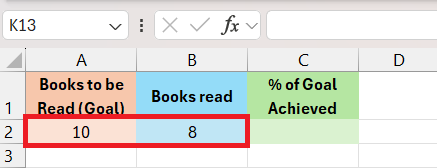
STEP 1: In cell A2 mention the goal of books to be read and in cell B2 mention the number of books read. So for example, it will be 10 in cell A2 and 8 in B2.
STEP 2: In cell C2 enter the formula ” “. This formula divides the goal achieved (B2) by the total goal (A2) and then multiplies by 100 to convert the result into a percentage.
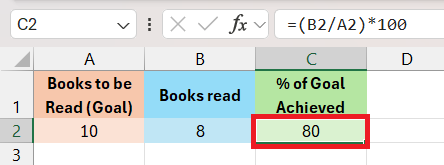
STEP 3: Press Enter: After typing the formula, press the Enter key on your keyboard. Excel will calculate the percentage and display the result in the selected cell (C2).
Example 2: Cumulative Goal Progress Across Multiple Parameters
Consider tracking cumulative goal progress across various parameters for a more complex scenario. For example, if your goal is to achieve a certain number of sales across different product categories, you can sum up the actual sales of each category and compare it against the overall sales target. Let’s follow these steps with an example:
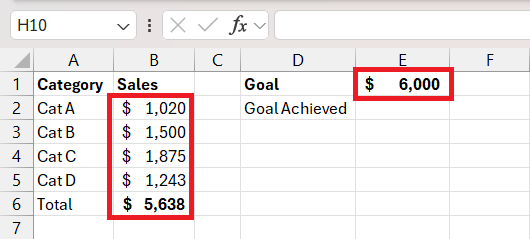
STEP 1: Cells B2 to B5 represent actual sales for each category, and E1 is your total sales goal, your Excel setup might look like this:
STEP 2: In cell A6, you’d calculate the sum of sales with =SUM(B2:B5). In cell E2, you’d calculate the percent of the total goal achieved with =B6/E1.
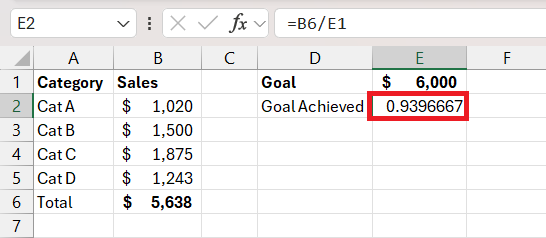
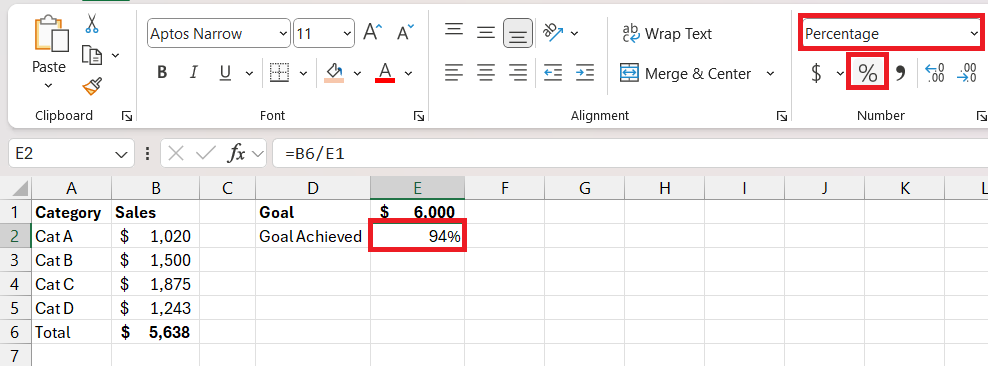
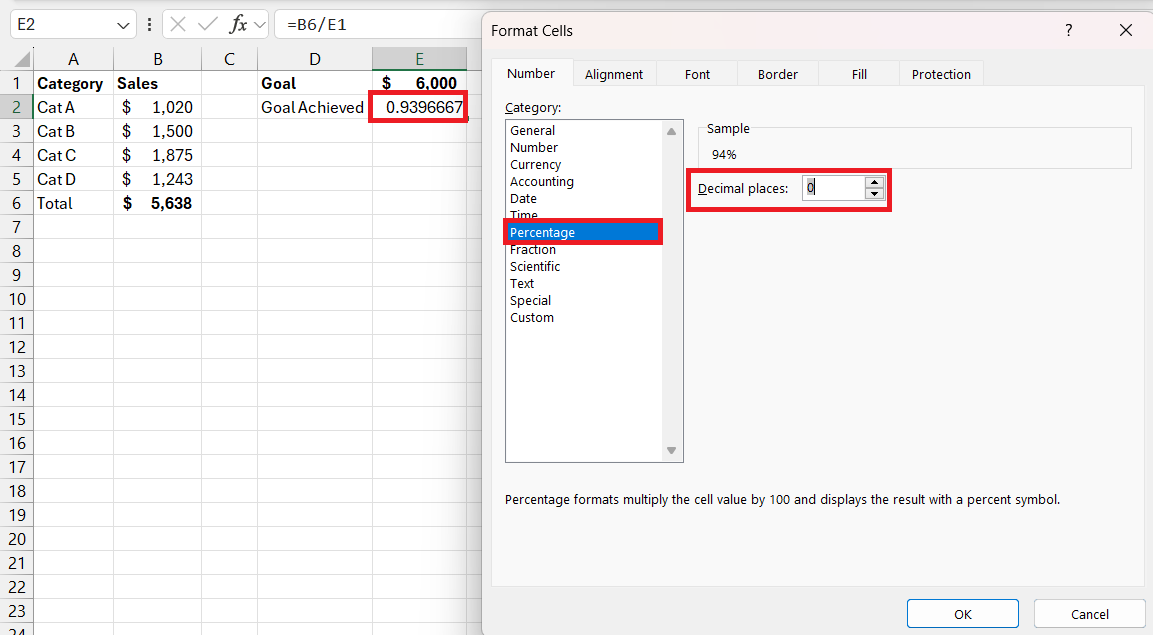
STEP 3: After setting the percentage format for E2, you instantly see the overall progress toward your sales goal. To format it as a percentage, after selecting the relevant cell (E2) either do the following:
- Go to the “Home” tab in the Excel ribbon, click on the “Percentage” button
- Right-click on the cell, select “Format Cells,” choose “Percentage” from the Category list, and set the desired number of decimal places.
Customizing Your Excel Dashboard for Goal Tracking
Visualizing Progress with Charts and Graphs
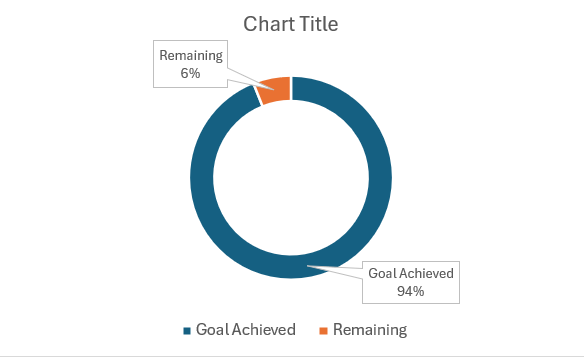
A Doughnut chart is useful for showing progress towards a goal. You can customize it to highlight the percentage of goal reached with vivid colors, and even insert the achieved percentage in the center for immediate clarity.
Follow the steps below to add a doughnut chart in Excel –
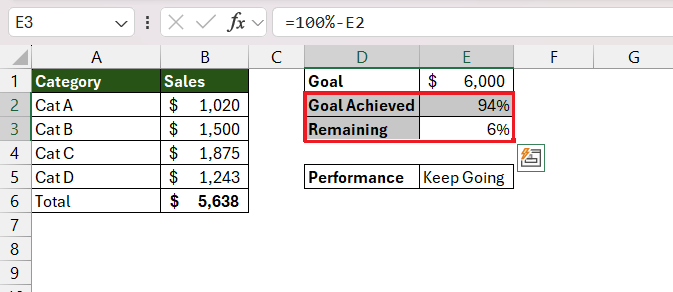
STEP 1: Select the data range that you want to include in the chart.
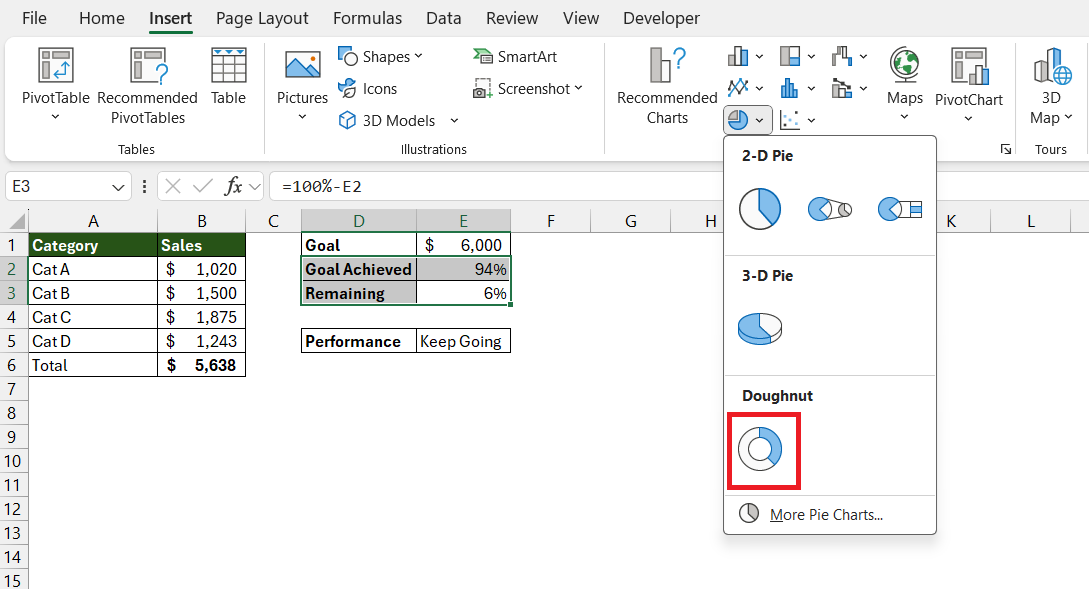
STEP 2: Go to the “Insert” tab > “Insert Pie or Doughnut Chart” > “Doughnut” from the dropdown menu.
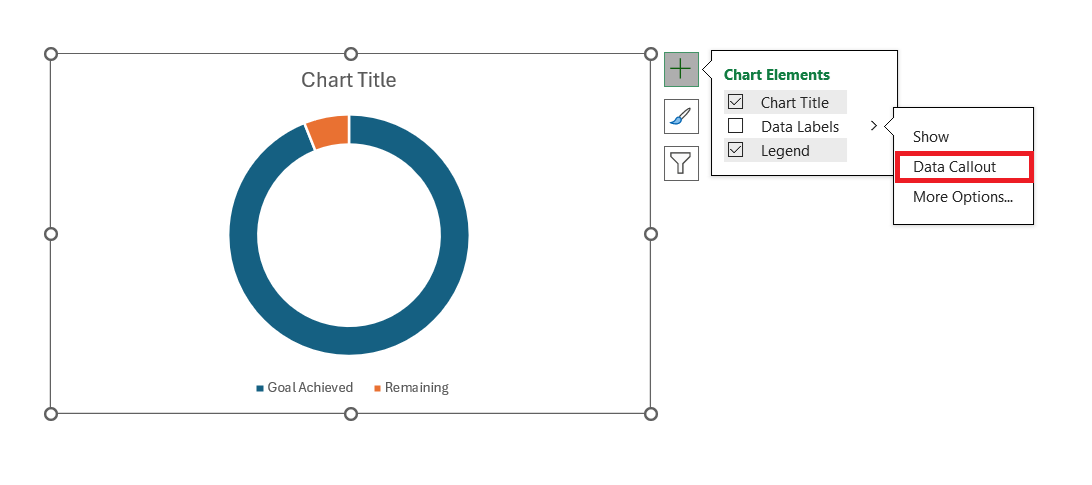
STEP 3: To customize the chart, click on it and select the + sign. Click on Data Labels and select Data Callouts.
The doughnut chart is now ready.
FAQs
1. How do I calculate the percentage of a goal in Excel?
To calculate the percentage of a goal in Excel, use the formula =Actual/Goal in a cell where Actual is the achieved value and Goal is the target value.
2 .What is the percentage to goal if progress is 20 and the goal is 400?
If the progress value is 20 and the goal is 400, the percent to goal is 5%. Calculate this by dividing the progress (20) by the goal (400) and then multiplying by 100.
3. How do you calculate 25% progress towards a goal in Excel?
To calculate 25% progress towards a goal in Excel, multiply the goal amount by 0.25. For example, =Goal*0.25. This will give you the value representing 25% of your goal.

John Michaloudis is a former accountant and finance analyst at General Electric, a Microsoft MVP since 2020, an Amazon #1 bestselling author of 4 Microsoft Excel books and teacher of Microsoft Excel & Office over at his flagship MyExcelOnline Academy Online Course.

 30 Days - Full Access









