 Free Practice Workbook
The POWER function in Microsoft Excel is used to raise a number to a specified power. This function is essential for performing exponential calculations. It is used to determine the result of a number (base) raised to an exponent. In this article, we will cover a detailed guide on how to master the power of 3 in Excel.
Key Takeaways:
- The POWER function in Excel simplifies exponentiation calculations.
- It can be used to raise a number to the third power.
- It reduces the effort required for manual multiplication.
- It is useful in calculating compound interest and ROI projection.
- You can use the POWER function with other functions like SUMPRODUCT to manage complex calculations.
Table of Contents
Introduction to POWER of 3
The Power of 3 means to raise a number to the power of 3. This means you need to multiply the number by itself three times. If the number is 5,
=5^3 = 5*5*5 = 125
Instead of performing this calculation manually, you can use the POWER function in Excel. It allows you to raise a number to any exponent.
The syntax of this function is:
= POWER (number, power)
- number – It is the base number.
- power – It is the exponent that you are raising the number to.
When calculating a number to the power of 3, you can use the function:
=POWER(number, 3)
This function is useful in handling calculations like compound interest, geometric growth, or the volume of a cube.
How to Use the POWER Function
Simple Example
Suppose you want to cube the number 2, you can use the POWER function.
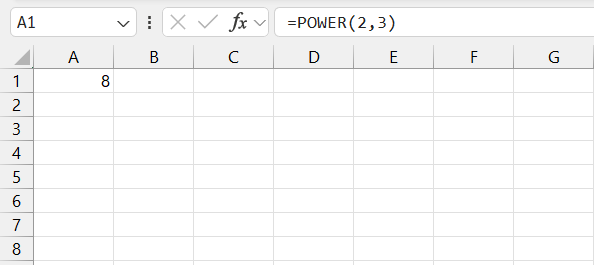
This function will return the value 8.
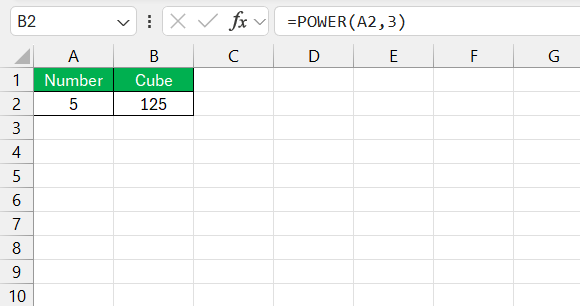
Instead of hard-coding the number in the formula, you can also link to another cell. To find the cubic value of the number mentioned in cell A2, you can use this formula:
Complex Calculation
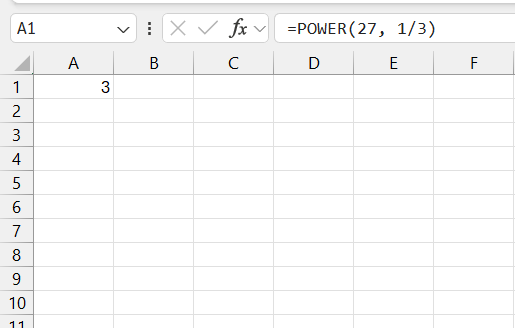
You can use the POWER function to calculate the cube root of a number. To calculate the cube root of a number, change the second argument of the function from 3 to 1/3.
Real-Life Applications
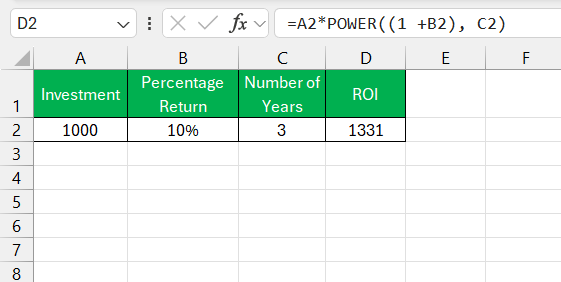
The POWER function can be used to calculate the future value of the investment over a period. The basic formula will be:
Future Value = Investment * Power ((1 + Return%), Number of Years)
Tips and Tricks
Knowing common pitfalls with the POWER function can save you a headache later. A frequent error occurs when inputting negative numbers with non-integer exponents. Excel won’t stand for it and will return an error. To dodge these issues, wrap your POWER function with IFERROR like so: =IFERROR(POWER(A1, B1), "Error").
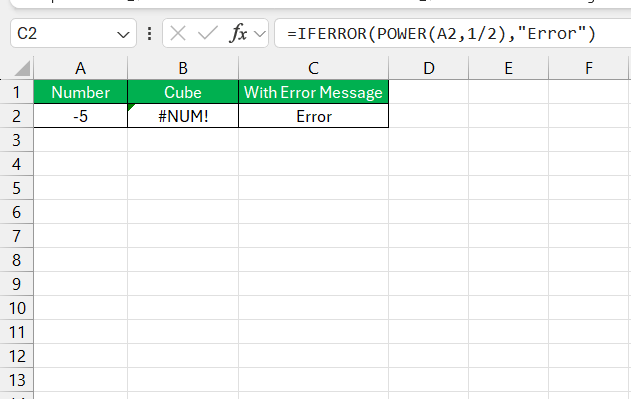
This way, if an error arises, Excel will display your custom message, allowing you to address the problem gracefully without compromising the data set’s integrity.
Take your data analysis to the next level by integrating POWER with other Excel stalwarts like SUMPRODUCT for weighted power sums, or AVERAGE to find the mean of a set raised to a power. For example, to average the cubes of numbers in A1 through A5, you’d nest POWER within AVERAGE: =AVERAGE(POWER(A1:A5,3)).
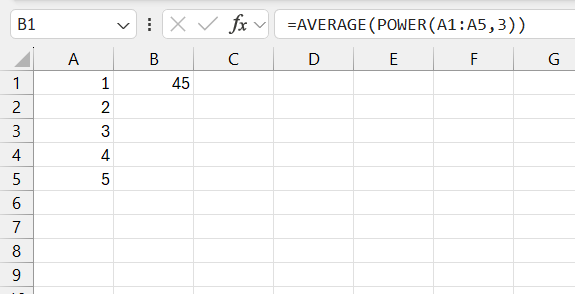
This synergy of functions creates robust formulas that can manage complex statistical or financial calculations with grace and efficiency.
FAQs
What is the power function in Excel?
The POWER function in Excel calculates the result of a number raised to a given power. It simplifies the process of exponentiation, making it easy to perform calculations involving powers without manually multiplying the number several times.
How to do powers in Excel?
In Excel, to perform powers, use the POWER function with the syntax =POWER(number, power) where ‘number’ is the base and ‘power’ is the exponent. Alternatively, use the caret symbol ‘^’ as in =2^3 to calculate 2 to the power of 3.
How to raise a number to the power of 3 in Excel?
You can use the POWER function to raise a number to the power of 3.
=POWER(number, 3)
You can also use the exponential operator.
=number ^ 3
What is the alternative to the POWER Function?
You can use the caret operator for quick exponential calculations. The formula to calculate the number raise to the power of 3:
= number ^ 3

John Michaloudis is a former accountant and finance analyst at General Electric, a Microsoft MVP since 2020, an Amazon #1 bestselling author of 4 Microsoft Excel books and teacher of Microsoft Excel & Office over at his flagship MyExcelOnline Academy Online Course.

 30 Days - Full Access









