 Free Practice Workbook
Table of Contents
Introduction to Radar Chart
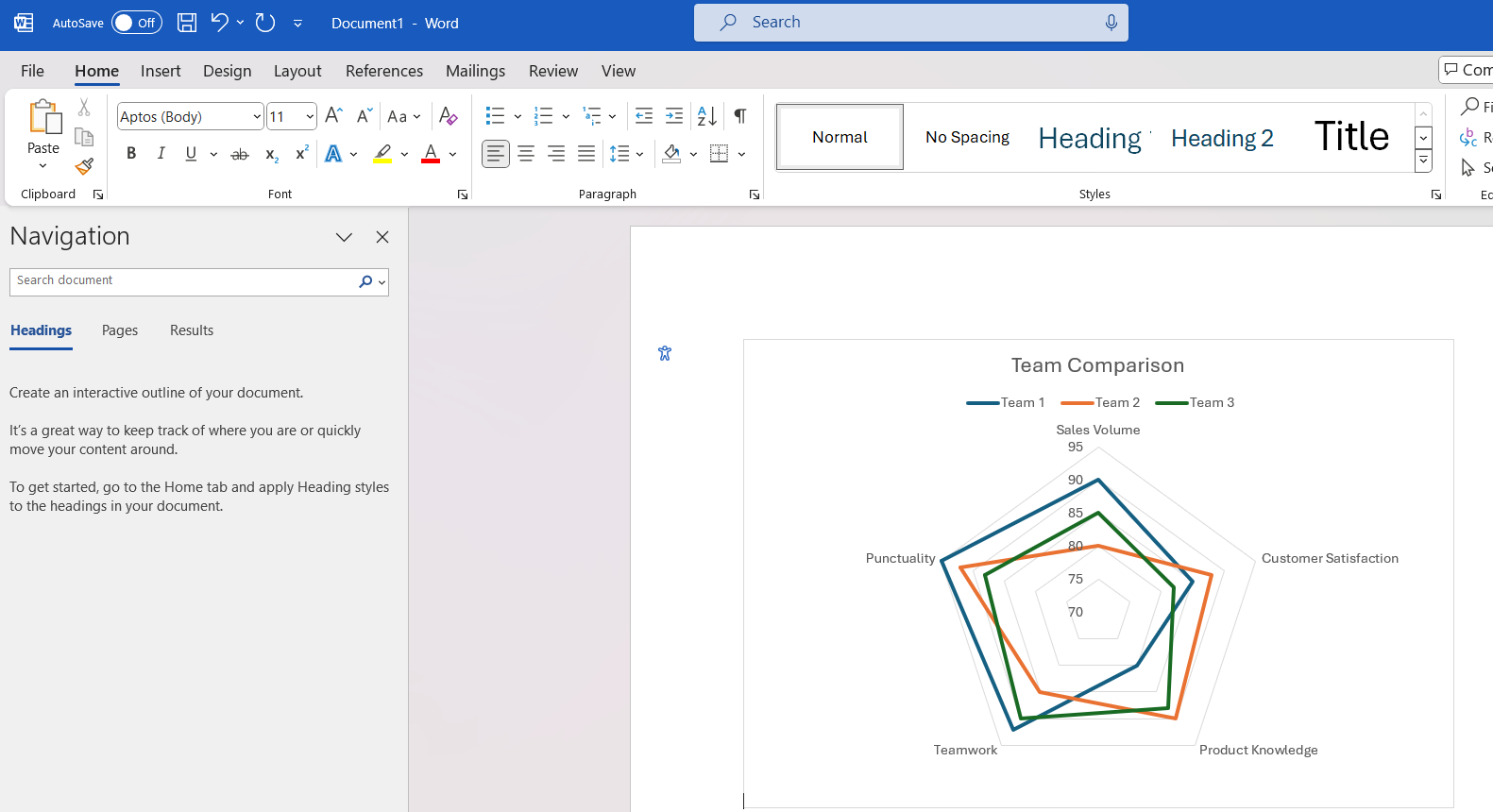
A Radar Chart in Excel is a graphical tool that displays multivariate data on a two-dimensional chart. It looks like a spider web. Each point on the chart is plotted on a separate axis that starts from the center and goes outward. It allows for a neat comparative overview of different data sets.
These charts can include several quantitative axes, which are typically organized radially, with equal distances between each axis.
It is useful in various scenarios like:
- Showing the profiles of different items or subjects across a common set of variables.
- Comparing products by displaying features like battery life, weight, and camera quality for side-by-side smartphone analysis.
- Visualizing and comparing different risk factors clearly.
How to Create a Radar Chart
STEP 1: Create a new workbook or open an existing one.
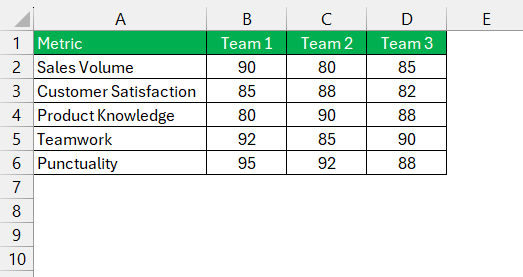
STEP 2: Make sure that your data is arranged in a tabular format. Each row should represent a different category, and each column should represent different items or variables. Include headers for each column.
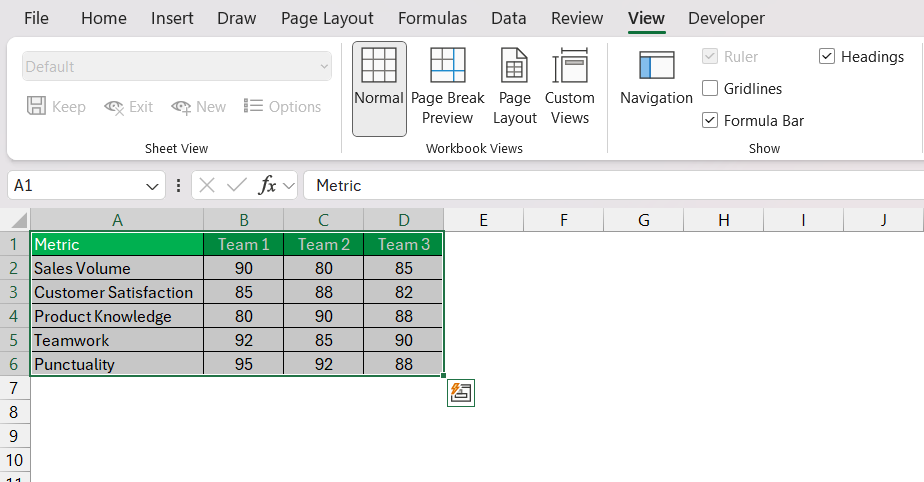
STEP 3: Click and drag to select the data range you want to include in your radar chart, including headers.
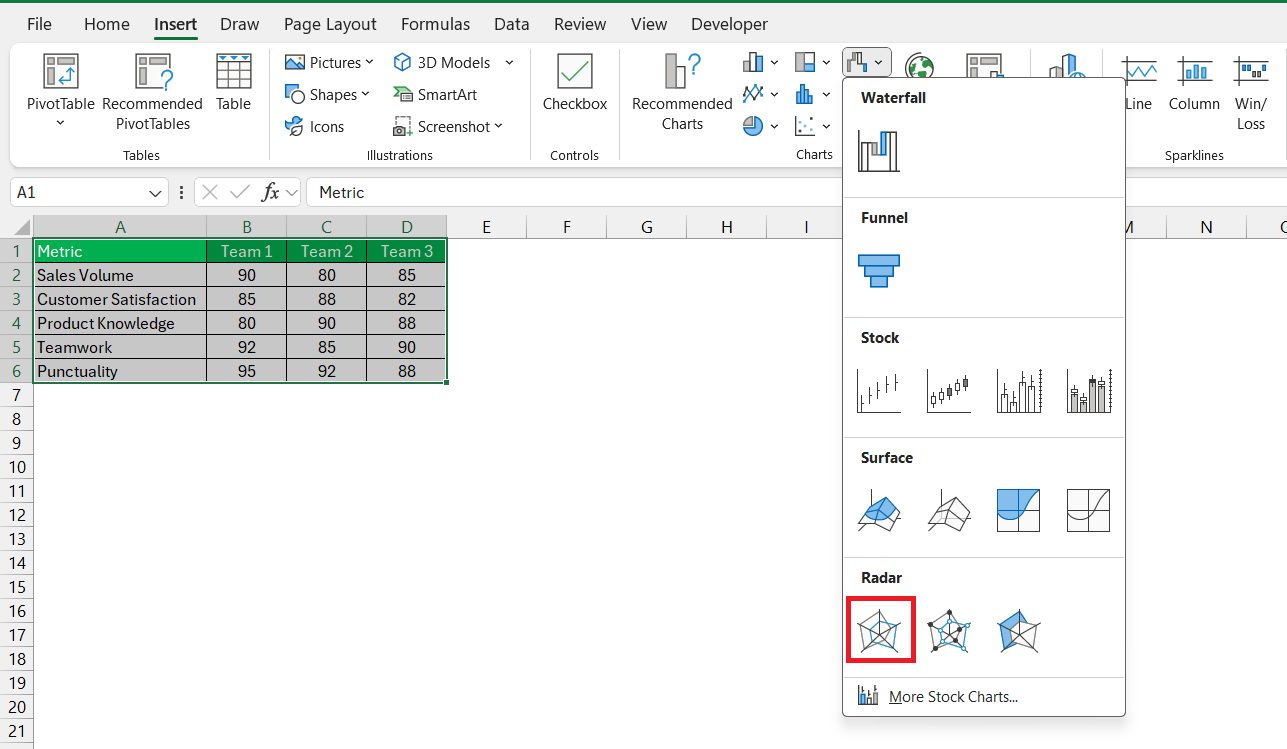
STEP 4: Go to the Insert tab on the Excel ribbon. In the Charts group, look for the Radar Chart icon. It might be under a sub-menu such as Other Charts depending on your Excel version.

STEP 5: Click on the Radar Chart icon and select the type of radar chart you prefer:
- Radar: Basic radar chart without markers.
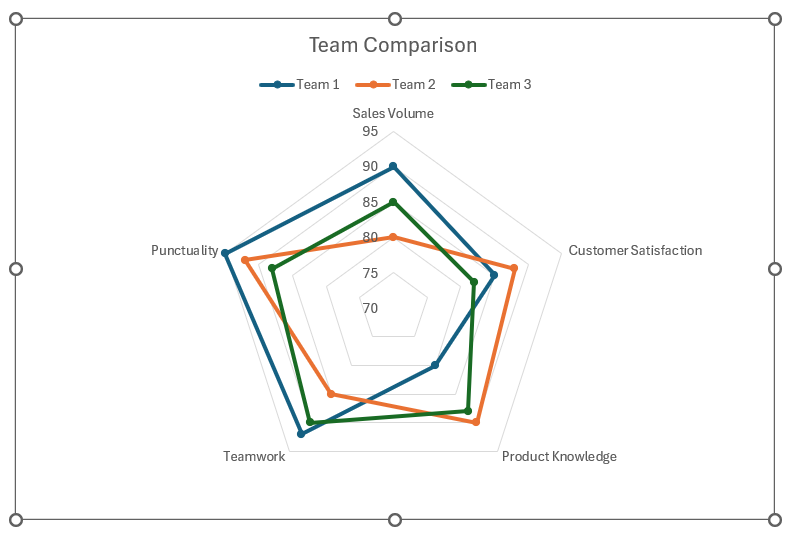
- Radar with Markers: Radar chart with data point markers.
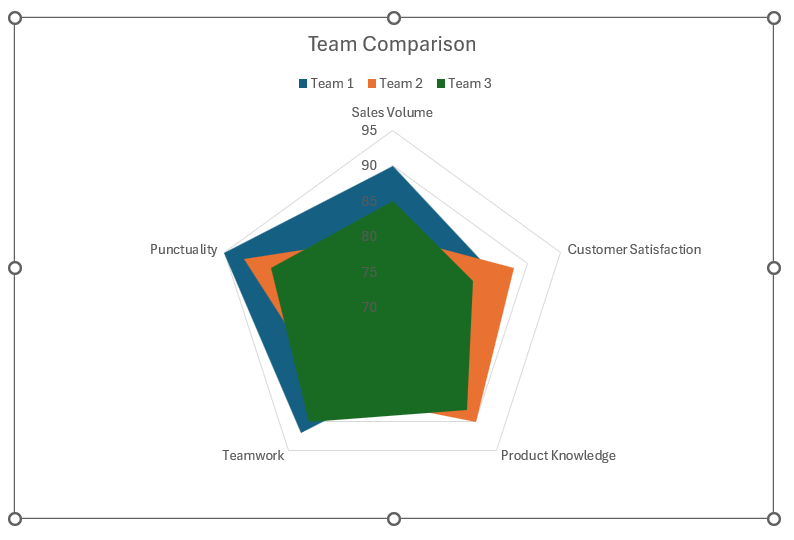
- Filled Radar: Radar chart with filled areas.
The radar chart is ready now!
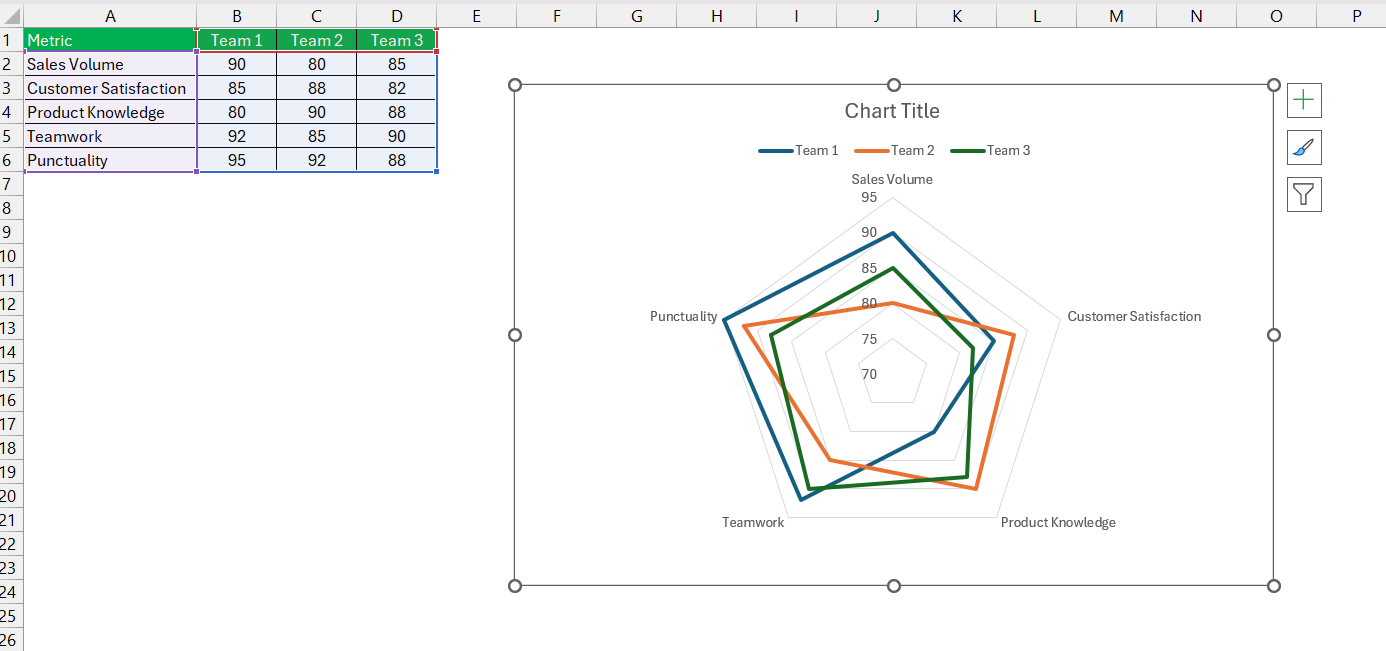
Advancing Techniques
Customize the Radar Chart
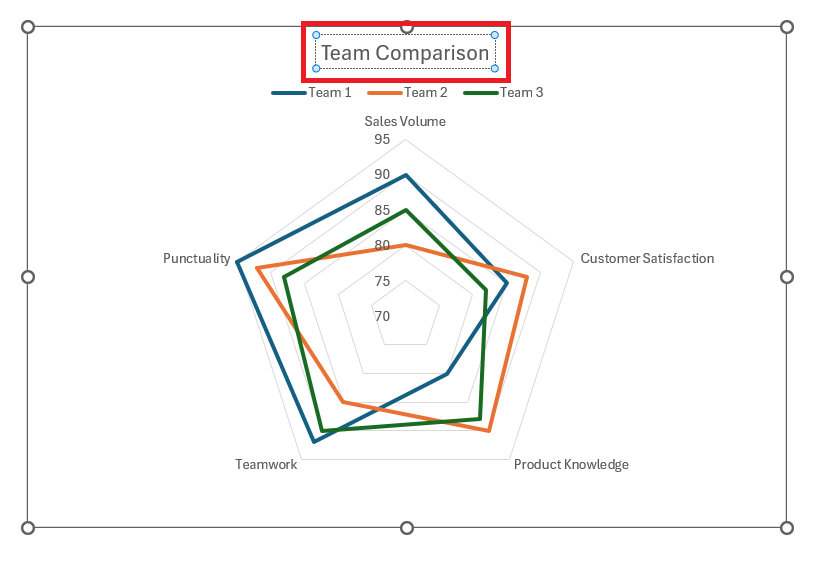
- Click on the default chart title to edit it. Type in a descriptive title for your chart.
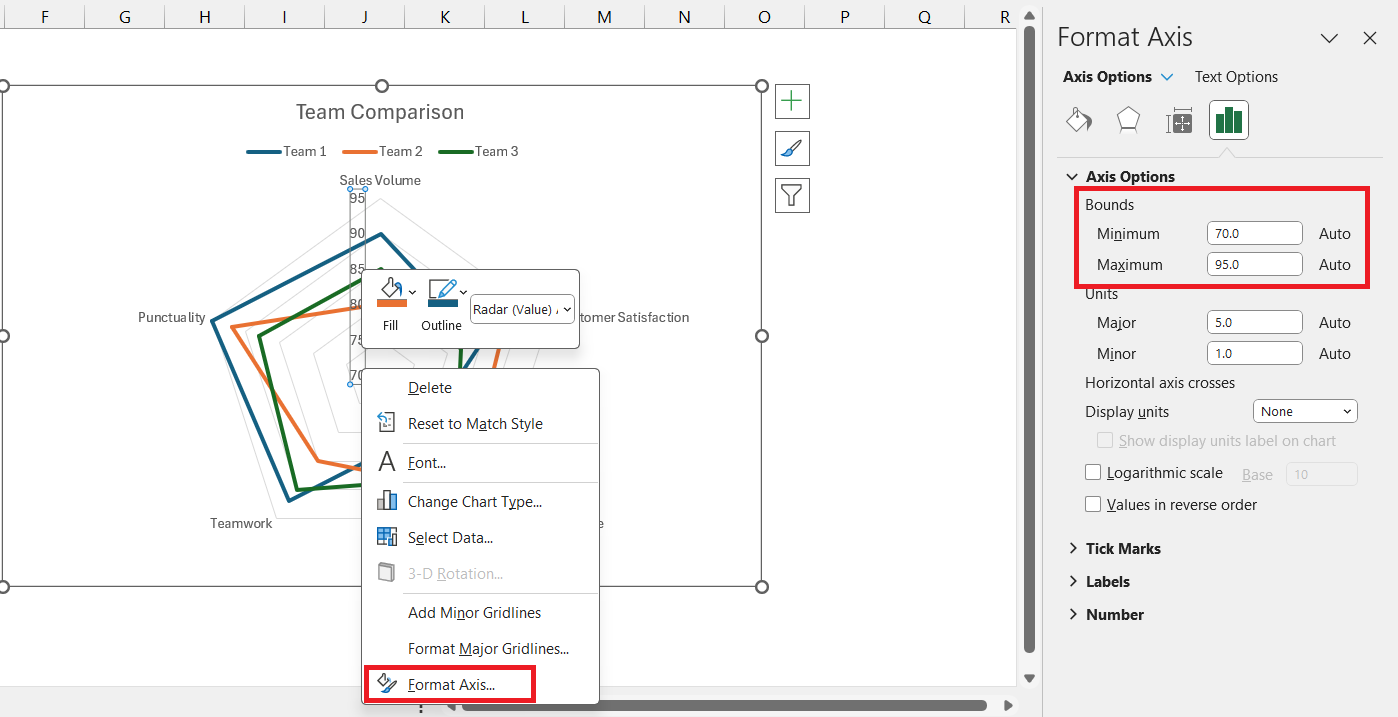
- Right-click on any axis and select Format Axis. Adjust the minimum and maximum values if needed for better visualization.
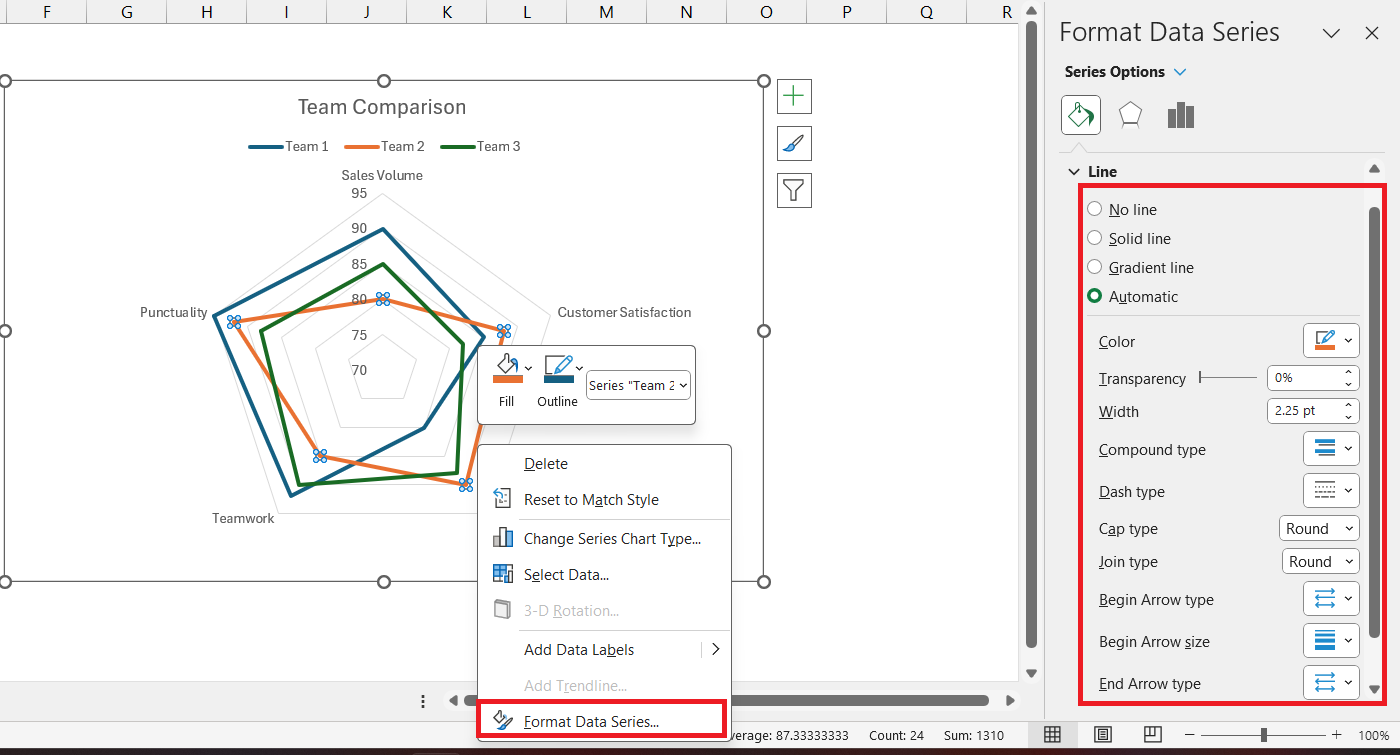
- Right-click on any data series (the lines in the radar chart) and select Format Data Series. Customize the colors, line styles, and markers to distinguish between different items clearly.
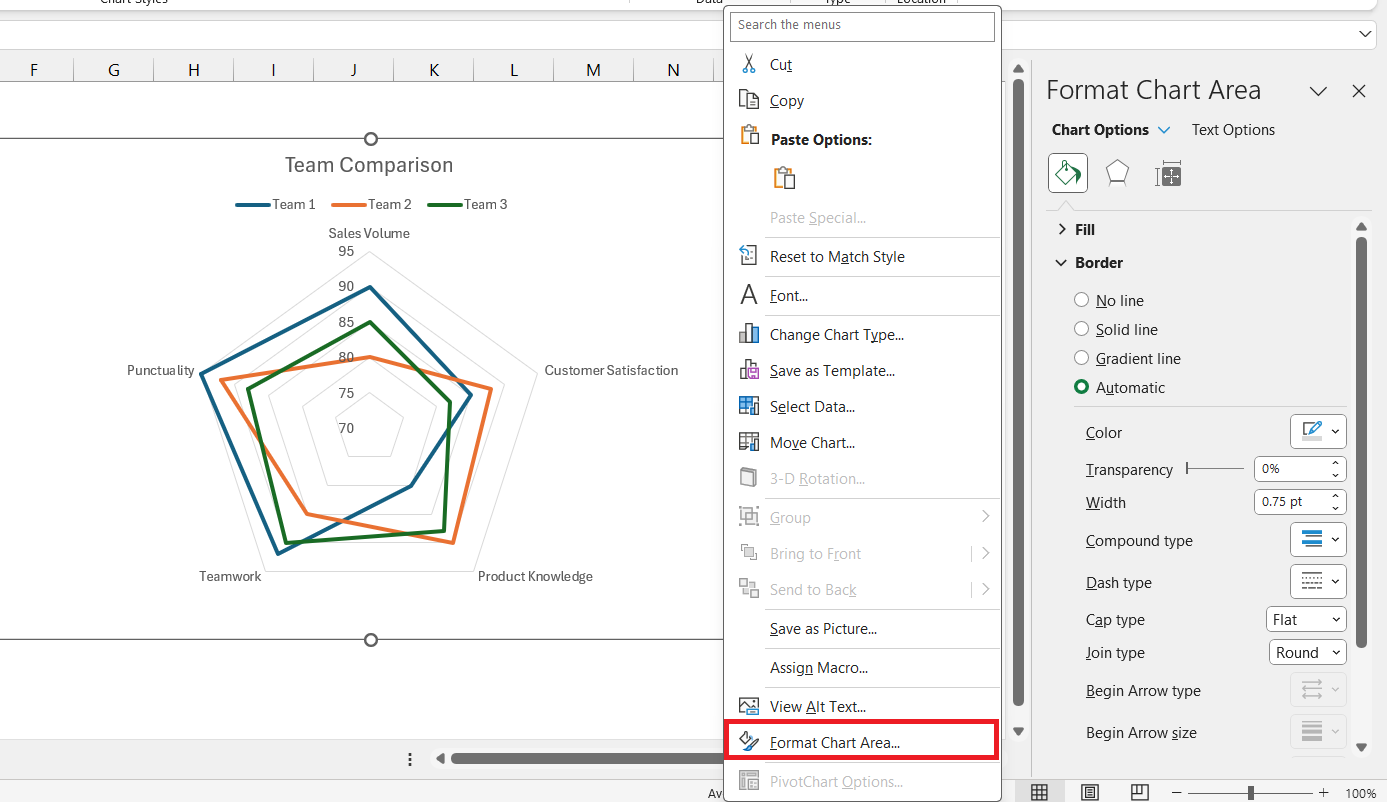
- Right-click on the chart background and select Format Chart Area. Adjust the gridlines, background color, and border styles to improve the chart’s appearance.
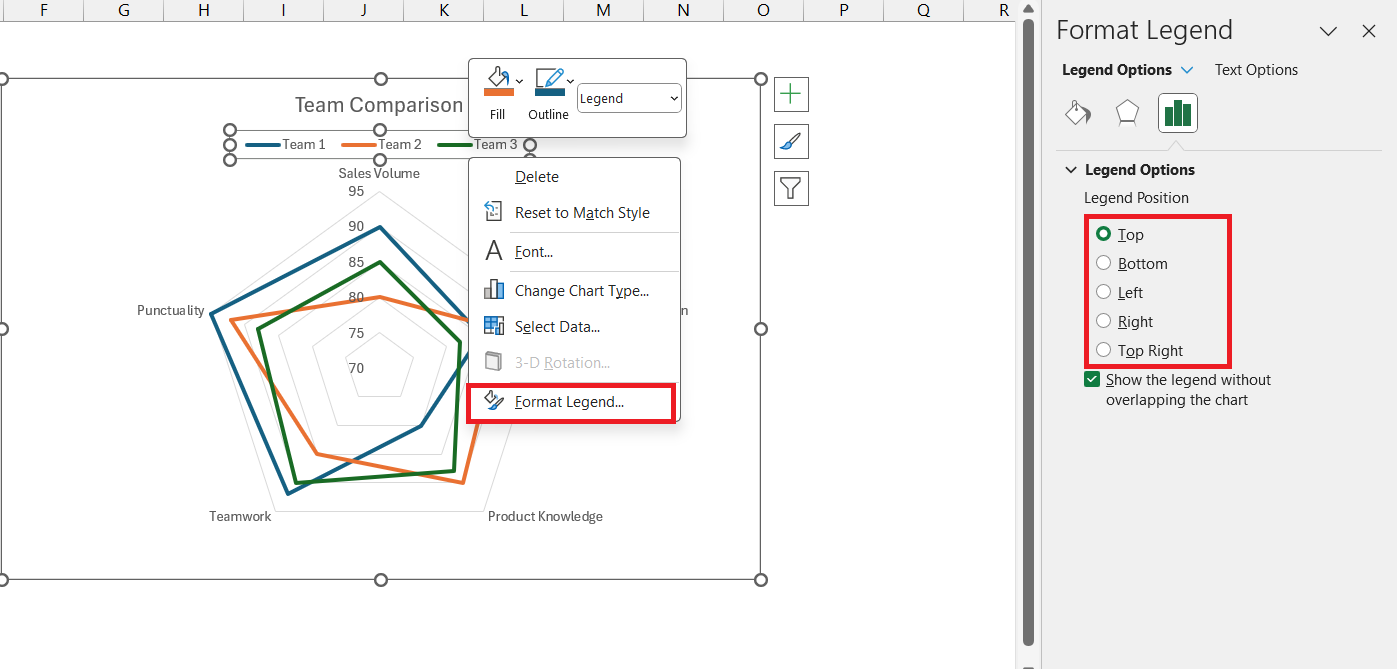
- Click on the legend to select it. Move it to your preferred location (top, bottom, left, or right of the chart).
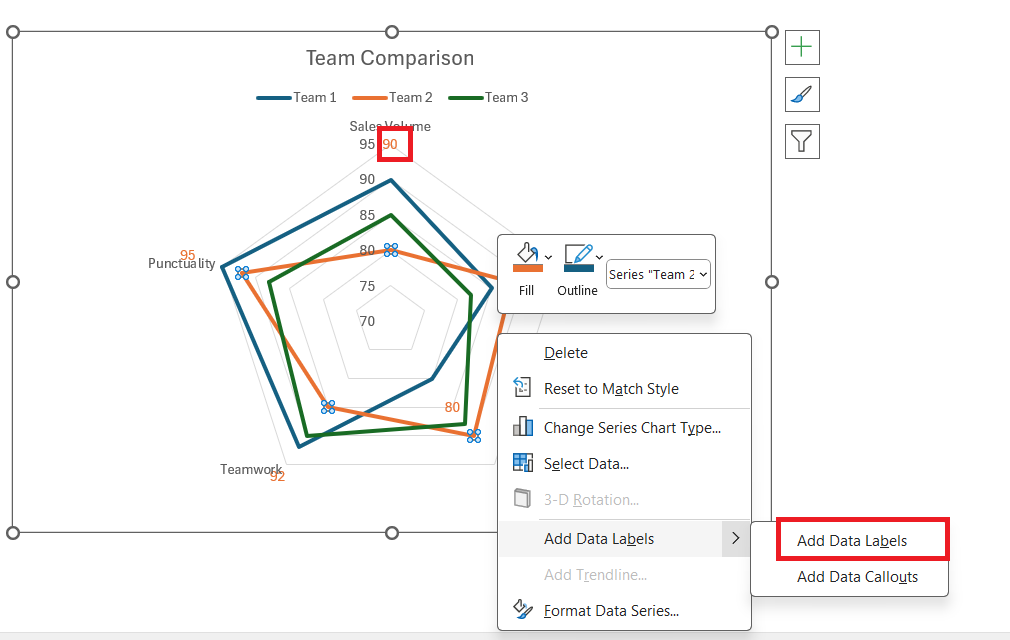
- Right-click on any data series and select Add Data Labels. Position and format the data labels as needed to enhance readability.
Save Your Chart
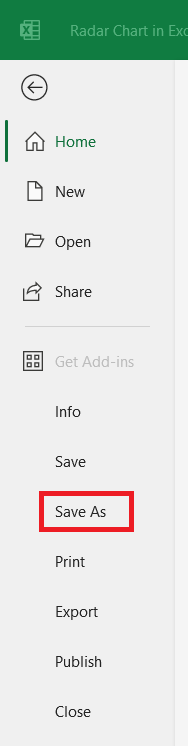
Go to File > Save As to save your workbook with the radar chart.
If you want to use the chart in a presentation or document, right-click on the chart and select Copy. You can then paste it into another application such as PowerPoint or Word.
Filled vs. Markered Radar Charts
- Filled Radar Charts: These are visually impactful, filling the space between the axes and the data line. The use of color highlights the magnitude of each value and allows for an immediate visual comparison between different sets of data or categories. Filled radar charts are often used when the overall shape formed by the data points is as important as the individual points themselves.
- Markered Radar Charts: These keep the focus on the precise data points through the use of markers. Each value is clearly indicated so that you can draw attention to specific values within the dataset. It is effective when the dataset is not as dense, and the clarity of individual points is paramount.
FAQs
How to create a radar chart?
- Select the data range you want to chart.
- Go to the Insert > Other Charts > Radar.
- Choose your preferred radar chart type.
- Press ‘OK’.
What is the use of radar chart?
A radar chart in Excel is used for displaying multivariate data as a two-dimensional chart with three or more quantitative variables represented on axes starting from the same point. It’s ideal for comparing performance, attributes, or different entities.
How to create a filled radar chart in Excel?
To create a filled radar representation in Excel,
- Select your data
- Go to the ‘Insert’ tab
- Choose ‘Radar’ from the chart options
- Click ‘Filled Radar’
When Should I Choose a Radar Chart Over Other Charts?
Opt for radar representations when comparing multiple qualitative attributes or specific data points across several categories or entities.
How Can I Make My Radar Chart Stand Out in Presentations?
To make your radar chart stand out,
- Use a consistent and appealing color scheme that matches your branding
- Apply subtle gridlines
- Include clear, legible data labels

John Michaloudis is a former accountant and finance analyst at General Electric, a Microsoft MVP since 2020, an Amazon #1 bestselling author of 4 Microsoft Excel books and teacher of Microsoft Excel & Office over at his flagship MyExcelOnline Academy Online Course.

 30 Days - Full Access









