 Free Practice Workbook
This article introduces a comprehensive guide on generating random 4 digit numbers in Microsoft Excel, showing its versatility in data management and importance in security, simulations, and research. It details the use of Excel’s RAND, RANDBETWEEN functions and Analysis ToolPak add-in for creating specific numeric sequences and provides a step-by-step approach to generating non-repeating, unbiased 4-digit numbers, showcasing Excel’s capability to meet various professional needs with precision and efficiency.
Key Takeaways
- Excel’s RAND and RANDBETWEEN functions enable efficient generation of random numbers, important for statistical analysis, simulations, and security.
- Generating 4-digit random numbers in Excel is vital for applications like two-factor authentication, simulations, and unbiased sampling in research.
- The RANDBETWEEN function is used for creating 4-digit numbers between 1000 and 9999.
- The Analysis ToolPak add-in in Excel facilitates advanced random number generation, offering a more efficient method for creating large sets of random numbers.
Download the workbook and follow along with the tutorial on How to Generate Random 4 Digit Number in Excel – Download excel workbookRandom-4-Digit-Number-in-Excel.xlsx
Table of Contents
Introduction to RAND and RANDBETWEEN Functions
Before we can generate specific number sequences, it’s important to know the tools at your disposal within Excel.
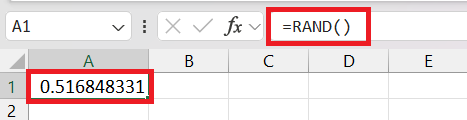
RAND Function: This function generates a random decimal number between 0 and 1. It is great when you need a random value, but it is not specific to any range.
Example usage: =RAND()
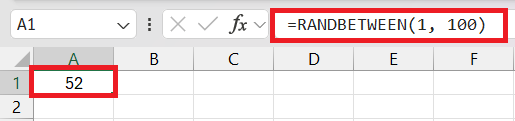
RANDBETWEEN Function: This function takes two arguments – the bottom and top values. It then returns a random integer within this inclusive range. It is particularly useful when you need random whole numbers within a specified range.
Example usage: =RANDBETWEEN(1, 100)
Set up an Excel Worksheet
Before starting the process, it’s important to set up your Excel worksheet accordingly:
- Make sure that the cells are formatted as ‘General’ or ‘Number’: This prevents any formatting issues that might occur with leading zeros in numbers.
- Decide the number of random numbers needed: This will determine how you structure the formula and whether you need to create single instances or arrays of numbers.
- Prepare for recalculation: Note that Excel’s random number functions recalculate with every worksheet change. Decide whether this is a desired feature or if you need to take additional steps to prevent it.
With the stage set and comprehension of the functions to be used, you’re now ready to generate 4-digit random numbers in Excel.
Create 4-Digit Numbers with Precision
Customize with RANDBETWEEN
To create 4-digit numbers, we’ll use the RANDBETWEEN function within a specified range of 1000 to 9999. Follow this step-by-step guide to generate your numbers:
STEP 1: Choose the cell where you want to see the first random 4-digit number appear. Let’s say this is cell B5.
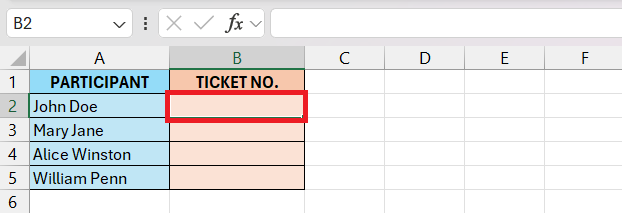
STEP 2: Type in the formula:
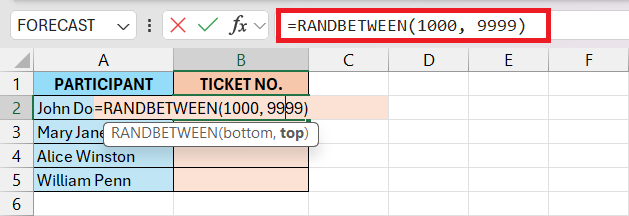
STEP 3: Press Enter. The first random number will be displayed in the cell.
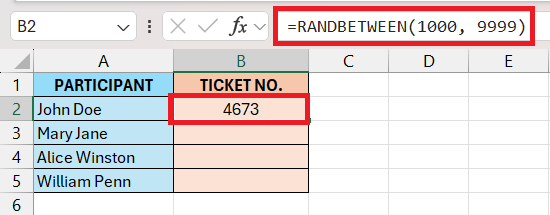
STEP 4: To get more random numbers, you can drag the formula down.
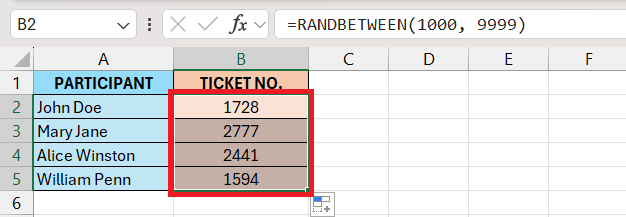
STEP 5: You can copy and paste the numbers as a value to make them static. This is important to make sure that the numbers do not change everytime your worksheet recalculates.
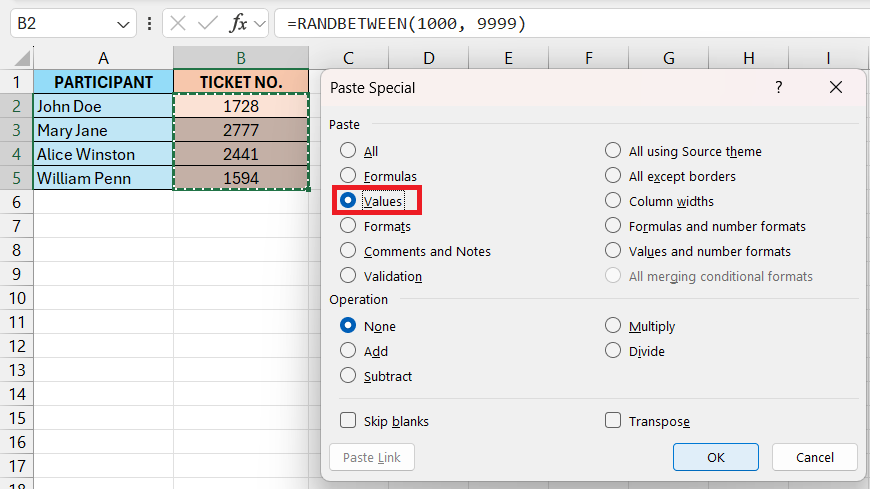
By following these steps, you can get a set of random 4 digit numbers.
Combining Functions
You can combine RAND function iwith CEILING or FLOOR function to generate random whole numbers. This combination of functions helps you get more control over random numbers.
To achieve more complex or specific types of randomization, Excel allows you to nest the RAND and RANDBETWEEN functions with other functions. Here’s an example of such a combination:

or,

Here,
- The RAND function provides a random decimal
- It is then multiplied by 9000 to set the range
- Then, 1000 is added to the result to make sure that the random number is 4-digits only.
Use Analysis ToolPak
You can use analysis toolpak to generate random numbers in bulk instead of using formulas. Follow along to understand the process.
Install the Analysis ToolPak:
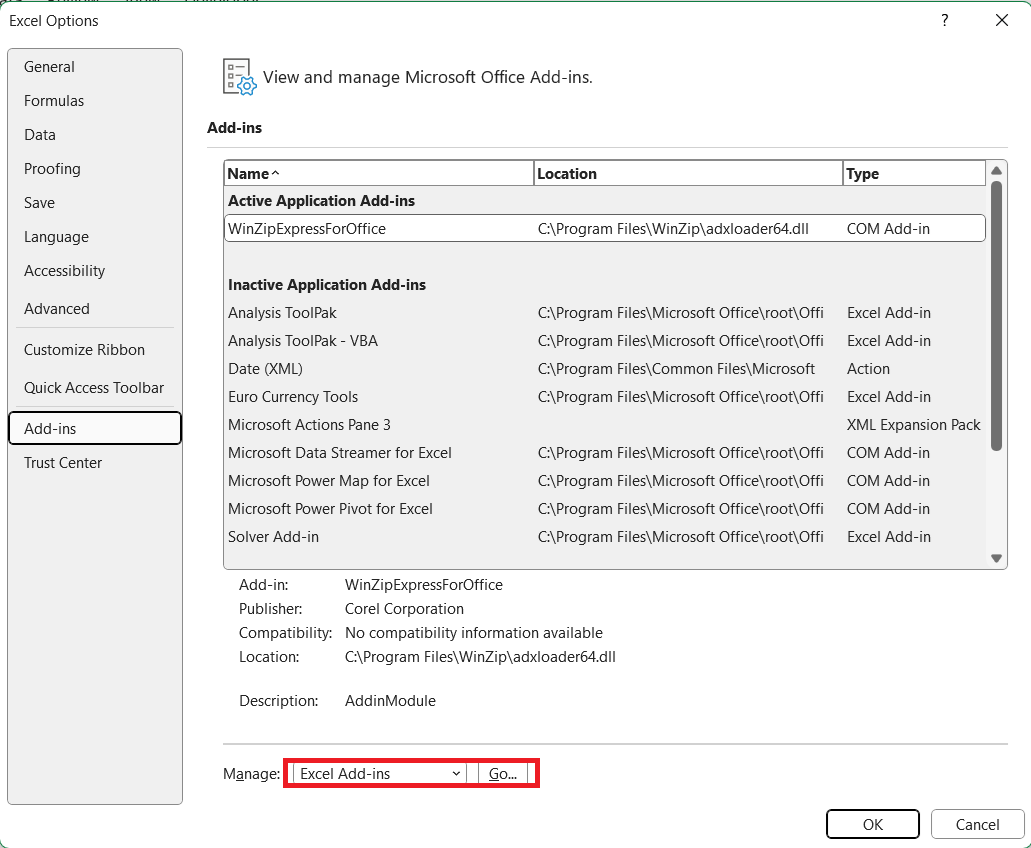
STEP 1: Navigate to the File tab on the ribbon. Click Options to open Excel Options.
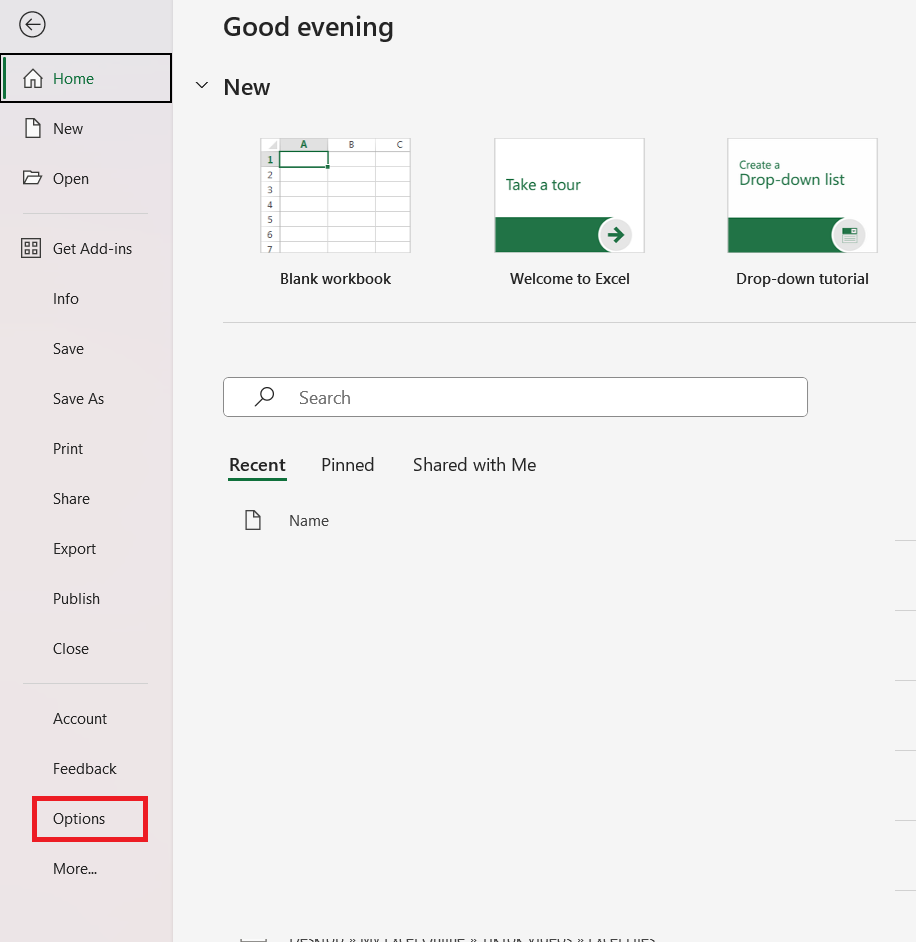
STEP 2: In the dialog box that appears, select Add-Ins from the left sidebar. In the Manage box at the bottom, select Excel Add-ins and click Go.
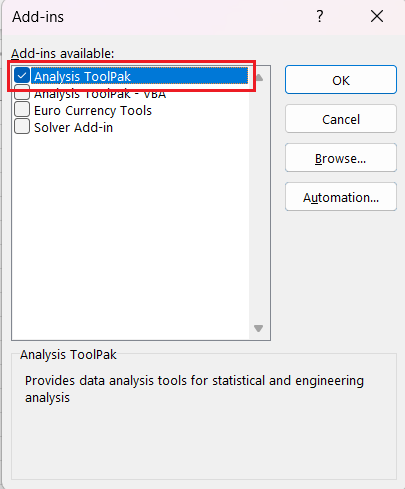
STEP 3: In the Add-ins available box, check Analysis ToolPak and click OK.
Generate Random Numbers:
STEP 1: Go to the Data tab, then find the Analysis group where the Data Analysis tool appears.

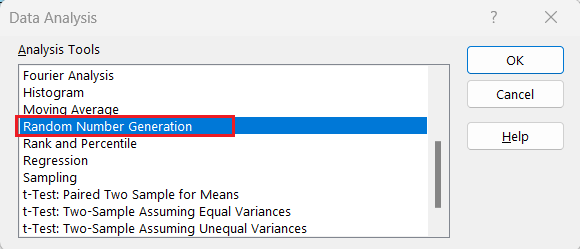
STEP 2: Click Data Analysis and select Random Number Generation.
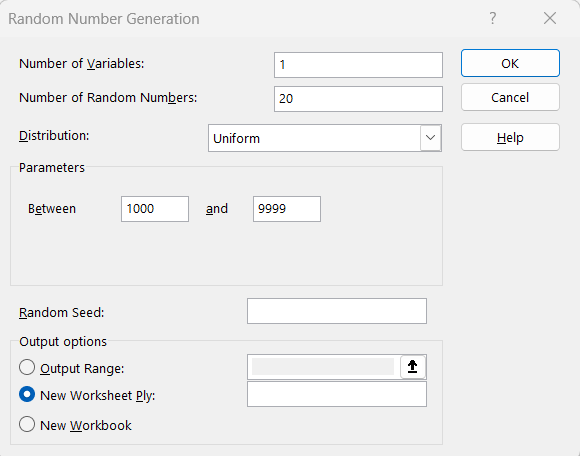
STEP 3: Define the parameters:
- Number of Variables – 1
- Number of Random Numbers – 20
- Distribution – Uniform
- Between – 1000 and 9999
- Output options – New Worksheet Ply
- Click OK
Excel will create 20 random numbers ranging from 1000 to 9999.
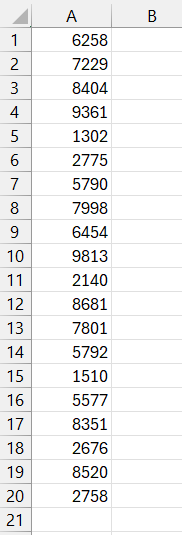
This method is very useful when you are working on a large dataset. This is because you do not have to drag the formula down; the list will be created automatically.
FAQs
How do I generate random 4 digit numbers in Excel?
You can generate a random 4 digit number in Excel by using the RANDBETWEEN function. The formula for this will be –
=RANDBETWEEN(1000,9999)
Why generate random numbers in Excel?
Generating random numbers in Excel is important to help simulate real-world scenarios like sampling data, forecasting values, or testing formulas. Random numbers are used so that the test is not biased.
How to Create a list of Unique 4-Digit Numbers?
You can create a random 4 digit number in Excel by using the formula:
= RANDBETWEEN(1000,9999)
You can then sort the created numbers and remove duplicates to get a unique list.

John Michaloudis is a former accountant and finance analyst at General Electric, a Microsoft MVP since 2020, an Amazon #1 bestselling author of 4 Microsoft Excel books and teacher of Microsoft Excel & Office over at his flagship MyExcelOnline Academy Online Course.

 30 Days - Full Access









