 Free Practice Workbook
Excel is a great tool for pairing up people or items at random. It saves you from manual sorting and making sure that the results are fair and unbiased. With a few easy formulas, you can automate the process and have pairs generated instantly. In this article, you will learn how to set up a random pair generator in Excel.
Key Takeaways
- Excel can generate random pairs quickly and fairly.
- The RAND function helps shuffle names or items randomly.
- Sorting the random numbers creates a new pairing order each time.
- The TEXTJOIN function can combine paired names into one cell.
- VBA and Power Query can automate pairing for large lists.
Table of Contents
Understanding the Random Pair Generator in Excel
A random pair generator automates the process of pairing up a list of names or items. It makes sure that each run gives a new and fair set of pairings. This can be helpful for teachers assigning group projects, event organizers setting up games, or anyone needing to randomly split a list into groups of two.
RAND and RANK Functions
The RAND function generates a random number between 0 and 1. It can be used to apply variability to your data. Meanwhile, the RANK function helps you determine the position of a number within a group. This can be especially useful in creating a random pair generator. It allows you to rank random numbers and thus pair up entities randomly yet systematically.
TEXTJOIN Function
The TEXTJOIN function allows you to combine text from multiple cells into one, using a specified delimiter. When creating a random pair generator, TEXTJOIN can merge the names or identifiers of your paired items into a single cell for easy tracking and display. By using this function in combination with RAND and RANK, you can efficiently generate and display pairs.
To use TEXTJOIN, you’ll select the cells containing the pair components and specify a delimiter. For instance, TEXTJOIN(“, “, TRUE, A1, A2) would combine the contents of cells A1 and A2 with a comma and space. This is particularly useful for visual clarity in your generated pairs.
Step-by-Step: Creating a Random Pair Generator
Step 1 – Prepare Your List
Open a new Excel worksheet.
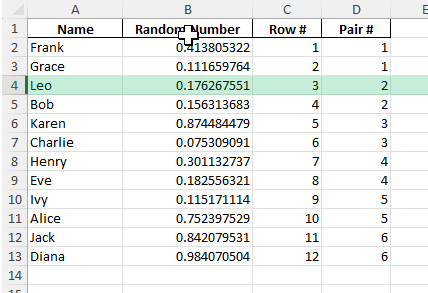
List all names or items you want to pair up in column A (e.g., A2:A13 for 12 names).
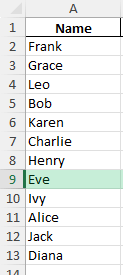
Step 2 – Assign Random Numbers
In cell B2, enter: =RAND()
Drag the formula down alongside your entire list. Each name now has a random number.
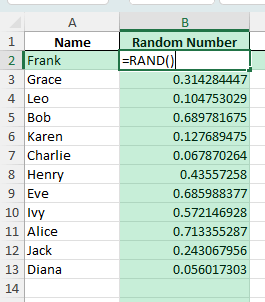
Step 3 – Shuffle the List
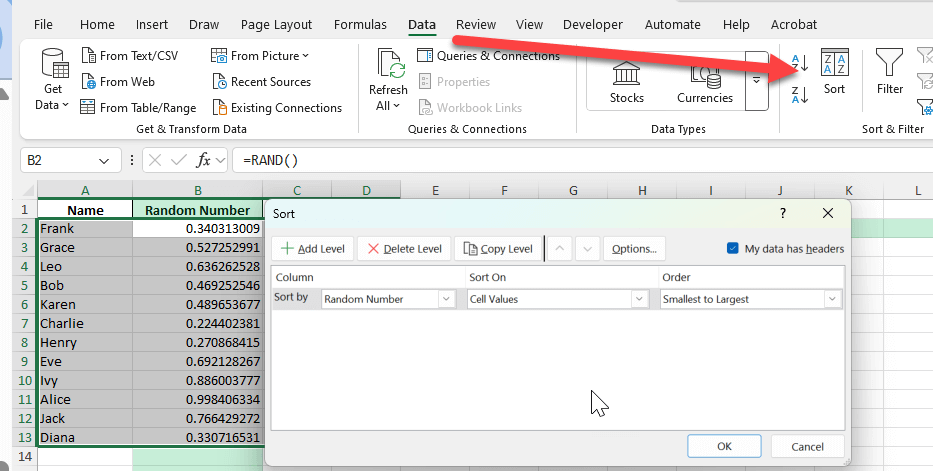
Select both columns (names and random numbers).
On the Ribbon, go to Data > Sort.
Sort by the column with random numbers (e.g., column B), Smallest to Largest.
Your list is now randomly shuffled.
Step 4 – Create Pairs
In column C, number your rows starting from 1 downwards (e.g., C2=1, C3=2, and so on).
In column D, create a “Pair #” formula:
=ROUNDUP(ROW()-1,0)/2
Or if your data starts at row 2:
=ROUNDUP((ROW()-1)/2,0)
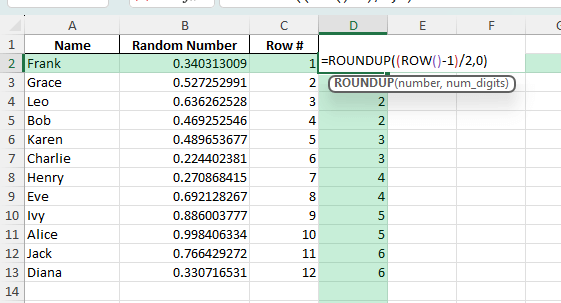
This groups every two names into the same pair number.
Common Mistakes and How to Avoid Them
- Forgetting to refresh RAND Function – The
RAND()function updates every time the worksheet recalculates. If you want static pairs, copy the random numbers and paste them as values before sorting. - Odd number of names – If your list has an odd count, one name will be left without a partner. You can add a placeholder (like “No Pair”) or allow a group of three if appropriate.
- Mixing up row numbers after sorting – After sorting, make sure your formulas reference the updated order.
- Reusing old random numbers – Always generate new random numbers for each round of pairing to ensure fairness.
Bonus Tips and Advanced Scenarios
VBA Macro
For large or frequent pairings, use this VBA code to automate the process:
Sub GenerateRandomPairs()
    Dim lastRow As Long, i As Long
    lastRow = Cells(Rows.Count, 1).End(xlUp).Row
    Range("B2:B" & lastRow).Formula = "=RAND()"
    Range("A1:B" & lastRow).Sort Key1:=Range("B2"), Order1:=xlAscending, Header:=xlYes
    For i = 2 To lastRow Step 2
        Cells(i, 3).Value = "Pair " & ((i - 1) \ 2 + 1)
        Cells(i + 1, 3).Value = "Pair " & ((i - 1) \ 2 + 1)
    Next i
End Sub
Using Power Query:
- Import your list into Power Query
- Add an index column
- Add a random number column
- Sort by random
- Group in steps of two.
This approach is great for reproducible or large datasets.
Recurring Pairings
For recurring events (e.g., weekly meetings), save your workbook and refresh the random numbers each time you need a new draw.
Troubleshooting Common Issues
Dealing with Errors in Formula Application
Errors in formula application can hinder the seamless operation of your random pair generator, but understanding common issues can help you resolve them quickly. One frequent error is incorrect cell references, which can occur if you copy formulas incorrectly across cells or when the range specified in your functions is not properly defined.
Another common issue arises from data type mismatches, such as using a text string in a function that requires numeric input. This can often lead to errors such as #VALUE! or #NAME?. To troubleshoot, ensure that each function’s input matches its requirements; for example, verify that all numerical data is formatted correctly as numbers, not text.
If your generator utilizes dynamic arrays, incorrect syntax or outdated Excel versions might cause errors like #SPILL!. Checking for overlapping outputs and upgrading to a version that supports dynamic arrays can be critical.
To efficiently tackle these issues, use Excel’s built-in error-checking features and ensure all formula components are correctly implemented. This will not only improve your generator’s reliability but also enhance your Excel skills over time.
Tips for Enhanced Efficiency
Improving the efficiency of your Excel-based random pair generator involves implementing a few strategic tips and best practices. Start by ensuring your data is clean and organized. Utilize filters and sorting tools to arrange your data in a way that makes formula application straightforward and error-free.
Leverage Excel’s Table feature to manage dynamic datasets. Tables automatically update cell references when new data is added, ensuring that your formulas remain accurate without manual adjustments. This is particularly useful if your dataset changes frequently.
To speed up calculations and reduce manual effort, consider using array formulas that allow you to perform complex calculations across entire ranges with a single formula entry. Combine these with named ranges to make your formulas easier to understand and edit.
Finally, regularly audit your formulas and outputs to verify that they are producing accurate and expected results. Utilize Excel’s Formula Auditing tools to trace errors and analyze dependencies within your sheet.
Implementing these strategies will reduce errors and streamline the process of generating random pairs, making your task both efficient and effective.
FAQs
How to pair an odd number of names?
If you have an odd number, one person will not have a pair. You can add a placeholder or form a group of three if appropriate for your activity.
How can I stop the pairs from changing every time?
After generating random numbers, copy them and paste them as values.
Can I generate pairs with more than two people in each group?
Yes, adjust the formula in the “Pair #” column to group by 3 (e.g., =ROUNDUP((ROW()-1)/3,0)) or any other group size.
Can I automate this process for very large lists?
Absolutely. Use VBA or Power Query to handle large datasets quickly and efficiently, as shown in the advanced section.
How to create a printable or easy-to-read pair list?
Use formulas to arrange pairs side by side, or create a PivotTable that groups names by pair number for neat printing.

John Michaloudis is a former accountant and finance analyst at General Electric, a Microsoft MVP since 2020, an Amazon #1 bestselling author of 4 Microsoft Excel books and teacher of Microsoft Excel & Office over at his flagship MyExcelOnline Academy Online Course.

 30 Days - Full Access









