 Free Practice Workbook
When working with Excel, one of the fundamental concepts is understanding and using ranges. Knowing how to work with ranges can significantly improve your productivity. In this article, we will cover the concept of range in Excel.
Key Takeaways:
- A range in Excel is a group of one or more selected cells.
- Ranges can be single cells, blocks, non-adjacent cells, or named ranges.
- Use the mouse, keyboard shortcuts, or go to feature to select ranges.
- Ranges are used in formulas such as SUM, AVERAGE, and SUMIF.
Table of Contents
Introduction to Ranges
What is a Range in Excel?
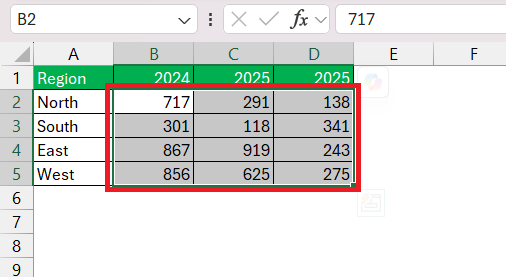
In Excel, a range refers to a collection of cells that you select to work with. It can be as simple as a single cell or as extensive as multiple rows and columns. For instance, if I select cells B2 through D5, that selection is called a range, which I’d refer to as B2:D5 in Excel terms.
Categories of Ranges
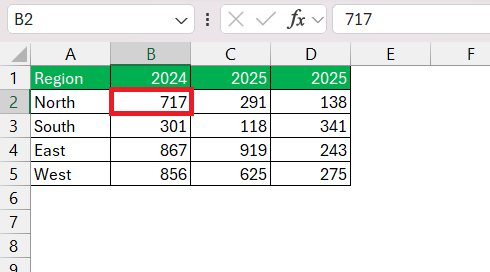
- Single Cell Range – This range contains only a single cell.
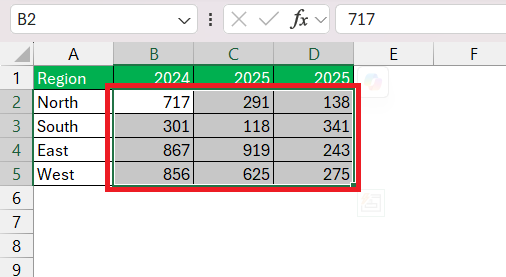
Rectangular Range – This includes multiple cells in a block.
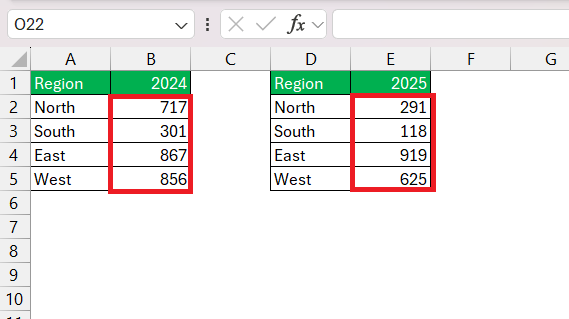
- Non-Adjacent Ranges – When the cells are not next to each other, they are called non-adjacent ranges.
- Named Ranges – Naming a range can make referencing easy.
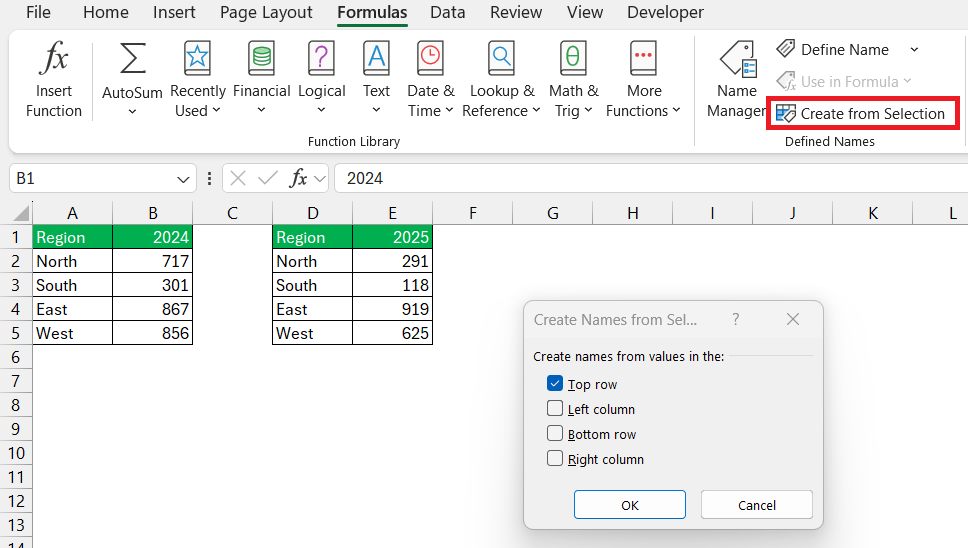
- Select the range that I want to name
- Go to the Formulas tab
- Select Create from Selection
- Check Top Row
- Click OK
Select a Range
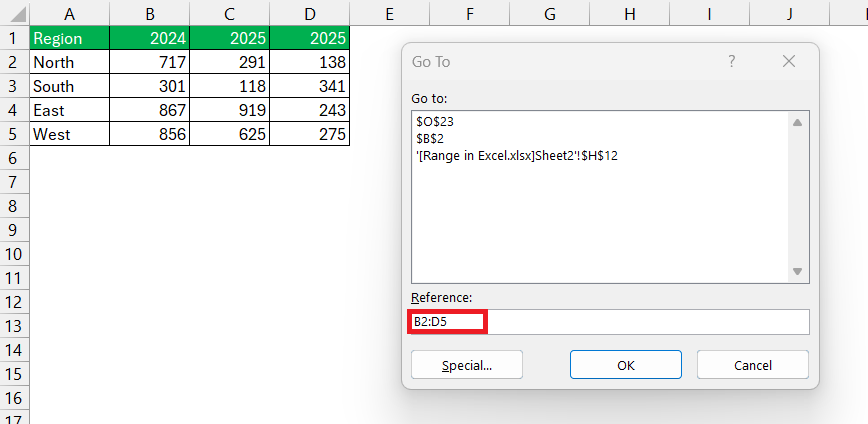
- Click and drag across the cells using a mouse to create a range.
- Press Shift + Arrow Keys to extend selection in any direction.
- Press Ctrl + G to open the “Go To” dialog box and type the range directly.
Ranges in Formulas
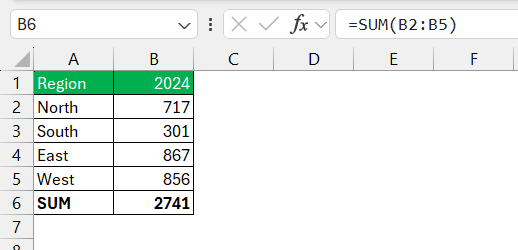
SUM
The sum function is used to add values in a range.
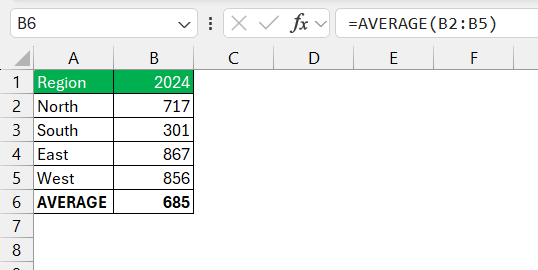
AVERAGE Function
The average function is used to get the average values in a range.
Conditional Sum
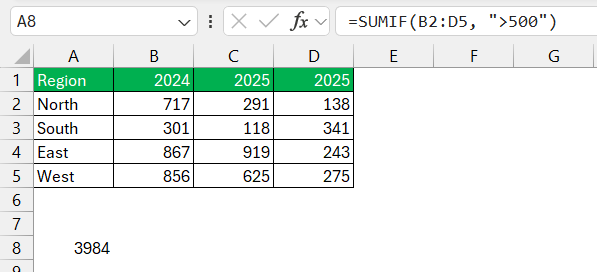
The SUMIF function is used to add up values that meet a certain condition. For instance, if I want to sum only the sales greater than $500 in the range C1:C10, I use:
Advanced Range Techniques
Dynamic Ranges
Let’s say I have sales data in column A starting from cell A1. If I keep adding new data below, I want the range to expand automatically. I can use the OFFSET function to create a this range:
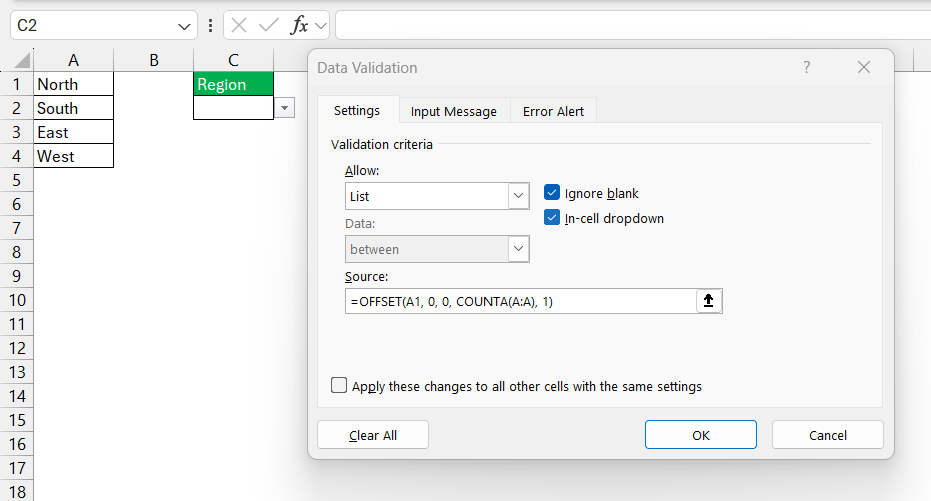
This dynamic range will now grow or shrink as I add or delete data in the column A.
Using Tables
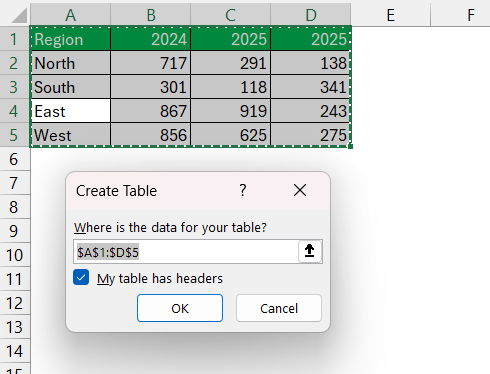
When I convert a range into a table (using Ctrl + T), it becomes easier to manage and reference.
Common Issues and Troubleshooting
- Press the Esc key to cancel a selected range.
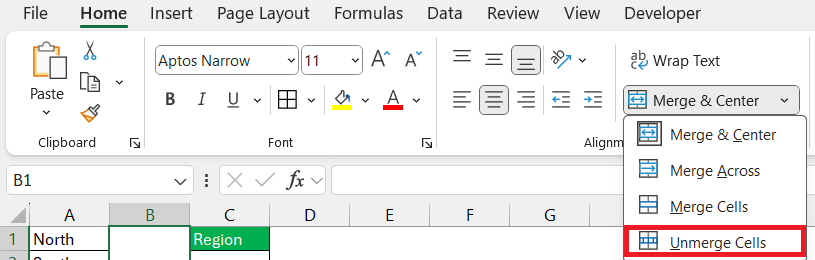
- It may be difficult to select merge cells. Try to avoid or unmerge them whenever possible.
FAQs
What is a range in Excel?
A range is a collection of one or more cells selected for use in Excel.
How to select a large range quickly?
To select a large range in Excel,
- Press Shift + Click, Shift + Arrow Keys, or
- Ctrl + G to select a range
What is a named range?
A named range is a group of cells given a custom name for easier reference.
Why are ranges important in formulas?
Ranges allow formulas to work with multiple cells at once.
How to make a range update automatically?
To make a range update automatically:
- Use dynamic ranges, or
- Convert the data into an Excel table

John Michaloudis is a former accountant and finance analyst at General Electric, a Microsoft MVP since 2020, an Amazon #1 bestselling author of 4 Microsoft Excel books and teacher of Microsoft Excel & Office over at his flagship MyExcelOnline Academy Online Course.

 30 Days - Full Access









