Email is one of the most common ways to communicate at work. Understanding when and how to use Reply vs. Reply All in Outlook is key to preserving the flow of conversation. In this article, you will learn the difference between Reply and Reply All in Outlook.
Key Takeaways
- Use “Reply” in Microsoft Outlook to respond only to the sender.
- It is useful for a private conversation or excluding non-essential recipients from the communication chain.
- The “Reply All” option includes all original recipients.
- It is appropriate when keeping all parties informed is necessary.
- Avoid overusing “Reply All” to keep inboxes clean.
Table of Contents
Understanding the Functions
What ‘Reply’ Means
When I select “Reply” in Outlook, I want to start a one-to-one conversation. Reply option is used when the message is solely for sender. For example, if your manager sends an email to five people and you click “Reply,” only your manager will receive your response. 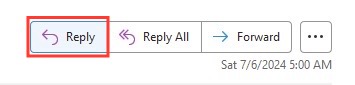
What ‘Reply All’ Means
The “Reply All” option sends your response to everyone included in the original email. This includes:
- The sender
- All people in the “To” field
- All people in the “CC” field
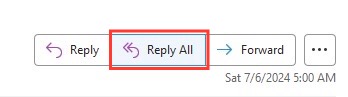 So if an email was sent to ten people, clicking “Reply All” will send your response to all ten of them.
When to Use Reply vs. Reply All
The Reply All approach can be used for company-wide announcements, team updates, or project discussions. It is useful when a response is necessary for team transparency or when an individual acknowledgment is more suitable. Before clicking “Reply All,” I make sure that the message adds value to the conversation for all recipients.
I take extra care during sensitive dialogues, like performance feedback or negotiations, where privacy is paramount and a direct “Reply” is more appropriate.
The reply feature can be used when you have a direct question for the sender or want to share some confidential details.
Common Mistakes
- Overusing Reply All – This is the biggest issue. Sending unnecessary replies to large groups clutters inboxes and wastes time.
- Forgetting to Reply All when needed – Sometimes people reply only to the sender when everyone should be informed. This leads to confusion and repeated questions.
- Sharing private information with Reply All – Accidentally sending sensitive details to a large group can cause serious problems.
- Email storms – When many people keep hitting Reply All, it creates a chain of unnecessary emails that flood everyone’s inbox.
Steps to Ensure Proper Use in Outlook
Configuring Settings for Optimal Use
Configuring Outlook to streamline my email responses is straightforward and can spare me from potential missteps. Within Outlook settings, I can easily adjust whether “Reply” or “Reply All” is my default action. The choice I make here could be key. It reduces the chances of an accidental ‘all’ reply. It is important to tailor this setting to match my most common email tasks.
Tools to Streamline Your Email Responses
Outlook offers several tools to aid us in streamlining email responses and enhancing productivity. These include Suggested Replies, which allow for swift acknowledgment with pre-written snippets suitable for common email scenarios.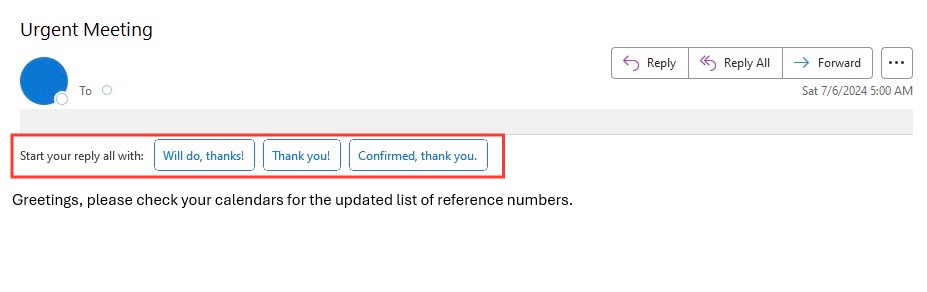
Quick Steps is another feature that lets me create custom email templates for recurring responses, saving time and maintaining consistency in my communication.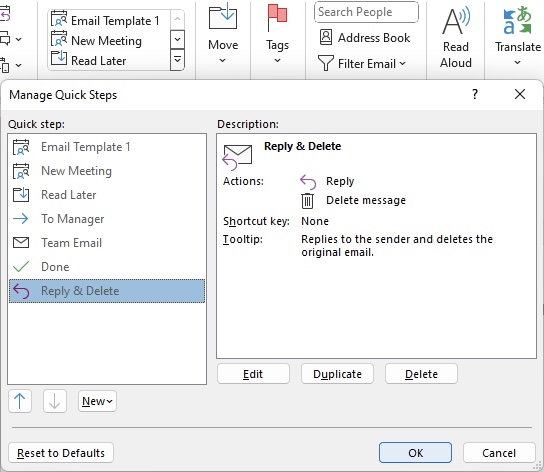
Additionally, the use of @mentions is tremendously helpful to draw the attention of specific individuals within a group email.
Tips and Tricks
Shortcut Methods for Quick Actions
I use shortcuts like Ctrl + R to reply and Ctrl + Shift + R to reply to all. Shortcuts can significantly cut down the time it takes to respond to emails. Similarly, when forwarding a message, Ctrl + F can be used. Quick Steps help me save time by combining multiple actions into one click. I use them for tasks I do often. Learning these shortcuts has made my email work faster and more efficiently.
Employ Rules for Automated Replies
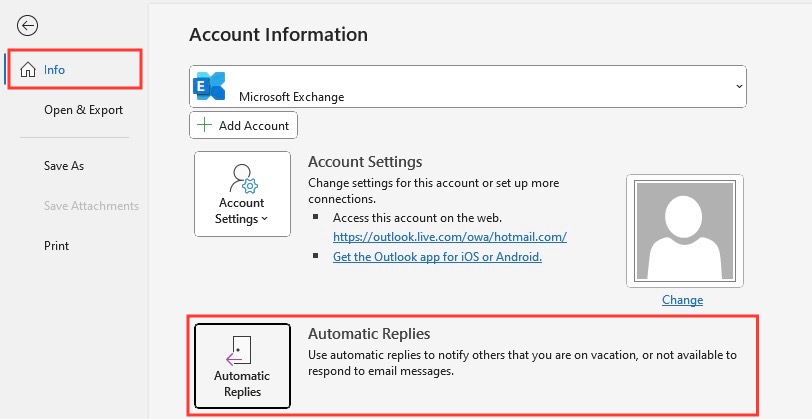
To customize your Automatic Replies:
STEP 1: Go to File > Info > Automatic Replies.
STEP 2: Check the “Send automatic replies” box and click on Rules.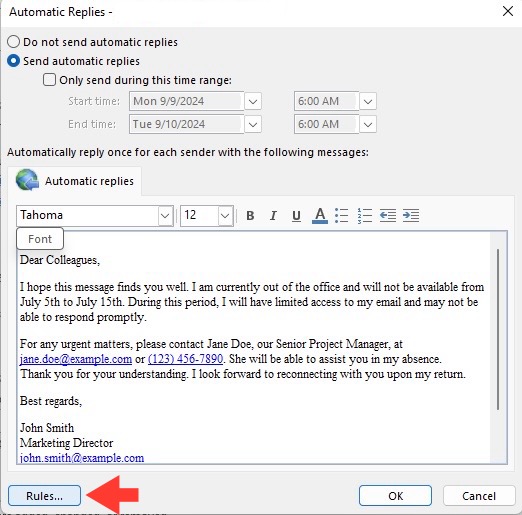
STEP 3: Click on Add Rule. Edit the Rule to meet your conditions. Click OK to save.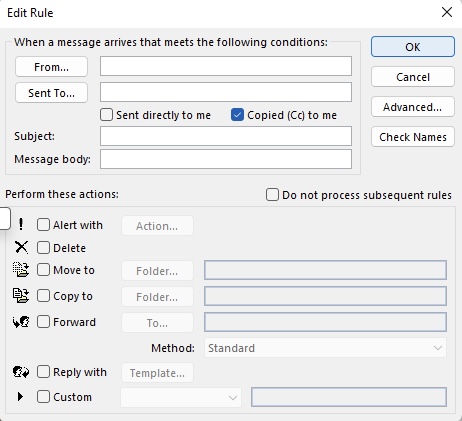
FAQs
1. What is the difference between Reply and Reply All?
Reply sends your message to one person. Reply All sends your message to everyone.
2. When to use Reply All?
Use Reply All when your message is relevant to everyone in the email.
3. Can Reply All cause problems?
Yes, Reply All can cause problems if the message contains private information.
4. How to reply faster in Outlook?
You can use these shortcuts to reply faster in Outlook:
- Ctrl + R for Reply
- Ctrl + Shift + R for Reply All
5. What are Quick Steps in Outlook?
Quick Steps let you perform multiple actions with one click. They are useful for repeated tasks like moving or replying to emails.

John Michaloudis is a former accountant and finance analyst at General Electric, a Microsoft MVP since 2020, an Amazon #1 bestselling author of 4 Microsoft Excel books and teacher of Microsoft Excel & Office over at his flagship MyExcelOnline Academy Online Course.

 30 Days - Full Access









