 Free Practice Workbook
When working with numbers in Excel, you may need to round them. It is useful when working with reports, calculations, or large datasets. Many functions in Excel can be used to round numbers. In this article, you will learn how to round to the nearest tenth.
Key Takeaways:
- Rounding makes numbers easier to understand.
- The ROUND function rounds a number up or down based on the value.
- Use ROUNDUP to round up the value.
- Use ROUNDDOWN to round down the value.
- MROUND rounds a number to the nearest multiple.
Table of Contents
Basics of Rounding
Rounding numbers helps simplify complex datasets. It helps people quickly compare values and make decisions. For example, rounding revenue numbers makes reports look clean and simple.
The following are the round functions that can be used:
- ROUND function follows standard rounding rules.
- MROUND function rounds a number to the nearest multiple
- ROUNDUP function rounds up a value
- ROUNDDOWN function rounds down the value
- INT returns whole numbers
- TRUNC removes decimal places without rounding
How to Round Numbers
Rounding to the Nearest Tenth with ROUND
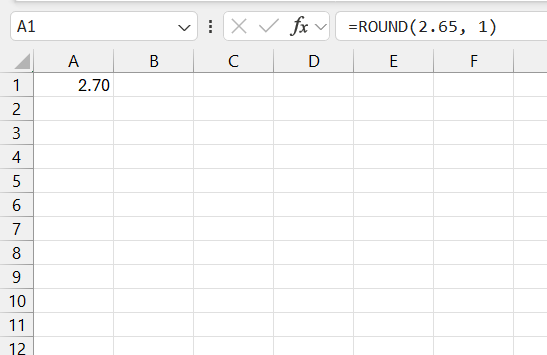
Rounding to the nearest tenth in Excel can be easily done using the ROUND function.
- Simply select the function
- Input the value or cell reference you’d like to round
- Use 1 as the number of digits for the nearest tenth.
You can use this formula to round the value from 2.65 to 2.7.
Rounding Other Significant Digits
Excel lets you round the value to other significant digits as well. You can use this formula to round 12345 to the nearest hundred.
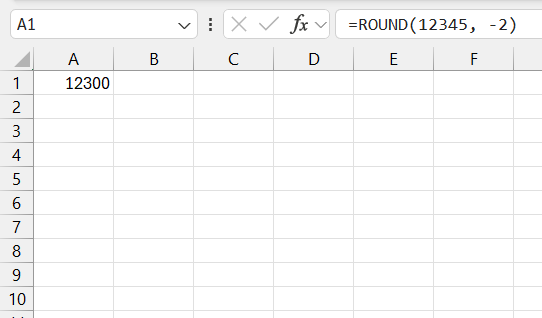
The negative number lets Excel know to count digits from the right.
Advanced Rounding Techniques
MROUND and FLOOR
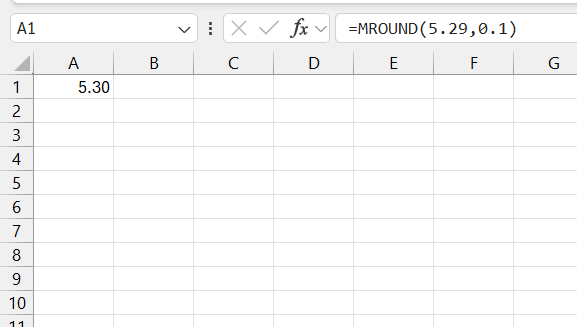
The MROUND function can round your values to the nearest multiple. For instance, to the nearest 0.5 or to the nearest 5.
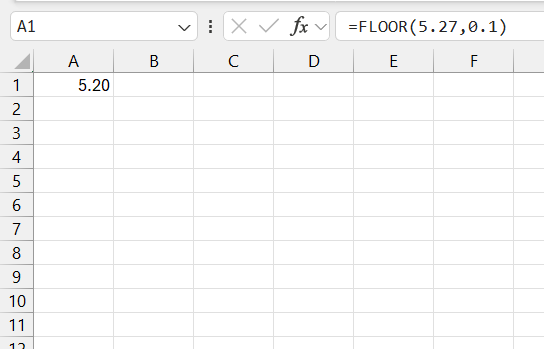
The FLOOR function will always round down to the nearest specified multiple.
ROUNDUP and ROUNDDOWN
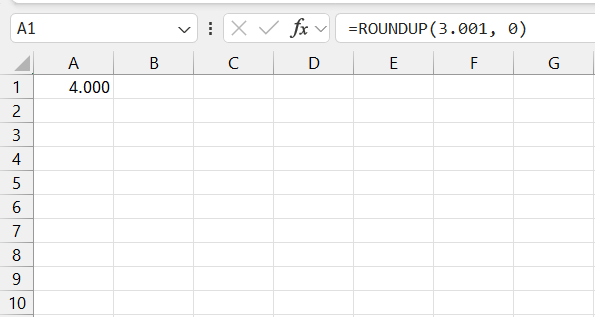
ROUNDUP increases a number no matter what the decimal is. This is useful when you don’t want to fall short, like estimating materials or stock.
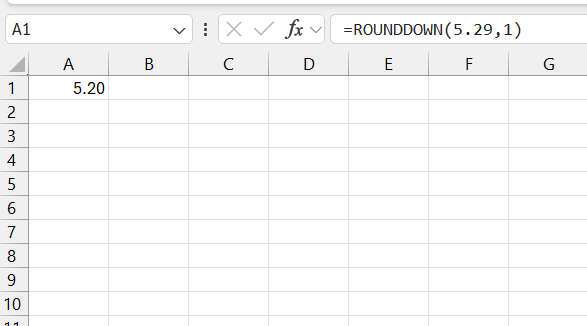
ROUNDDOWN function will always reduce a number. It simply cuts it down and helps you to stay within a limit.
FAQs
How to round a number in Excel?
To round a number in Excel, use the ROUND function.
-ROUND(value, num_digits)
How to Round to the Nearest Tenth in Excel?
You can use the ROUND function to round to the nearest tenth:
=ROUND(number, 1)
‘1’ signifies that you’re targeting one decimal place, or the tenths position.
Can I Round a Number to a Specific Unit in Excel?
Yes, you can round a number to a specific unit in Excel by using the ROUND, MROUND, CEILING, or FLOOR functions. Specify the desired unit in the formula’s arguments to determine how the number will be rounded.
How to use the roundup function in Excel?
In Excel, use the ROUNDUP function to round numbers always upwards.
=ROUNDUP(number, num_digits)
For example, =ROUNDUP(3.14159, 2) yields 3.15.
Why use the nearest rounding?
Nearest rounding is employed to simplify figures for ease of understanding, comparison, and calculation while maintaining a representation close to the original value.

John Michaloudis is a former accountant and finance analyst at General Electric, a Microsoft MVP since 2020, an Amazon #1 bestselling author of 4 Microsoft Excel books and teacher of Microsoft Excel & Office over at his flagship MyExcelOnline Academy Online Course.

 30 Days - Full Access









