Time zones play an important role in Microsoft Teams when you are coordinating with colleagues around the world. An incorrect time zone can lead to missed meetings or incorrect calendar entries. In this article, you will learn how to set your time zone in Microsoft Teams.
Key Takeaways
- Setting the correct time zone to avoid missed meetings.
- Microsoft Teams uses your device and Outlook time settings.
- Always allow automatic date and time on your device.
- Restart Teams after changing time settings to apply updates.
- Use tools like a scheduling assistant for global teams.
Table of Contents
Microsoft Teams Time Zone Options
Adjust Time and Date in Windows
STEP 1: Go to the Start menu and select Settings.
STEP 2: Go to Time & Language and click Date & Time.
STEP 2: Toggle on Set time automatically if you want the system to adjust the time based on your time zone.
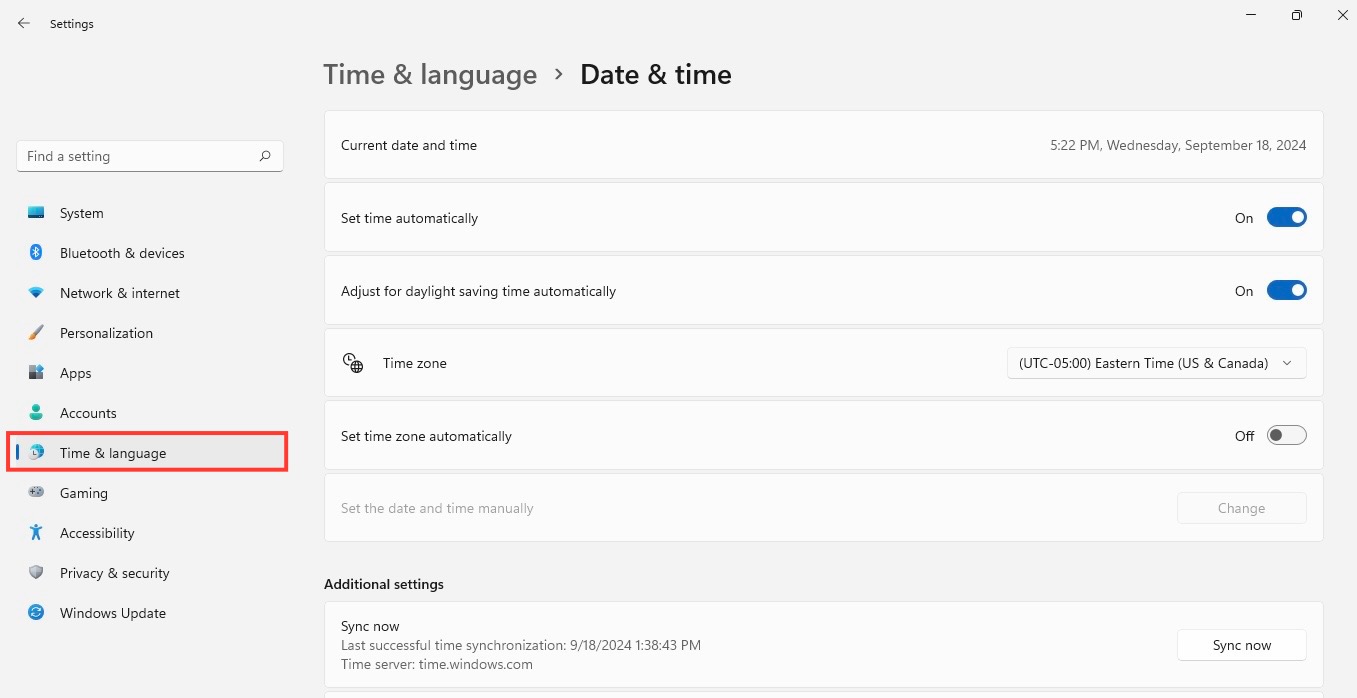
Adjust Time and Date on Mac
STEP 1: From the Apple menu, open System Settings.
STEP 2: In the sidebar, go to General, then select Date & Time.
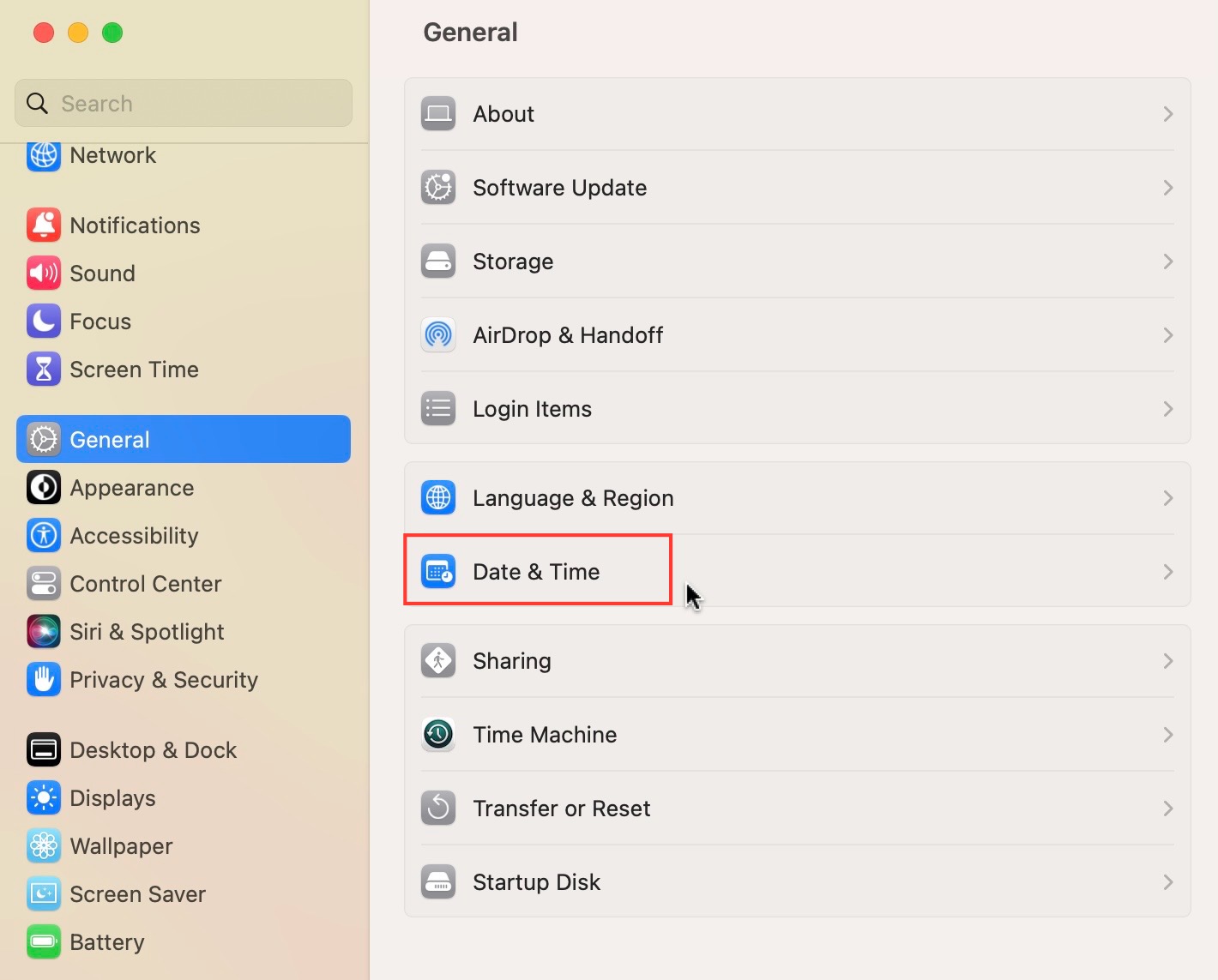
STEP 3: Check the box that says Set date and time automatically.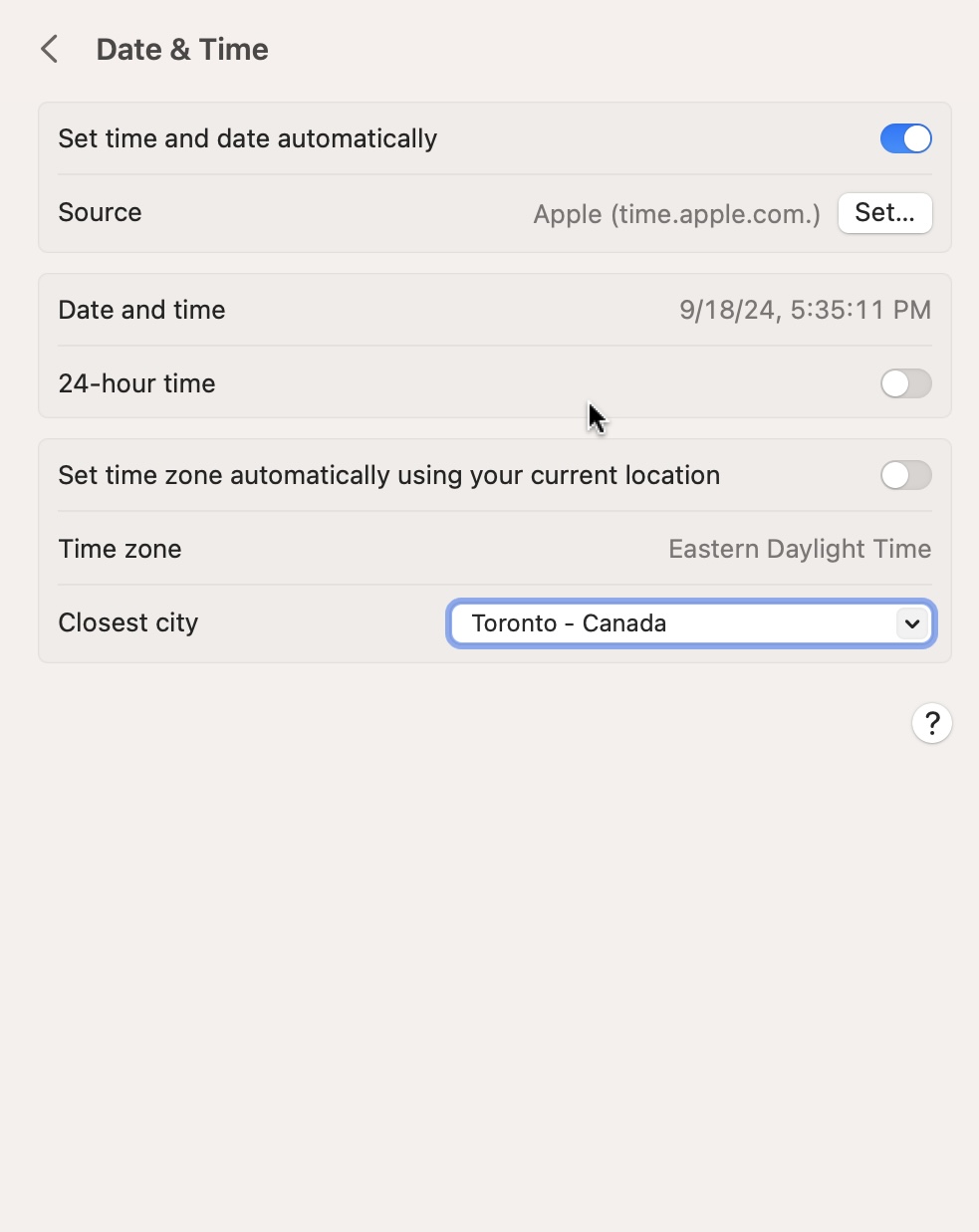
Adjust Time and Date on IOS
STEP 1: Open the Settings app on your iPhone or iPad.
STEP 2: Go to General, and select Date & Time.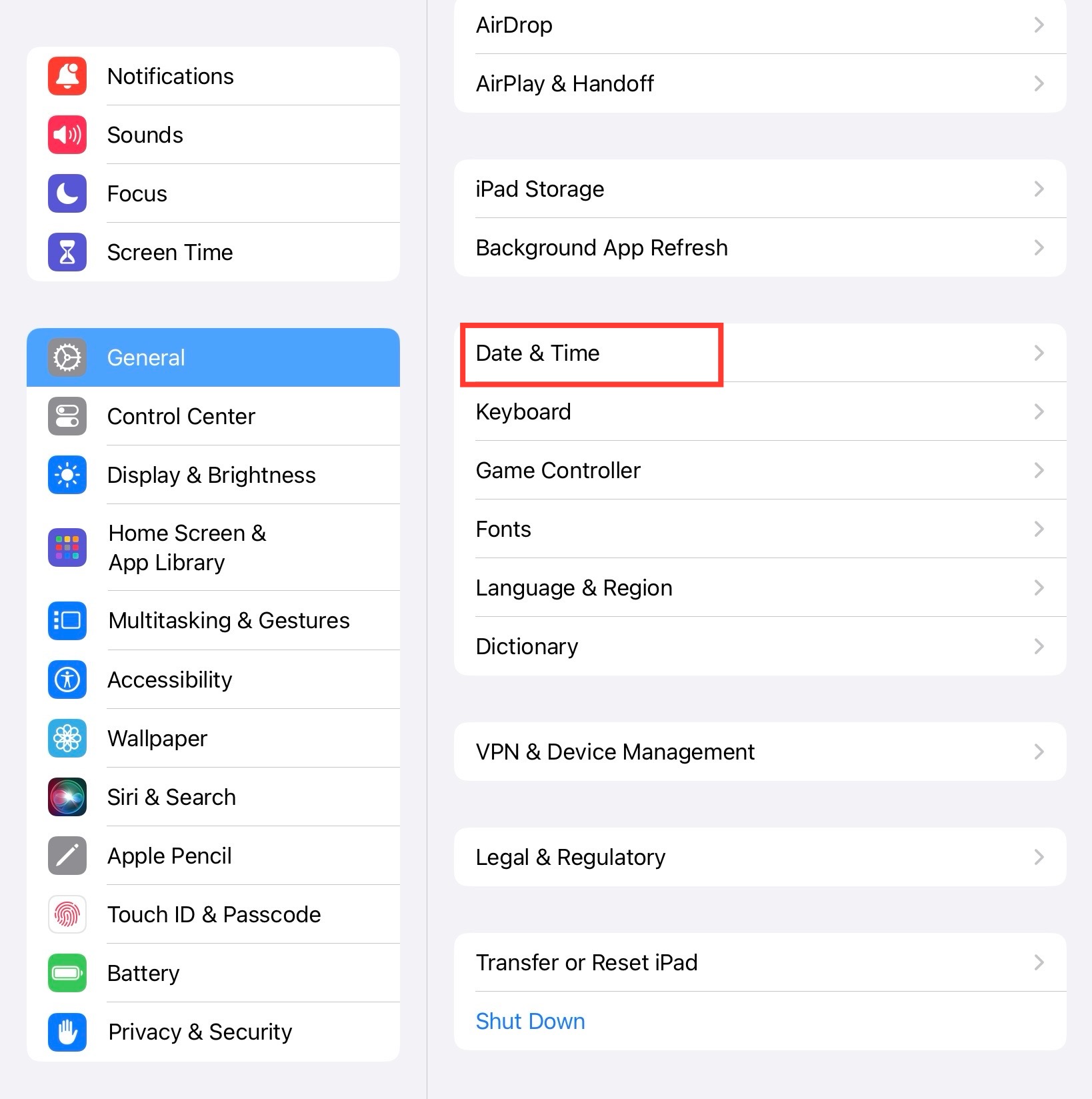
STEP 3: Toggle on Set Automatically to sync the time with your network.
Adjust Time and Date on Android
STEP 1: Open the Settings app.
STEP 2: Go to System and select Date & Time.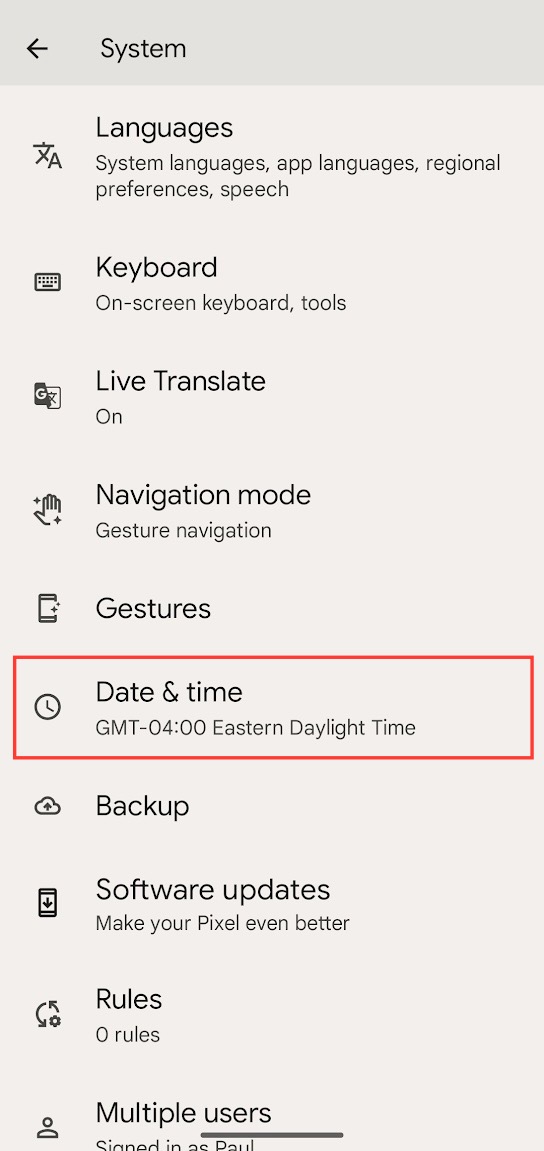
STEP 3: Enable Automatic Date & Time for network-based updates.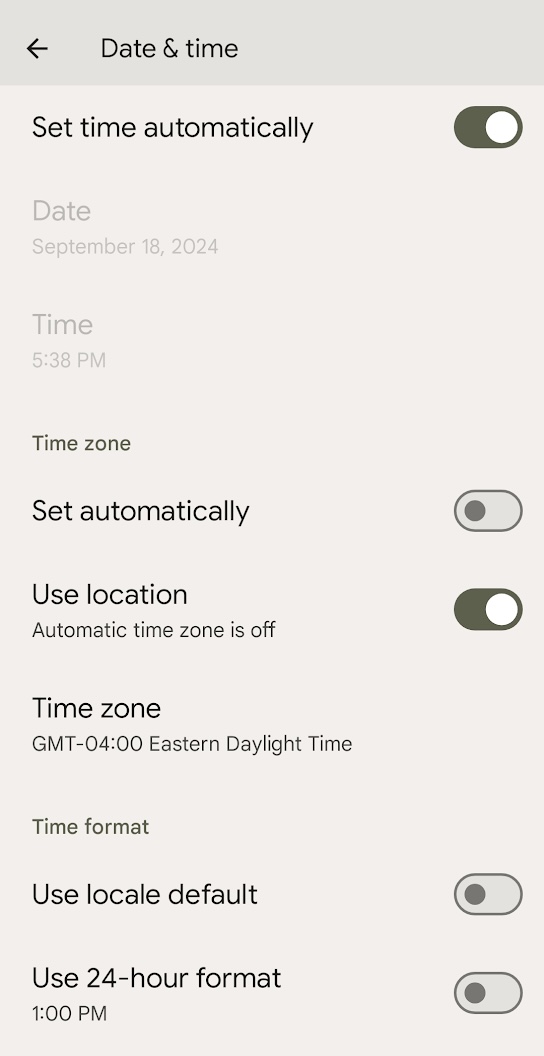
Make sure to restart Microsoft Temas after adjusting the time and date on your device.
Troubleshoot Common Challenges
If Microsoft Teams is displaying an incorrect time zone, follow the points below:
- Make sure that the device’s setting is correctly configured.
- Manually adjust the time zone.
- Check for any pending updates.
- Contact Microsoft support for further assistance.
Advanced Tips for Time Zone Management
Handling Global Team Scheduling Effectively
Managing a global team across various time zones requires strategy and the right tools. To handle scheduling effectively, I establish “core hours” where there’s an overlap in availability despite the geographical spread. This practice fosters real-time collaboration and minimizes the inconvenience of odd working hours. Furthermore, within Microsoft Teams, I leverage the Group Calendar which visually represents different time zones, easing the process of finding common meeting times. It’s about maintaining a balance between flexibility and structured synchronization; this is where the real art of global team management lies.
Employing Time Zone Converters for Seamless Collaboration
For seamless collaboration across time zones, employing time zone converters is a smart move. I regularly use external time zone converters or world clock applications to double-check meeting invitations for global teammates. This method ensures that everyone has the correct local time for upcoming sessions. It’s a proactive step that simplifies the coordination of activities and minimizes the risk of confusion. Integrating these tools with Microsoft Teams can enhance efficiency, enabling us to navigate the complexities of international project management with greater ease.
FAQs
Can I Set Different Time Zones for Different Teams within Microsoft Teams?
No, Microsoft Teams does not allow the setting of different time zones for different teams within the app.
How to Change the Time of an Existing Microsoft Teams Meeting?
To change the time of an existing Microsoft Teams meeting, follow the steps below:
- Open the event in the Teams Calendar
- Click “Edit.”
- Adjust the start and end times to the new desired slots
- Click “Save.”
Why is Microsoft Teams showing the wrong time?
It usually happens due to incorrect device or Outlook time zone settings.
Do I need to restart Teams after changing time settings?
Yes, restarting helps Teams apply the updated time zone correctly.

John Michaloudis is a former accountant and finance analyst at General Electric, a Microsoft MVP since 2020, an Amazon #1 bestselling author of 4 Microsoft Excel books and teacher of Microsoft Excel & Office over at his flagship MyExcelOnline Academy Online Course.

 30 Days - Full Access









