 Free Practice Workbook
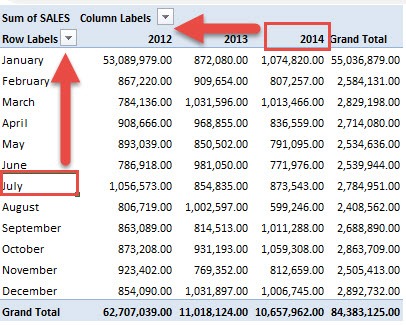
You have your Pivot Table ready, all sorted nicely both from a row and column perspective. However you just need that one minor sorting tweak or two. Well, Excel seemingly has a lot of tricks and you can even sort an Excel Pivot Table manually. For our example, let’s see this Pivot Table below. It is sorted by years (2012-2014), and months (Jan-Dec).
Key Takeaways:
- Drag-and-Drop Sorting: You can manually rearrange rows or columns in a Pivot Table by clicking and dragging the items to the desired order, providing complete control over the display.
- Custom Order for Specific Needs: Manual sorting allows you to organize items in a non-alphabetical or non-numerical order, useful for arranging categories or groups in a way that aligns with specific business needs or priorities.
- Preserving Data Context: Unlike automatic sorting, manual sorting ensures that the context and relationships within the data are maintained, especially when working with grouped or hierarchical data structures.
Table of Contents
How to Sort an Excel Pivot Table Manually
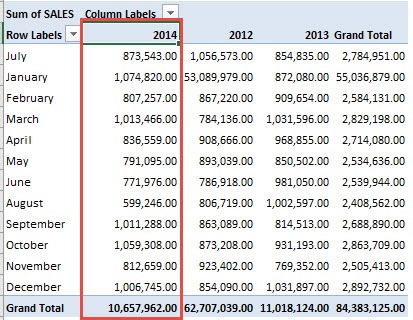
But what if we want to move July to the top, and the year 2014 as the first column year?
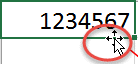
STEP 1: To manually sort a row, click on the cell you want to move. Hover over the border of that cell until you see the four arrows:
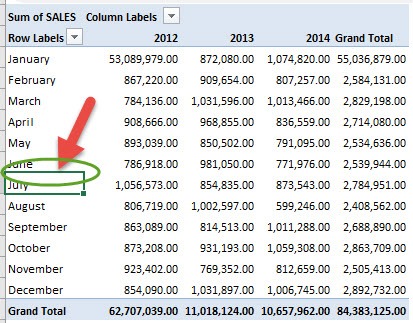
Left mouse click, hold and drag it to the position you want (i.e. upwards to the first row)
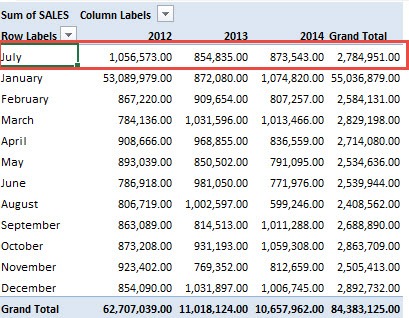
We dragged it to the top so it’s now the first row!
STEP 2: To manually sort a column, click on the cell you want to move. Hover over the border of that cell until you see the four arrows.
Left mouse click, hold and drag it to the position you want (i.e. all the way to the left)
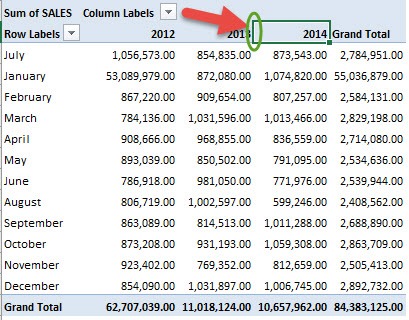
Voila! You have successfully manually sorted your Pivot Table!
EXTRA TIP: You can click inside a cell e.g. January, and start typing in another month, like August. This will also manually sort your Pivot Table items.
Frequently Asked Questions
How do I manually change the order of Columns in a PivotTable?
To manually change the order of columns in a PivotTable, click on the column label you wish to move. Then, press and hold the left mouse button and drag it to your desired position. Release the mouse button to drop the column in its new location. This works great for customizing the view to your preference.
How Do I Sort A Pivot Table Left To Right Instead Of Top To Bottom?
Right-click on a cell within the row that has the values you’d like to sort. From the context menu, select ‘Sort’, then ‘More Sort Options’. Choose ‘Left to Right’ under the orientation and pick your desired sort order. After selecting the sorting criteria, hit ‘OK’ and your pivot table is sorted horizontally!
Can You Set A Custom Order For Sorting Pivot Table Labels?
Yes as Excel’s custom lists allow you to define a specific sequence that defies the standard A to Z or numerical order. If you have a list that don’t alphabetically sort, a custom list is handy. Create the list once, and Excel remembers it and it will automatically apply your custom order to relevant pivot table labels.

Bryan
Bryan Hong is an IT Software Developer for more than 10 years and has the following certifications: Microsoft Certified Professional Developer (MCPD): Web Developer, Microsoft Certified Technology Specialist (MCTS): Windows Applications, Microsoft Certified Systems Engineer (MCSE) and Microsoft Certified Systems Administrator (MCSA).
He is also an Amazon #1 bestselling author of 4 Microsoft Excel books and a teacher of Microsoft Excel & Office at the MyExecelOnline Academy Online Course.

 30 Days - Full Access









