 Free Practice Workbook
Understanding standard deviation in Microsoft Excel empowers you to quickly assess the variability of your data around the mean. This statistical measure, which may seem complex at first, becomes manageable with Excel’s functions.
Key Takeaways
- Standard deviation measures the dispersion of data points around the mean, essential for understanding data variability.
STDEV.SandSTDEV.Pare key Excel functions for calculating standard deviation, suitable for sample and population data, respectively.- Calculating standard deviation in Excel involves entering data, selecting the appropriate function, and interpreting the results.
- Converting standard deviation to a percentage provides a relative measure of variability, useful for comparing datasets with different means.
- Standard deviation is vital in fields like stock market analysis, quality control, and education to assess risk, consistency, and performance.
Table of Contents
Calculating Standard Deviation in Excel
STDEV.S is useful when you have a sample of a larger populace, while STDEV.P is when you have the whole population’s data.
STEP 1: Enter Your Data
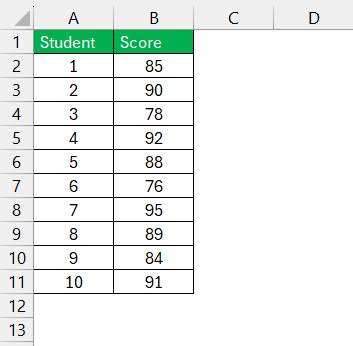
STEP 2: Click the cell where you desire the result, type ‘=’ followed by your selected function, and enclose the range of your data within parentheses. For example, “=STDEV.P(B2:B11)”.
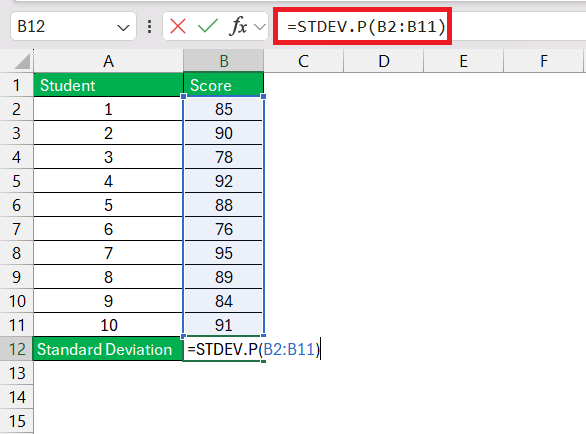
STEP 3: Hit enter and voila, Excel calculates the standard deviation for your dataset.
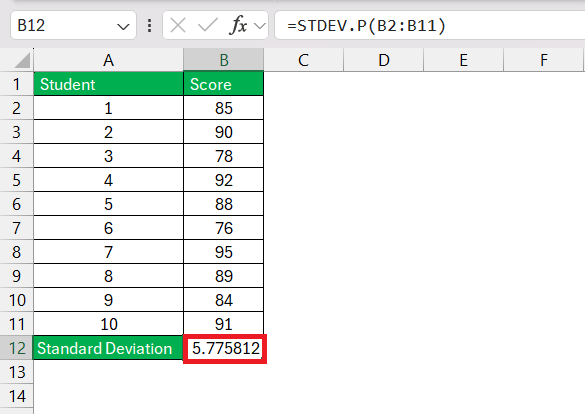
Converting Standard Deviation to a Percentage
How to Calculate Standard Deviation as a Percentage in Excel
- Enter the average formula =AVERAGE(B2:B11)
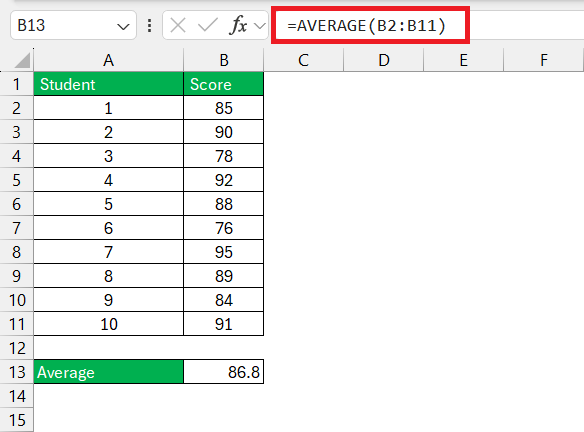
- Enter the standard deviation formula =STDEV.P(B2:B11)
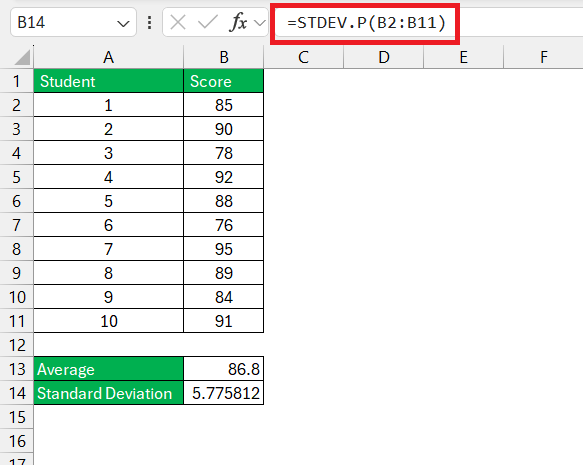
- In a new cell, type in “=(Standard Deviation cell reference/AVERAGE(data range))”.
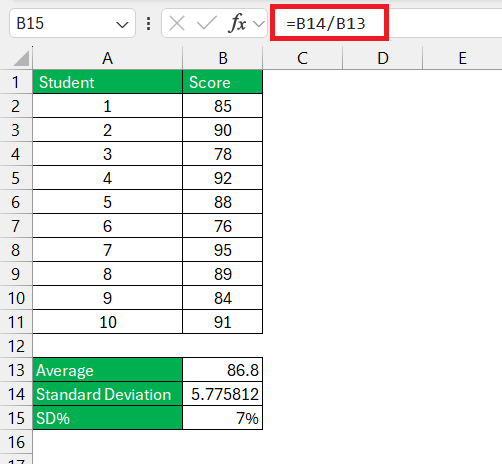
Executing this formula hands you a powerful lens to scrutinize your data’s variability in a way that resonates clear as a bell, no matter the dataset size.
Visual Representation of Data
Adding Standard Deviation Error Bars
Standard deviation error bars can show the variability of your data directly on the chart.
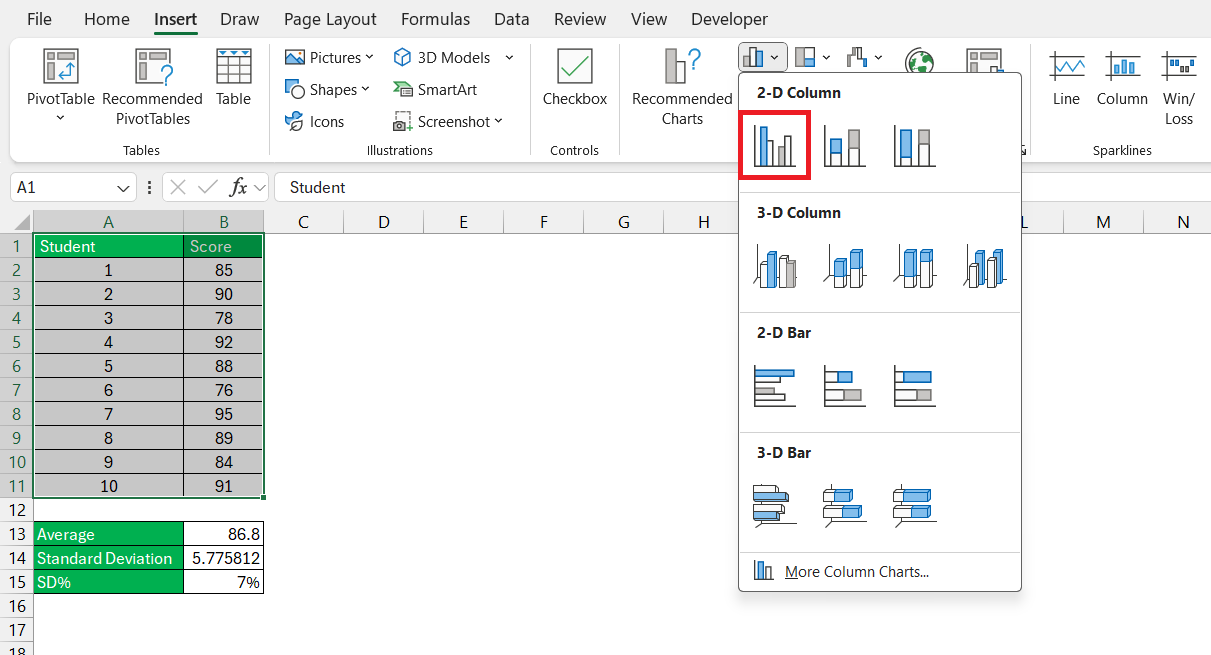
STEP 1: First, create your chart by selecting your data and choosing the best chart type from the ‘Insert’ tab.
STEP 2: Click on the freshly minted chart and look for ‘Chart Elements’.
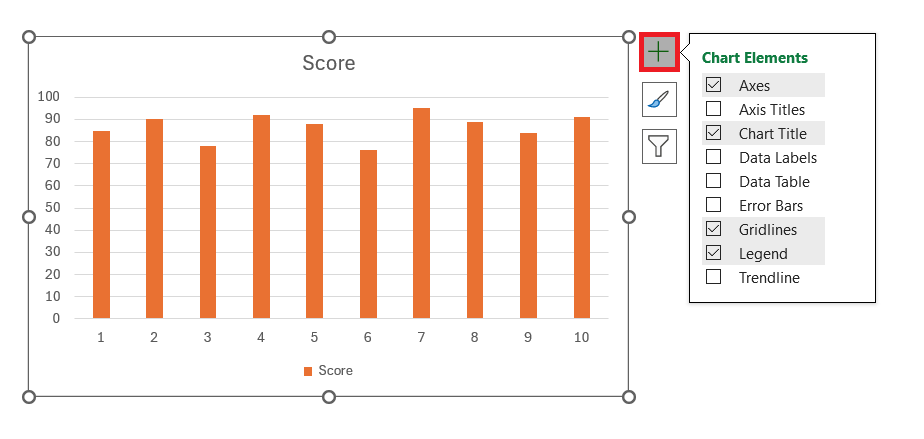
STEP 3: Dive into ‘Error Bars‘, and select ‘Standard Deviation’ to blanket your data points with bars that represent variability.
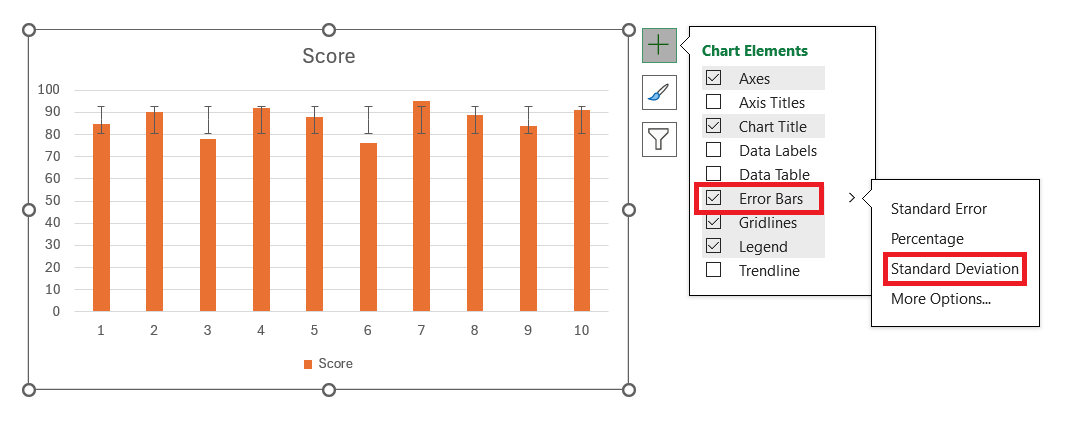
With error bars in place, you’re not just telling your audience about the data’s stability or volatility; you’re showing them, making your data’s story that much more persuasive.
FAQs
What Is the Formula for Percentage Standard Deviation in Excel?
The formula for percentage standard deviation, also known as Relative Standard Deviation (RSD), in Excel is: “= (STDEV(range)/AVERAGE(range))”. Replace ‘range’ with your data set’s cell range to get the standard deviation as a percentage of the mean.
How to convert standard deviation into percentage?
To convert the standard deviation into a percentage, you divide the standard deviation by the mean (average) of the data set. This percentage gives you the standard deviation relative to the mean, providing a dimensionless measure of variability.
Which SD is used?
The choice between “sd” depends on the nature of your dataset:
- STDEV.S (Sample Standard Deviation): Use this when you’ve sampled part of a population.
- STDEV.P (Population Standard Deviation): Use this when you have data for the whole population.
Picking the correct “sd” impacts the accuracy of your variability measurement.

John Michaloudis is a former accountant and finance analyst at General Electric, a Microsoft MVP since 2020, an Amazon #1 bestselling author of 4 Microsoft Excel books and teacher of Microsoft Excel & Office over at his flagship MyExcelOnline Academy Online Course.

 30 Days - Full Access









