 Free Practice Workbook
Pivot Table is a useful feature used in Excel to analyze million rows of data. It can display results in an easy-to-read table by dragging fields around. However, Pivot Tables can sometimes behave unexpectedly. In this article, you will learn about the top 10 Pivot Table problems and how to fix them.
Key Takeaways:
- Pivot Tables can summarize large data without formulas.
- You must refresh the Pivot Table to see updated data.
- Remove blanks or duplicates to get clean data.
- To include new rows of source data, convert the data to a table.
Table of Contents
What is a Pivot Table?
A pivot table in Excel is a tool that can summarize large amounts of data. This can be done without writing complex formulas. It can turn messy data into a clean summary within seconds.
A pivot table has 4 key areas:
- Rows
- Columns
- Values
- Filters
Top 10 Pivot Table Problems
1. Pivot Table Not Updating
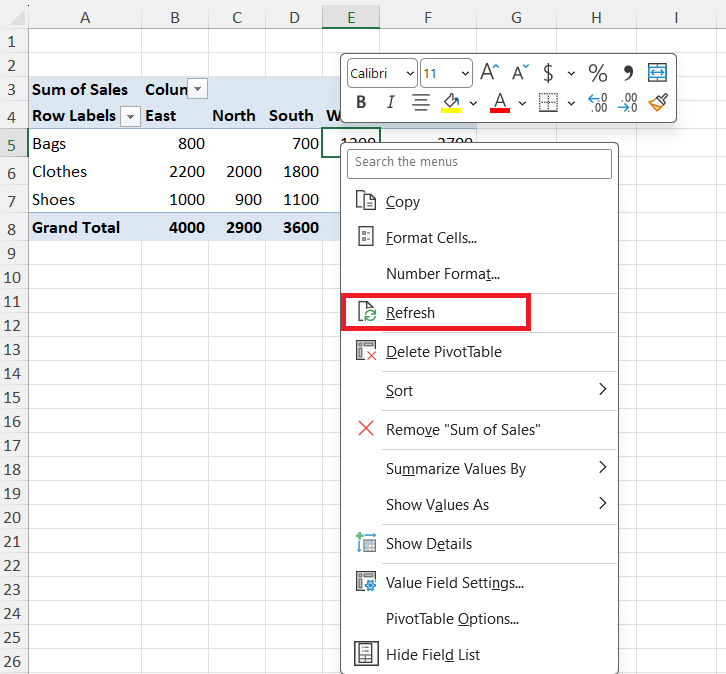
When you update the source data, the PivotTable does not update. You can fix it by following the steps below:
STEP 1: Right-click anywhere in the pivot table
STEP 2: Click Refresh
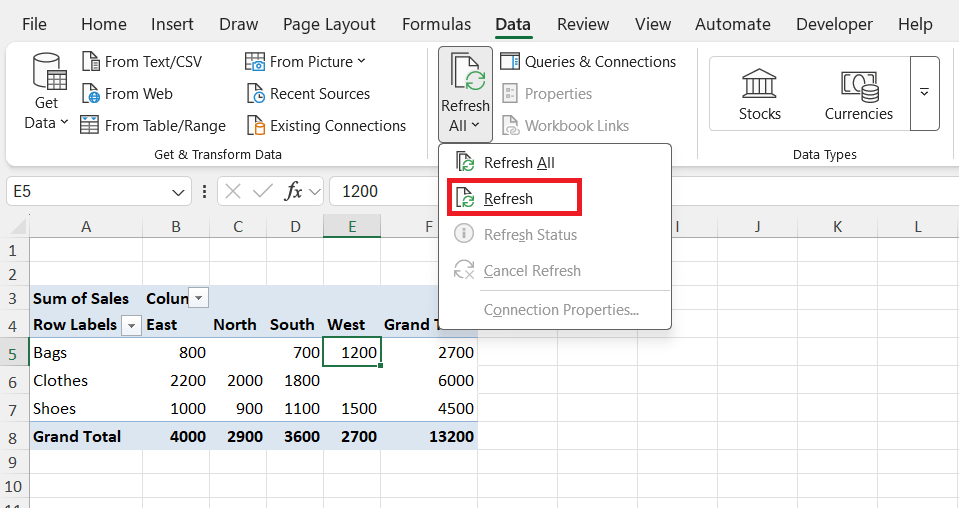
You can also go to the Data tab > Refresh All > Refresh to update the PivotTable.
2. Missing Data in Pivot Table
Some rows or values in the source data may not get reflected in the PivotTable. This can happen because of the following reasons:
- The source data range is incomplete – Go to the PivotTable Analyze > Change Data Source.

- Filters are applied – You can go to the data tab and select Clear.

- Blank cells exist – Fill missing data where necessary.
3. New Data not adding in Pivot Table
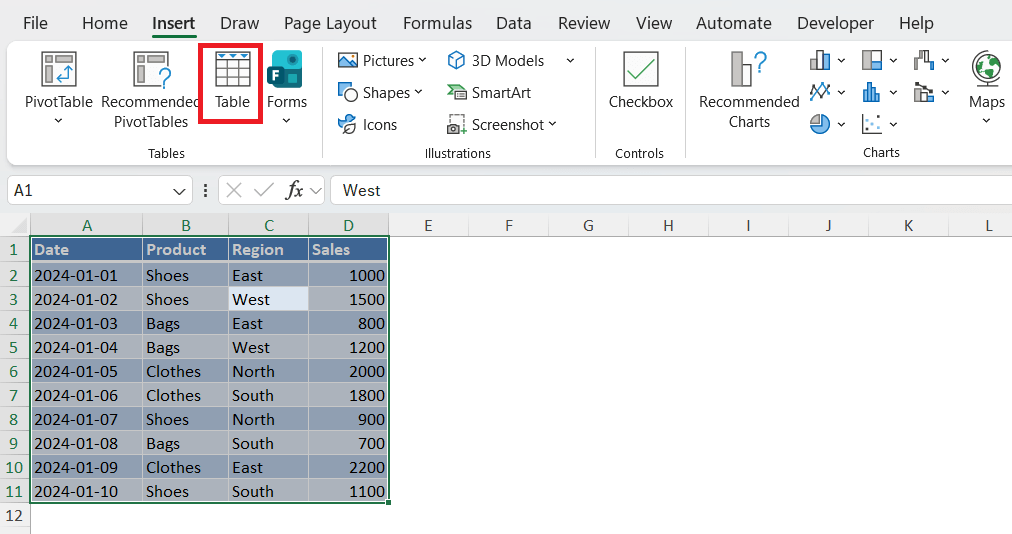
If your source data is a static range, it will not add new rows to your Pivot table. You can convert a static range into a table to fix it.
STEP 1: Select the data range.
STEP 2: Go to the Insert tab > Table.
STEP 3: In the dialog box, select OK.
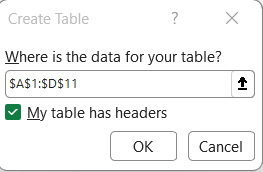
This method will make sure that the pivot table automatically includes new data.
4. Pivot Table Showing Count Instead of Sum
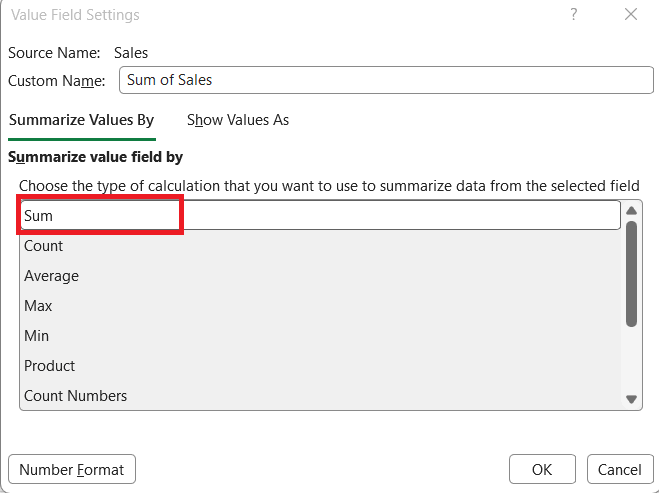
If PivotTable is showing count instead of sum, it is because you are using the wrong aggregation function. To change the aggregation function, follow the steps below:
STEP 1: Click anywhere on the Pivot Table. This will open the PivotTable Fields panel.
STEP 2: Click on the Value field > Value Field Setting.
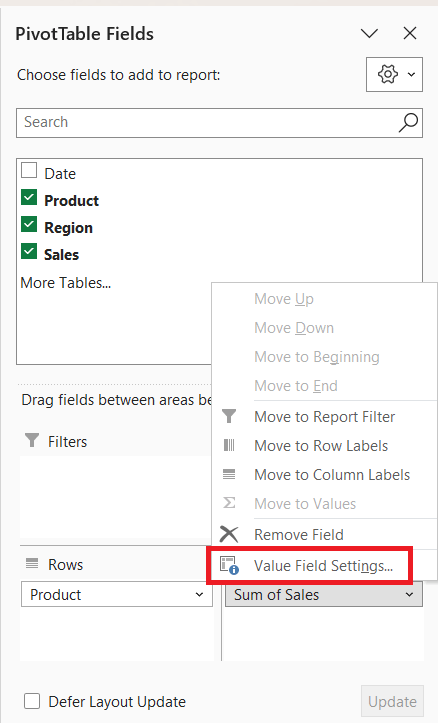
STEP 3: Select Sum. Click OK.
5. Dates Not Grouping
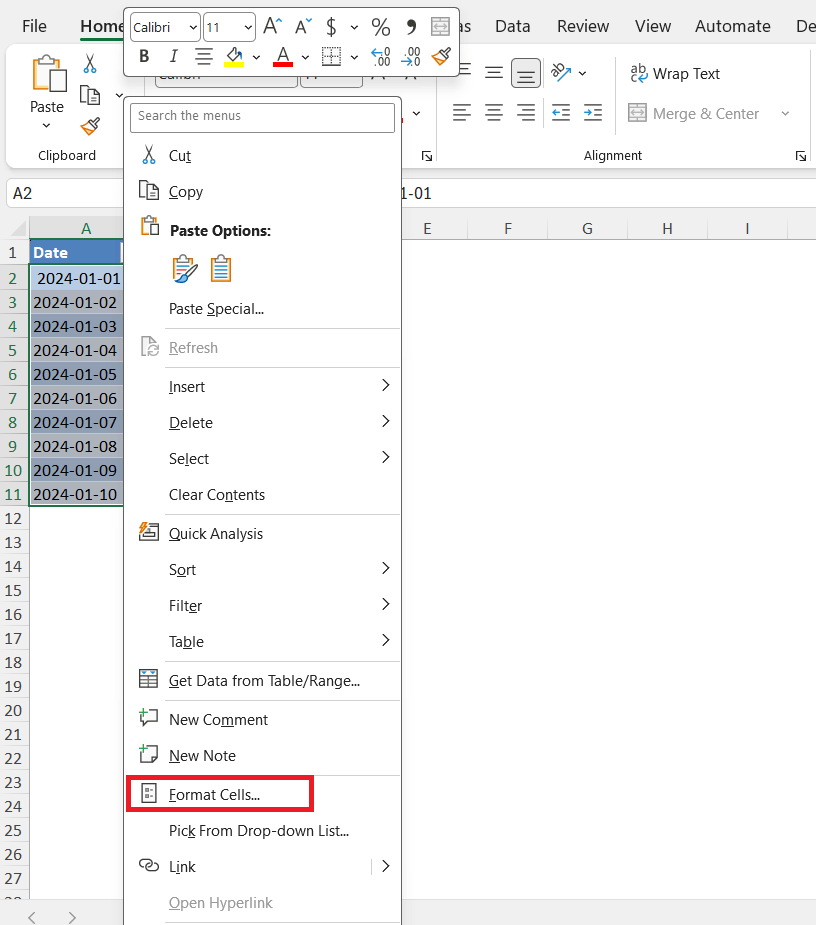
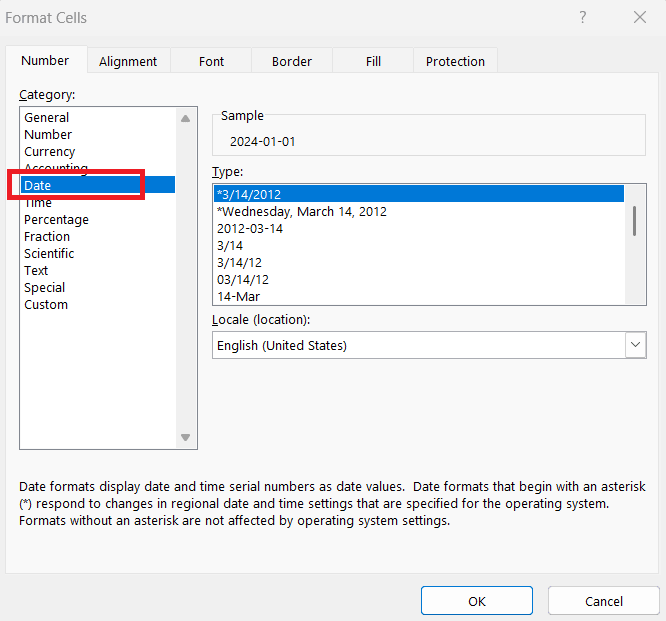
If your date is stored as text, Excel will not be able to group dates in a Pivot Table.
- Right-click on the date and select Format.
- Select Date.
6. Incorrect Calculations
If your total value is incorrect, it can happen because there are duplicate values in the dataset. To remove the duplicates, go to the Data tab and select Remove duplicates.

7. Blank Cells in Pivot Table
If the source data has blank cells, the Pivot table will also show blank entries. Replace blanks with meaningful values like “N/A” or 0 to avoid confusion.
8. Pivot Table Formatting Keeps Changing
If, after refreshing, the formatting of your Pivot Table disappears, you can follow the steps below:
- Right-click on the pivot table
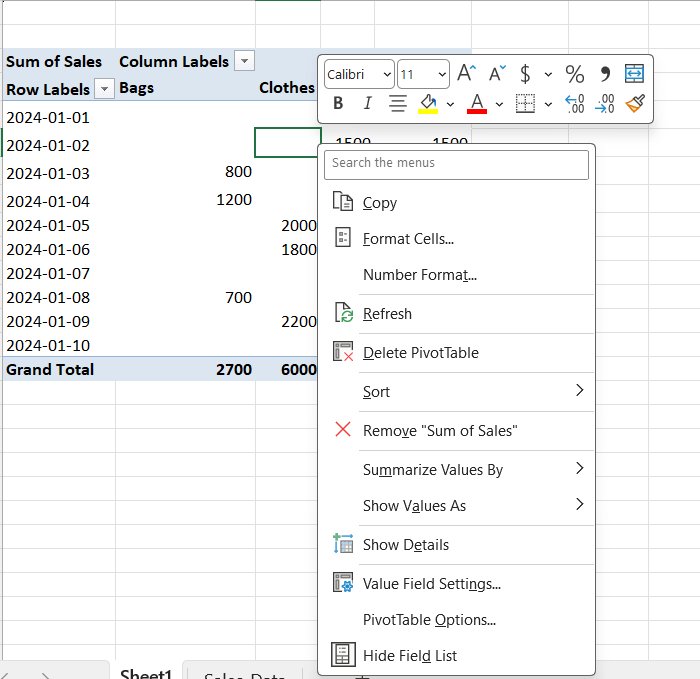
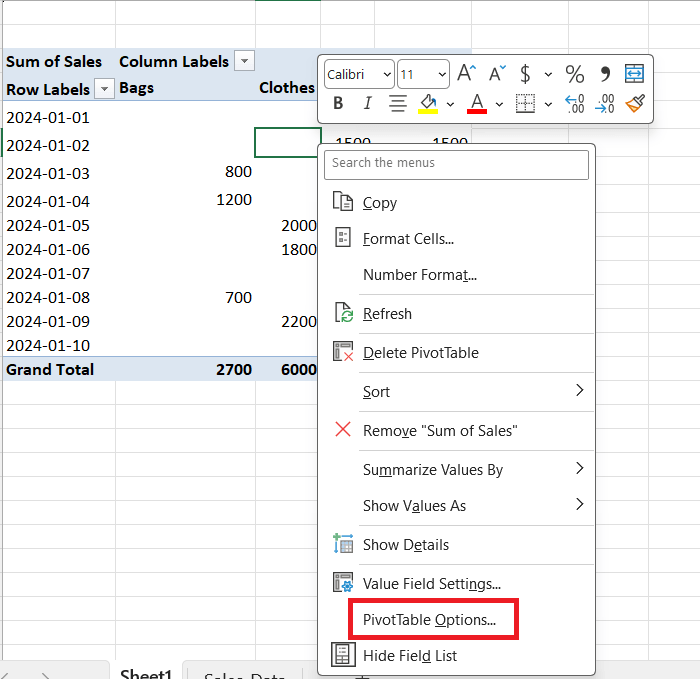
- Click PivotTable Options
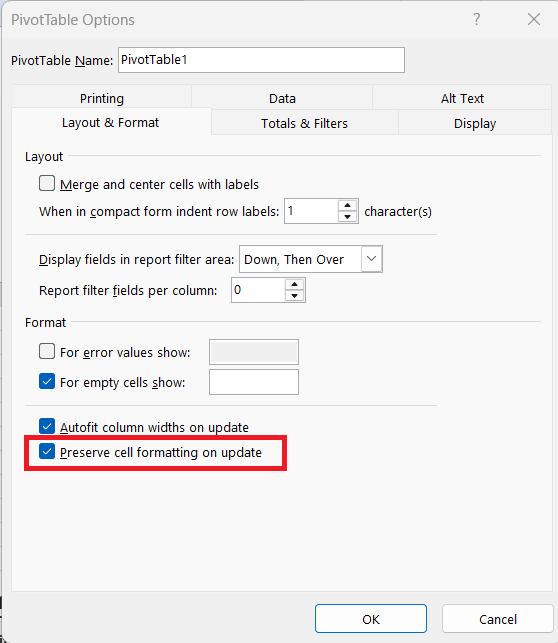
- Check Preserve cell formatting on update
9. Field Name Not Valid
If you are getting the error: “PivotTable field name is not valid.”, you can do these:
- Make sure that every column has a header
- Remove merged cells
10. File Size Becomes Too Large
If the pivot tables become too large, it can make the file slow to open, save, or share. You can:
- Remove unused PivotTables
- Use a single data source
- Use Power Pivot for large datasets
FAQs
What is a Pivot Table?
A Pivot Table is a tool that helps you summarize and analyze large data in a simple table format.
Why is Pivot Table not updating?
If the Pivot Table does not update automatically, follow the steps below:
- Right-click on the Pivot table
- Click Refresh.
Why is Pivot Table showing count instead of sum?
This happens when the value setting is set to count instead of sum.
How to include new data in a Pivot Table?
You can convert your data into a table so new rows are added automatically.
Why is Excel file becoming slow?
An Excel file can slow down because of large data and the pivot cache. You can:
- Remove unused Pivot Tables
- Use Power Pivot.

John Michaloudis is a former accountant and finance analyst at General Electric, a Microsoft MVP since 2020, an Amazon #1 bestselling author of 4 Microsoft Excel books and teacher of Microsoft Excel & Office over at his flagship MyExcelOnline Academy Online Course.

 30 Days - Full Access









