 Free Practice Workbook
Table of Contents
Understand True Position Calculator
What is True Position?
True Position is a measurement that shows how far a value is from its intended location. For example, as per the drawing, a hole should be located at X = 50 mm and Y = 30 mm. However, after manufacturing, the measured location might be: X = 50.08 mm and Y = 29.95 mm.
True Position will quantify this deviation of actual location from the theoretical location.
Syntax
The formula to calculate the true position is:
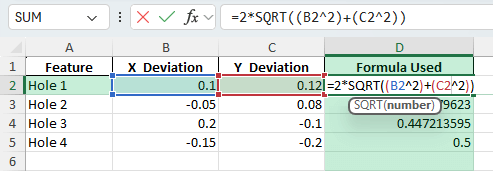
=2*SQRT((Xdeviation^2)+(Ydeviation^2))
The SQRT function calculates the square root of the combined squared deviations. Multiplying the result by 2 converts the radial distance into a diameter value.
Benefits of Using a True Position Calculator
A True Position calculator helps improve accuracy and consistency when working with inspection data. Instead of calculating each measurement manually, Excel performs the calculations automatically.
Some benefits of using the true position calculator include:
- Faster calculations for large datasets.
- Reduced risk of manual errors.
- Easy identification of out-of-tolerance values.
- Better reporting and analysis of inspection results.
- Consistent calculations across multiple projects.
How to Create a True Position Calculator in Excel
Step-by-Step Guide
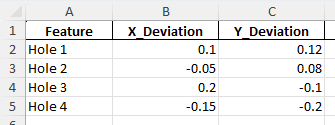
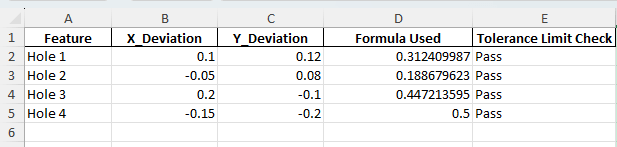
- First, create a data table with the X and Y deviation values mentioned.
- Add a new column and enter the formula for true position:
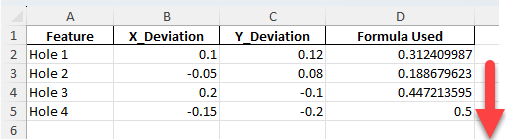
- Drag the fill handle down to apply the formula to other rows.
- Add another column to check if the tolerance limit check has passed or not using the IF formula.

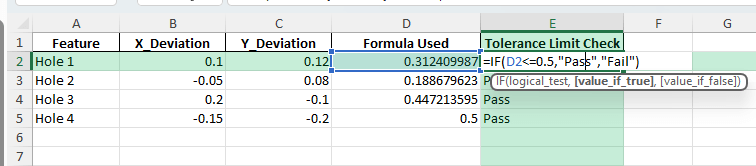
The result will show if the limit check has passed or failed.
Highlight Tolerance Limit
To highlight cells where the true position has exceeded the tolerance value,
- Select the cell
- Go to Home > Conditional Formatting > New Rule.
- Choose Format only cells that contain.
- Set Cell Value > Tolerance
- Select fill color as red
- Click OK
Tips & Tricks
- You need to square the X and Y deviation values before adding them.
- The True Position formula must be multiplied by 2.
- Double-check that the formula references are correct for X and Y deviations.
- Adjust decimal formatting for precise calculation.
- Power Query can be used to directly import data from measurement systems.
- VBA macros will allow you to calculate the true position across multiple worksheets at once.
- For Z-axis deviation, use this formula: =2*SQRT((X^2)+(Y^2)+(Z^2))
- Create a dashboard to summarize the data and show pass rates, averages, and charts.
FAQ
What is the formula for True Position in 2D?
2 * SQRT((Xdeviation)^2 + (Ydeviation)^2)
It calculates the distance between the actual and theoretical positions.
How to handle 3D measurements?
You can add the Z deviation squared into the formula to handle 3D measurements:
=2*SQRT((X^2)+(Y^2)+(Z^2))
Why True Position result is multiplied by 2?
The true position result is multiplied by 2 because the factor of 2 converts the radial deviation into a diameter value.
How to identify parts that are out of tolerance?
To check if the true position has exceeded the tolerance limit, you can use the IF formula. You can then apply conditional formatting to highlight cells where the limit has exceeded.

John Michaloudis is a former accountant and finance analyst at General Electric, a Microsoft MVP since 2020, an Amazon #1 bestselling author of 4 Microsoft Excel books and teacher of Microsoft Excel & Office over at his flagship MyExcelOnline Academy Online Course.

 30 Days - Full Access









