 Free Practice Workbook
When working with numerical data in Microsoft Excel, you may need to remove the decimals without rounding the numbers. This is where the TRUNC function becomes a useful tool. In this article, you will learn how to truncate numbers in Excel.
Key Takeaways:
- The TRUNC function can be used to remove decimals without rounding.
- It allows flexibility by truncating to either zero or a specific number of decimal places.
- TRUNC is better than functions as it does not alter the integer values.
Table of Contents
Introduction to TRUNC in Excel
What is the TRUNC function?
The TRUNC function can truncate or remove the decimal portion of a number without rounding.
This means the value is simply shortened, not increased or decreased. You can specify the number of decimal points that you want to display.
For example:
- TRUNC(5.89) returns 5
- TRUNC(5.89, 1) returns 5.8
Syntax
The syntax of this function is
=TRUNC(number, [num_digits]).
- number is the value you want to truncate.
- num_digits lets you choose how many decimal places to keep.
If you do not use the second argument, the function removes all decimal places and returns only the integer part.
Practical Examples of Number Truncation
Truncate a Number to Zero Decimal Places
To truncate a number to zero decimal point, you use the TRUNC function without specifying the [num_digits] parameter. You can also specify it to 0.
=TRUNC(number, 0)
=TRUNC(number).
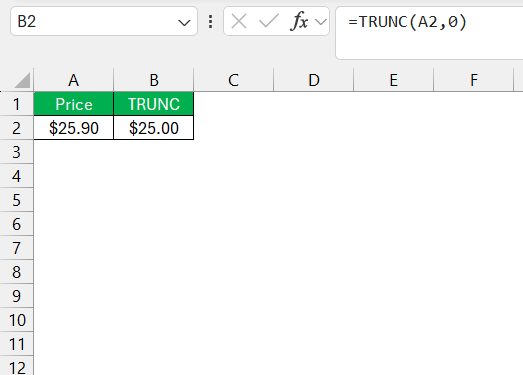
For example, if I want to truncate 25.9 to zero decimal places, I would enter the formula:
Truncate Numbers to Specific Decimal Places
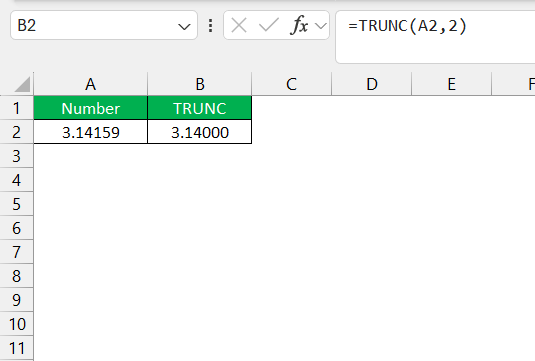
When you need to truncate numbers to specific decimal places, you can adjust the [num_digits] parameter. If you want to display only 2 decimal places, the formula will be:
Comparing TRUNC with Other Rounding Functions
TRUNC vs. INT
- TRUNC removes the decimal part of the number. It does not alter the number.
- INT rounds numbers down to the next lower integer.
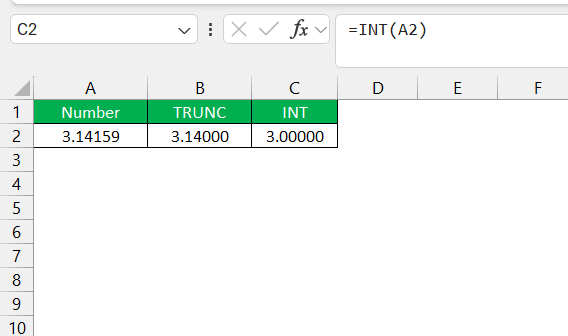
The TRUNC function removes decimals without altering the integer value. You can use the INT function when you want to round down, especially for negative numbers.
TRUNC vs. ROUND and ROUNDDOWN Functions
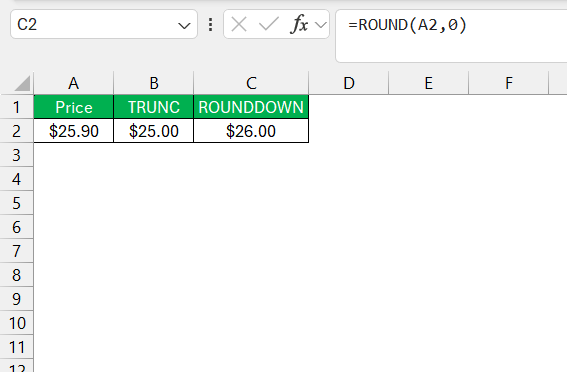
- TRUNC removes decimals without rounding.
- ROUND rounds the number up or down based on the value.
- ROUNDDOWN cuts decimals but needs you to specify digits.
Advanced Tips and Tricks
Extracting Dates Without Time
Extracting just the date component from a date-time value in Excel can be a common task for which TRUNC is perfectly suited. Suppose I have 7/15/2023 13:45 in a cell and want to extract the date without the time. By applying =TRUNC(A1), TRUNC effectively ignores the time portion, which is represented as a decimal, and returns 7/15/2023.
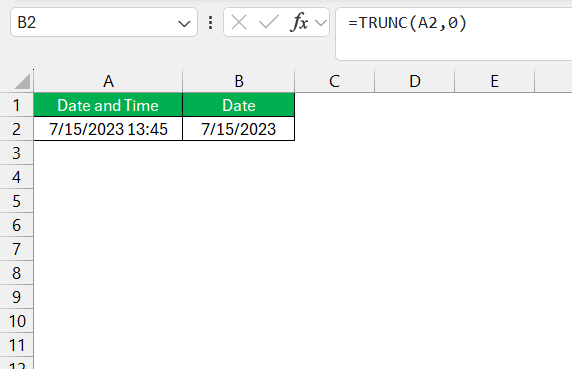
This utility extends to scenarios where I need to analyze or report on data where only the date is relevant – let’s say, checking the number of transactions per day without caring about the exact time they occurred. It helps me maintain a clean set of date-only records that are ideal for pivot tables, charts, and calendar-style reporting.
Data Validation and Error-Proofing
Using TRUNC for data validation and error-proofing is a neat trick. TRUNC allows me to enforce uniformity in datasets by stripping data to a consistent number of decimal places. This ensures that when I compare or sum numbers, I’m not inadvertently introducing rounding errors that could happen with other functions.
Let’s consider a real-life application: If I’m creating a financial model and want to ensure that all inputs are converted to whole numbers, I can use TRUNC to validate data entries automatically, making my model robust against decimal-induced inaccuracies.
In essence, TRUNC can be an ally in maintaining the integrity of my data, providing me peace of mind that the numbers are exactly as intended with no hidden decimal surprises.
FAQs
How to use trunc in Excel?
To use TRUNC in Excel, you can use this formula:
=TRUNC(number, [num_digits])
Can TRUNC Handle Negative Numbers?
Yes, TRUNC handles both negative and positive numbers. It will remove the decimal part of a number without altering the integer part, regardless of the number’s sign.
How Does TRUNC Behave with Non-Numeric Data Types?
If you use TRUNC with non-numeric data, Excel will return an error.
What is the difference between the trunc and rounddown function?
The difference between TRUNC and ROUNDDOWN in Excel is:
- Both functions will remove the decimal portion of a number.
- The ROUNDDOWN requires a specified number of digits argument, while with TRUNC, this is optional and defaults to zero if omitted.

John Michaloudis is a former accountant and finance analyst at General Electric, a Microsoft MVP since 2020, an Amazon #1 bestselling author of 4 Microsoft Excel books and teacher of Microsoft Excel & Office over at his flagship MyExcelOnline Academy Online Course.

 30 Days - Full Access









