STEP 1: Open Outlook and click on ‘File’ in the top-left corner.
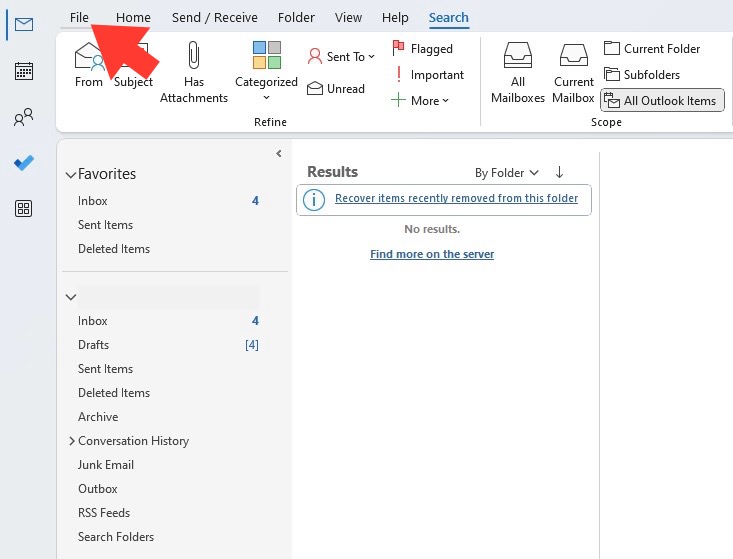
STEP 2: Select ‘Options’ to open the Outlook Options dialog box.
STEP 3: Go to the ‘Mail‘ tab.
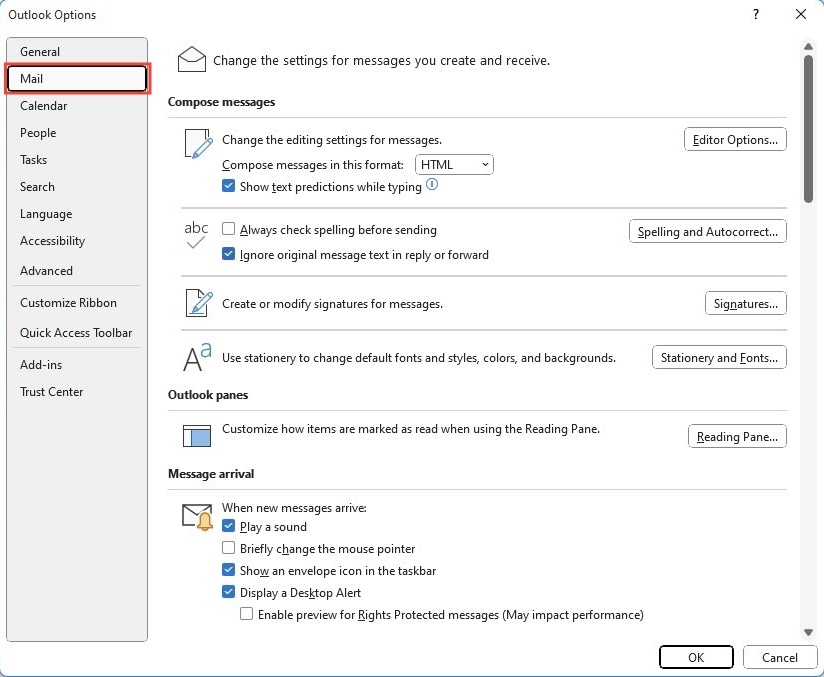
STEP 4: Go to the ‘Tracking’ section.
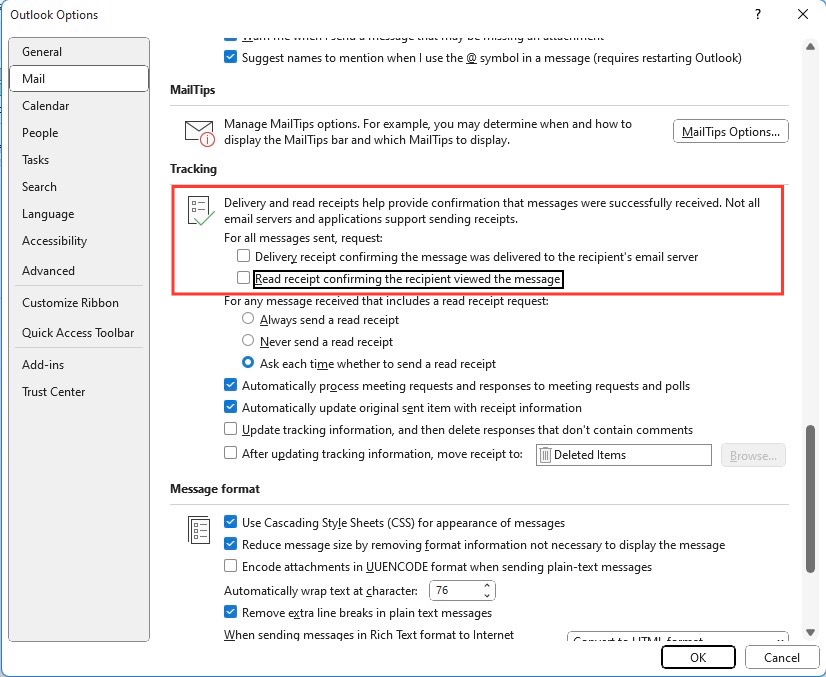
STEP 5: Here, uncheck the boxes for ‘Delivery receipt confirming the message was delivered to the recipient’s email server’ and ‘Read receipt confirming the recipient viewed the message’.
STEP 6: Click ‘OK’ to save your settings.
This will stop Outlook from cluttering your inbox with those frequent meeting acceptance emails.
Managing Your Calendar Without Interruptions
To maintain a clean and efficient inbox, consider implementing these best practices:
Use Outlook’s categorization features to order emails so that the most important ones are seen immediately.
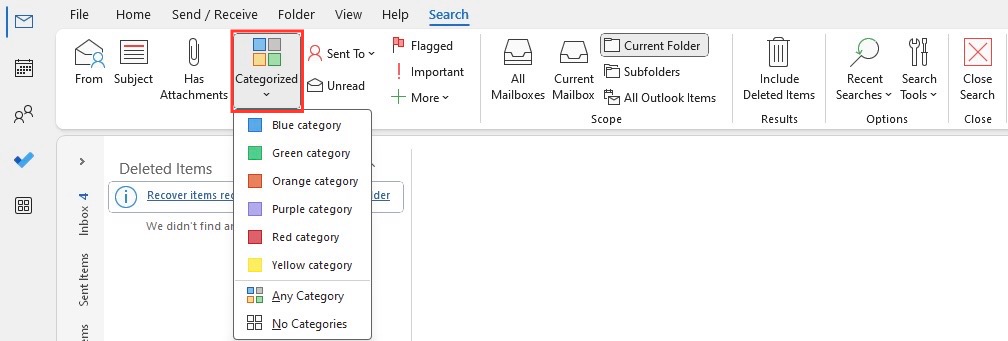
Use Outlook’s ‘Clean Up’ feature to remove duplicate emails from conversations as shown below.
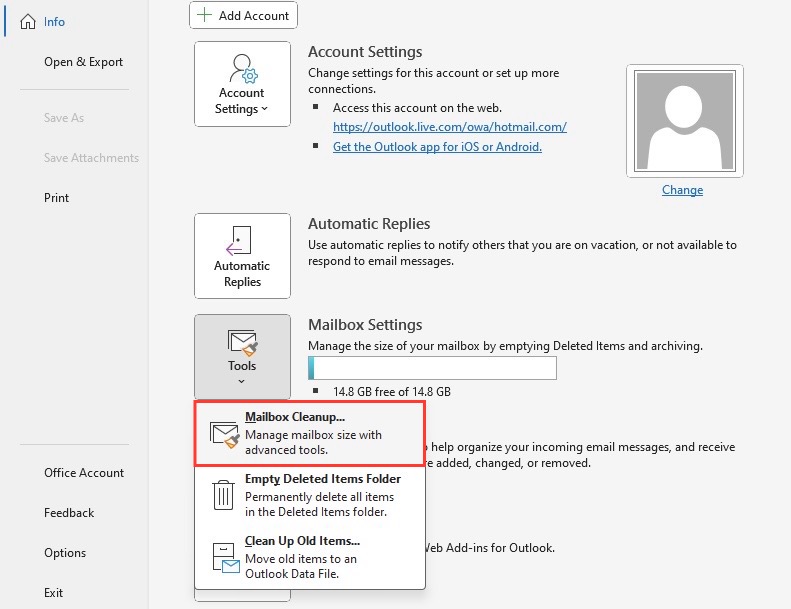
Don’t let old emails pile up. Archive them to keep your inbox manageable and organized.
Dedicate specific times to manage your email, so it doesn’t become a constant interruption.
Frequently Asked Questions
Can I Disable Meeting Acceptance Notifications for Specific Meetings Only?
Yes, you can. While creating a meeting request in Outlook:
STEP 1: Go to the ‘Response Options’ drop-down.
STEP 2: Uncheck ‘Request Responses’.
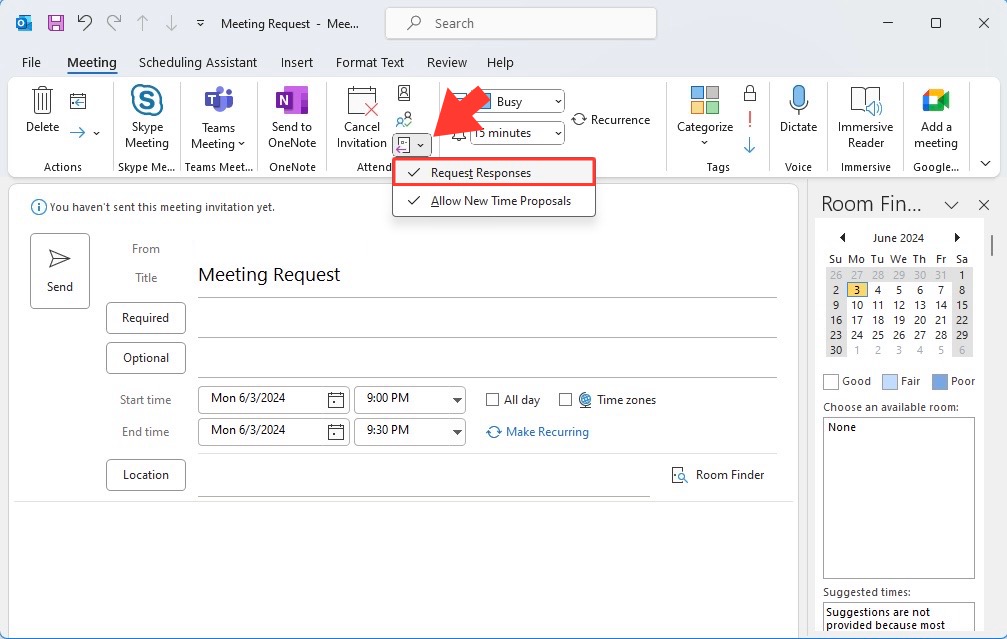
STEP 3: Finish setting up your meeting and send it out.
This tells Outlook not to track RSVPs for this specific event, thus no acceptance notifications will be sent to you. Use this when dealing with large meetings or when responses are not necessary.
How Can I Quickly Find Important Emails After Disabling Alerts?
To quickly find important emails after disabling alerts:
Create custom search folders for important emails.

Use filters to sort by date, sender, or keywords. Then flag emails for follow-up and categorize them for quick access.
Will These Changes Affect My Mobile Outlook Notifications Too?
These changes won’t automatically affect your mobile Outlook notifications. You will have to adjust notification settings directly in your mobile app or device settings to align with your desktop Outlook preferences.

John Michaloudis is a former accountant and finance analyst at General Electric, a Microsoft MVP since 2020, an Amazon #1 bestselling author of 4 Microsoft Excel books and teacher of Microsoft Excel & Office over at his flagship MyExcelOnline Academy Online Course.

 30 Days - Full Access









