Attaching an email to another email in Outlook is a useful way to share complete messages while keeping the original content, formatting, and header information intact. You can attach emails using drag-and-drop, forwarding as an attachment, or by saving the email as a file and attaching it manually.
Download our 141 Free Excel Templates and Spreadsheets!
Key Takeaways
- Outlook lets you attach one email to another email.
- You can drag and drop emails into a new message in Outlook Desktop.
- Outlook Web offers a “Forward as Attachment” option.
- Emails can be saved as .msg files and attached manually.
- Large attachments can be shared through cloud storage links.
Table of Contents
How to Attach Emails to Emails in Outlook
Locate and Select the Email
To start attaching an email to another email in Outlook,
- Go through your inbox or folders to find the desired message.
- Right-click the email
- Choose ‘Copy’ from the menu.
This will place the entire email on your clipboard.
For Outlook Desktop Application:
STEP 1: Open the Outlook desktop application.
STEP 2: Click on “New Email” to compose a new message.
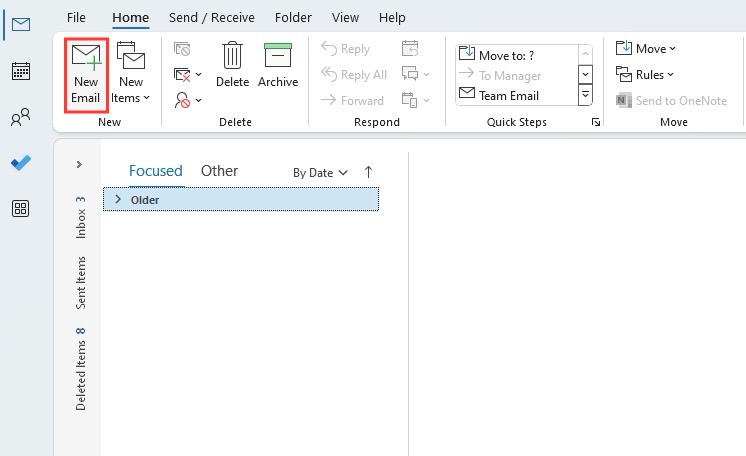
STEP 3: Go to the folder where the email you want to attach is located (e.g., Inbox, Sent Items, etc.).
STEP 4: Locate the email you wish to attach.
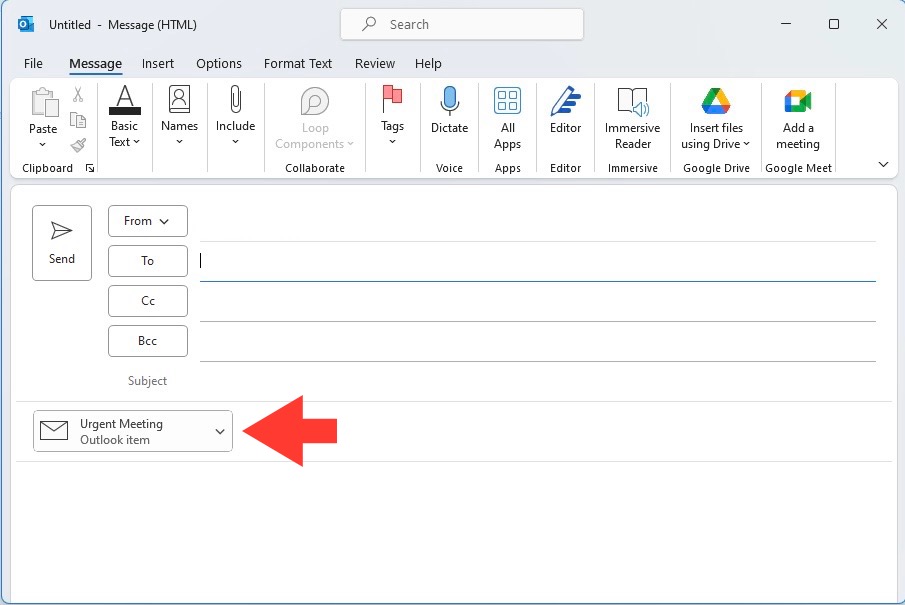
STEP 5: Click and hold the email you want to attach. > Drag it to the new email you are composing and release the mouse button.
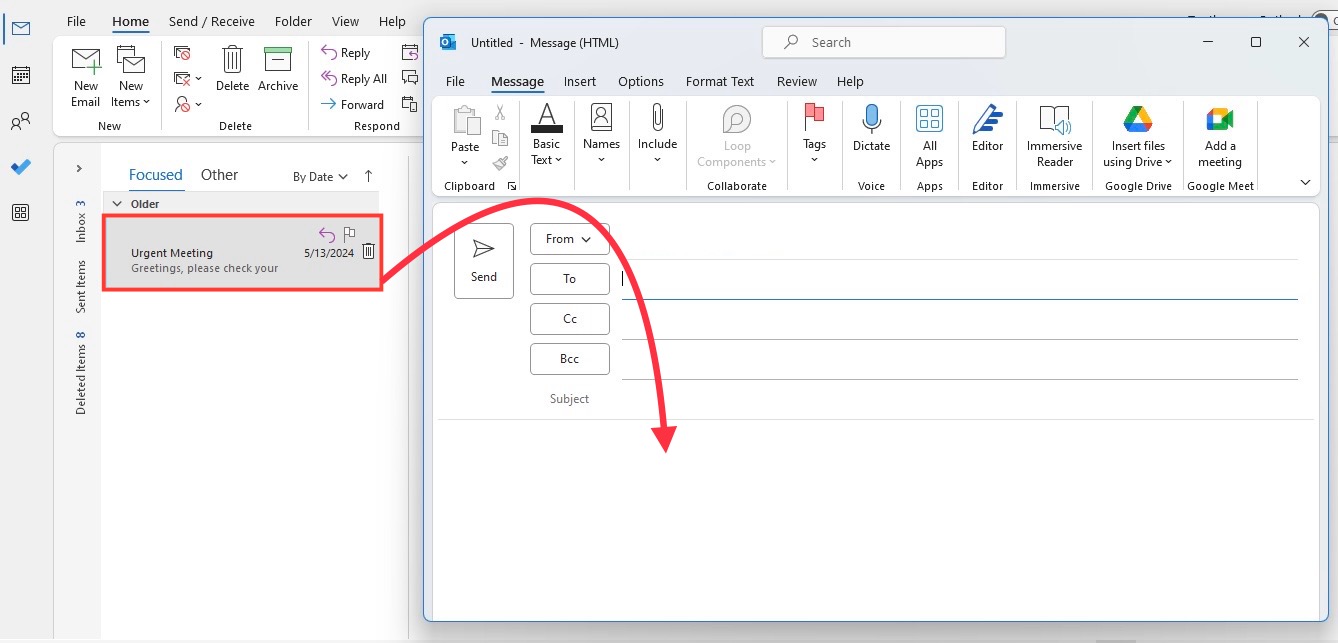
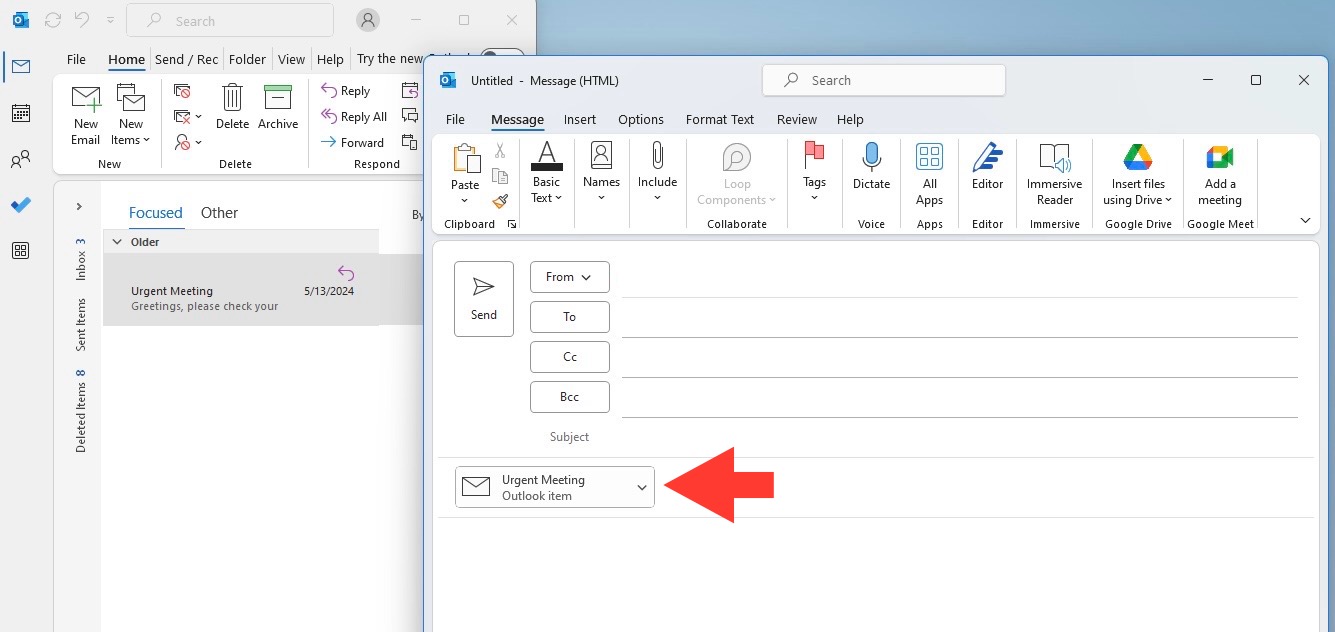
The email will appear as an attachment.
For Outlook Web Application
STEP 1: Go to your Outlook web application in your browser.
STEP 2: Click on “New Message” to compose a new email.
STEP 3: Open the email you want to attach in a separate tab or window.
STEP 4: If your browser supports it, you can drag the email from your list and drop it into the new email window.
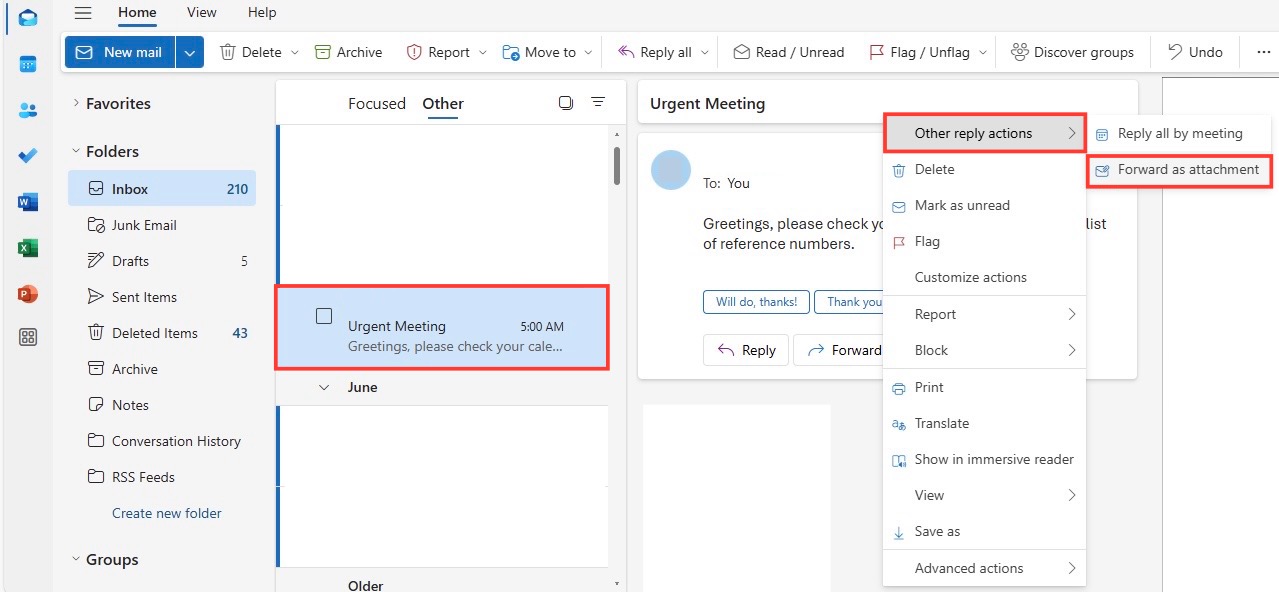
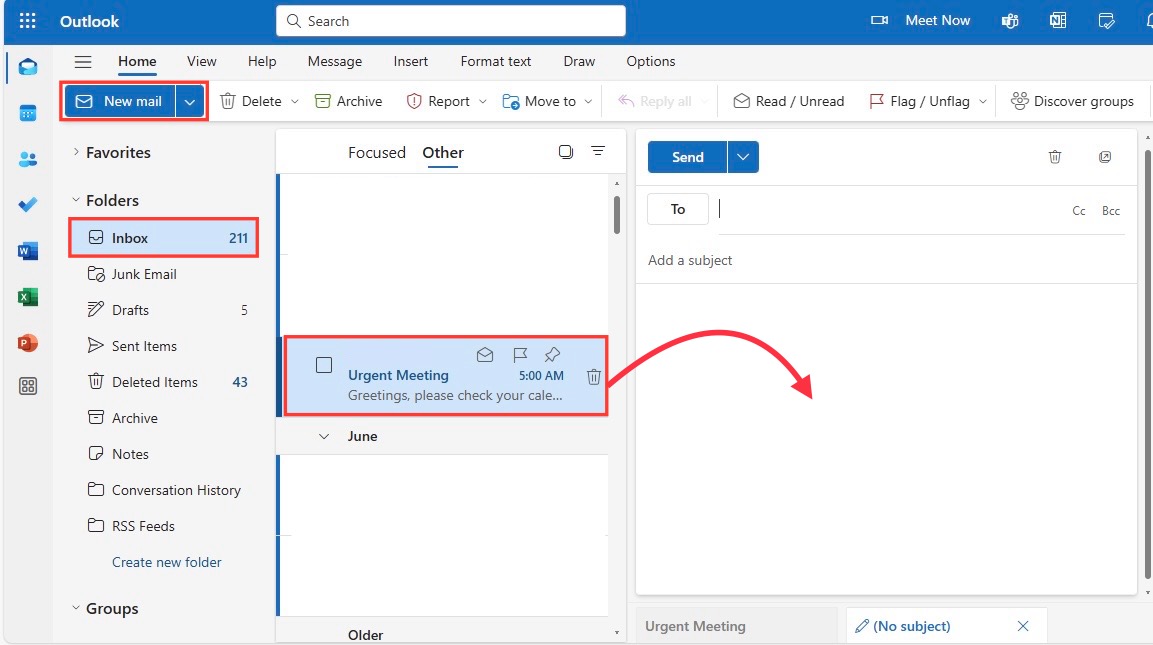 Alternatively, select the email you want to attach, click on the three dots (more options) in the email window, and choose “Forward as Attachment.” This will create a new email with the selected email attached.
Alternative Method for Both Desktop and Web
STEP 1: Open the email you want to attach.
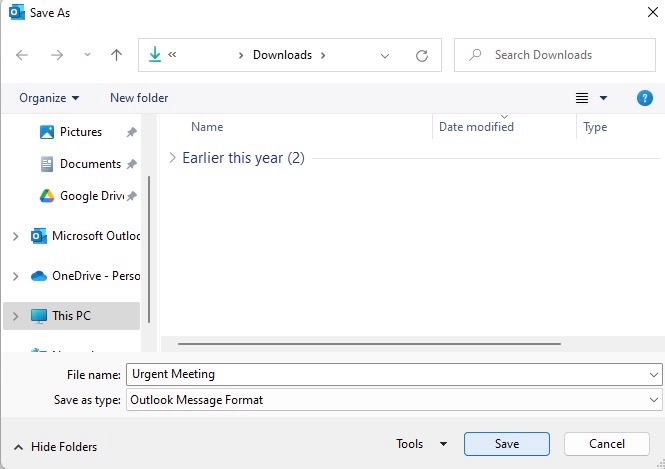
STEP 2: Choose “File” > “Save As” and save the email to your computer as a .msg file.
STEP 3: Create a new email.
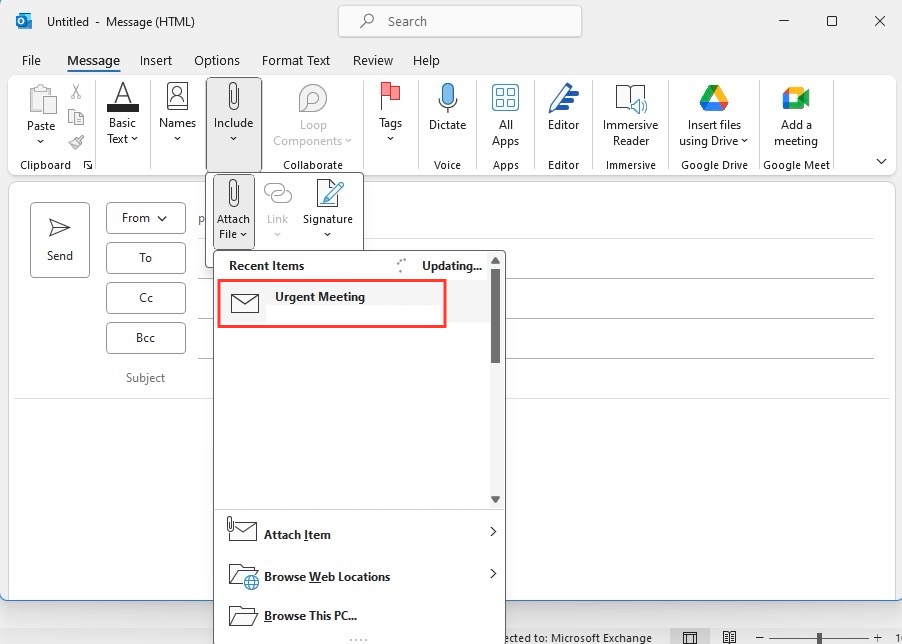
STEP 4: Use the attach file option (usually represented by a paperclip icon) to attach the saved .msg file to your new email.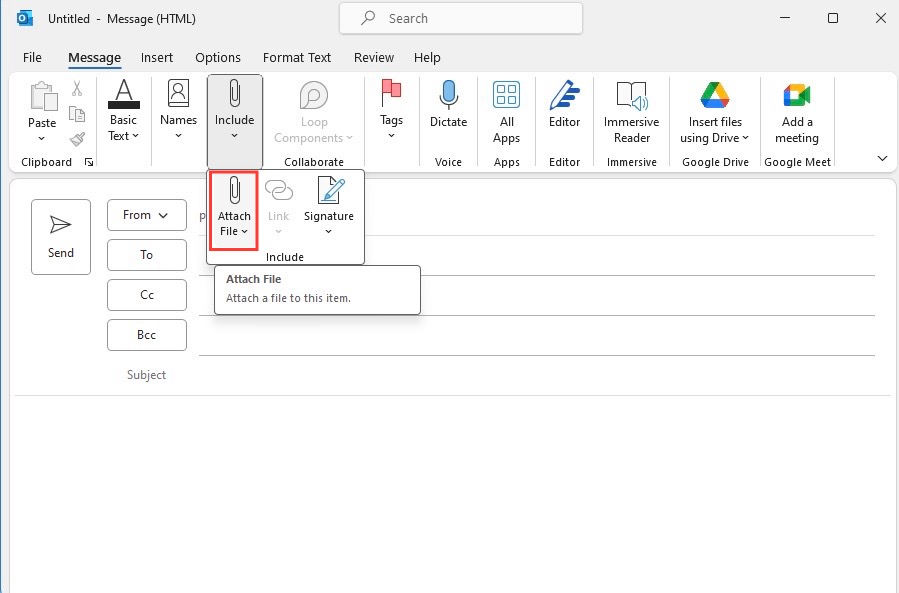
Advanced Tips
Automatically Forwarding Emails as Attachments
One of the niftiest features Outlook offers is the ability to set your emails to automatically forward as attachments. This can be particularly useful if you want to preserve the full email, including header and routing information. To set this up, navigate to the Home tab, find ”More Respond Actions,” and select ”Forward as Attachment.” This will turn each forwarded email into an encapsulated file that can be easily shared while keeping all the original information intact.
Remember that this setting might vary between different versions of Outlook, so double-check that these steps apply to your specific version.
Managing Attachment Sizes and Formats for Optimal Sending
Keeping a watchful eye on attachment sizes ensures your emails are not bounced back due to exceeding size limits. Outlook typically allows a default maximum size of 20MB for attachments, but you can often adjust these limits if required. It’s wise to be mindful of the formats you’re attaching as well—PDFs or zipped files can be more efficient when sharing multiple documents or high-resolution images.
For larger files, consider using cloud services like OneDrive or Dropbox and simply share a link within your email instead, thus avoiding large attachments altogether.
Common Challenges
Troubleshooting Attachment Issues in Outlook
When attachments aren’t behaving as they should in Outlook, a few common troubleshoots can help. First, check the size of the file—if it’s over the limit, either compress it or use a file-sharing service. If the issue is not size-related, ensure Outlook is updated to the latest version, as this can resolve many bugs and glitches. Also, look into your add-ins; sometimes these can interfere with Outlook’s functionality. If all else fails, restarting Outlook or even your whole system can often be the simple fix needed.
How to Send Bulk Email Attachments Without Hassle
For those times when you’ve got a stack of emails to send as attachments, Outlook makes the process smooth. You can select multiple emails by holding the ‘Ctrl’ key and clicking on each email you wish to send. Then, with your emails selected, simply click ‘Forward Items’ from the ‘Home’ tab, and all the chosen emails will be attached to a new email message as individual .eml files. This method is perfect for sending many emails at once without overwhelming either yourself or your recipient.
Just remember, while this method is convenient, be mindful of the recipient’s inbox limitations and consider whether all the attachments are necessary to avoid email overload.
Best Practices for Security and Efficiency
Ensuring Safe Email Attachments
Safety should always be a priority when it comes to email attachments. Always scan attachments for malware before sending or opening them, and make use of Outlook’s built-in security features, such as the Trust Center settings, to limit the risk of accidentally distributing or receiving harmful files. Be especially cautious with executable file types (.exe, .scr, etc.) as they are common carriers of viruses.
It’s also important to educate recipients to expect certain attachments from you, reducing the risk of them falling prey to phishing attempts that might mimic your email format.
Streamlining Your Inbox with Efficient Attachment Management
To maintain an organized inbox, adopt efficient attachment management practices. Use Clean Email or similar email management tools to sort, archive, or delete large attachments that consume too much space. Take advantage of Outlook’s search functionality to quickly find emails by attachment type or size, and consider creating dedicated folders for emails with certain attachments to make retrieval a breeze.
Also, regularly review and clear out unneeded attachments to prevent storage overflow, which can slow down your email performance.
FAQs
1. Can I attach an email to another email in Outlook?
Yes, Outlook allows you to attach emails as files.
2. How do I attach an email in Outlook Desktop?
Drag the email into a new message window.
3. What is “Forward as Attachment”?
It sends the selected email as an attached file.
4. Can I attach multiple emails at once?
Yes, select multiple emails and forward them together.
5. What should I do if an attachment is too large?
Use a cloud service like OneDrive and share a link instead.

John Michaloudis is a former accountant and finance analyst at General Electric, a Microsoft MVP since 2020, an Amazon #1 bestselling author of 4 Microsoft Excel books and teacher of Microsoft Excel & Office over at his flagship MyExcelOnline Academy Online Course.

 30 Days - Full Access









