 Free Practice Workbook
When working with multiple data sets in Excel, there may be a scenario where you need to combine data from these ranges. The VSTACK function is a perfect tool for this process, rather than manually copying and pasting it. It can be used to consolidate data and keep formulas clean. In this article, you will learn how to use the VSTACK formula in Excel.
Key Takeaways:
- VSTACK can combine multiple data vertically.
- The combined data will update automatically if the original data updates.
- You can combine data with different row sizes.
- It reduces the need for manual copy-paste.
- It will not work if the column size does not match.
Table of Contents
Understand VSTACK in Excel
What is VSTACK?
The VSTACK formula is used to combine multiple ranges vertically into a single array. The first array stays on the top, and the new arrays are added below it. This function supports dynamic update, i.e., the output will update when the source data changes. It eliminates the need for manually copy pasting the data one below the other.
It can accommodate arrays with different row sizes but not column sizes. If the columns are not the same, Excel will return a #VALUE! error.
Define the Syntax
The syntax of this formula is very simple. It is:
=VSTACK(array1, [array2], ….)
Here, you can add different arrays separated by commas.
How to Use VSTACK in Excel
Combine Two Arrays
Suppose you have quarterly data mentioned in two different worksheets. You can use VSTACK to combine them and place them one below the other. Follow the steps below to use VSTACK to combine arrays:
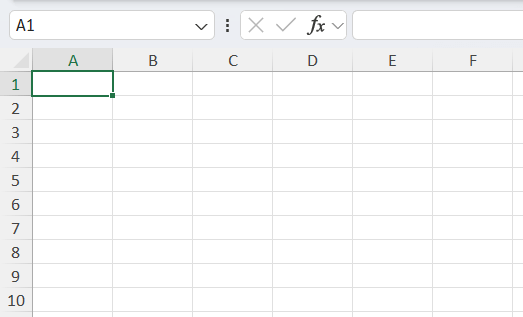
STEP 1: Click on the cell where you want to display the combined list.
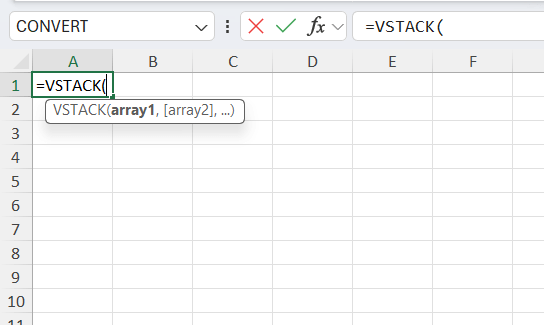
STEP 2: Enter the VSTACK formula
=VTSACK(
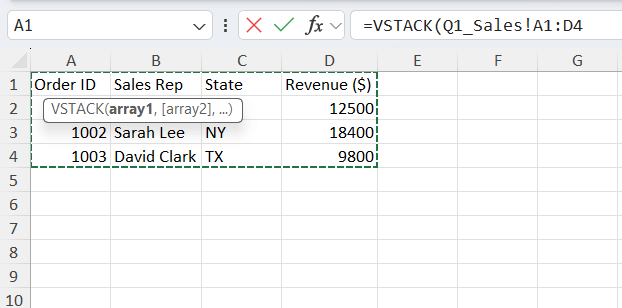
STEP 3: Select the first range.
=VTSACK(Q1Sales!A1:D4
Please remember this range will be on the top.
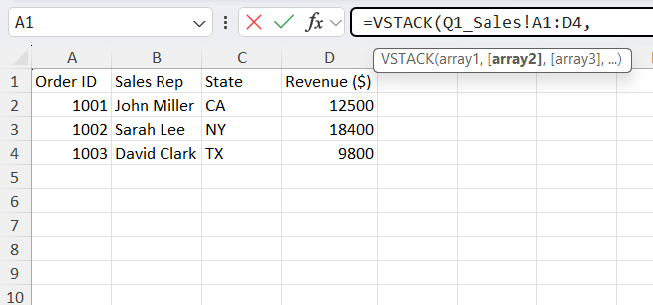
STEP 4: Type a comma.
=VTSACK(Q1_Sales!A1:D4,
STEP 5: Select the second range.
=VTSACK(Q1_Sales!A1:D4,Q2_Sales!A1:D3)
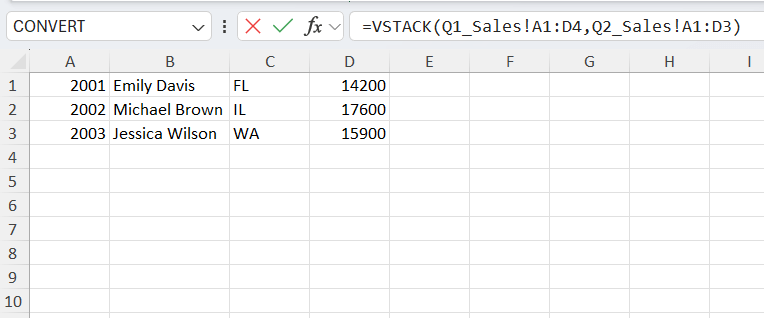
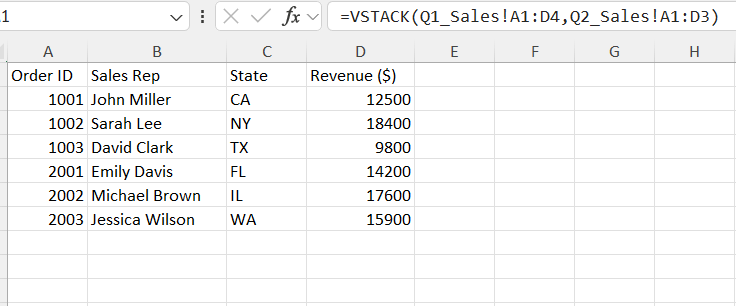
STEP 6: Press Enter. The data from both quarters will be combined and displayed.
Manage Headers
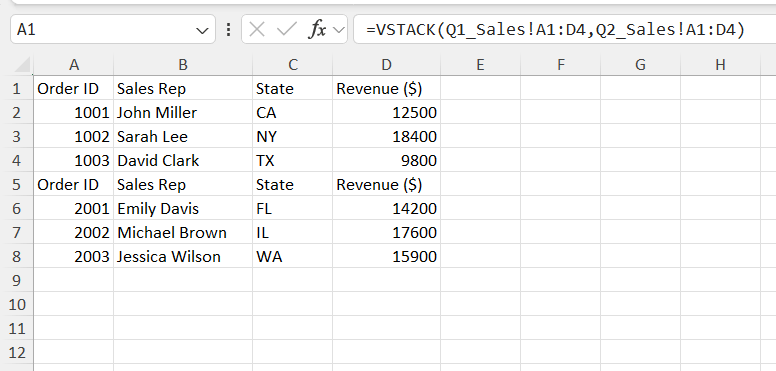
VSTACK will pull all the data that you include in the range. So, make sure not to include headers in all the ranges. You can select the header in the first range and then only the data in the remaining ranges. This will add the header at the top only.
If you do not do this, the header will appear multiple times in the combined data.
Dynamic Data
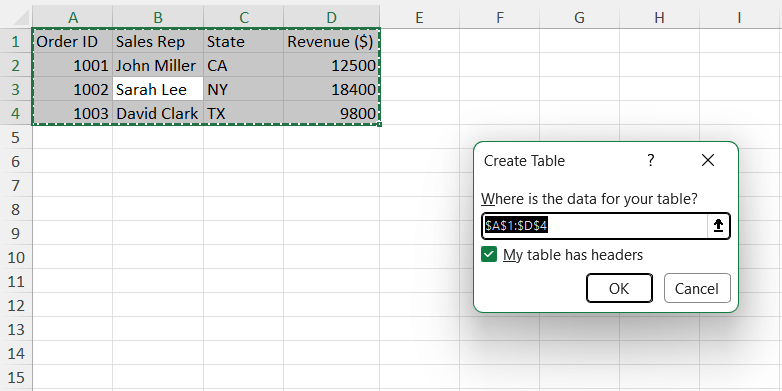
You can make this formula dynamic, i.e., allow it to update when the source data changes. This can easily be done by converting the data ranges into a table. Using the table feature by pressing Ctrl + T will allow VTSACK to grow as data grows.
Advanced Tips & Tricks
Clean Data
There might be empty rows in the original data. You can use the FILTER function to remove any empty rows in the combined data.
=FILTER(VSTACK(range1, range2),INDEX(VSTACK(range1,range2),,1) <> “”)
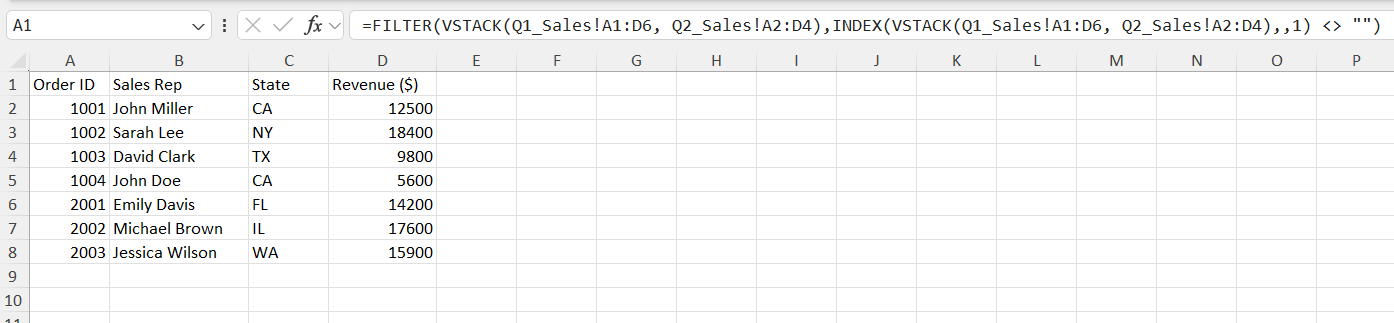
This will check the rows of 1st column, and if it is blank, it will be removed from the combined list.
Sort Data
You can also use the SORT function to sort the combined data alphabetically or chronologically.
=SORT(VSTACK(Range1, Range2))
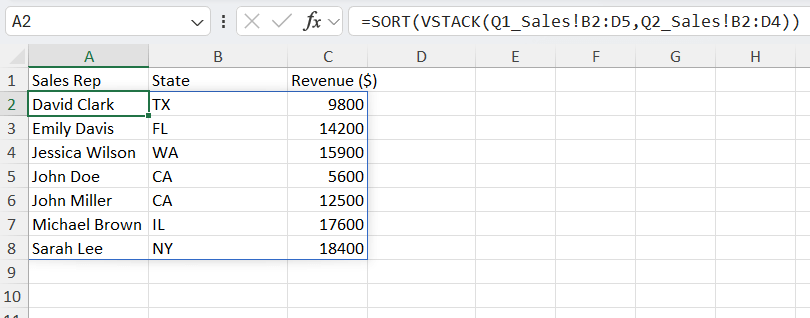
This allows you to combine data from different sources and still have the combined data in an organized and sorted manner.
Unique Data
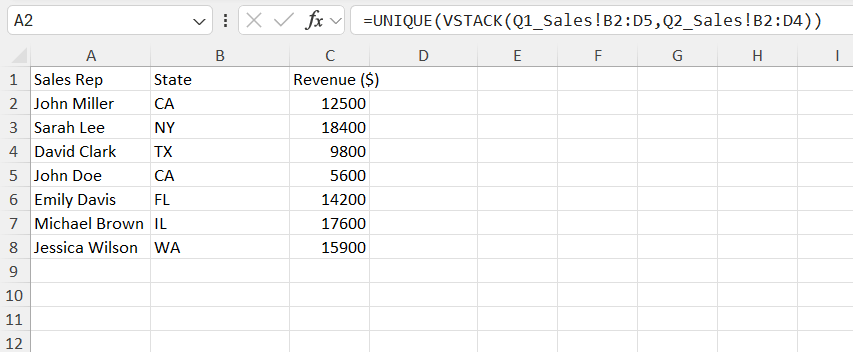
You can remove duplicate data by using the UNIQUE function.
=UNIQUE(VSTACK(Range1, Range2))
Limitations of using VSTACK
- The VSTACK function is only available in Excel 365 and Excel 2024.
- It is a volatile function as it updates when the source data changes. This will slow down your spreadsheet’s calculation speed.
- It does not consider the column name when combining. If column A of the first array is Price and column A of the second array is Date, it will combine them anyway.
- It will return a #VALUE! error if the number of columns does not match in the original arrays.
- It will only pull the value present in the arrays, not the formatting.
- Excel worksheet only has 1,048,576 rows; your combined stack cannot exceed this number. Excel will return #CALC! error.
FAQs
1. What is the VSTACK function?
The VSTACK formula is used to combine multiple ranges vertically into a single array. The first array will be on the top, and the other arrays will be placed below.
2. Is VSTACK available in all Excel versions?
No, VSTACK is only available in the newer versions of Excel, such as Excel and Excel 365. This formula does not work in the older versions of Excel.
3. Can VSTACK combine ranges with different sizes?
VSTACK can be used to combine arrays with different row sizes. But if the ranges have different column sizes, Excel will return an error.
4. Does VSTACK update automatically when source data changes?
Yes, STACK updates automatically when the original data changes. If you add or remove rows in the source ranges, the combined output will change instantly. This will make your report dynamic.
5. Does VSTACK copy formatting from the original data?
No, VTSACK will only return the value of the original data. You can apply the formatting separately.

John Michaloudis is a former accountant and finance analyst at General Electric, a Microsoft MVP since 2020, an Amazon #1 bestselling author of 4 Microsoft Excel books and teacher of Microsoft Excel & Office over at his flagship MyExcelOnline Academy Online Course.

 30 Days - Full Access









