 Free Practice Workbook
When working with numbers in Excel, it is important to display values correctly. Some decimals, like 1.33333, are easier to understand when shown as fractions. Fractions are common in measurements, finance, and everyday calculations. In this article, you will learn how to display 1.33333 as a fraction in Excel in a simple way.
Key Takeaways:
- Excel can convert decimals like 1.33333 into fractions easily.
- Use the “Format Cells” option and select “Fraction.”
- Different fraction styles control how the result looks.
- Higher precision gives more accurate fractions.
- Custom formats and macros help with advanced needs.
Table of Contents
Converting 1.33333 as a Fraction in Excel
Built-In Formatting
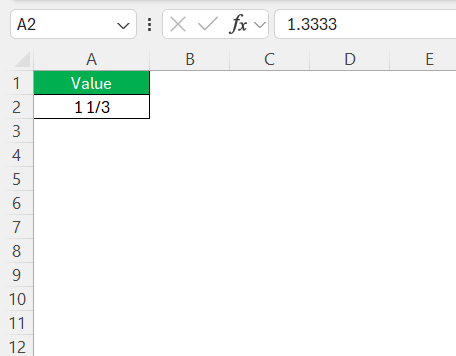
Excel has a built-in feature to convert decimals into fractions. It makes numbers easier to read and understand. Instead of seeing long decimals, you can show clean fractions like 1 1/3. You can choose different fraction styles, such as up to one-digit (e.g., 1/2), two-digit (e.g., 13/50), or as-thirds (e.g., 1/3).
Once the format is selected, the conversion is done automatically. There is no need to calculate anything manually. The original number stays the same, only the display changes.
Step-by-Step Guide
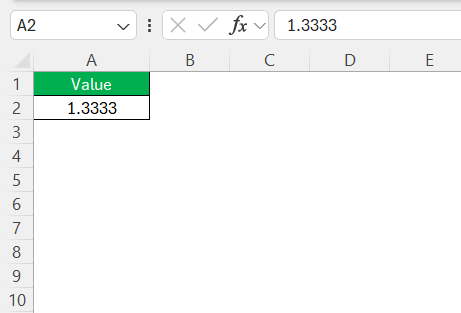
STEP 1: Click on the cell containing the decimal number.
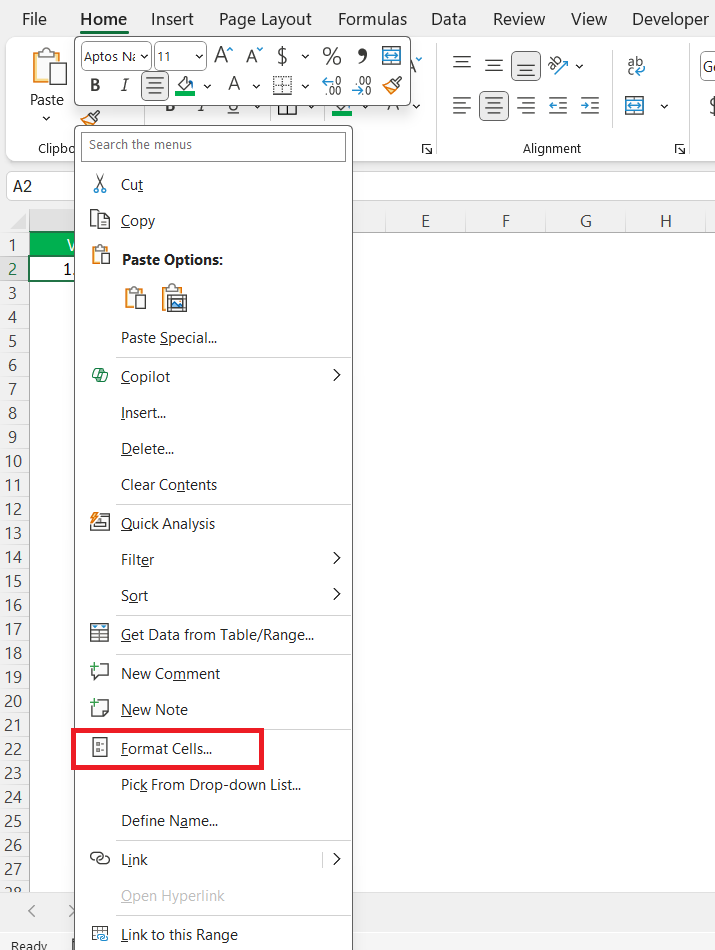
STEP 2: Right-click on the selected cell.
STEP 3: Choose Format Cells from the context menu.
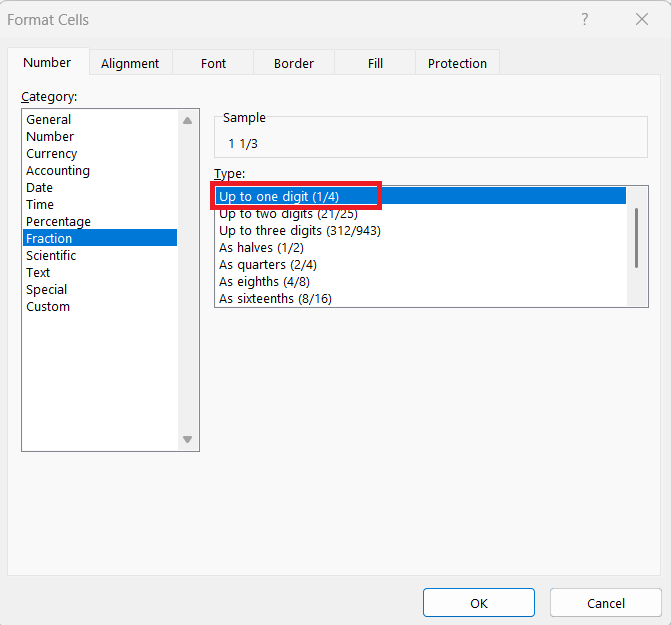
STEP 4: In the Format Cells dialog box, go to the Number tab > Fraction. Choose the desired fraction style from the list.
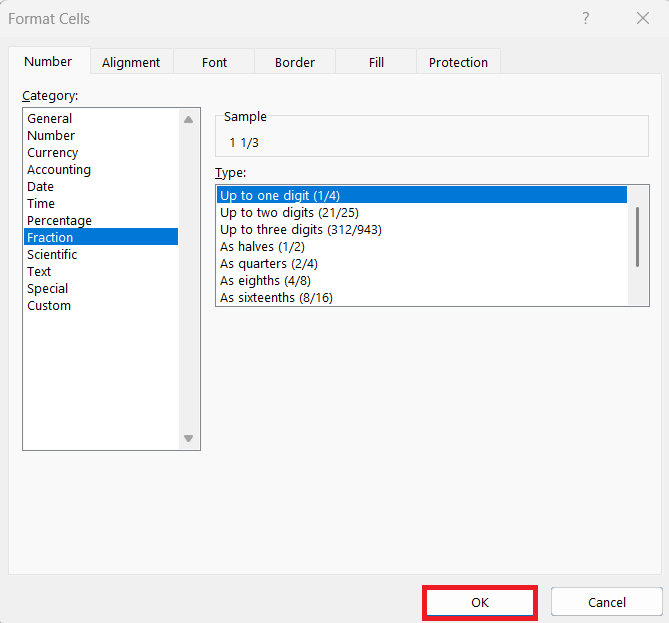
STEP 4: Click OK.
Your decimal should now be displayed as a fraction.
Advanced Techniques
Adjust Precision and Denominator
- You can choose the level of precision by selecting from different fraction types like # ?/?” or “# ??/??.
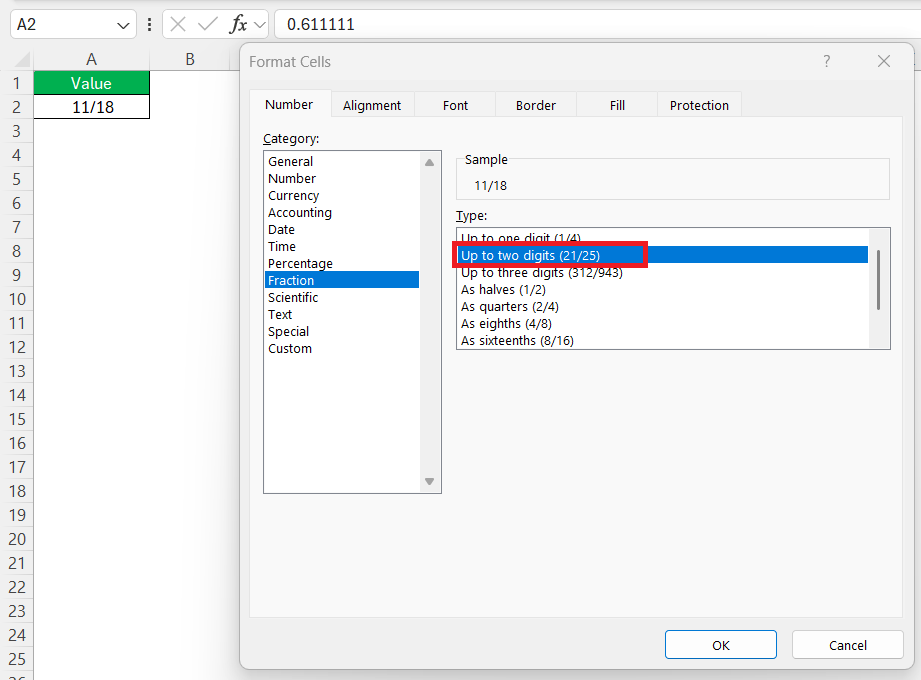
- If the data requires exact fractions, you can opt for formats with larger denominators.
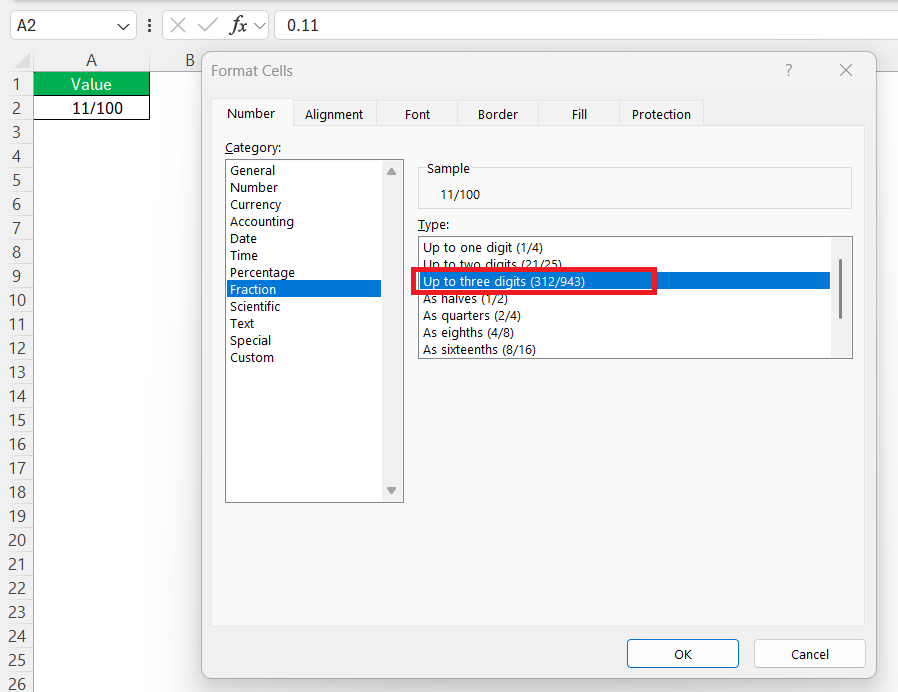
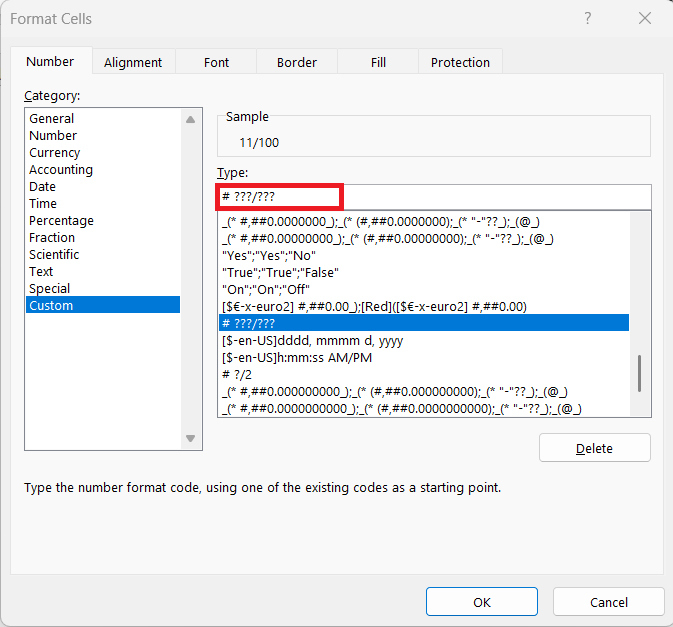
- For unique needs, you can specify exact digit counts for the numerator and denominator using custom number formats.
Use Macros
STEP 1: Press ALT + F11 to open the VBA editor, where I can write and manage my macro code.
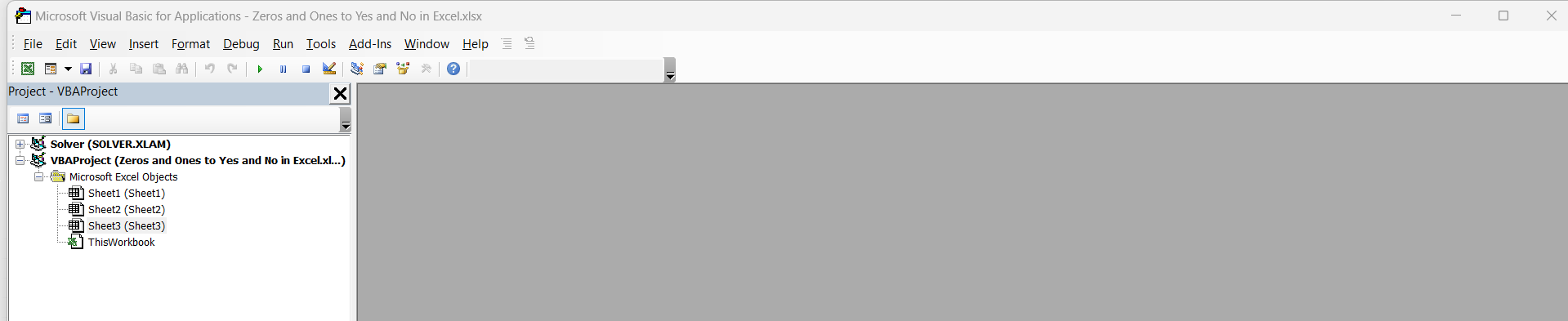
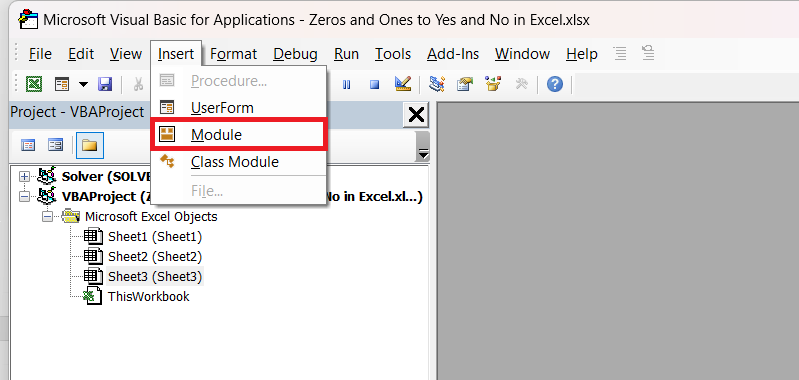
STEP 2: In the VBA editor, insert a new module by right-clicking on any existing module in the “Project” pane, then selecting “Insert” > “Module”.
STEP 3: Write the Macro Code:
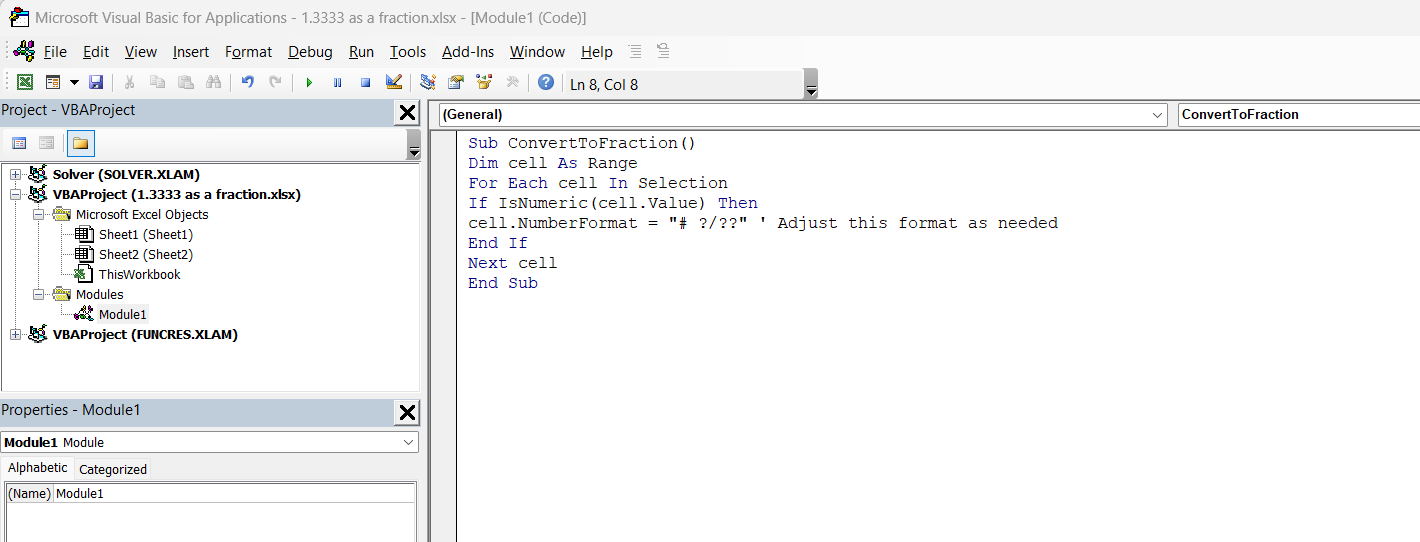
This code iterates through each selected cell, checks if it contains a numeric value, and formats it as a fraction.
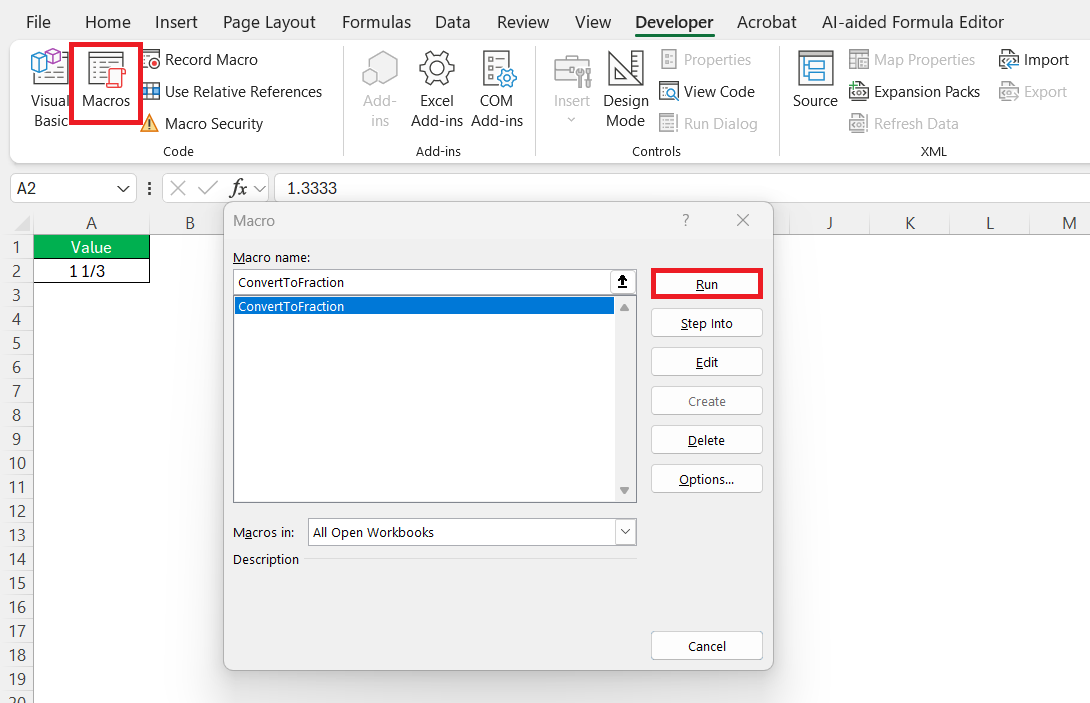
STEP 4: Close the VBA editor and return to Excel. Select the range of cells you want to format, then navigate to the “Developer” tab and click “Macros”. Choose the ConvertToFraction macro and click “Run”.
Tips & Tricks
- Fraction format should be consistent throughout the document.
- Columns should be wide enough to display fractions.
- Use clear and descriptive headers to indicate what the fractions represent.
- Use bold or colored fonts to draw attention to significant values.
- For complex data analysis, consider displaying both fractions and decimals.
FAQs
How to convert 1.33333 as a fraction in Excel without using formulas?
You can convert 1.33333 as a fraction directly by formatting the cell:
- Right-click the cell
- Select “Format Cells”
- Go to the “Number” tab
- Choose “Fraction”
- Pick a fraction style
- Click OK
How to use custom fraction formats?
You can use a custom fraction format like:
# ?/? or # ??/??
Do you need formulas to convert decimals to fractions?
No, you can use built-in formatting to convert decimals to fractions. There is no need to use formulas.

John Michaloudis is a former accountant and finance analyst at General Electric, a Microsoft MVP since 2020, an Amazon #1 bestselling author of 4 Microsoft Excel books and teacher of Microsoft Excel & Office over at his flagship MyExcelOnline Academy Online Course.

 30 Days - Full Access









