 Free Practice Workbook
- Adding days to today’s date in Excel can be done with the formula
=TODAY()+90. - Date calculation in Excel is a quick task with a low probability of error.
- Use
=TODAY()-90to find the date 90 days in the past. - Excel’s date functions are vital for project management and scheduling.
- Functions like
WORKDAYandEDATEprovide more control over business and financial planning
Table of Contents
Date Calculations in Excel
Understanding Dates
When working with date calculations in Excel, knowing the basics is important for quick and accurate results. Excel thinks of dates as serial numbers; thus, it can do simple arithmetic operations on dates just like numbers. Every date is stored as a unique number in Excel. The date starts from January 1, 1900, which is serial number 1.
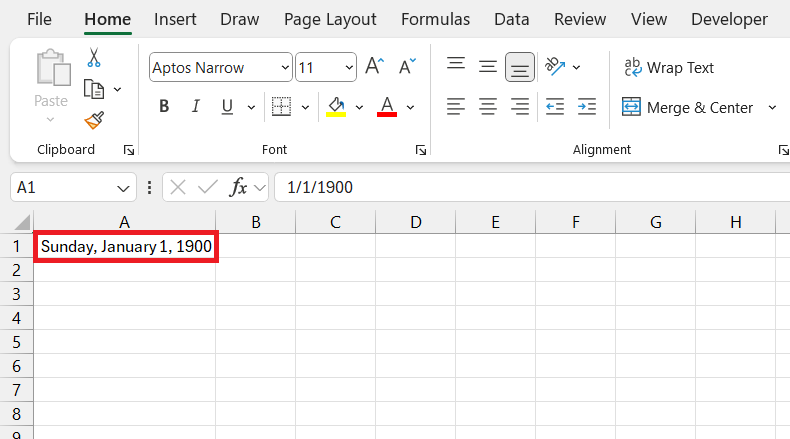
It is important to understand how dates are stored and how date calculations are done in Excel to be able to use date functions properly.
Use Excel for Quick Date Results
Using Excel for date calculations helps you save time and get accurate results.
- You can use simple addition to add days to a date in Excel.
- TODAY formula can be used to get the current date in a cell.
- You can use conditional formatting to highlight important dates and make sure that no deadline or milestone is missed.
- Excel formulas like WORKDAY and NETWORKDAYS can be used to exclude holidays and non-working days in your calculations.
Add or Subtract days in Excel
Calculate Date in Advance
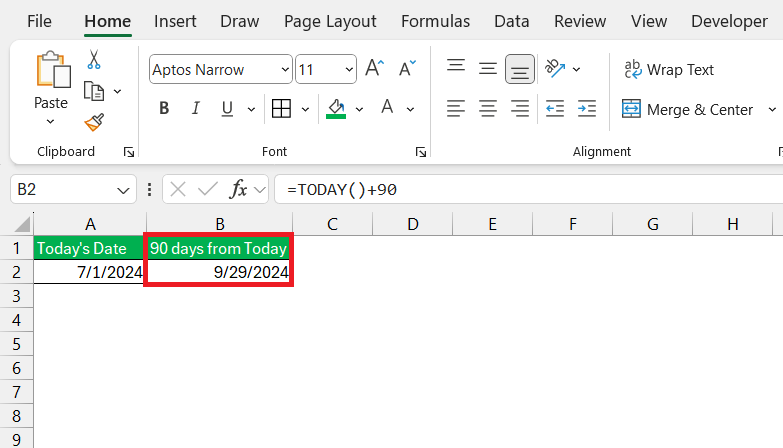
Projecting 90 days into the future is a breeze with the simple formula =TODAY()+90 .
STEP 1: In the A2 cell, type in the TODAY() function.
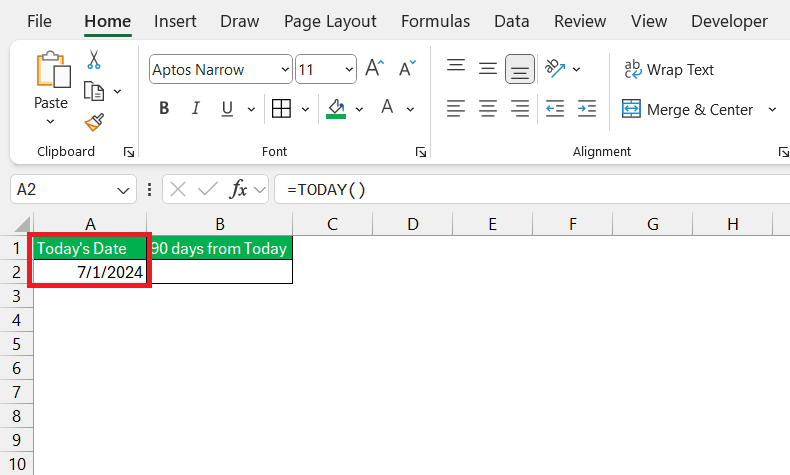
STEP 2: In B2, just type this formula into any cell, and Excel will automatically generate the date that’s 90 days ahead.
Calculate Date in the Past
Calculating a date in the past is as straightforward as calculating a date in advance. Instead of adding 90 days to a date, you can subtract 90 from the date. You can use the formula =TODAY()-90, to get the date that was 90 days before today.
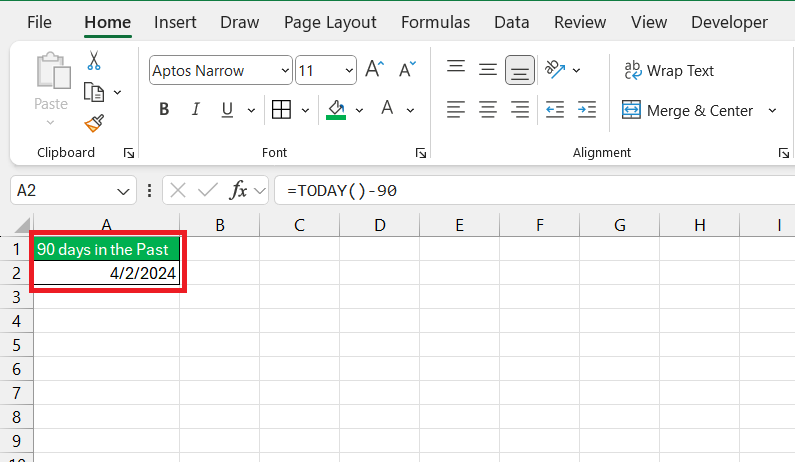
This method can be useful when working on historical data or analyzing past performance. A simple subtraction formula can easily help you to get date in the past.
Advanced Use of Date Functions
Using Multiple Date Formulas
When off-the-rack formulas just don’t fit the complex scenarios you encounter, crafting custom formulas in Excel is the way to go. By combining various functions, you can create a bespoke solution tailored to your needs. For instance, if you want to find the next quarterly review date, ignoring weekends and holidays, you might combine EDATE with WORKDAY.
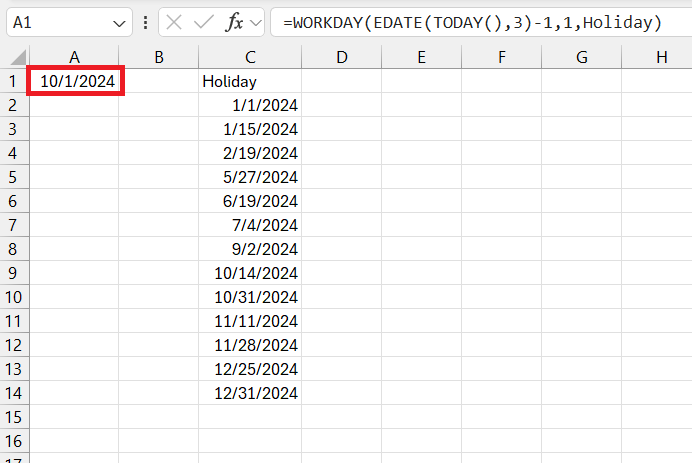
This flexibility allows you to manage time-sensitive tasks with complex constraints, turning Excel into a powerful time-management tool.
Date Calculations in Data Analysis
You can use date calculation to create advanced data analysis reports. For example, you can check if 90 days have passed from the start date, and you need to do a follow-up.
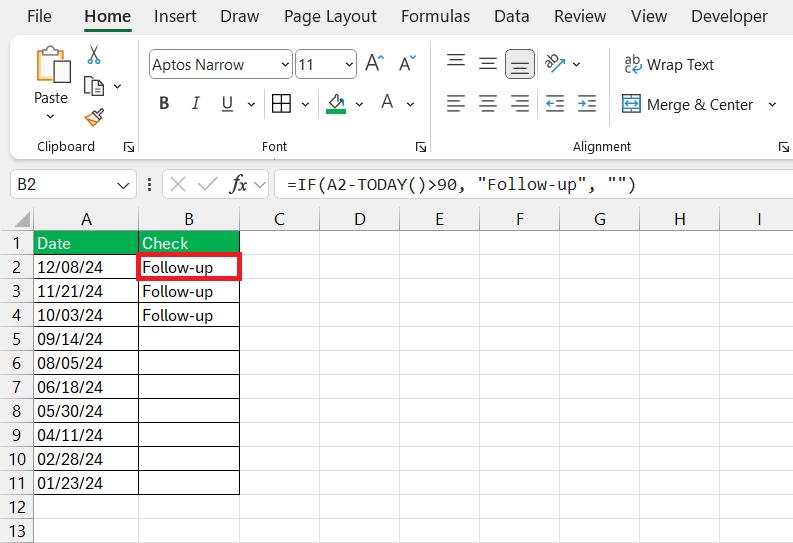
Excel will easily mark the transactions that require follow-up after 90 days from the date of purchase.
FAQs
How to calculate the number of days between today and another date?
To calculate the days between today’s date and another date in Excel, you can use the formula =A1-TODAY(), where A1 is the cell that contains the date you’re counting from. This formula yields the number of days until that date if it’s in the future, or since that date if it’s in the past.
How do I add 90 days from a date in Excel?
You can use the basic addition formula in Excel to add 90 days to a specified date. For example, if the original date is mentioned in cell A1, you can use the formula A1 + 90 to get the desired result.
How do I calculate 90 business days from today?
You can use the WORKDAY function in Excel to add days to a date and not include weekends and any listed holidays. For example, if the original date is mentioned in cell A1 and the holiday list is mentioned in the range ‘holiday’ ; you can use the formula WORKDAY(A1,90, Holidays) to get the desired result.
How to subtract 90 days from a specific date in Excel?
The easiest way to subtract 90 days from a specific date in Excel is to use the formula =A1-90. Simply type this into a cell, and it instantly shows the date that falls 90 days before the date in cell A1.
How do I conditionally format in Excel for 90 days?
To conditional format in Excel for dates within 90 days, select your date cells, go to ‘Conditional Formatting’ on the Home tab, choose ‘New Rule’, and ‘Use a formula. Enter =AND(A1<=TODAY()+90, A1>=TODAY()) to highlight dates up to 90 days from today.

John Michaloudis is a former accountant and finance analyst at General Electric, a Microsoft MVP since 2020, an Amazon #1 bestselling author of 4 Microsoft Excel books and teacher of Microsoft Excel & Office over at his flagship MyExcelOnline Academy Online Course.

 30 Days - Full Access









