 Free Practice Workbook
As someone who often works with presentations, I sometimes need to mark a slide deck as a draft. This will make sure that everyone knows it’s not the final version. Adding a Draft watermark to PowerPoint slides is a professional and effective way to communicate this. In this article, you will learn how to add a draft watermark in PowerPoint Slides.
Key Takeaways:
- A “Draft” watermark signals that the content is a work in progress.
- Adding a watermark in Slide Master ensures application across all slides and saves time.
- Adjusting transparency and using subtle fonts ensures the watermark doesn’t overpower slide content.
- Positioning the watermark diagonally or in less cluttered areas improves visibility.
- Watermarks can be added, adjusted, or removed.
Table of Contents
Introduction to Watermark
The Significance of Watermarks
Watermarks play an important role in presentations by serving multiple purposes. They are used to show ownership, protect content, mark the status of a file, or share important information. In PowerPoint, a watermark can help make a presentation look more professional.
A watermark is usually a light text, logo, symbol, or image placed behind the main content. It stays visible enough to be noticed but does not block the text, charts, or visuals on the slide.
‘Draft’ Watermark
The ‘Draft’ watermark is particularly useful during the iterative process of creating a presentation. It signifies that the content is not finalized, and it provides a visual cue to reviewers that changes are expected. This type of watermark is usually translucent and positioned strategically so as not to interfere with the slide’s readability.
By adopting such a watermark, we create a layer of communication that transcends the actual content, ensuring everyone involved is aware of the presentation’s development stage.
How to Add a Draft Watermark
Using Slide Master
STEP 1: Open PowerPoint and navigate to the “View” tab, selecting “Slide Master” from the Master Views group.
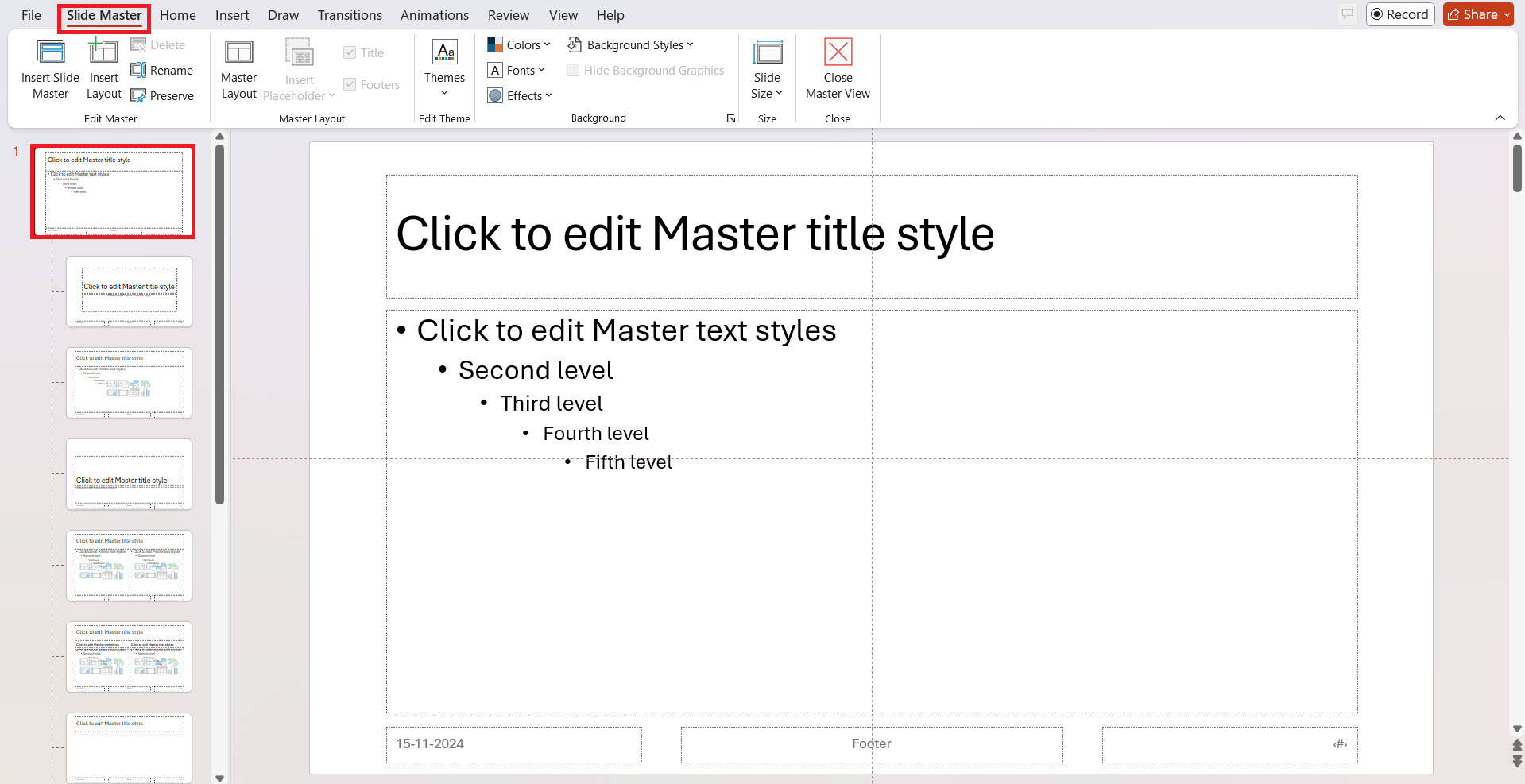
STEP 2: In the Slide Master view, you will see a range of slide layouts. To apply the watermark globally, click on the larger slide thumbnail at the top of the left-hand pane.
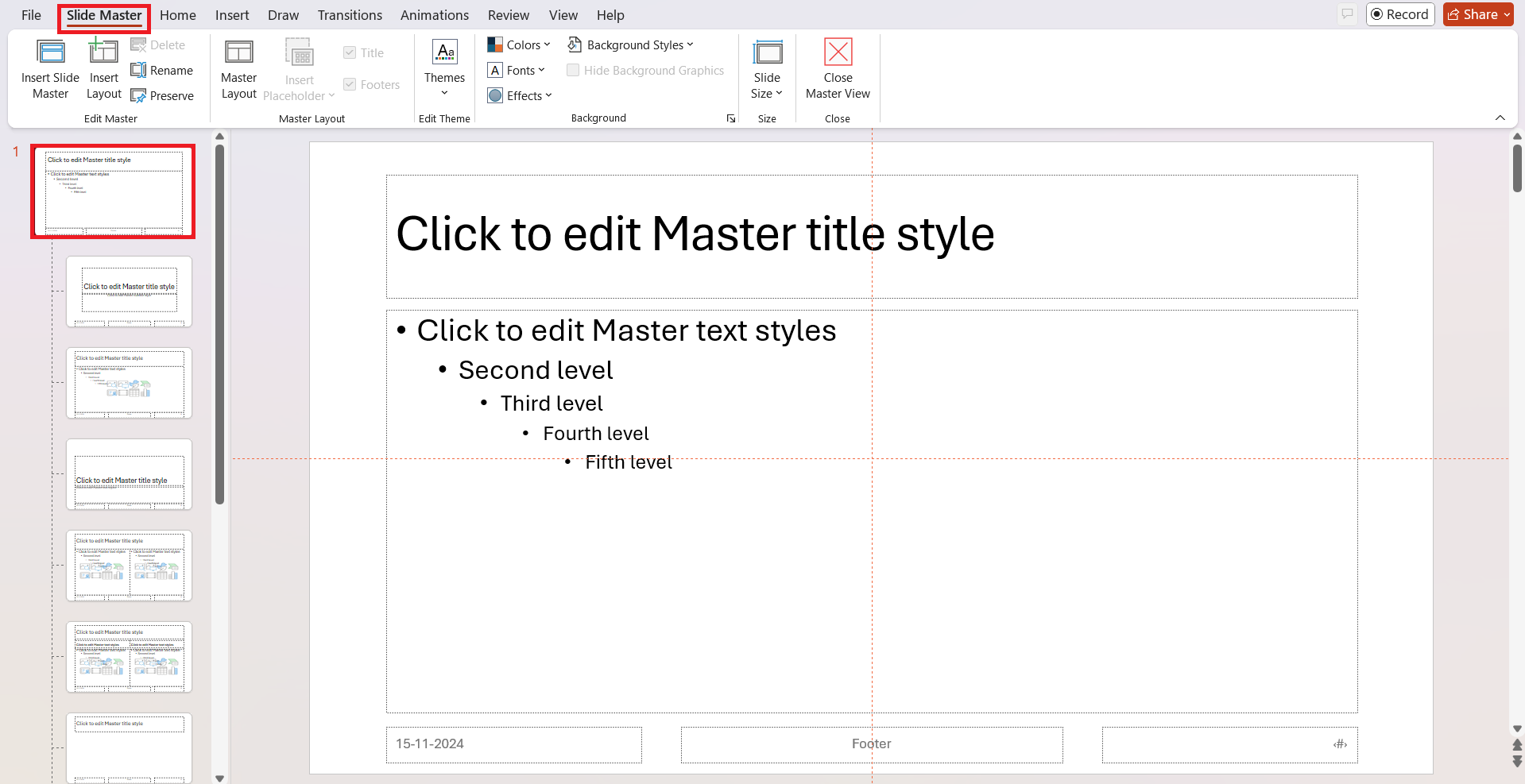
STEP 3: Go to the “Insert” tab and choose either “Text Box” for text watermarks or “Pictures” if you’re using an image.
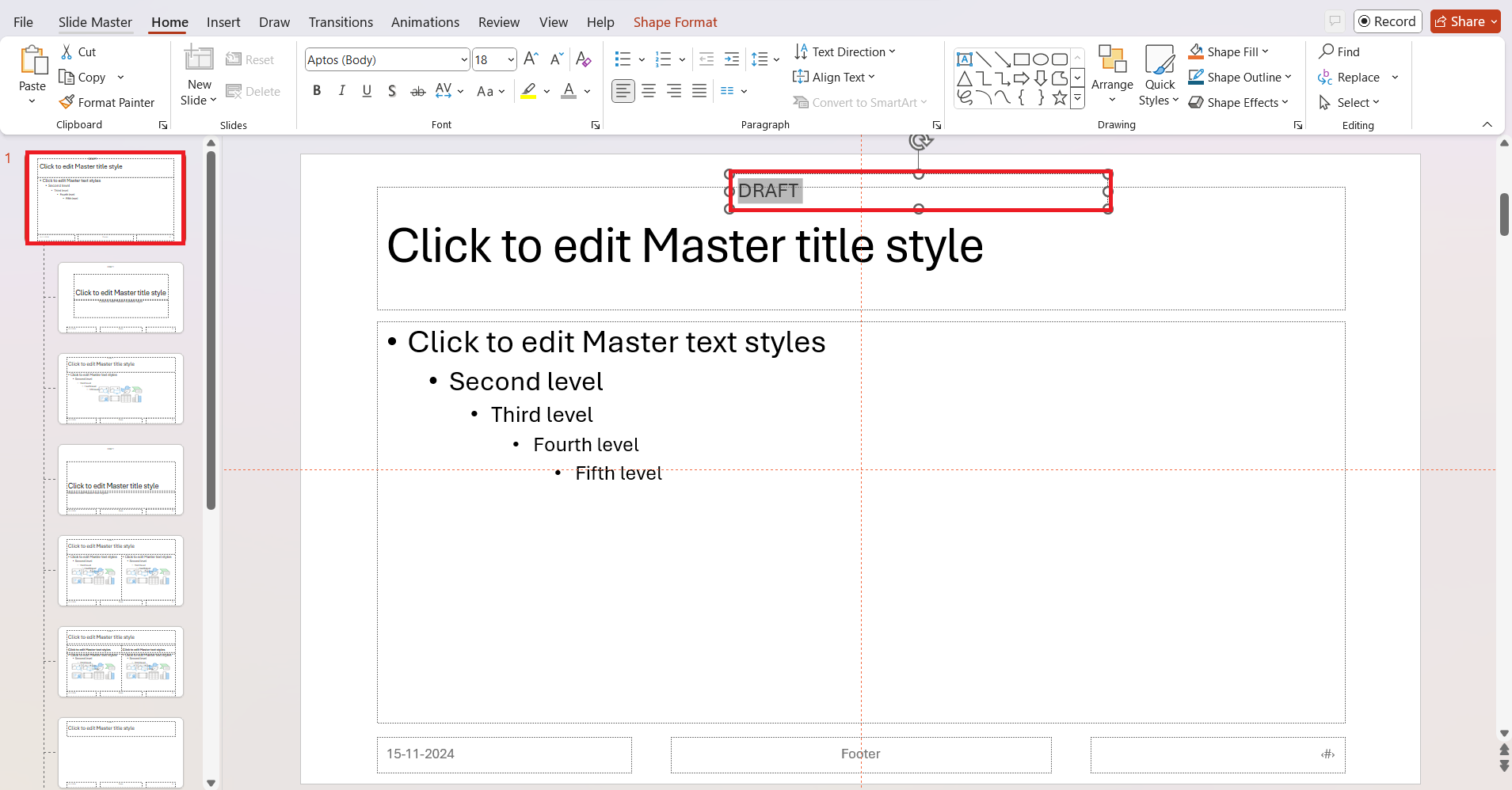
STEP 4: For a text watermark, click and drag your cursor on the master slide to draw a text box, and type in ‘Draft’ or your preferred watermark text.
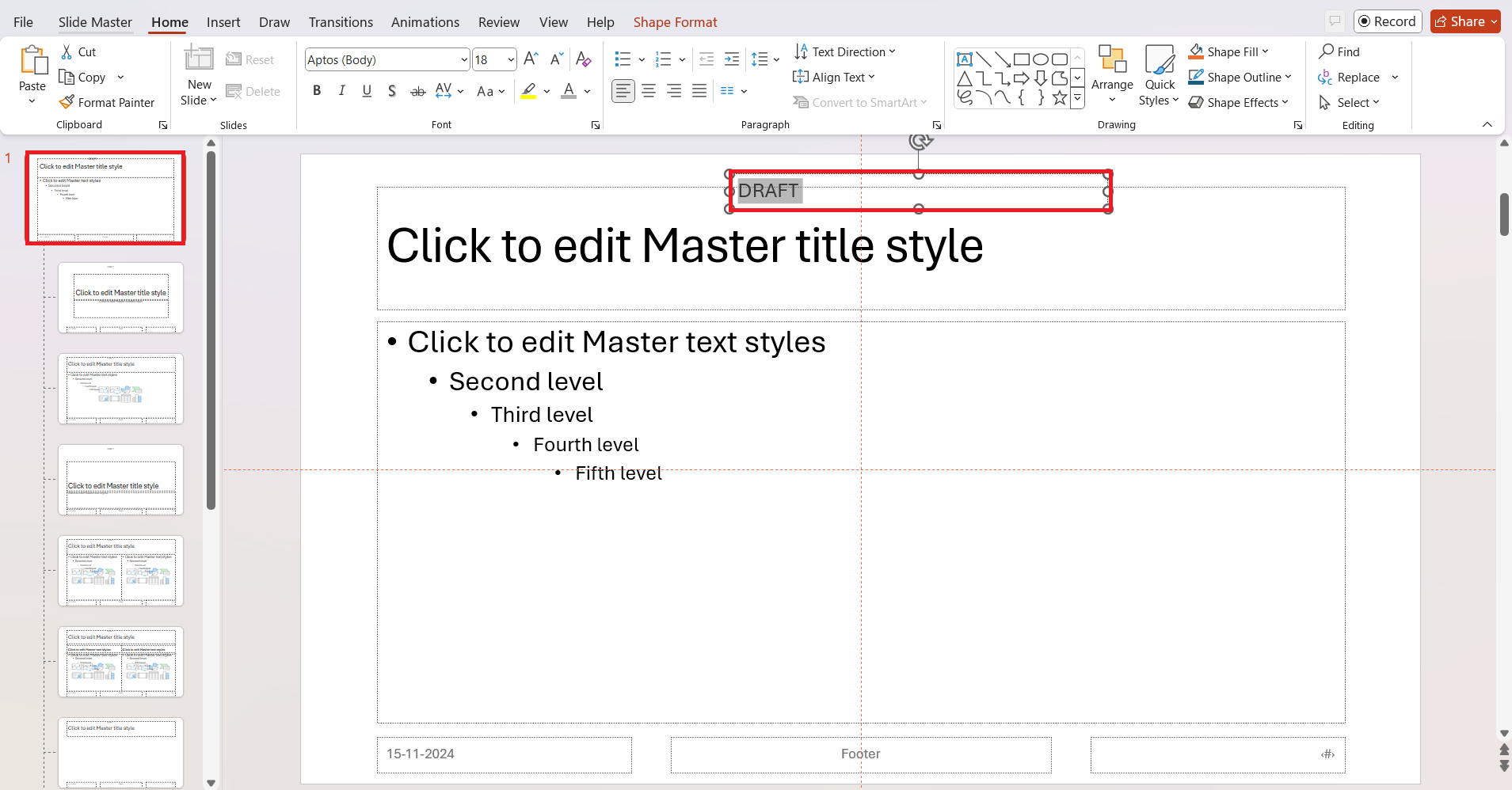
STEP 5: Customize the text’s formatting – font style, size, color, and even transparency to ensure it doesn’t overwhelm your slide’s content.
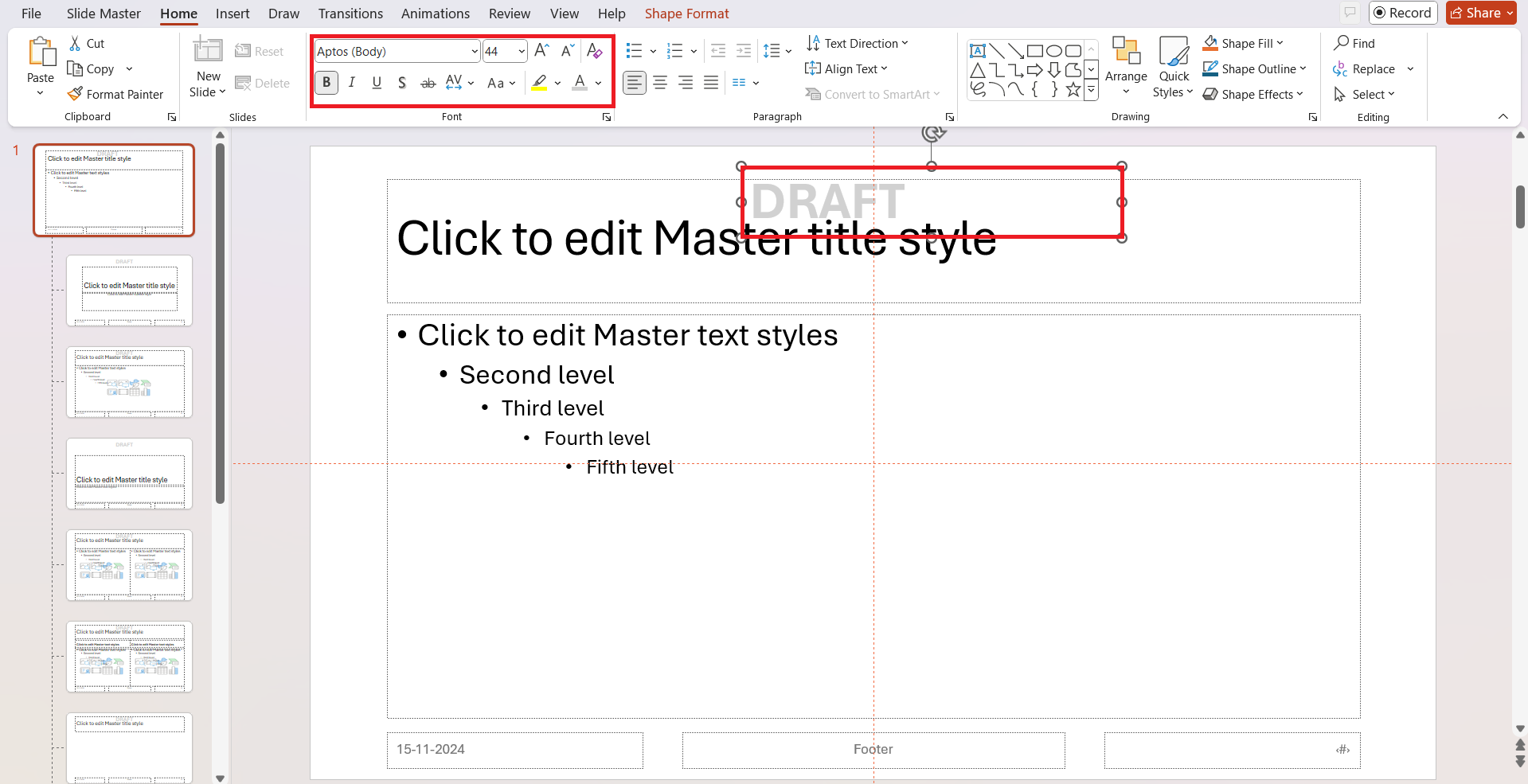
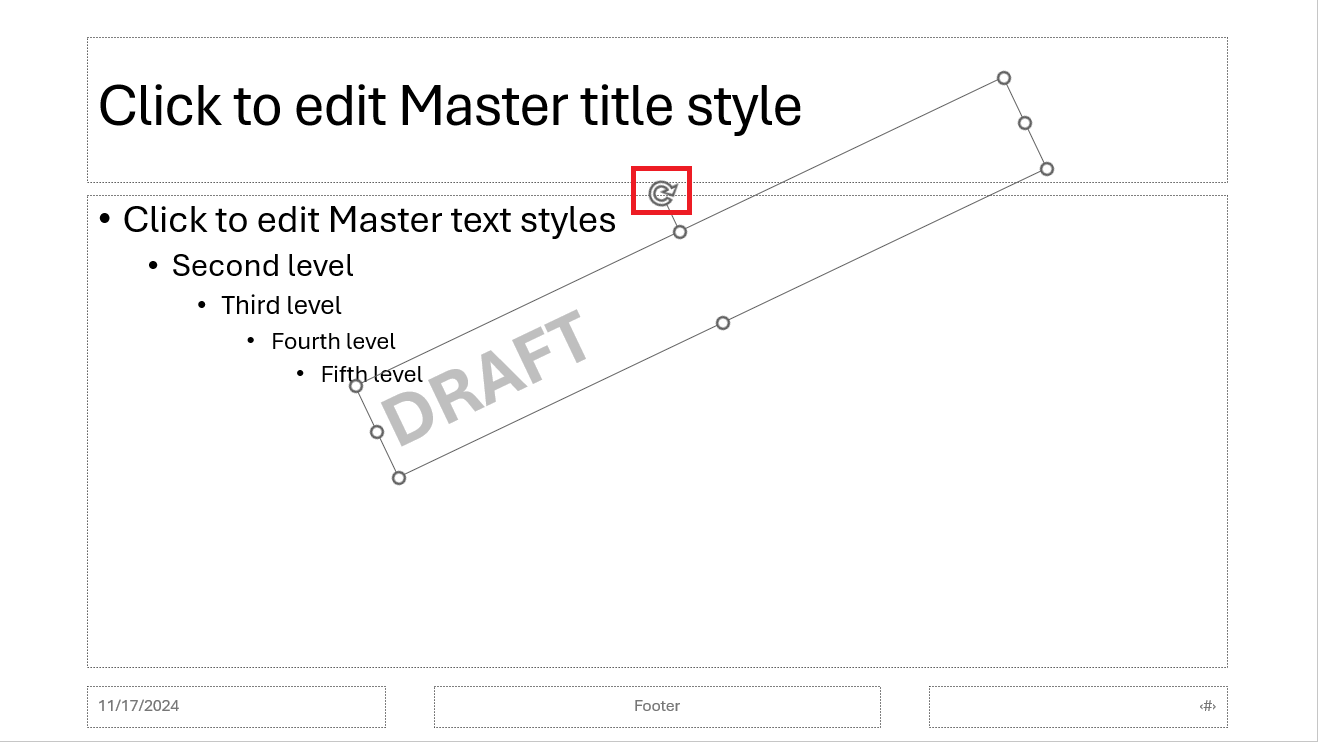
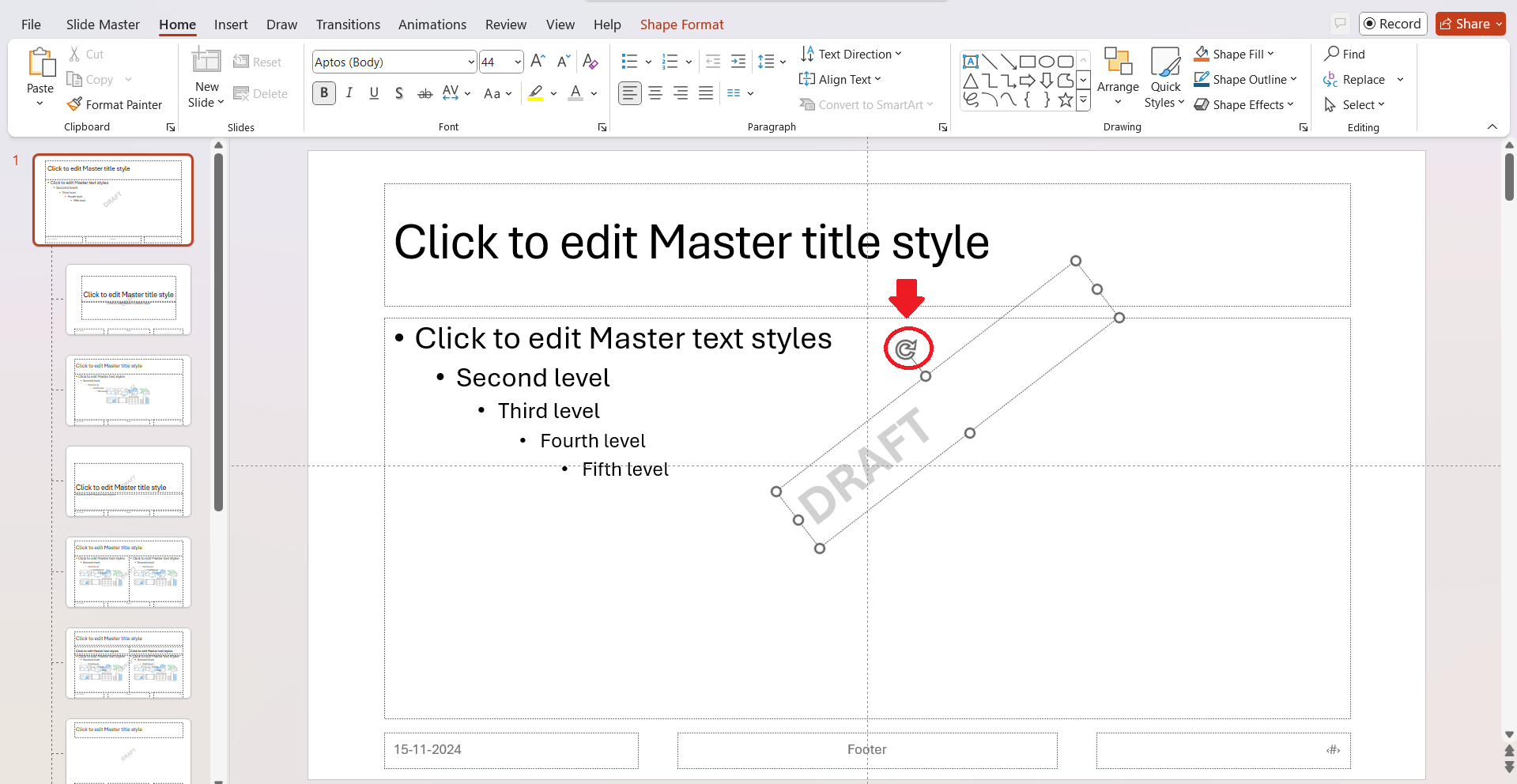
STEP 6: Use the rotation handle to tilt the watermark for a more traditional watermark look.
STEP 7: Once satisfied with the design and placement of your watermark, close the Slide Master view.
The changes will be applied across all slides automatically.

Customize Your Draft Watermark
Adjust the Transparency and Formatting
STEP 1: Go to the Format Shape pane where I find the Text Fill option. Here, I set the transparency slider, usually around 50-80%, depending on the background and text color.
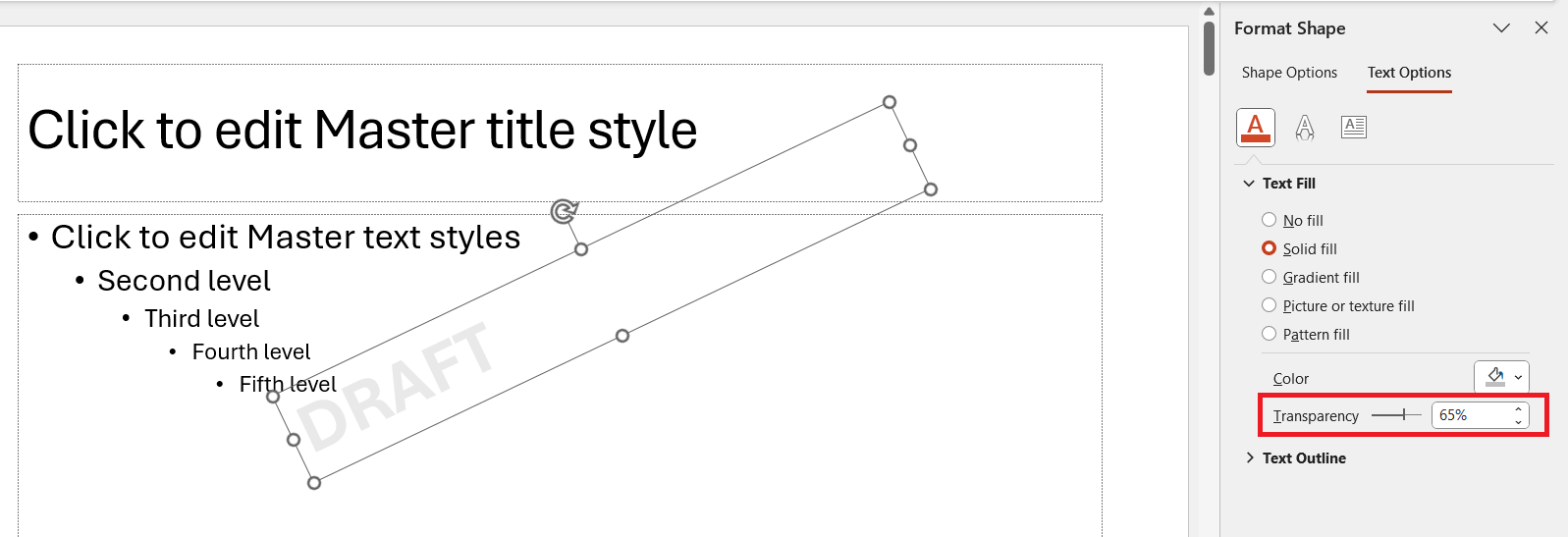
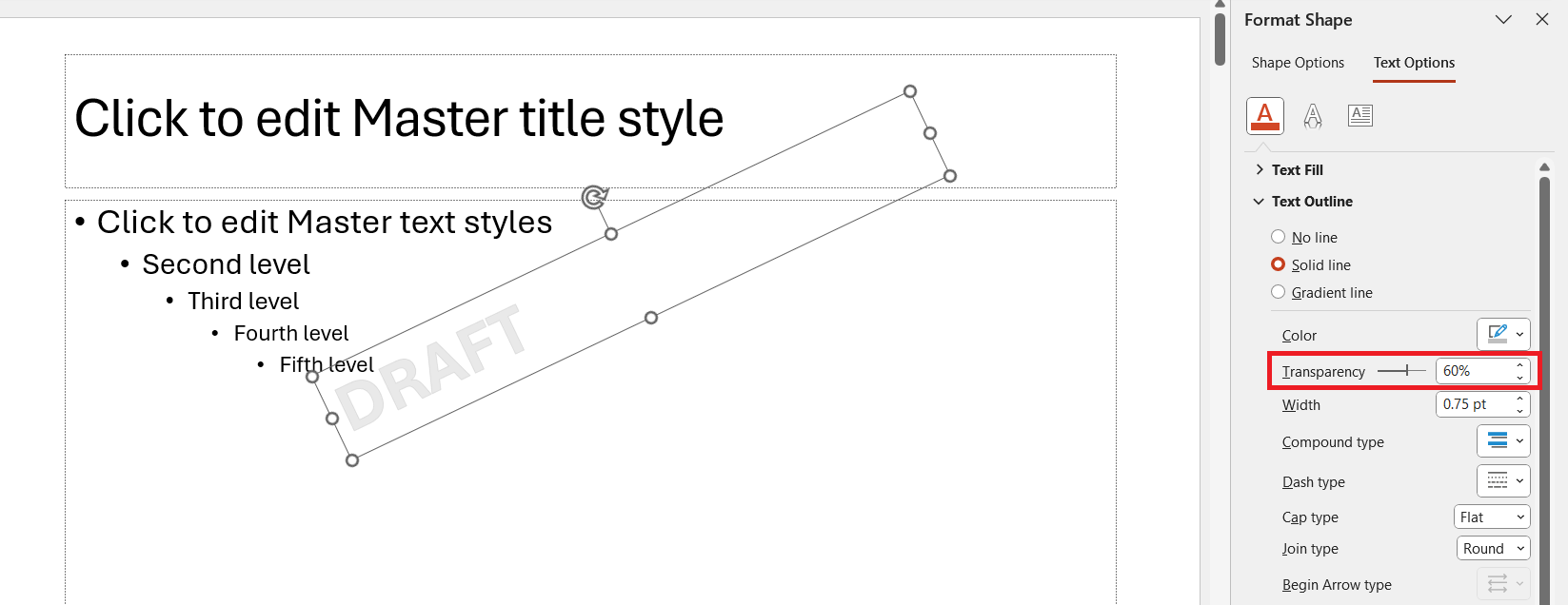
STEP 2: For text outlines, I typically set the transparency slightly lower than the fill for a subtle contrast, maybe around 60-75%.
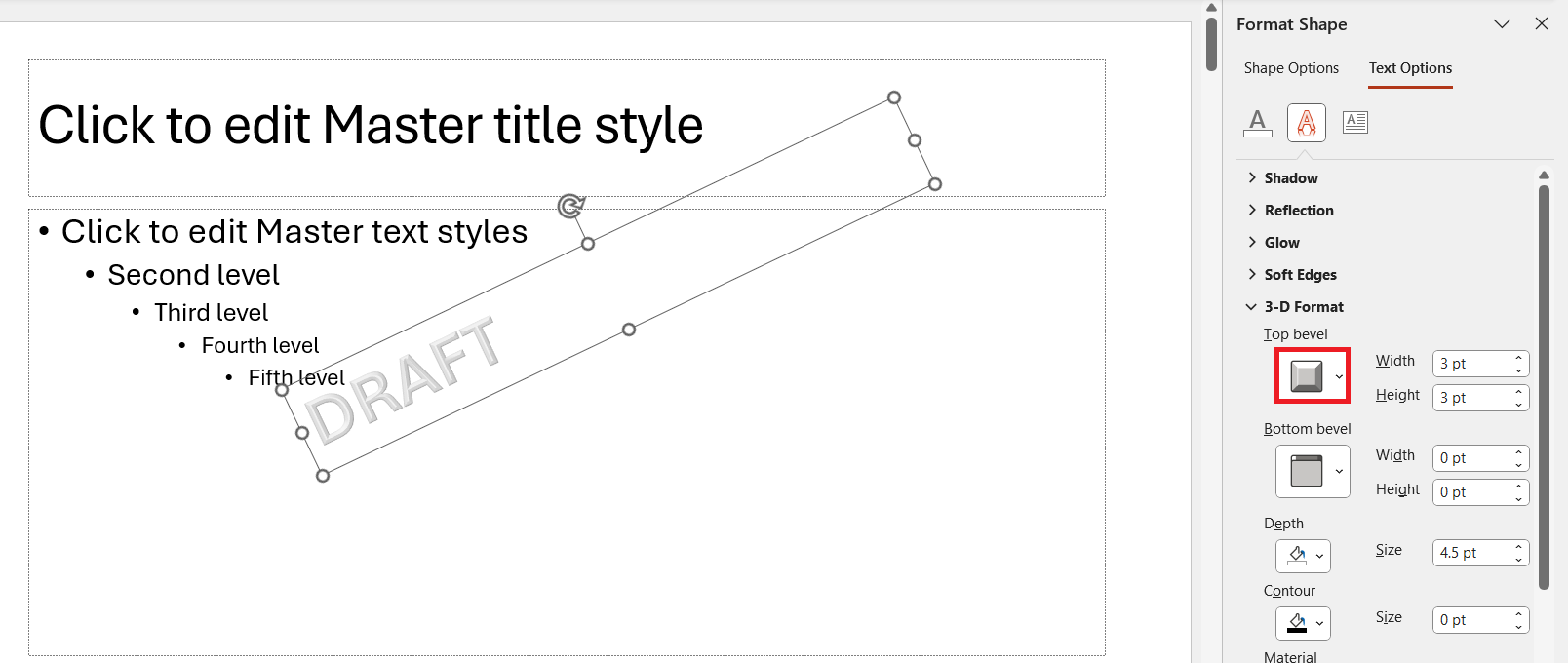
STEP 3: I often experiment with other Text Effects, like shadows or a three-dimensional effect, to make the watermark look integrated yet distinguished from the slide content.
Positioning the Draft Watermark for Optimal Visibility
- I click and drag the text box to the center for a balanced look. Then, I use the rotation handle to angle the watermark, typically diagonal, which naturally draws less attention yet is easily noticed.
- I keep in mind the slide layout and relocate the watermark accordingly if it masks any vital elements like charts, images, or bullet points.
- If a slide has a particularly busy background or color scheme, I might position the watermark in a less cluttered space or adjust its size and transparency to help it stand out.
FAQs
How to put a draft watermark in PowerPoint?
To add a ‘Draft’ watermark in PowerPoint,
- Select ‘View’ > ‘Slide Master.’
- Choose ‘Insert’ > ‘Text Box’.
- Draw the text box on the Slide Master
- Type ‘DRAFT’
- Adjust the font color and transparency to suit.
- Rotate and place the watermark
- Close the Master view
How to remove a draft watermark from my presentation?
To remove a ‘Draft’ watermark,
- Go to View > Slide Master
- Click on the first slide thumbnail
- Select the watermark text box
- Press ‘Delete’.
- Close the Slide Master
How to insert a transparent watermark in PowerPoint?
To insert a transparent watermark in PowerPoint,
- Enter the ‘Slide Master’ view
- Create a text box or insert an image
- Select ‘Format Shape’ or ‘Format Picture’
- Go to the ‘Fill’ section
- Use the transparency slider
How to remove a watermark in PowerPoint?
To remove a watermark in PowerPoint,
- Access ‘Slide Master’ view by clicking on ‘View’
- Select ‘Slide Master’
- Find the watermark on the slide layout and select it
- Press ‘Delete’ on your keyboard

John Michaloudis is a former accountant and finance analyst at General Electric, a Microsoft MVP since 2020, an Amazon #1 bestselling author of 4 Microsoft Excel books and teacher of Microsoft Excel & Office over at his flagship MyExcelOnline Academy Online Course.

 30 Days - Full Access









