Table of Contents
How to Send BCC Invites
Step-by-Step Guide
Follow the steps below on how to send a BCC invite:
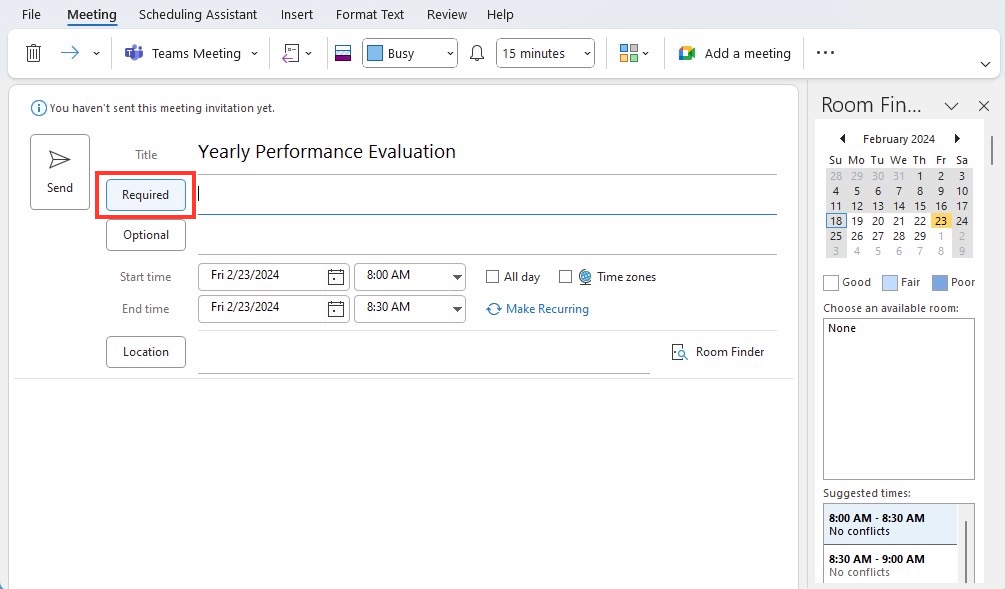
STEP 1: Click on the “Required” button to open the “Select Attendees” dialogue.
STEP 2: Use the “Resources” field to input the email addresses of recipients you wish to BCC. This effectively hides them from other attendees.
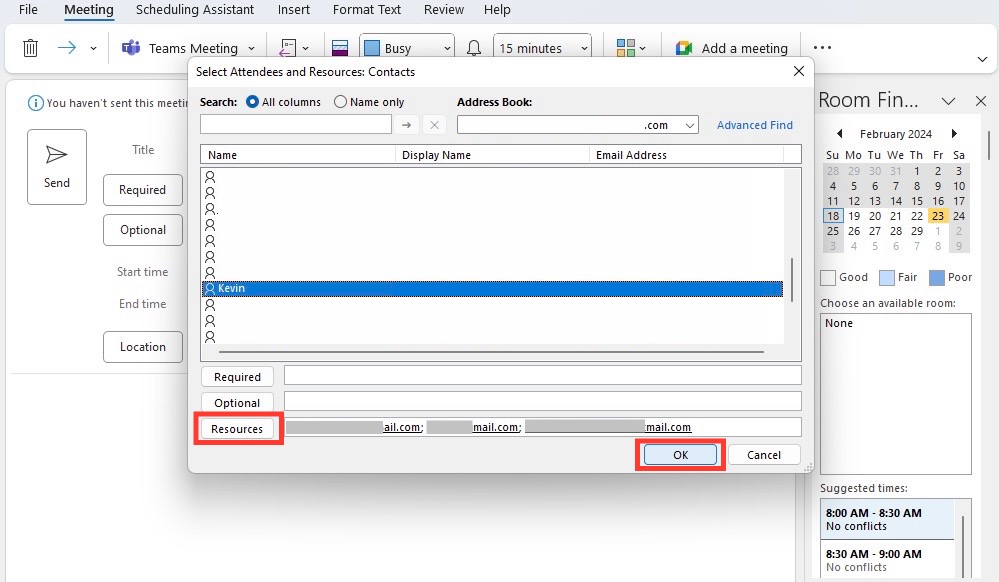
Note: The recipients listed under “Resources” will not be able to see each other’s information, similar to BCC in a regular email. While this is a workaround and not an official BCC feature in calendar invites, it serves the purpose of hiding certain recipients ‘ details from others.
FAQs
Can I Hide BCC Recipients During an Outlook Meeting?
Yes, you can hide BCC recipients during an Outlook meeting by using the ‘Hide Attendee List’ feature. This option makes sure that when you send out a meeting invite, the attendees will not see the full list of people who have been invited. This feature is beneficial for maintaining privacy and discretion for your meeting’s attendance list.
Here’s how to do it:
- On Outlook for Web and New Outlook for Windows: After setting everything else up, go to the ‘Response Options’ and select ‘Hide Attendee List.’ A tick will appear next to the option to confirm it’s been selected.
- On Outlook for Mac: Look for ‘Attendee Options’ to find the equivalent setting.
The invitees will receive the meeting information, but the list of attendees will be kept confidential, similar to using BCC in an email. It’s essential to use this feature judiciously, respecting privacy and transparency norms as required in professional settings.
Why Is BCC Not Showing by Default and How Can I Enable It?
In Outlook, the BCC field is not visible by default to keep the user interface simplified and to prevent accidental use of the BCC line, which could lead to privacy issues if not used correctly. However, enabling it is simple:
STEP 1: Start composing a new email.
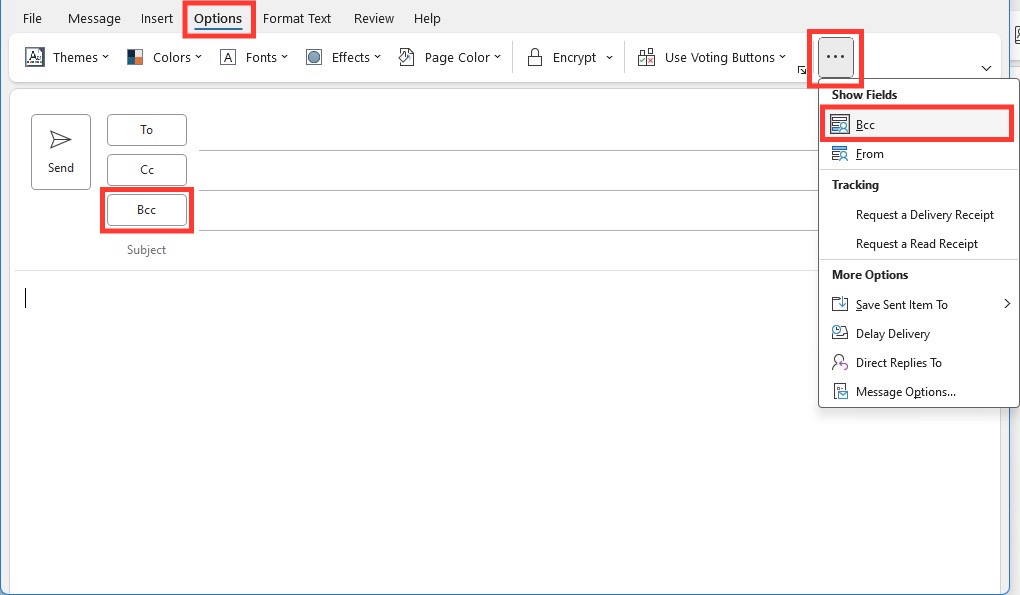
STEP 2: Click on the Options tab.
STEP 3: Click on the three dots and then select BCC.
The BCC field will now appear in the email window.
What are the Risks of using BCC?
Some of the common risks that are involved if you are using BCC are:
- Using BCC can make the recipient suspicious and can damage the relationship.
- If BCC’d recepients accidently replies to all, it could lead to exposure of sensitive information.
- If you use the BCC feature excessively, it may be marked as spam.
- BCC’d recipients are not always sure of what action is required on their end.
It is important to note that BCC should only be used when its benefits outweigh the potential drawbacks.

John Michaloudis is a former accountant and finance analyst at General Electric, a Microsoft MVP since 2020, an Amazon #1 bestselling author of 4 Microsoft Excel books and teacher of Microsoft Excel & Office over at his flagship MyExcelOnline Academy Online Course.

 30 Days - Full Access









