 Free Practice Workbook
Key Takeaways
- Blur image allows you to guide the audience’s attention to important information.
- You can blur an image by using the Picture Format option.
- The radius slider allows you to control how strong or soft the blur effect can be.
- You can blur part of an image by using shapes, transparency, or a duplicate image.
- High-resolution images can give the best blur results.
Blurring effects in PowerPoint are not only used for increasing aesthetic value. It plays a strategic part in highlighting an important statistic while obscuring the less relevant data. It can also be used when you want to present a new product but blur out specific details. Blurring can also help in creating a cleaner look by softening the background. It allows your main subject to stand out.
Table of Contents
Blur Tools in PowerPoint
Using the Built-In Options
Follow the steps below to dive into PowerPoint’s built-in tools to blur images:
- Select your image.
- Go to the Picture Format tab.

- Choose Artistic Effects.
- Select the Blur option.

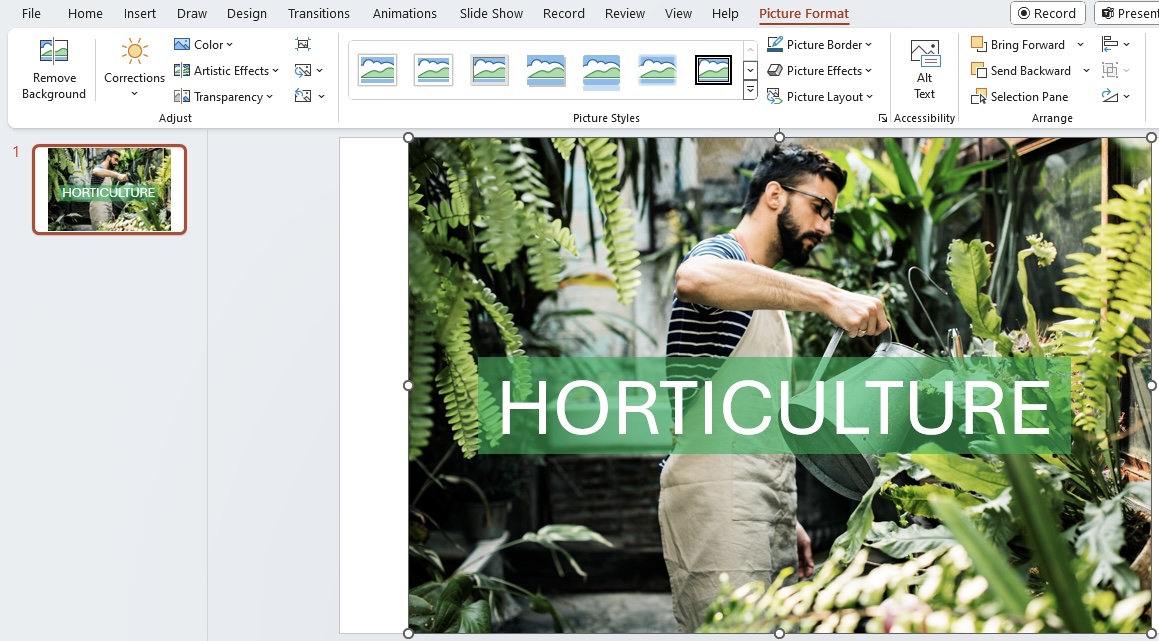
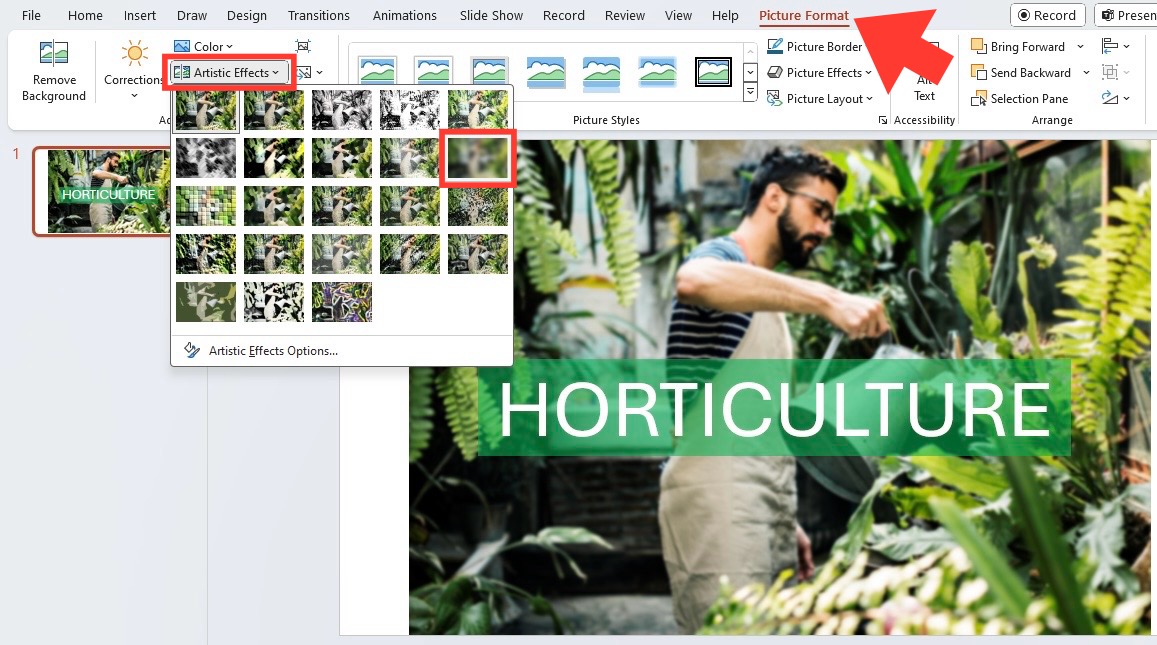
Adjust Blur Intensity
You can tailor the intensity of the blur effect by using the built-in tools:
- Select the image.
- Go to the Picture Format tab.
- Click Artistic Effects.
- Select Blur.
- Click Artistic Effects Options at the bottom of the menu.
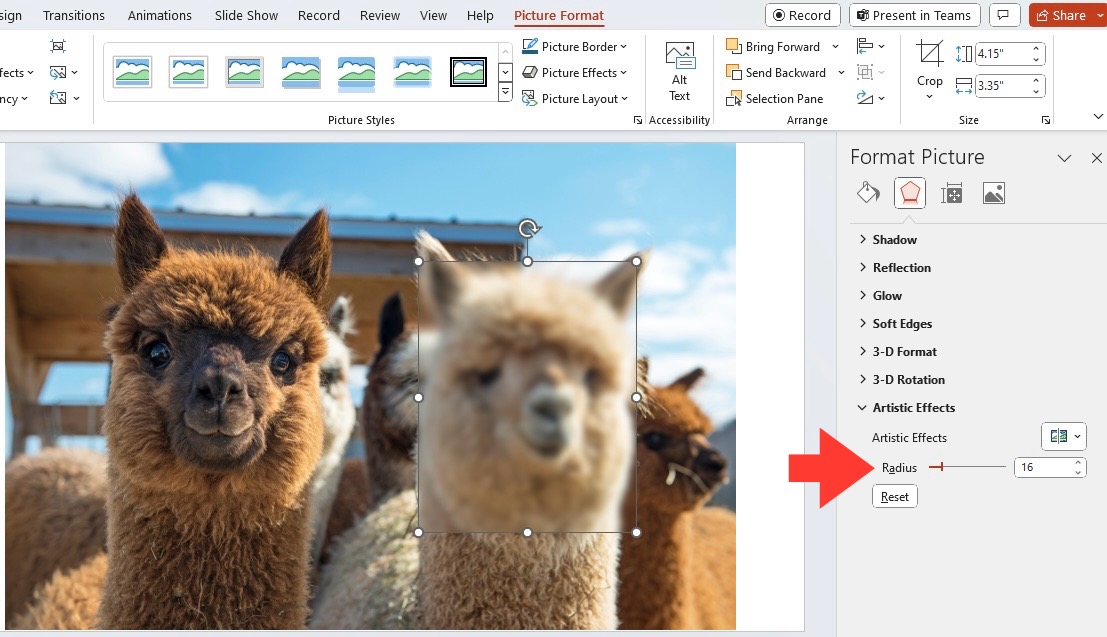
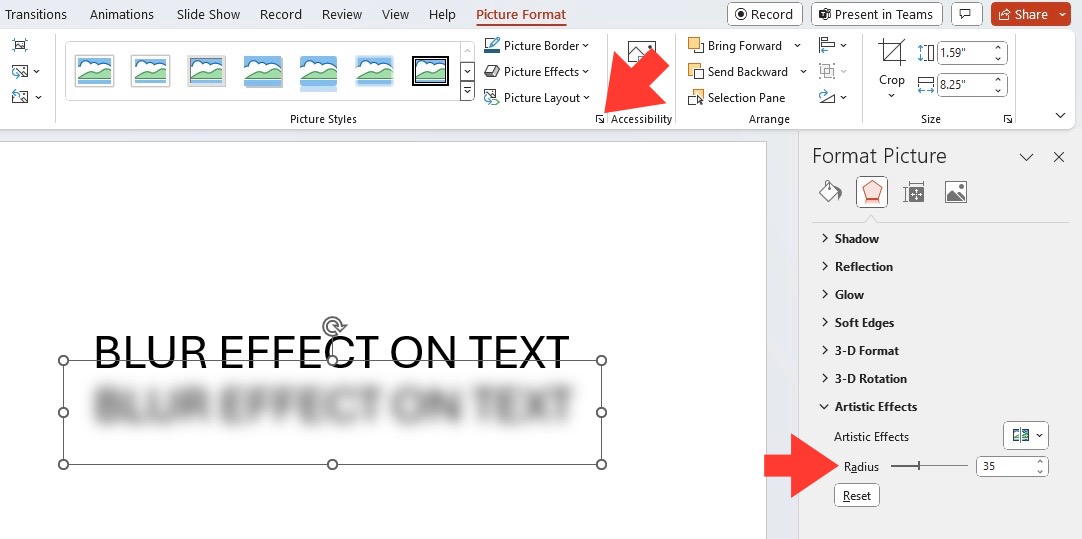
- In the Format Picture pane, adjust the Radius slider.
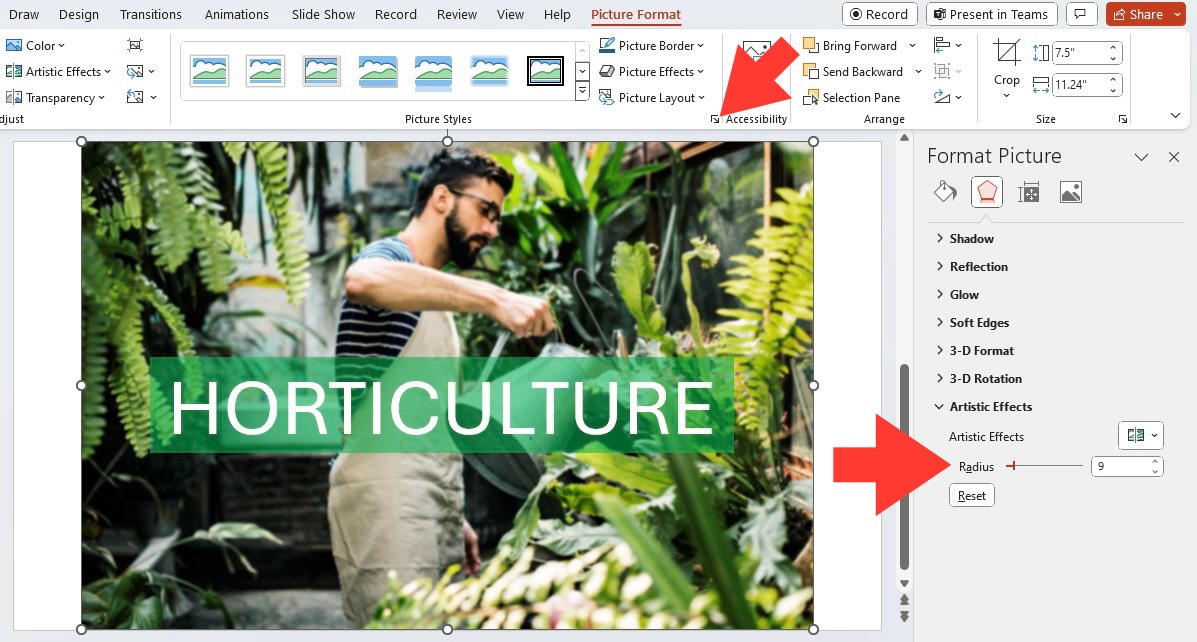
A low radius will add a slight blur and a high radius will provide a heavy blur.
How to Blur Selected Areas
Blur Part of an Image
When a presentation demands precision, blurring just part of an image in PowerPoint is important. Follow these helpful steps:
STEP 1: Open your slide, select the image.
STEP 2: Draw a shape over the area to blur.
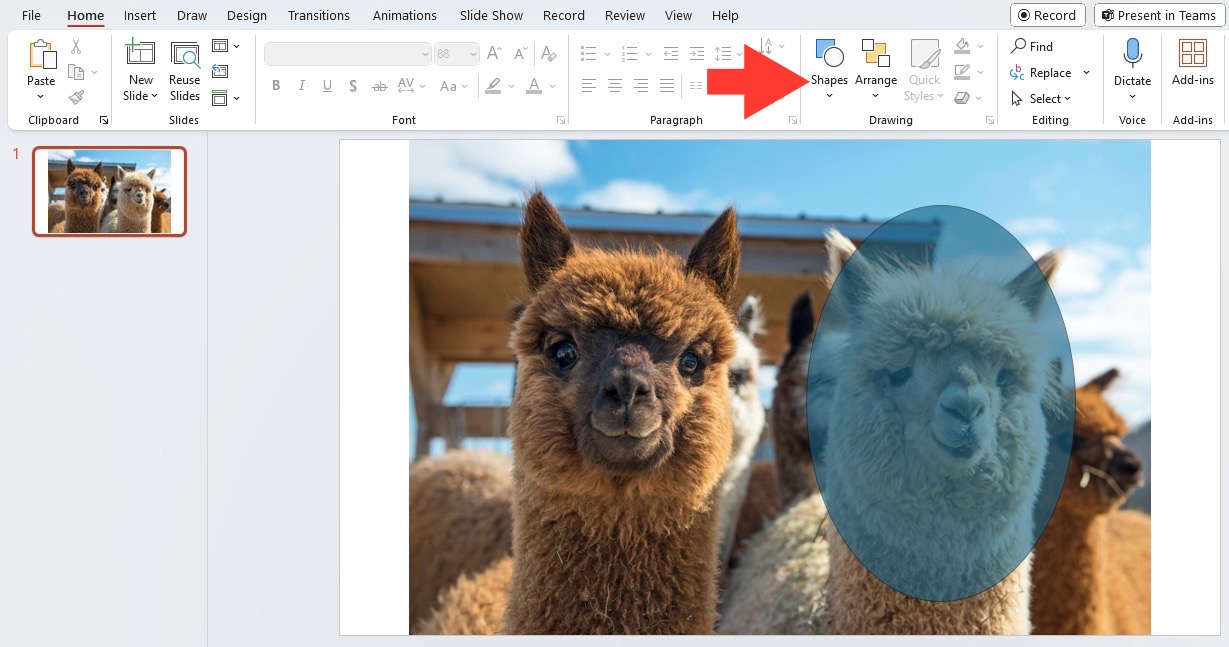
STEP 3: Right-click the shape, select Format Shape > Fill. Choose a solid fill and adjust the color if needed.
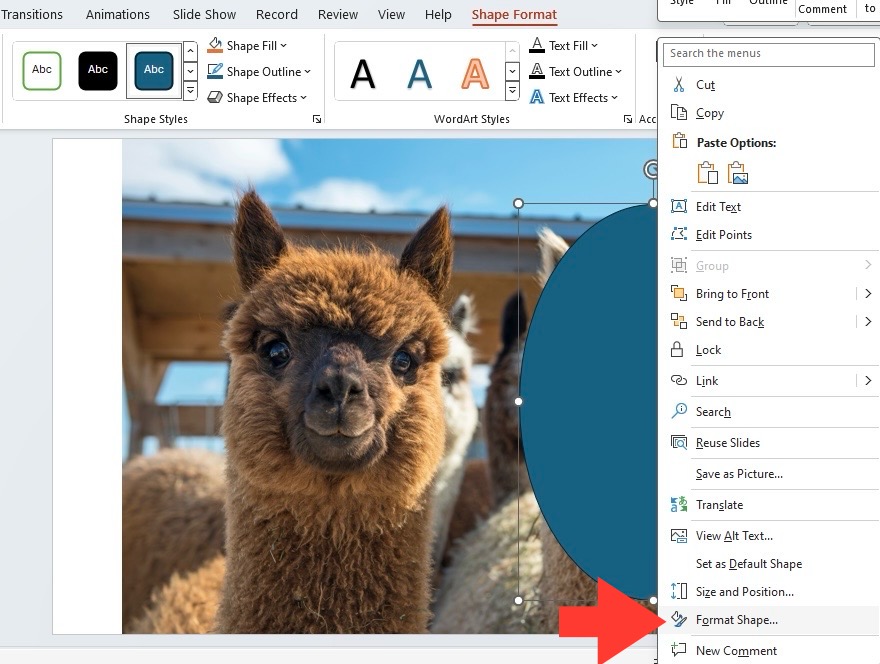
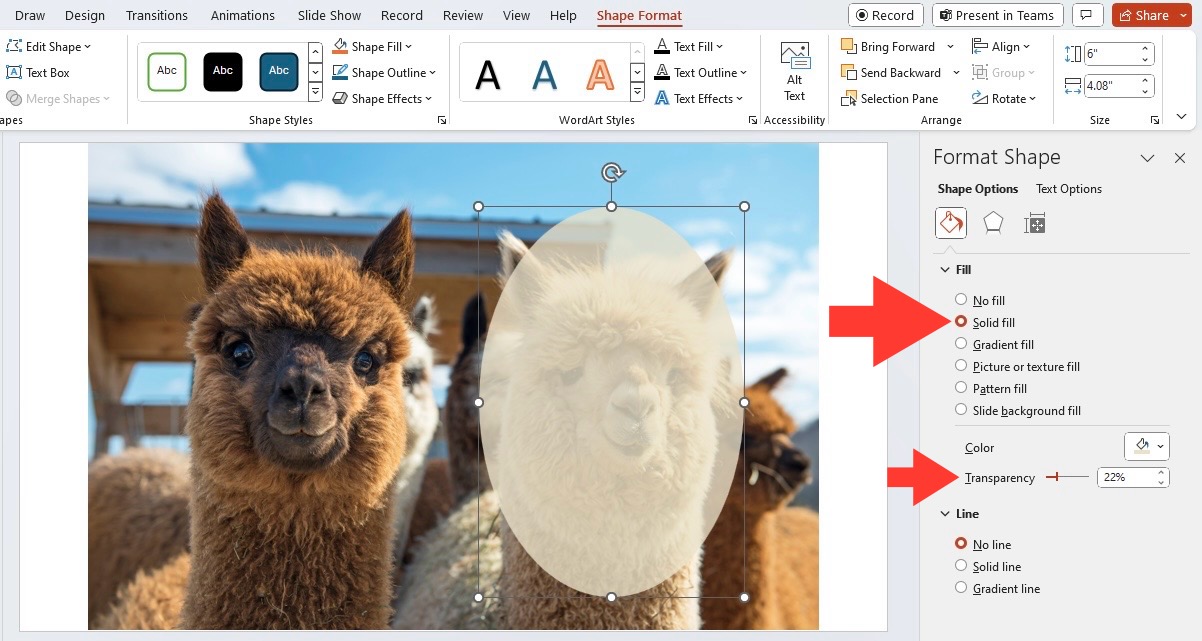
STEP 4: Change the transparency level until you get the desired blur effect.
STEP 5: Right-click the shape and the image to group them.
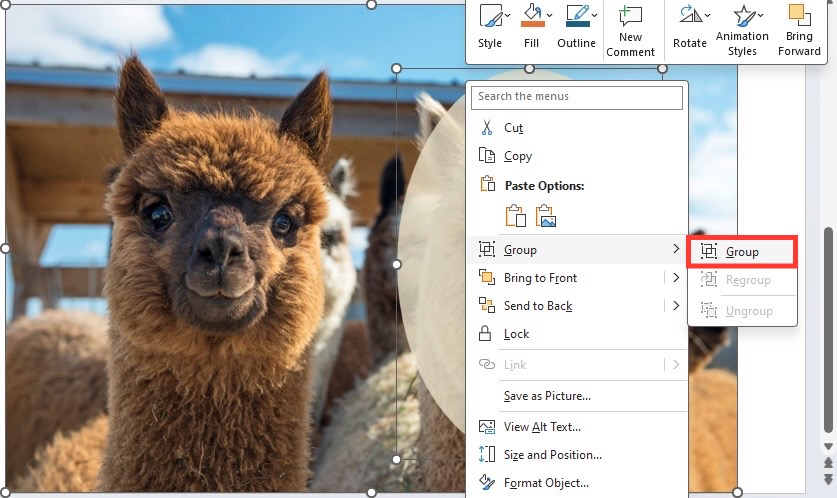
This blend of shape and transparency gives you control over the precise areas of emphasis.
Alternatively, you can use this method:
STEP 1: Duplicate the image by using the shortcut Ctrl + C and Ctrl + V.
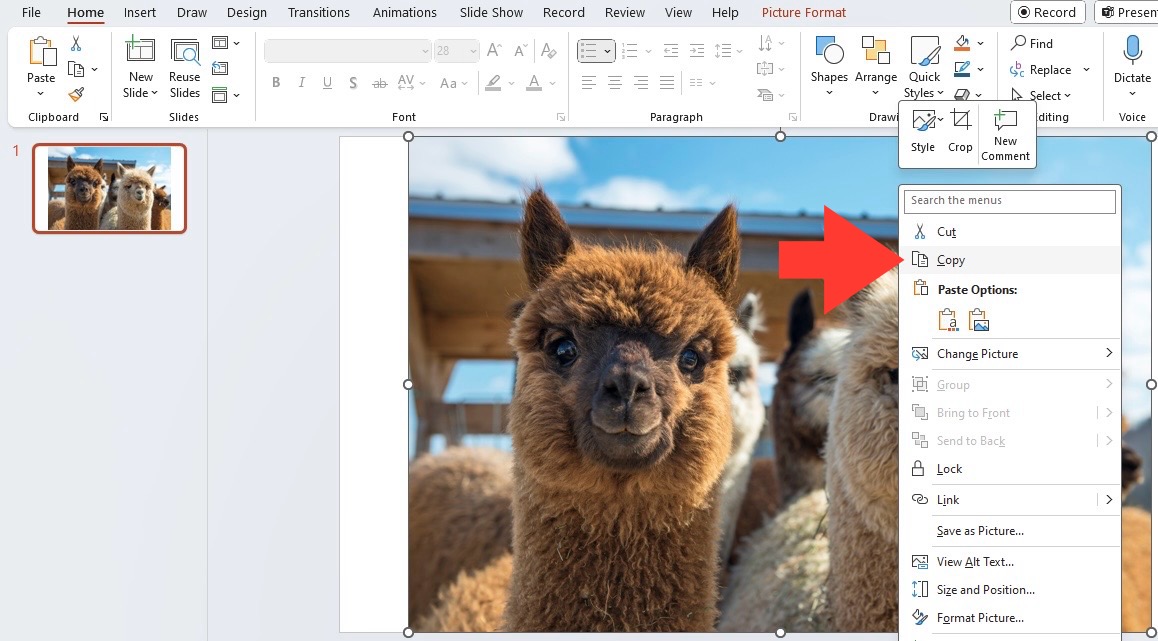
STEP 2: Move the pasted image to the same exact spot as the image underneath.
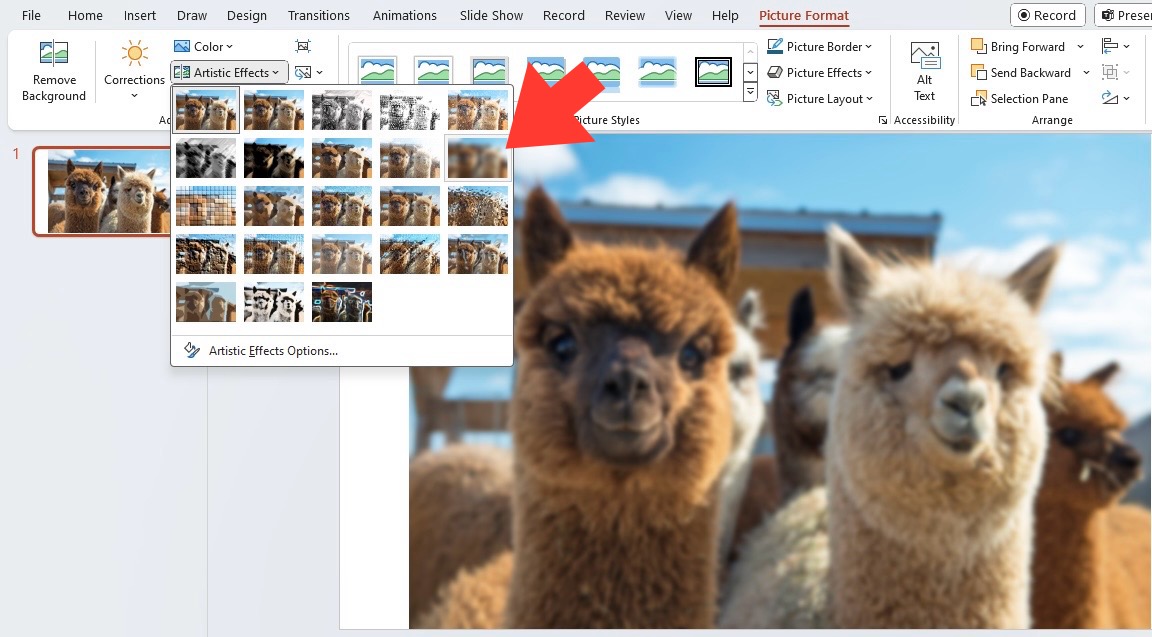
STEP 3: Go to the Picture Format tab > Artistic Effects > Blur to apply the effect on the image on top.
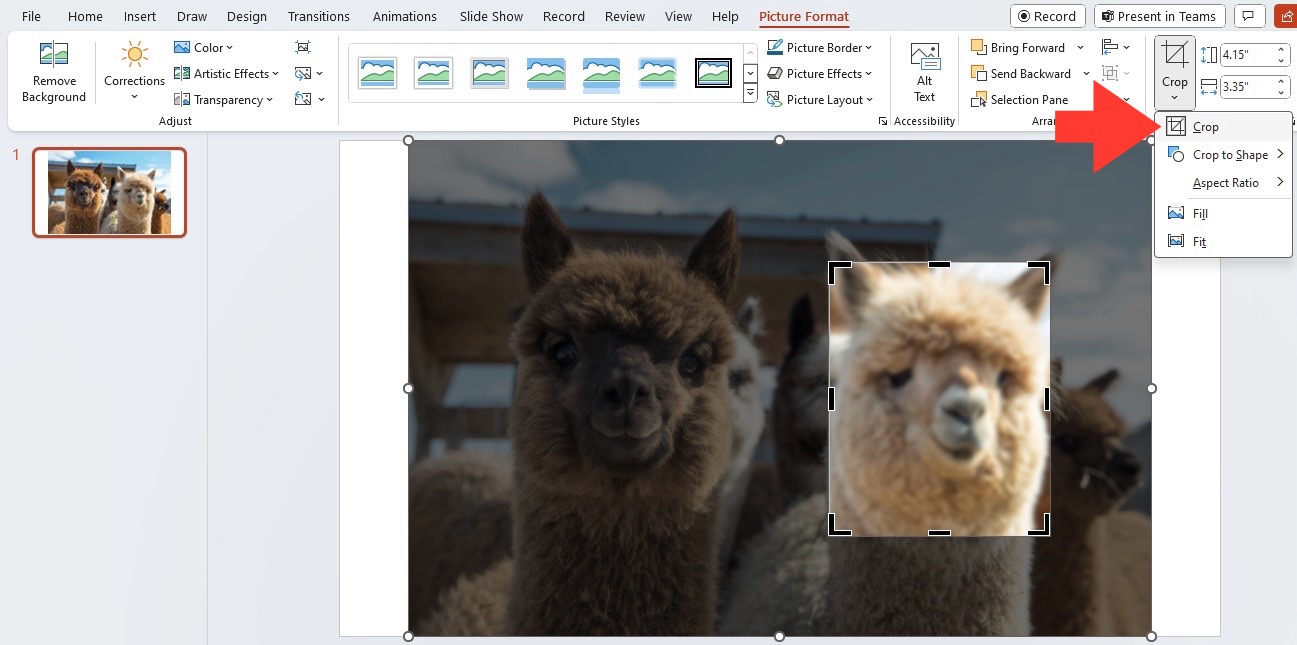
STEP 4: Click on Crop and adjust it to your preference.
STEP 5: Adjust the strength of the effect accordingly.
Blur Text
To protect sensitive information, blurring text in PowerPoint can be an important strategy. Highlight the text you wish to blur and follow these simplified steps:
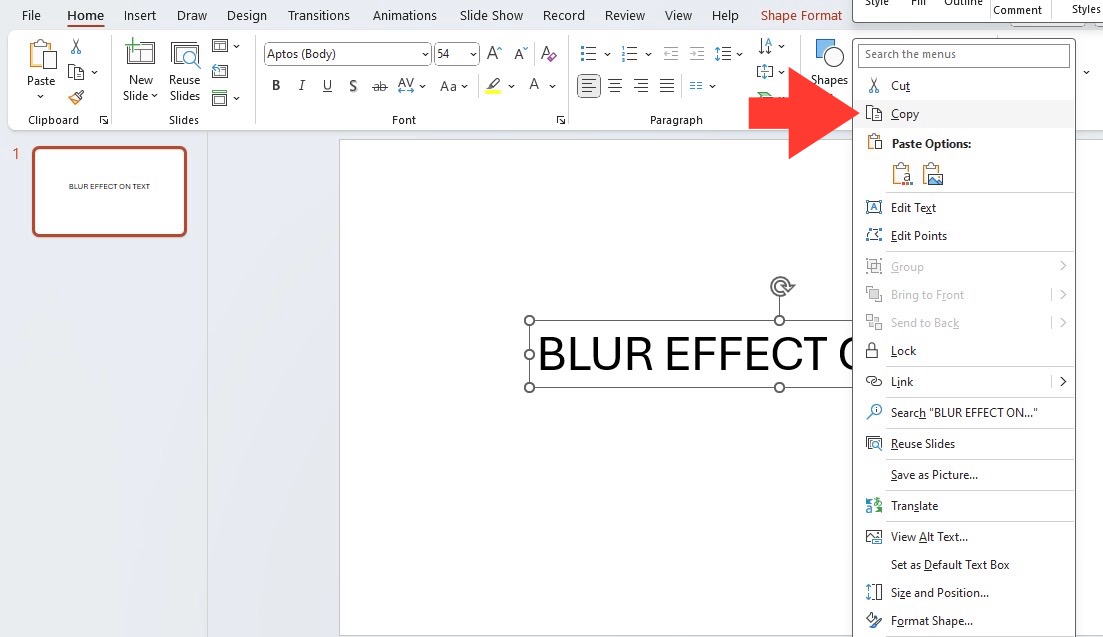
STEP 1: Right-click on the highlighted text box and click Copy.
STEP 2: In the Home tab, click on Paste>Paste Special.
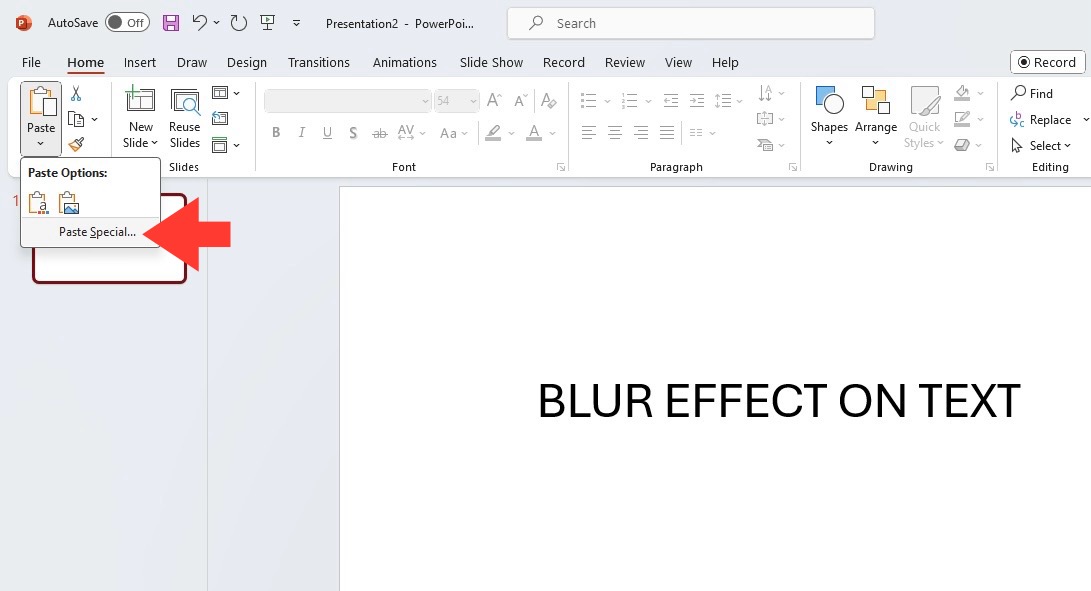
STEP 3: Select Picture (PNG) > OK.
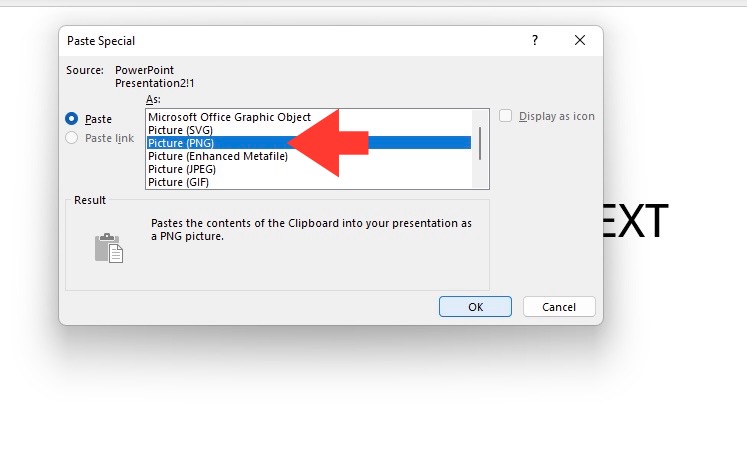
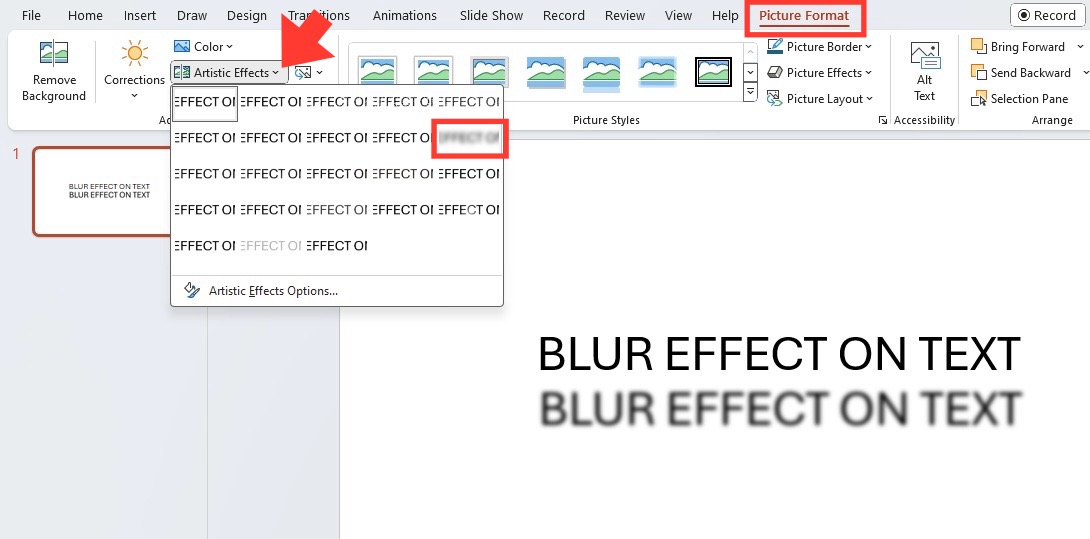
STEP 4: With the new image selected, go to the Picture Format tab > Artistic Effects > Blur.
STEP 2: Adjust the blur level by going to Format Picture, then adjust the Radius.
This technique can be used to keep private details hidden or hide distractions to keep the focus on important parts.
Tips & Tricks
- If you are unable to blur an image properly, you can convert it into formats like JPG or PNG.
- Make sure that the images are not locked or protected.
- You can also use an external photo editor to blur image and then insert it in PowerPoint.
- Use a high-resolution image, as low-quality images can result in a grainy background when blurred.
- When blurring the image, you can use the Preserve fidelity when sharing this presentation option to maintain quality.
- Move the slider slowly when you are adjusting the blur level.
FAQs
What are the limitations of using Blur Effects?
There are limitations to the blur effects in PowerPoint. You can adjust blur intensity and radius, but the maximum blur level is capped at 100%. You cannot go beyond that in PowerPoint.
What image formats can be blurred in PowerPoint?
PowerPoint can blur image formats like JPG, PNG, GIF, and TIFF. It is recommended to use high-resolution JPG or PNG images to avoid loss of quality.
How to Apply Blur to Videos in PowerPoint?
PowerPoint doesn’t directly support applying blur effects to videos.

John Michaloudis is a former accountant and finance analyst at General Electric, a Microsoft MVP since 2020, an Amazon #1 bestselling author of 4 Microsoft Excel books and teacher of Microsoft Excel & Office over at his flagship MyExcelOnline Academy Online Course.

 30 Days - Full Access









