 Free Practice Workbook
Microsoft Excel transcends mere number crunching, offering robust tools for managing dates effortlessly. Whether projecting future dates or revisiting past ones, adding or subtracting six months from today is executed with simplicity, showcasing Excel’s prowess in time manipulation.
Key Takeaways
- Excel’s DATE function acts as the foundation for date arithmetic, essential for custom date creation and manipulation.
- Excel’s unique date system treats dates as serial numbers, starting from January 1, 1900, facilitating smooth date operations.
- Adding or subtracting six months is streamlined with the EDATE function, showcasing Excel’s capacity for straightforward date adjustments.
Table of Contents
Understanding Excel Dates
The Building Blocks of Excel Date Functions
To get started with date arithmetic in Excel, you should familiarize yourself with some core functions. The DATE function is your cornerstone, allowing you to weave day, month, and year into a date Excel can work with.
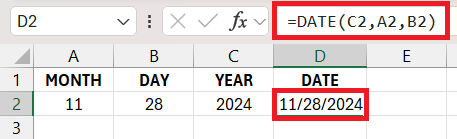
Imagine merging separate day, month, and year data into a coherent date format; that’s exactly what DATE function does. But, this is just the beginning. Let’s explore further.
How Excel Handles and Processes Dates
Excel stores dates as serial numbers. January 1, 1900, is considered day 1, and every day after that is one more than the previous.
Did you know January 1, 2009, is serial number 39814 in Excel’s eyes? It’s a lot of days after January 1, 1900! Now that you have an idea of this system, let’s use it to add or subtract six months.
Using EDATE Function
Syntax of EDATE to Add Six Months
The EDATE function is your go-to tool for traveling through time. To leap forwards by six months, use =EDATE(start_date, 6). This simple formula takes your specified start_date and shuttles it half a year into the future.
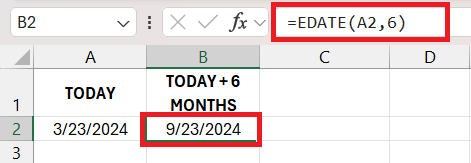
Let’s break it down:
start_date: The date you’re starting from (can be a cell reference or a DATE function)6: The number of months you want to add (use-6for subtracting)
Thereafter, hitting Enter gets you a glimpse into the future, or a look in the past if you’re subtracting. It’s that straightforward!
Reverse the Clock: Subtracting Six Months with EDATE
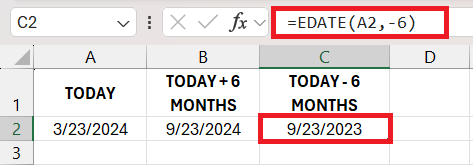
Subtracting six months is just as easy as adding them with Excel’s EDATE function. To turn back the clock, input =EDATE(start_date, -6). This tells Excel to rewind the date in your start_date by six whole months.
Imagine you have a date in cell A1 and you want to know what the date was half a year before. Just type in =EDATE(A1,-6) and press Enter. The resulting date is a six months prior blast from the past. Simple, right?
Breaking Down DATE Function for Complex Calculations
With the formula =DATE(YEAR(A2), MONTH(A2)+6, DAY(A2)). Here is how it works:
YEAR(A2): Gets the year from your starting date.- 6: Add or subtract 6 months.
DATE(...): Reassembles the altered date parts into a new, desired date.
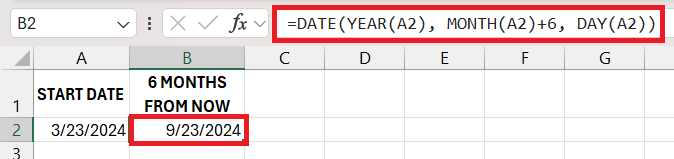
This formula adjusts each part of your date individually and then combines them again. Perfect for when you need pinpoint accuracy for your date alterations!
Project Deadlines: Setting Semiannual Reminders
Managing project deadlines can be made much easier with semiannual reminders. By using the EDATE function (=EDATE(TODAY(),6)), you can set alerts for 6 months in advance. This serves as a perfect checkpoint for project milestones or to ensure you’re on track with long-term deadlines.
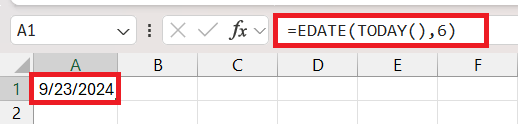
This formula ensures that you never lose sight of that critical half-year mark. With each reminder, you get a chance to review progress, make necessary adjustments, and prepare for the next steps. Efficient and proactive – that’s how you stay ahead in project management!
FAQs
How do I calculate six months from today?
To add 6 months to the current date in Excel, utilize the EDATE function: =EDATE(TODAY(), 6). This formula computes a date that is 6 months ahead of today’s date.
How can I determine the number of months from today to a specific date in Excel?
Use the DATEDIF function: =DATEDIF(TODAY(), A1, "m"), assuming A1 has the end date.
How to add 1 month to a date?
Yes, use the EDATE function: =EDATE(A1, 1), where A1 contains the initial date.
Can I use these methods to calculate dates beyond just months?
Yes, you can use EDATE for months and DATE function to add or subtract days and years as well. The DATE function provides flexibility for various time intervals.

John Michaloudis is a former accountant and finance analyst at General Electric, a Microsoft MVP since 2020, an Amazon #1 bestselling author of 4 Microsoft Excel books and teacher of Microsoft Excel & Office over at his flagship MyExcelOnline Academy Online Course.

 30 Days - Full Access









