 Free Practice Workbook
When working with large datasets, you may need to categorize text values based on specific Excel keywords. Excel provides several ways to categorize text using keywords. This can help save time when you have hundreds or thousands of text entries to review. In this guide, you will learn how to categorize text with keywords.
Key Takeaways:
- Use keywords to automatically categorize text in Excel.
SEARCHcan find keywords within a text value.- A keyword table makes the formula easier to manage.
- Use
IFERRORto handle entries with no matching keywords. - Always review results because keyword matches are not always accurate.
Table of Contents
Keyword-Based Categorization
What is Excel keyword categorization?
It means assigning a label to a text value based on certain keywords that it contains. For example, you may want to:
- Classify customer feedback as Positive, Negative, or Neutral
- Assign expenses to departments
- Group products based on keywords in their descriptions
You can define keywords and categories in a table and then check each entry against that table.
Why categorize text?
You may need to categorize text to:
- Organize large datasets.
- Analyze trends more easily.
- Create meaningful reports and dashboards.
- Automate repetitive classification tasks.
- Reduce manual data entry errors.
Keyword categorization is especially useful when the same types of text appear repeatedly. It can also make filtering and reporting much easier.
Excel Functions to be Used
SEARCH Function
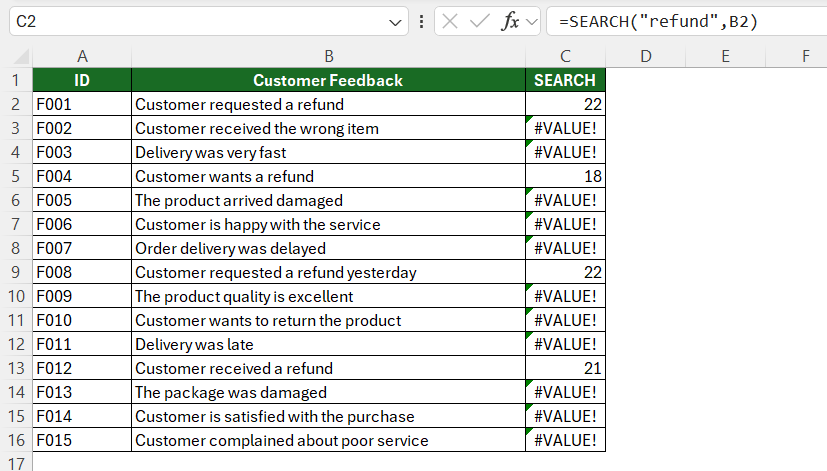
The SEARCH function looks for a specific keyword inside a text string. If the keyword is found, it returns its position in the text. If it is not found, it returns an error.
=SEARCH("refund",B2)
For example, if A2 contains Customer requested a refund, the formula finds the word refund.
ISNUMBER Function
The ISNUMBER function checks whether the result from SEARCH is a number. Since SEARCH returns a number when it finds a keyword, this function can be used to return TRUE or FALSE.
=ISNUMBER(SEARCH("refund",B2))
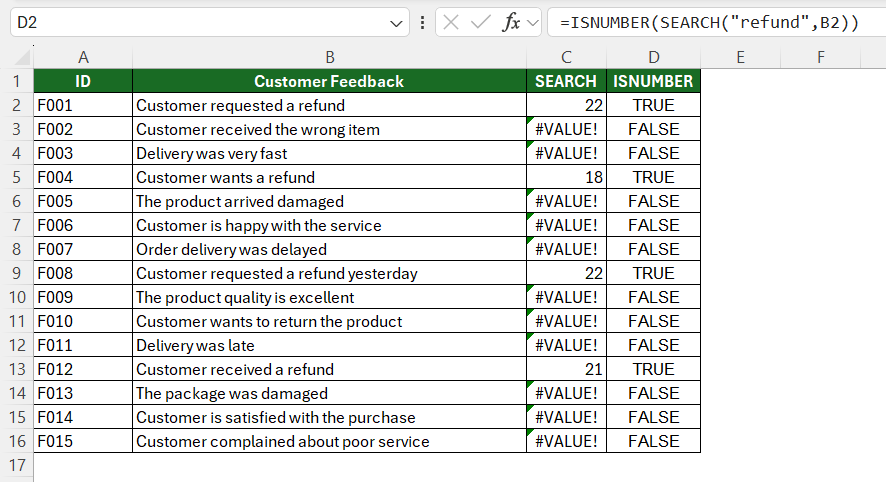
It returns TRUE when the keyword is found and FALSE when it is not.
IF Function
The IF function lets you return a category based on the result of the search.
=IF(ISNUMBER(C2),"Returns","Other")
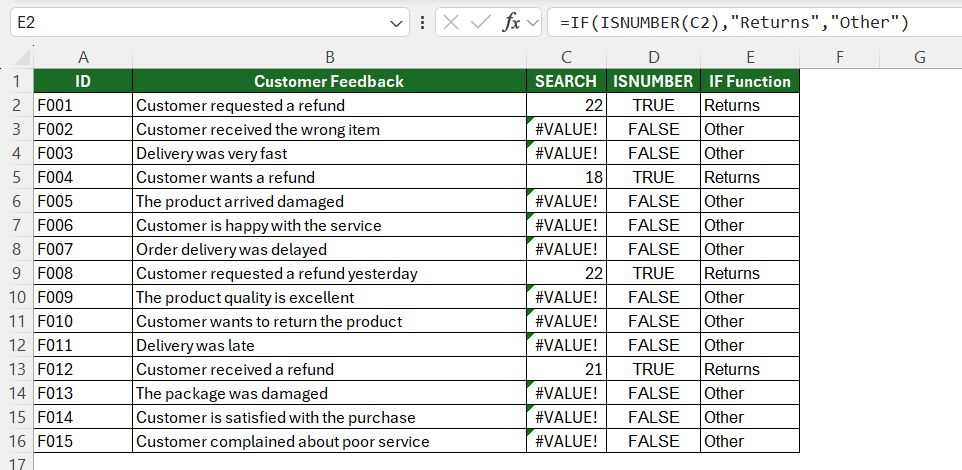
If refund is found, Excel returns Returns. Otherwise, it returns Other.
How to Categorize Text with Keywords in Excel
Method 1: Use IF and SEARCH
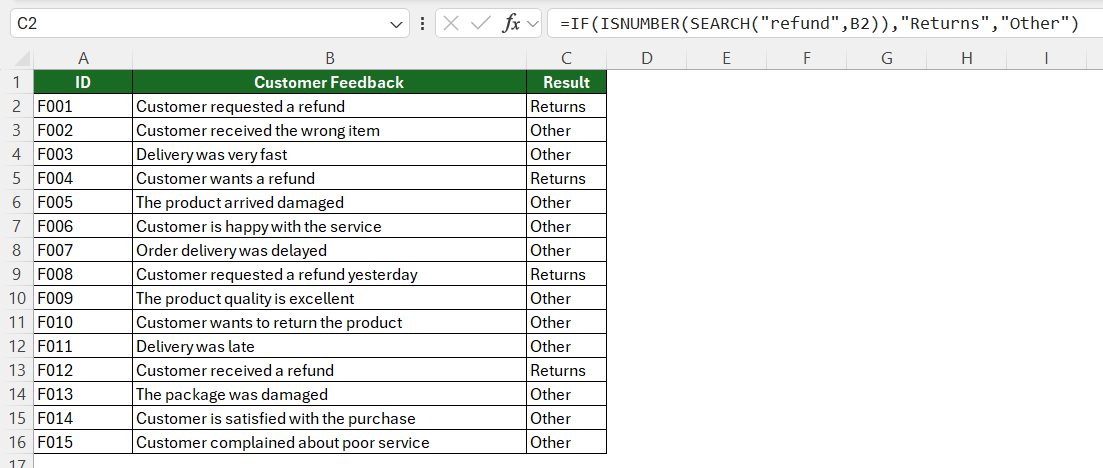
You can use the SEARCH function to look for the keyword in the cell and the IF function to return the category name if the keyword is found. If not, it returns something else.
=IF(ISNUMBER(SEARCH(“keyword”, cell)), “Category”, “Other”)
Method 2: Use a Keyword Lookup Table
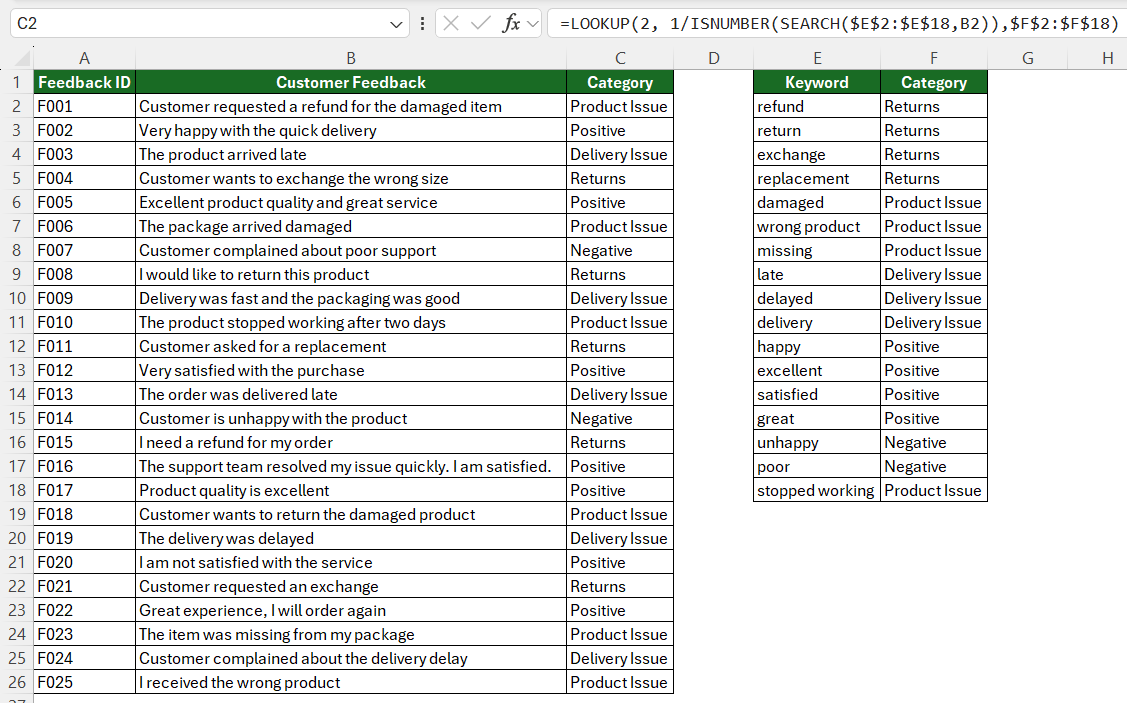
Instead of typing keywords inside the formula, you list them in a small table on the sheet. The formula checks the text against the whole table at once.
=LOOKUP(2, 1/ISNUMBER(SEARCH(keyword_range, cell)), category_range)
- keyword_range – the list of keywords
- text_cell – the cell with the text you want to categorize
- category_range – the list of categories next to the keywords
Common Errors
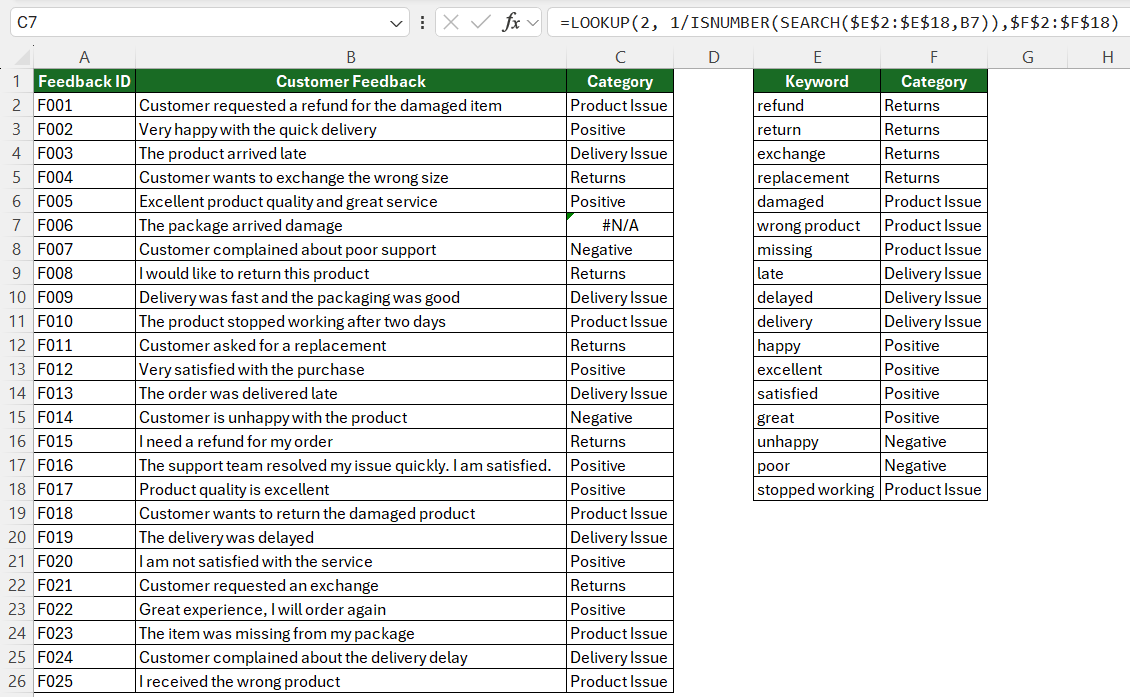
- #N/A error: If no keyword was found, it will return #N/A error.
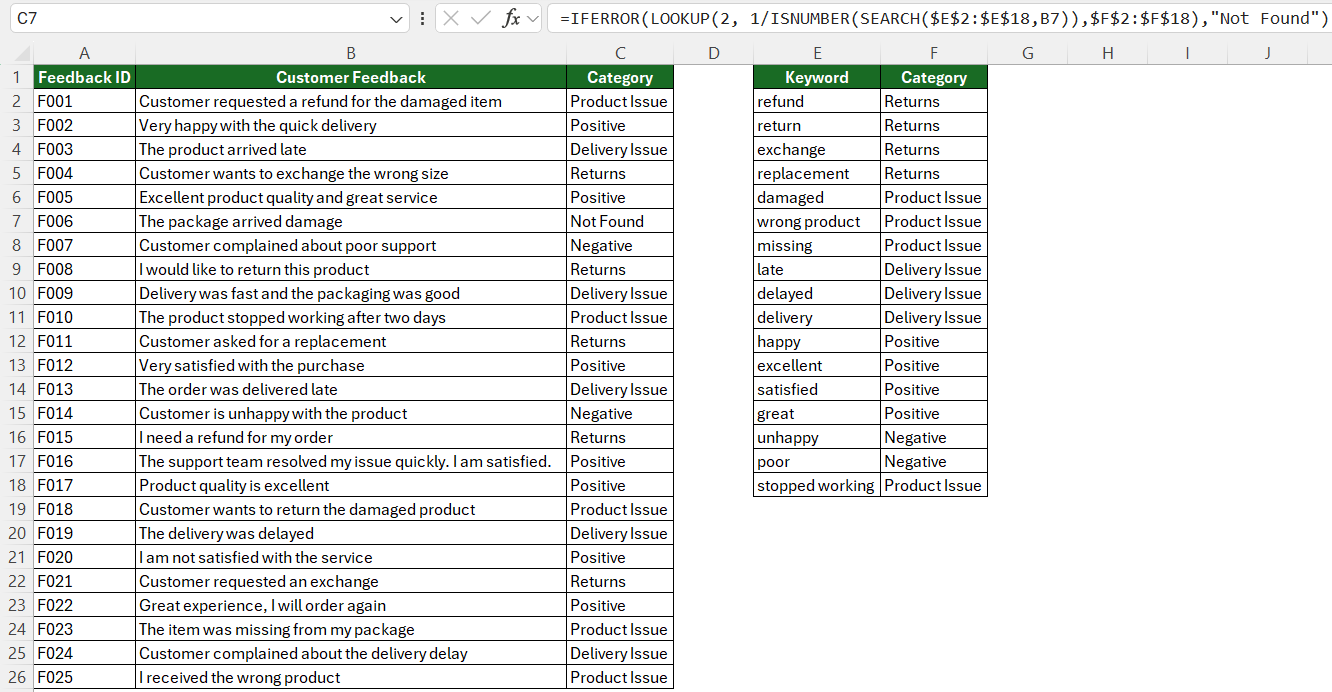
You can use IFERROR function to show custom text.
- Wrong category from partial matches:
SEARCHcan match part of a word. So, you should use specific keywords likerent paymentinstead ofrent. - Two keywords match: Excel returns one category based on the keyword order. So, place the preferred keyword first.
- #VALUE! or #SPILL! error: Check that your keyword and category ranges have the same number of rows.
FAQs
1. Can I categorize text using multiple keywords?
Yes. You can create a keyword table and check the text against multiple keywords.
2. What happens if no keyword is found?
The formula may return #N/A. Use IFERROR function to display Other or another custom result.
3. Can I add new keywords later?
Yes. Add the new keyword and its category to your keyword table.
4. Why is Excel returning the wrong category?
This can happen when multiple keywords match the same text. It can also happen because of partial matches. Check the keyword order and make your keywords more specific.
5. Is keyword categorization always accurate?
No. Keyword matching can produce incorrect results in some cases. Review important results manually.

John Michaloudis is a former accountant and finance analyst at General Electric, a Microsoft MVP since 2020, an Amazon #1 bestselling author of 4 Microsoft Excel books and teacher of Microsoft Excel & Office over at his flagship MyExcelOnline Academy Online Course.

 30 Days - Full Access









