Key Takeaways
- Christmas borders can help make a Word document look festive.
- You can add borders by using the Page Borders option in Word.
- Use a text box to keep the content inside the box.
- Ready-made templates can be used for quick customization.
- Adjust the margin to avoid printing issues.
Table of Contents
Christmas Borders in Word
Adding Christmas borders in Microsoft Word can turn ordinary documents into thematic messages. This border acts as the decorative wrapping paper of your digital communications. By choosing Christmas theme designs, you can insert seasonal charm into your documents. This allows you to spread goodwill and joy with each piece of correspondence.
How to Apply Christmas Borders
STEP 1: Open Microsoft Word and click on Blank document.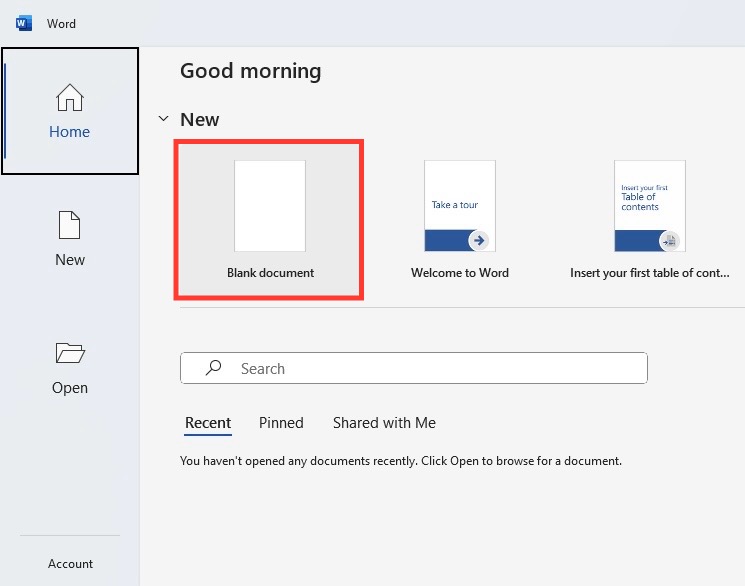
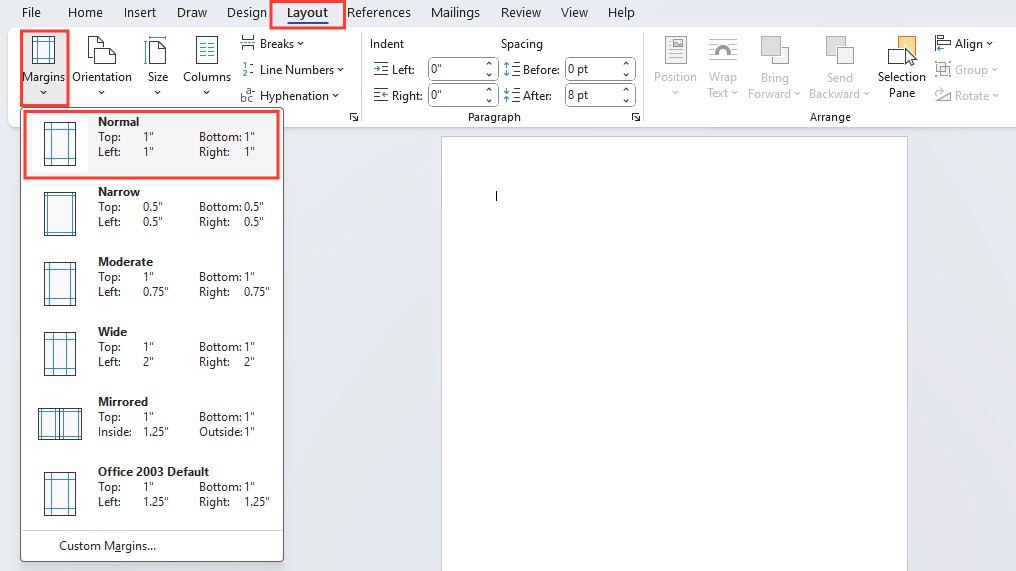
STEP 2: Under the ‘Layout’ or ‘Page Layout’ tab, you can set your margins to ensure your text doesn’t clash with the border. Consider a one-inch margin for a balanced look.
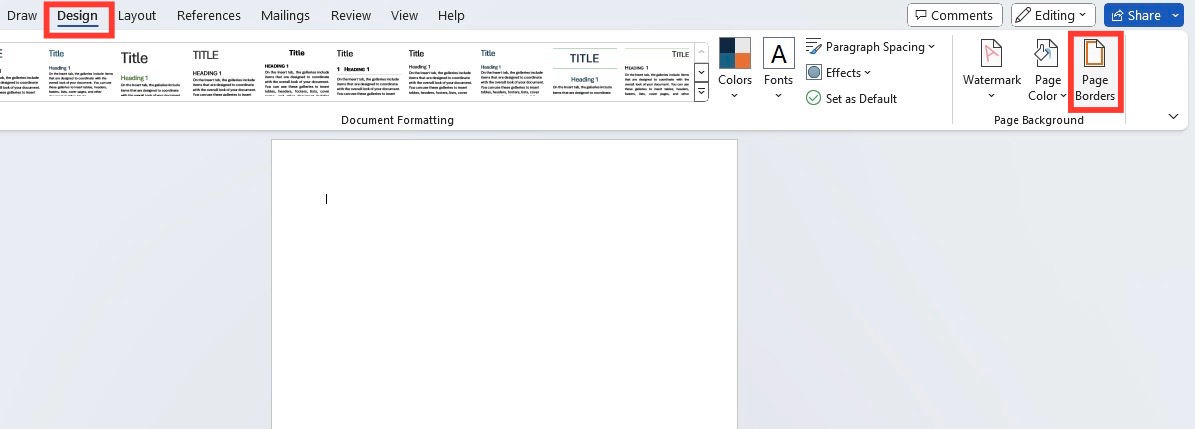
STEP 3: Click on the ‘Design’ tab and find the ‘Page Borders’ option. Here, you’ll have a choice of styles, colors, widths, and even art to create your Christmas border.
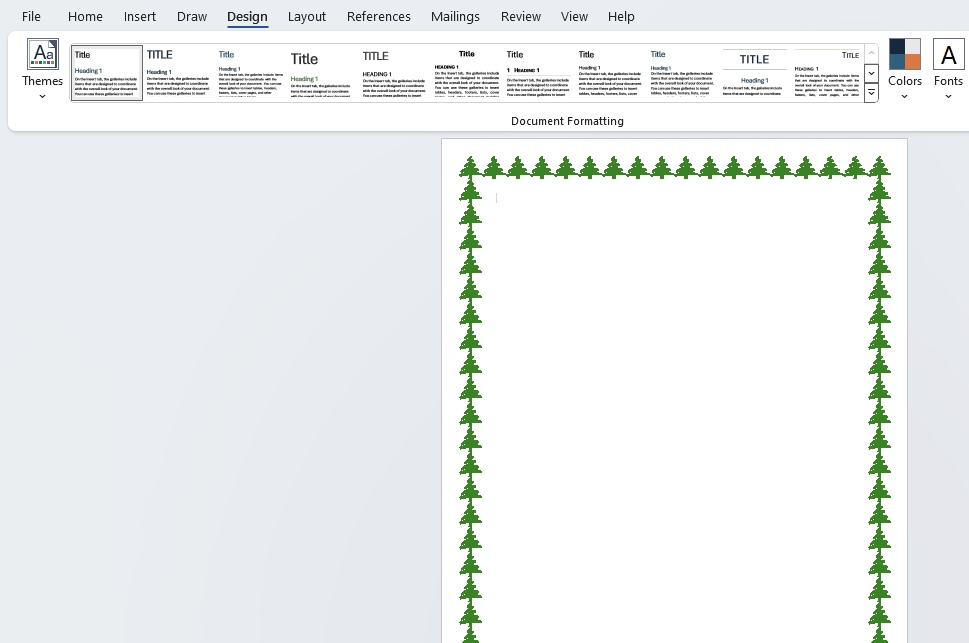
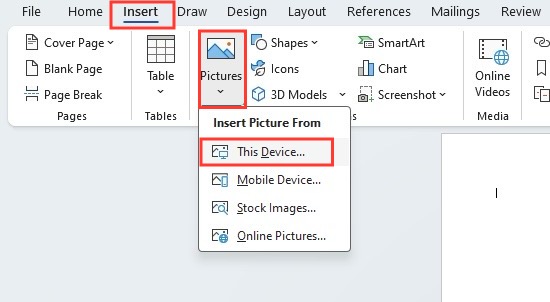
STEP 4: If the built-in options don’t suit your festive needs, go to the ‘Insert’ tab, select ‘Pictures’ to add your downloaded Christmas clip art or image.
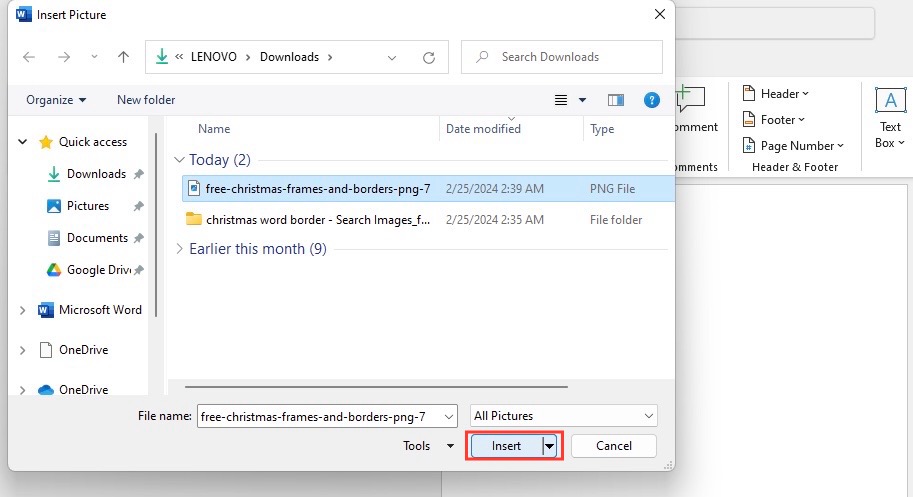
STEP 5: Copy and paste the inserted image around the page to create a border. Resize them so that they fit the page correctly.
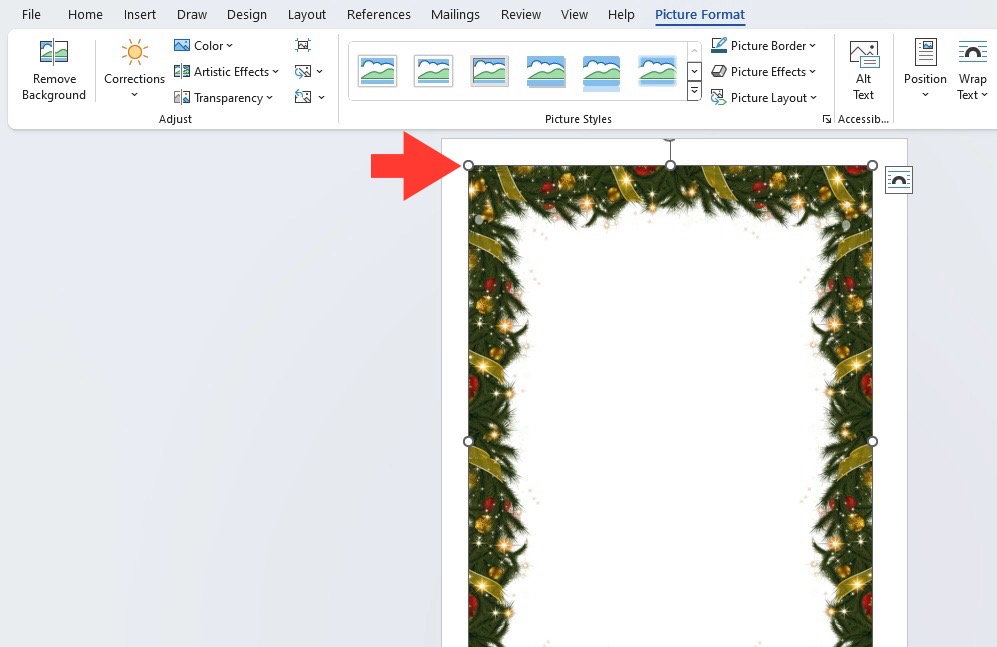
STEP 6: Make sure that your images are aligned correctly to create a continuous border effect. You can use the Align tools under the format tab to align the images perfectly.
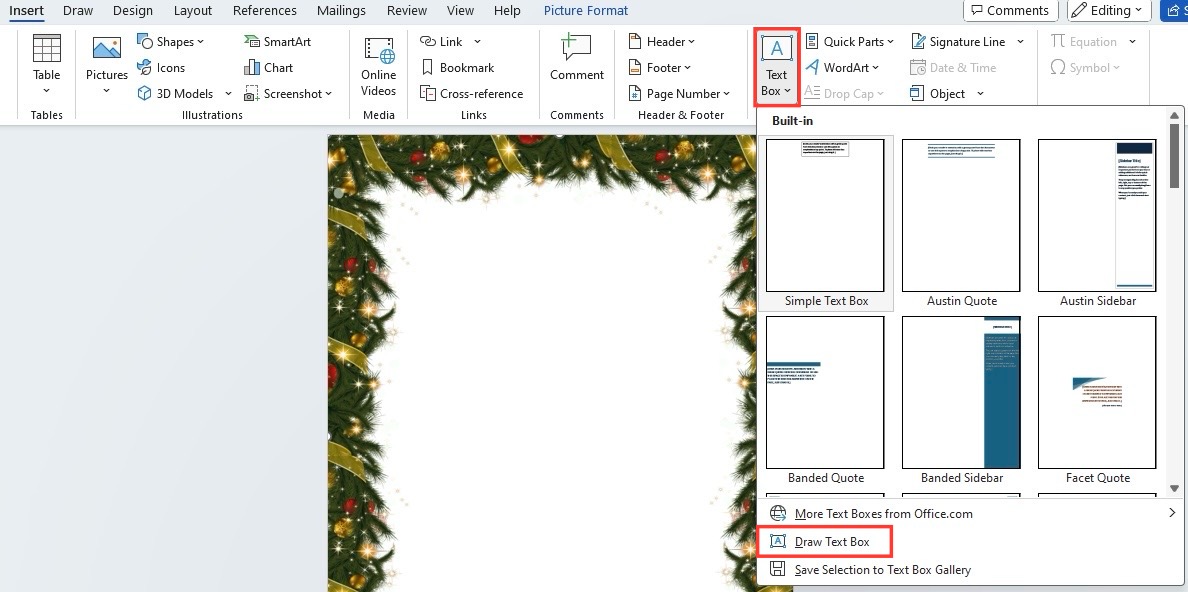
STEP 7: Add text boxes within the border for your content. You can personalize the text font and color to match the Christmas theme.
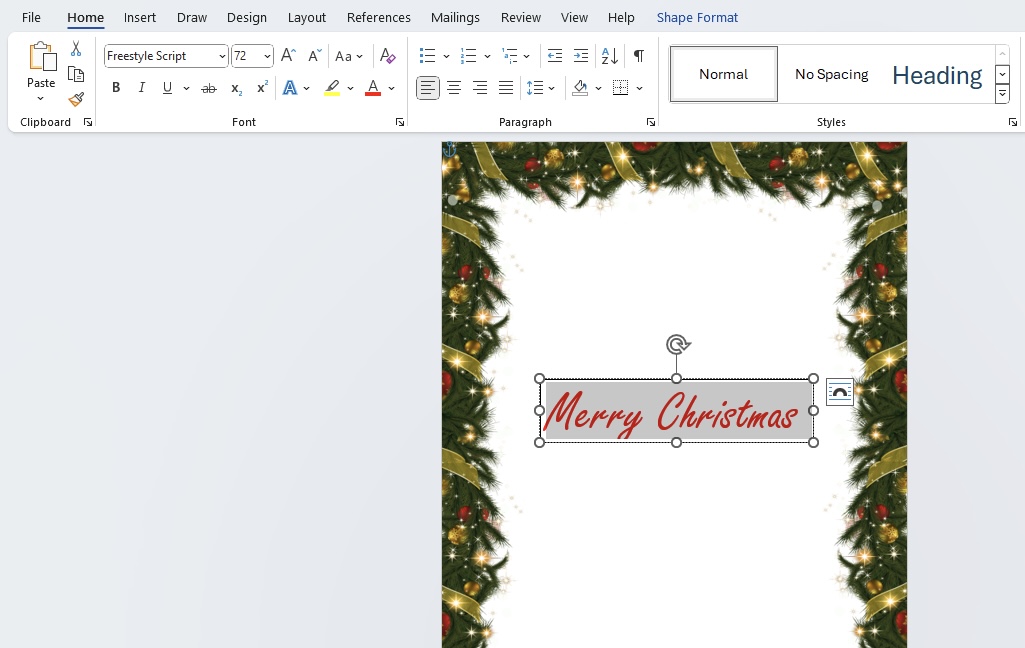
With these steps, you’ve just harnessed the power of Microsoft Word to create a joyful enclosure for your holiday communications!
Customization at the Tip of Your Iceberg
Adding a Personal Touch with Custom Artwork
Crafting documents with a custom Christmas border adds a personal touch that cannot be duplicated with standard designs. Use the following tips to integrate custom artwork into your festive borders:
- Look for unique artwork from local artists or design platforms. Many artists may offer holiday-themed designs that can be downloaded and used.
- In Microsoft Word, you can customize borders using the ‘Page Borders’ and ‘Borders and Shading’ dialogue boxes. Here, you have the option to import an image file to use as a custom border.
- Add a very personal touch by using family or company photos. You can place these strategically in the corners or as a running theme in your border design.
- Microsoft Word also allows adding shapes and symbols which you can fashion into unique festive patterns. Play with star shapes, bells, or candy canes to reinforce the Christmas feel.
- With ‘WordArt’ or customized text boxes, you can add festive phrases or greetings.
Change Color Schemes and Styles
- Choose complementary colors, such as red and green, icy blue and silver, or warm gold and cream.
- Choose the border line style from a variety of options, such as dash, dot, or wavy.
- Add shade or fill pattern to page borders.
- Use the artistic effects tool to turn pictures in the border into illustrations.
- Save the border style as a custom template.
- If you add a colorful border to the document, keep the background simple.
Overcome Common Snowfalls
Encountering formatting issues is a common frostbite when dealing with document borders, but these challenges can be smoothly resolved:
- Border Cutoffs: If your border is being cut off when printing, adjust your document margins. Go to ‘Layout’ > ‘Margins’ > ‘Custom Margins’ and make sure there’s enough space for the full border to print.
- Text Overlap: Should your text overlap with your border, insert a text box and position it where you want your content. This keeps your text within the safe margins while preserving the border design.
- Border Inconsistency: Inconsistent borders across pages are often due to section breaks or different margin settings. Ensure that each section has the same page layout configurations for consistency.
- Image Quality: Utilize high-resolution images for your borders. Low-resolution images may pixelate, especially when stretched to fit the page. Aim for at least 300dpi for printing purposes.
- Compatibility Across Devices: Borders may appear differently on various computers or Word versions. To maintain consistency, consider saving your final document as a PDF.
By staying vigilant and understanding the layout tools in Microsoft Word, any format frustrations with borders can be skillfully navigated like a sled through fresh snow.
FAQs
How to add a Christmas border in Microsoft Word?
You can go to the Design tab and click on Page border. Now, you can insert a Christmas image around the page as borders.
How to customize the Christmas border in Word?
You can change the color, style, and width of the border. You can also add images, shapes, or text effects for a festive look.
Why does my border get cut off when printing?
Sometimes, the borders may get cut off when you print your document. This can happen because when the page has small margins. You can adjust them by going to the Layout tab and selecting Margin.
What are some creative ways to utilize Christmas borders in professional documents?
Here are some creative approaches to using a Christmas border in Word:
- Branded Holiday Messages
- Event Invitations
- End-of-Year Newsletters
- Gift Certificates or Coupons
- Email Signatures
- Certificates of Appreciation
- Holiday Sales Proposals

John Michaloudis is a former accountant and finance analyst at General Electric, a Microsoft MVP since 2020, an Amazon #1 bestselling author of 4 Microsoft Excel books and teacher of Microsoft Excel & Office over at his flagship MyExcelOnline Academy Online Course.

 30 Days - Full Access









