Copilot in Excel is a very useful tool that helps you understand spreadsheets, write formulas, find trends, and much more. But it is not a magic button that can automatically fix the problem. You have to make sure that the data is not messy and the prompt is correct; the result may not be useful.
In this article, you will learn the common mistakes people make when using Copilot in Excel. Avoiding these mistakes can help you work faster and reduce errors.
Key Takeaways:
- Clean your data before using Copilot in Excel.
- Convert your data into a table for better results.
- Use clear and specific prompts.
- Always check Copilot’s results before using them.
- Simple column headers help Copilot understand the data correctly.
Table of Contents
Common Mistakes when using Copilot
1. Not Cleaning the Data
The first thing that you should do before using Copilot is to clean the data. If your data contains blanks, missing data, or an incorrect format, Copilot can give confusing results. Copilot works best when the spreadsheet is properly organized.
For example, if a sales column contains numbers in some cells and text in others, Copilot may not calculate the average correctly.
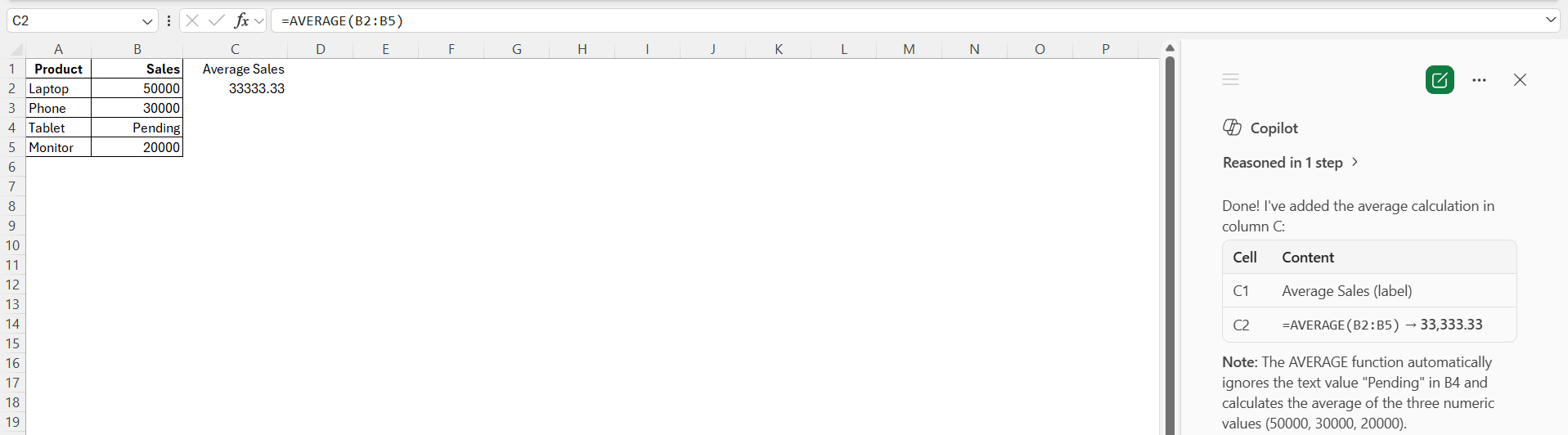
Similarly, if dates are written in different formats, it may not analyze trends properly.
2. Data not converted into a table
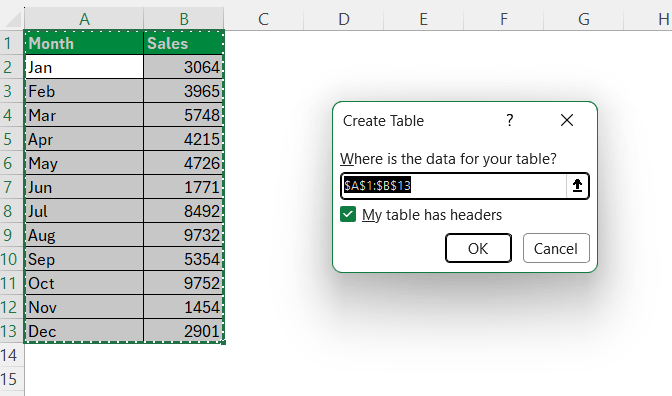
Copilot works better when your data is formatted as an Excel table. When data is converted into a table, Copilot can easily identify headers, rows, columns, and related information.
To convert data into a table, follow the steps below:
- Select the data range.
- Press Ctrl + T.
- Make sure the option My table has headers is selected.
3. Vague Prompts
If you provide a vague prompt to Copilot, it will not be able to provide you with the result you need.
- Instead of using the prompt – Show me the Top 2 products;
- You should ask – Show me the top 2 products by total sales revenue.
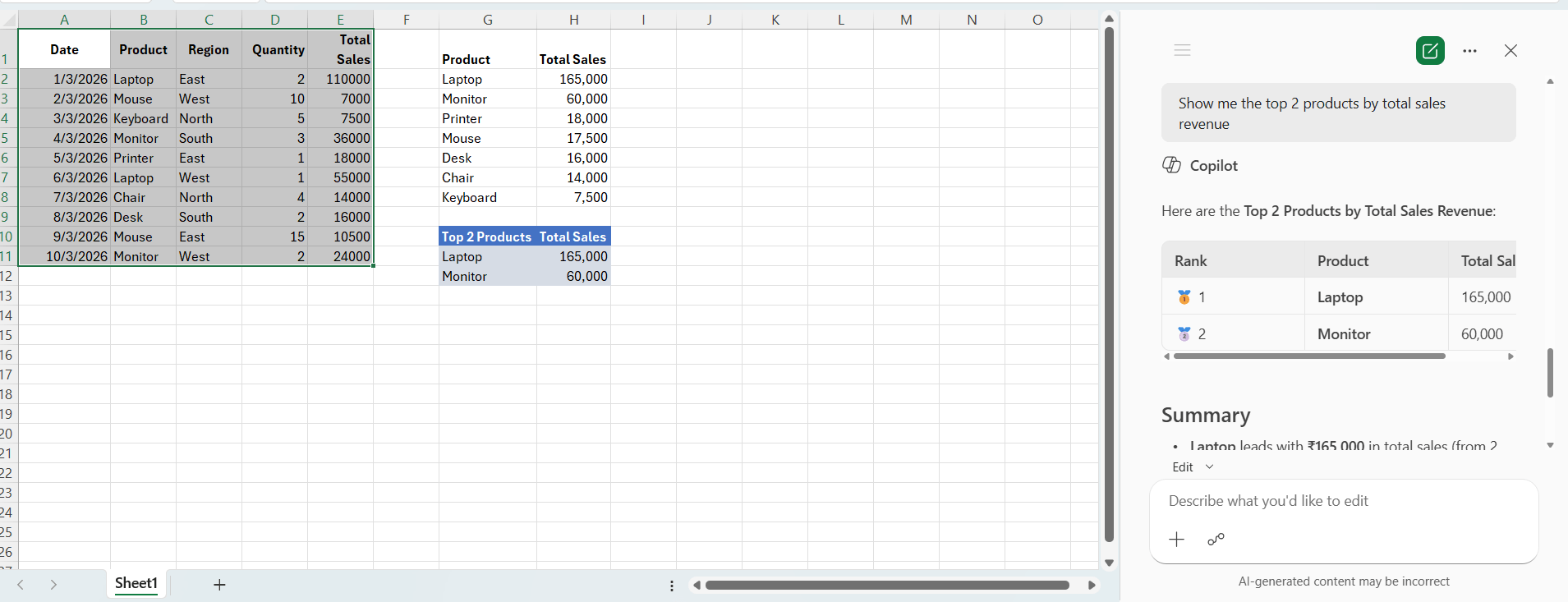
Make sure that you mention the column name, type of analysis, output format, and more if needed.
4. Trusting results without checking
One serious mistake is accepting every formula, summary, or insight without reviewing it. Accuracy is important because the results of Copilot may be used in reports, budgets, or financial planning.
So, Copilot should be treated as an assistant, not as the final authority.
5. Ignoring Column Headers
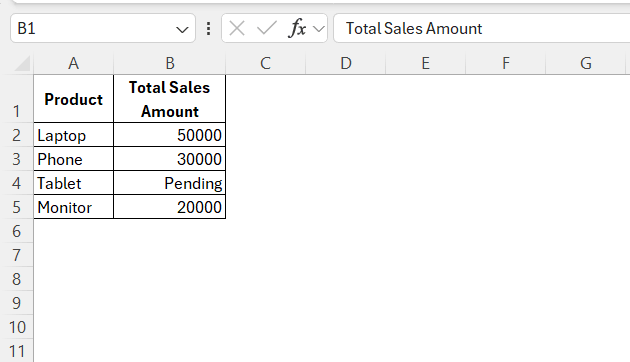
Column headers are very important when using Copilot in Excel. Copilot may misunderstand your data if:
- Headers are unclear
- Contains symbols and is not descriptive
- Headers are duplicates
For example, a column named Amount may not be clear enough; a better header would be “Total Sales Amount” or “Monthly Expense Amount.”
6. Asking Too Many Things at Once
Some users ask Copilot to perform multiple tasks in the same prompt. For example, they may ask it to clean data, create formulas, summarize trends, and make a chart all in one request. This can cause Copilot to return confusing output or ask for clarification.
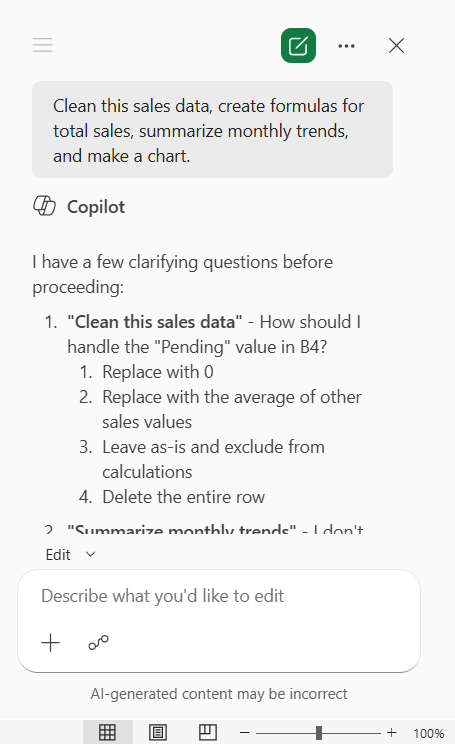
It is better to break these tasks into multiple prompts.
7. Not Checking Filters and Hidden Rows
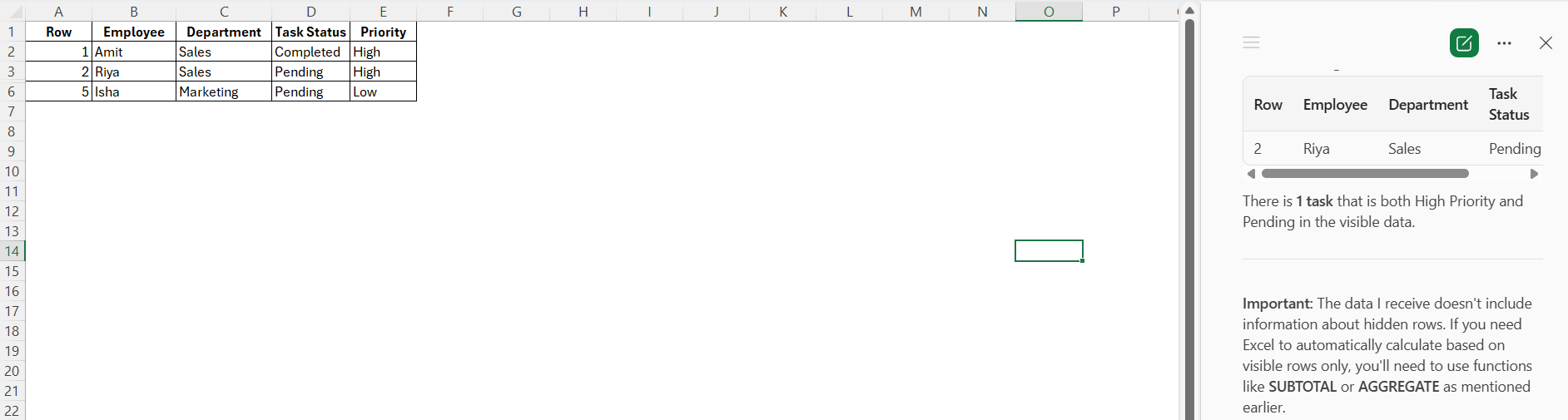
Excel files often contain filters, hidden rows, or hidden columns. If you forget about them, Copilot’s results may not match your expectations. Before asking Copilot to summarize or calculate something, check whether any filters are applied. Also, look for hidden rows or columns that may affect the result.
FAQs
1. Why should I clean data before using Copilot in Excel?
Clean data helps Copilot understand the spreadsheet correctly and gives better results.
2. Does Copilot work better with Excel tables?
Yes, Copilot works better when the data is converted into an Excel table.
3. Why are clear prompts important in Copilot?
Clear prompts help Copilot understand exactly what result you want.
4. Can I trust every result given by Copilot?
No, you should always review the results before using them in reports or decisions.
5. Why are column headers important in Excel Copilot?
Column headers help Copilot identify what each column means.

John Michaloudis is a former accountant and finance analyst at General Electric, a Microsoft MVP since 2020, an Amazon #1 bestselling author of 4 Microsoft Excel books and teacher of Microsoft Excel & Office over at his flagship MyExcelOnline Academy Online Course.

 30 Days - Full Access









