 Free Practice Workbook
As someone who frequently works with data in Excel, I often need to convert measurements from meters to feet. This conversion will be useful in construction data, scientific measurements, or unit conversions in general. In this article, I’ll walk you through multiple ways to convet cm to feet in Excel.
Key Takeaways:
- The CONVERT function can be used to switch between measurement units.
- The syntax for CONVERT is
=CONVERT(number, "from_unit", "to_unit"). - Make sure that the case used, unit codes, and formula structure are correct.
- Use Formula Builder to reduce the risk of mistakes.
- Use the fill handle or copy-paste to apply the CONVERT function across multiple cells.
Table of Contents
Introduction to Unit Conversion
With the CONVERT function, Excel can transform one unit to another in just seconds. Whether I need to convert a single value or an entire dataset, Excel handles it. No more manual calculations or searching for conversion formulas – Excel does the work for me.
The basic formula is:
number– The value I want to convert."from_unit"– The unit I’m converting from."to_unit"– The unit I’m converting to.
How to Convert CM to Feet in Excel
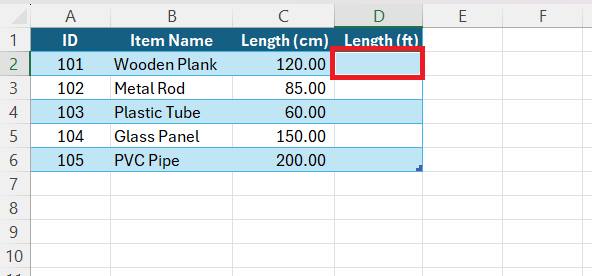
STEP 1: Click on the cell where I want the converted value to appear.
STEP 2: Type the following formula or insert the first parameter manually:
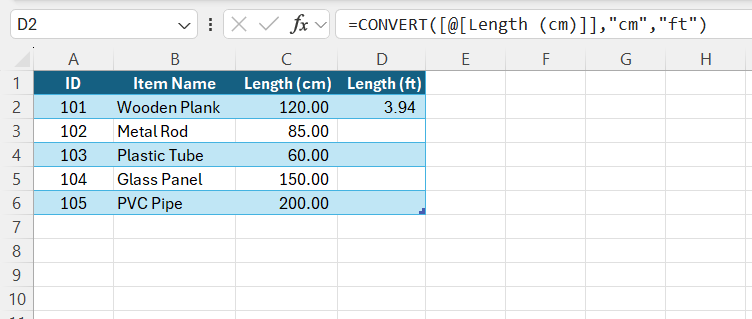
STEP 3: Drag the fill handle to apply the formula to other cells.
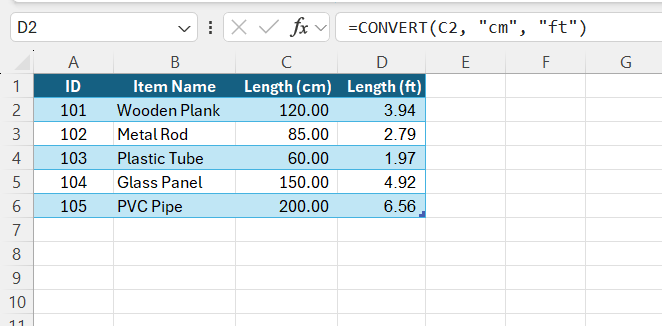
Use Formula Builder
STEP 1: Click on the cell where I want the converted value to appear.
STEP 2: Click the fx icon next to the formula bar.
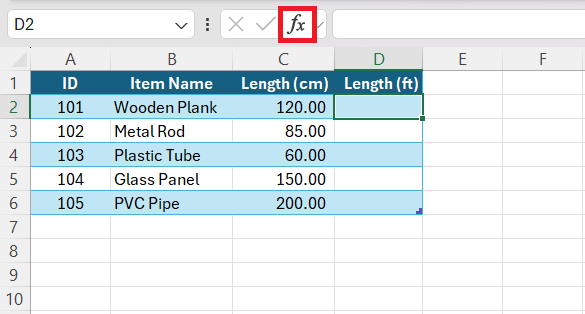
STEP 3: In the search box, type CONVERT click on “GO”. Select the CONVERT function from the list. Click OK.
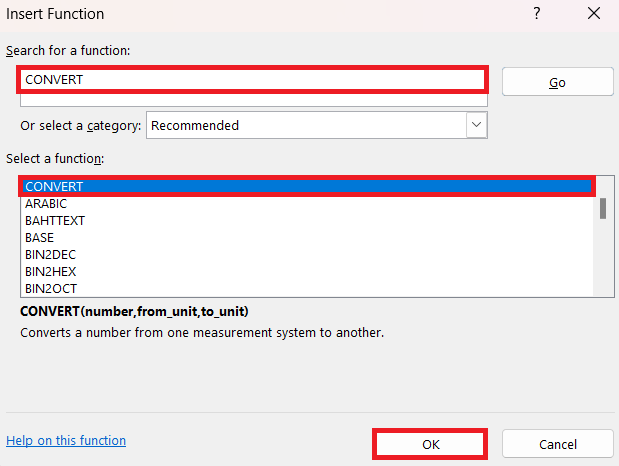
STEP 4: Fill in the required fields in the Formula Builder:
- Number: The value I want to convert
- From_unit: The unit I’m converting from
- To_unit: The unit I want to convert to
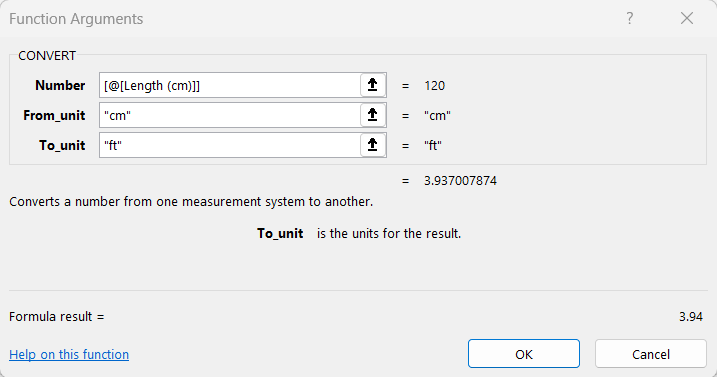
STEP 5: Click OK.
Excel will automatically generate the formula in the selected cell.
STEP 6: Drag the fill handle to apply the formula to other cells.
Tips & Tricks
- Case Sensitivity: Remember that unit abbreviations in the CONVERT function are case-sensitive. “FT” for feet and “cm” for centimeters, for example, must be typed in the correct case.
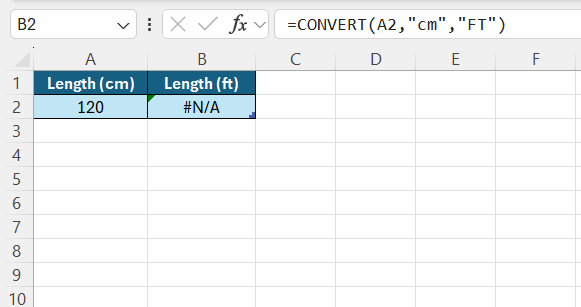
- Spelling precision: Ensure that unit identifiers are spelled correctly as defined by Excel’s CONVERT function.
- Valid Units: Only use unit abbreviations that Excel recognizes. Excel provides a list of supported units I reference to guarantee compatibility.
- Consistency: If I’m converting from centimeters to feet in one cell, all related conversions should follow suit to avoid confusion.
- Formula Checks: Double-check formulas before executing them across multiple cells to prevent cascading errors from incorrectly typed unit codes or formulas.
Overcoming Common Hurdles
When converting units in Excel, I am invariably cautious about potential errors that could surface. A typical issue is the #VALUE! error, which signifies that something is amiss with the formula’s inputs or structure. To correct this, I meticulously check the syntax of the CONVERT function, ensuring that the number, “from_unit”, and “to_unit” are valid and properly formatted.
Another error, the #N/A, likely indicates that I’ve used incorrect “from_unit” or “to_unit” codes. I safeguard against this by double-checking the codes against Excel’s documentation. By being aware of these common error messages and the reasons behind them, I can quickly troubleshoot and maintain the accuracy of my conversions.
FAQs
What is the formula for cm to feet?
You can convert cm to feet by using the CONVERT function:
=CONVERT(number, "cm", "ft").
What is the formula for feet to cm in Excel?
When converting feet to centimeters in Excel, the formula used is
=CONVERT(number, "ft", "cm").
How to Apply the Convert Function to Multiple Cells?
To apply the CONVERT function to multiple cells in Excel, I follow a simple method.
- Enter the formula into the initial cell.
- Go to the bottom-right corner of that cell
- Cursor changes to a small plus sign.
- Click and drag the fill handle down or across to other cells.
Where to Find More Help with Excel Conversions?
Excel’s built-in Help feature can be accessed by pressing F1 or clicking the ‘Help’ tab.

John Michaloudis is a former accountant and finance analyst at General Electric, a Microsoft MVP since 2020, an Amazon #1 bestselling author of 4 Microsoft Excel books and teacher of Microsoft Excel & Office over at his flagship MyExcelOnline Academy Online Course.

 30 Days - Full Access









