 Free Practice Workbook
It is important to understand how time conversion works in Excel.
This knowledge can help you improve your efficiency in data analysis and boost your time management skills.Excel has various functions that can provide seamless time conversion from minutes to days.
In this article, you will learn how to easily convert minutes to days in Excel.
Convert Minutes to Days
Manual Conversion
Follow the steps below to manually convert minutes to days and hours in Excel:
STEP 1: Enter the value in minutes in column A.
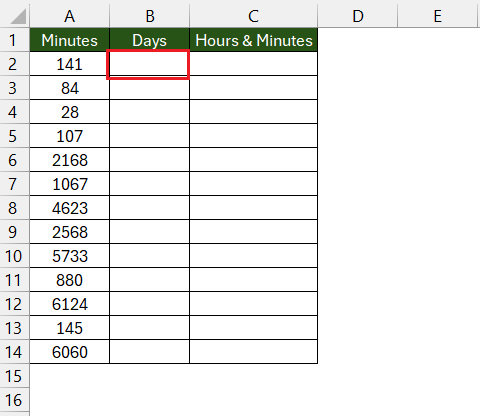
Remember the conversion factor:
1 day = 24 hours
24 hours = 1,440 minutes.
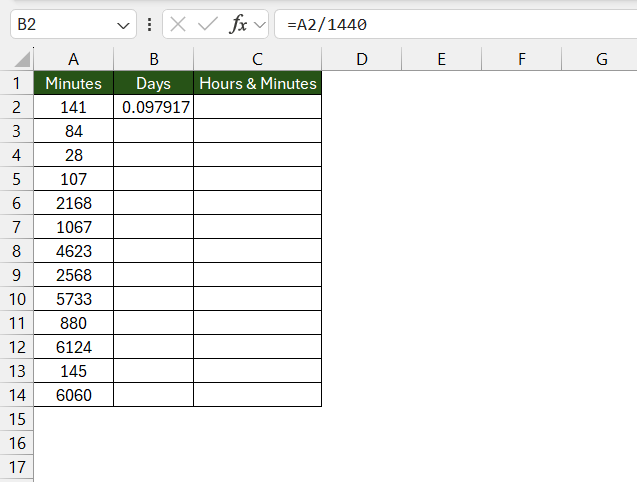
STEP 2: Enter the formula to convert minutes to days.
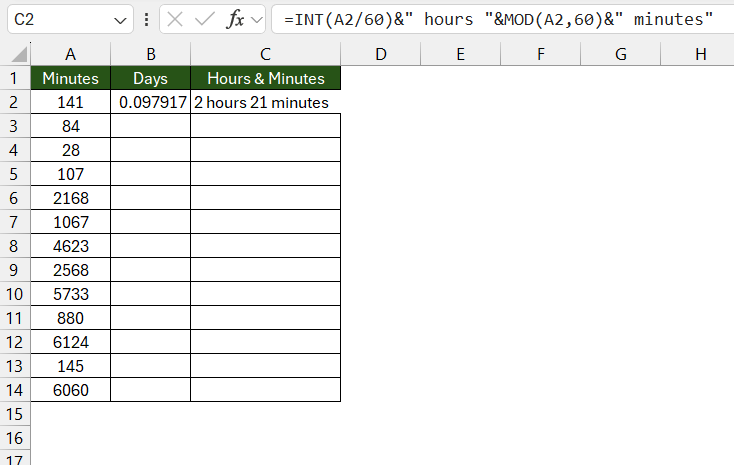
STEP 3: Enter the formula to get your time in hours and minutes.
STEP 4: Drag the Fill Handle to apply the formula in columns B and C.
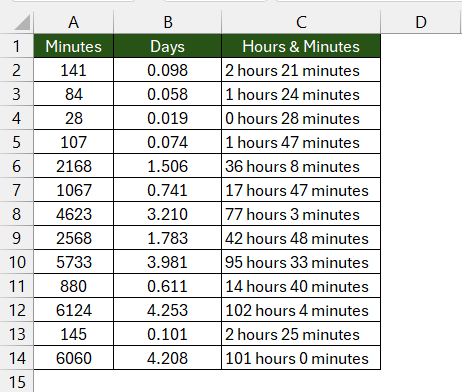
And there you have it! This manual method allows for a straightforward conversion using simple arithmetic.
The CONVERT Function
Unleash the power of efficiency in Excel with the CONVERT function, a nifty feature that can streamline your time conversion tasks:
The CONVERT Function: A Time-Saving Feature
- Simplicity at Its Best: Use the
CONVERTfunction to seamlessly transform minutes to days or hours with minimal fuss. Just enter=CONVERT(A1, "mn", "hr")or=CONVERT(A1, "mn", "day")to watch the magic happen. - Precision and Clarity: Favoured for its precision, the
CONVERTfunction takes the guesswork out of manual conversions, offering clear and exact results.
Now let’s dive in:
STEP 1: Click on the cell where you want the result.
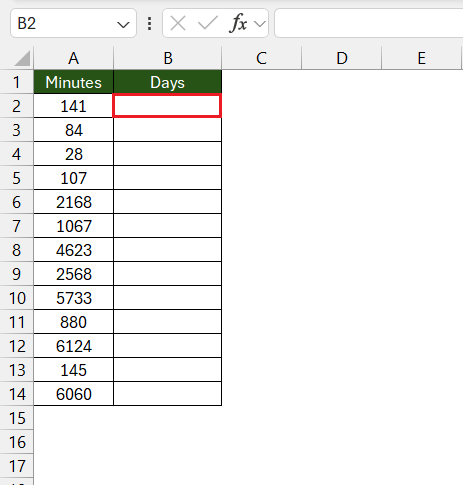
STEP 2: Enter the CONVERT Formula.
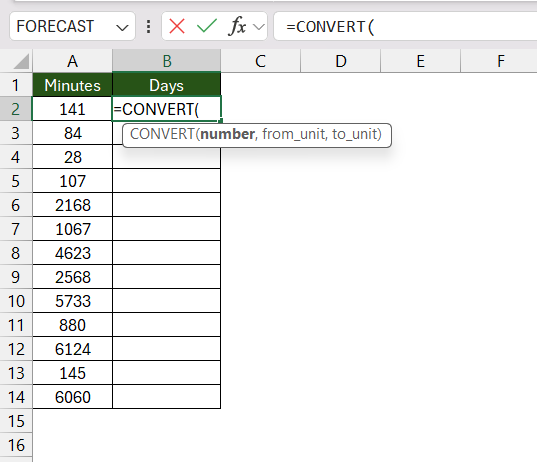
STEP 3: Select the cell that contains minutes.
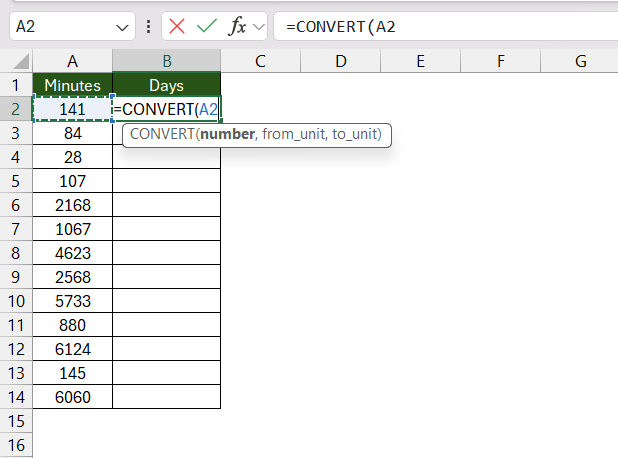
STEP 4: Type the from unit as mn.w
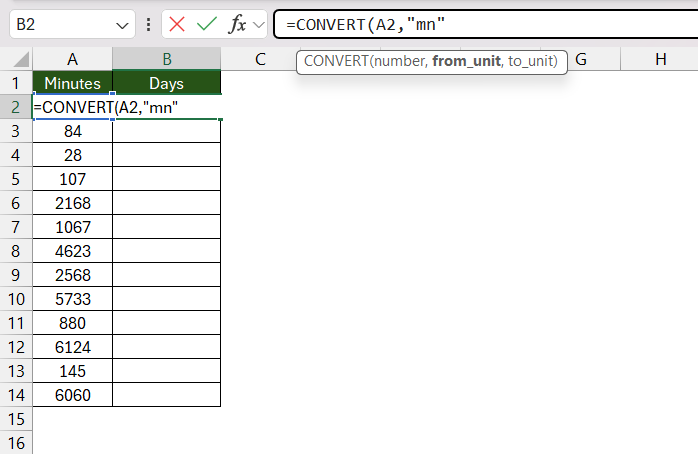
STEP 5: To convert minutes to hours and days, type hr and day, respectively.
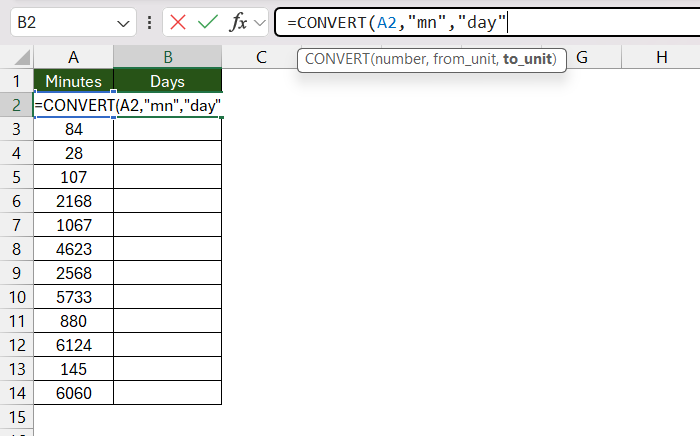
STEP 6: Press Enter.
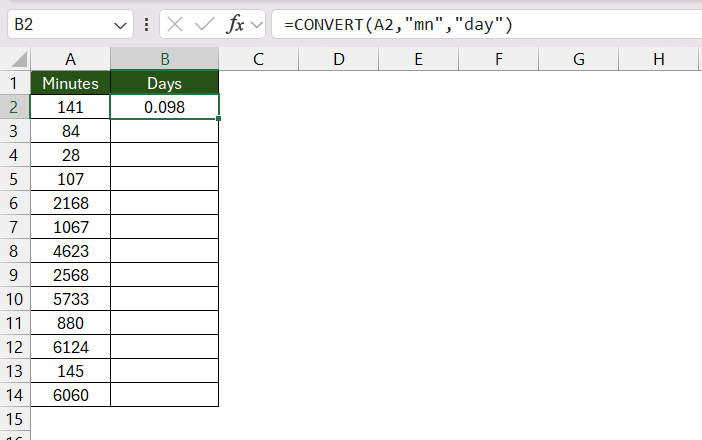
STEP 7: Use the Fill Handle to apply the formula across multiple ranges.
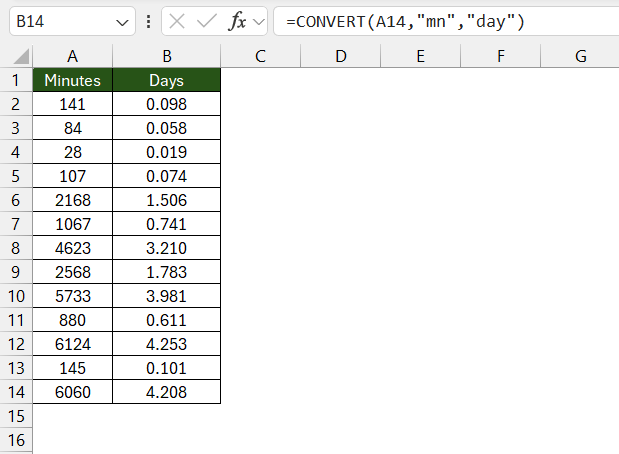
Pro Tip: When using CONVERT, the list of units Excel provides can serve as a handy guide, but you’re not restricted to it. Feel free to type in the units manually to suit your precise needs.
Combine INT and MOD Functions
Harness the dual strengths of Excel’s INT and MOD functions for a meticulous breakdown of minutes to days, hours, and minutes:
Combining INT and MOD Functions for Precision
- Analogous to Time’s Components: Think of
INTas the function for extracting whole days andMODfor the remainder in hours and minutes. They work much like hours and minutes do in timekeeping. - Fusion for Accuracy: By working together, these two functions can provide you with an accurate representation of lengthy time periods in a more digestible format.
And here’s how you weave the two together:
STEP 1: Position the Formula: Select the cell where you want your converted time to appear.
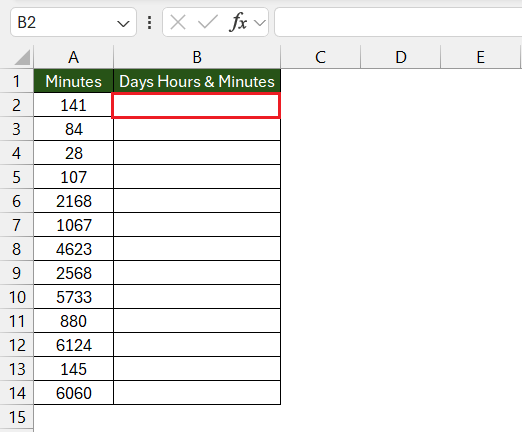
STEP 2: Enter the formula:
=INT(B5/1440)&” days “&INT(MOD(B5/1440,1)*24)&” hours “&ROUND(MOD(MOD(B5/1440,1)*24,1)*60,0)&” minutes”
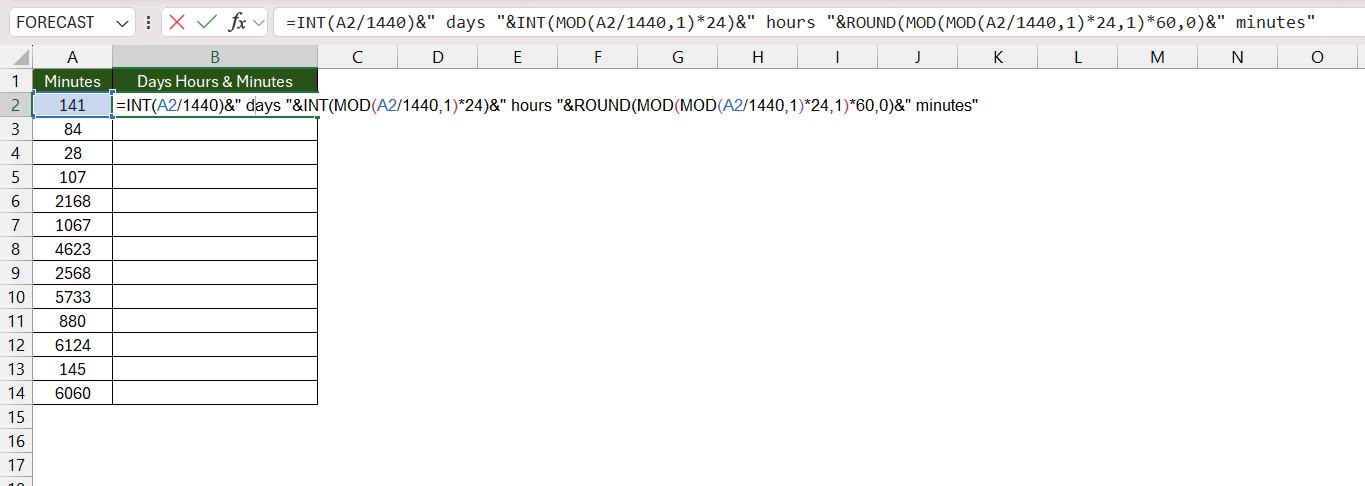
This formula divides the minutes by 1440 to get the number of days. The INT formula returns the days in whole numbers and MOD returns the remaining hours and minutes.
STEP 3: Press Enter.
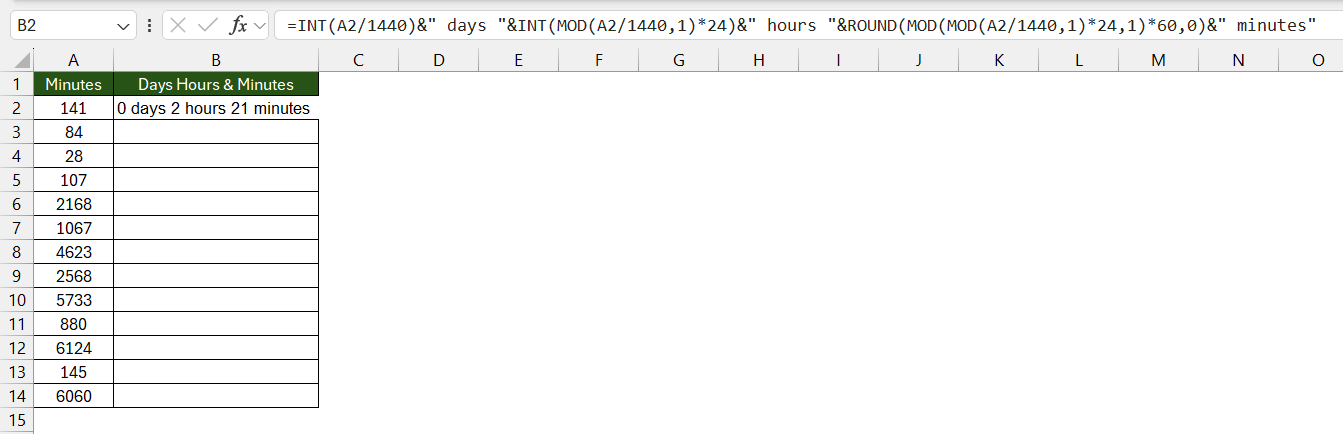
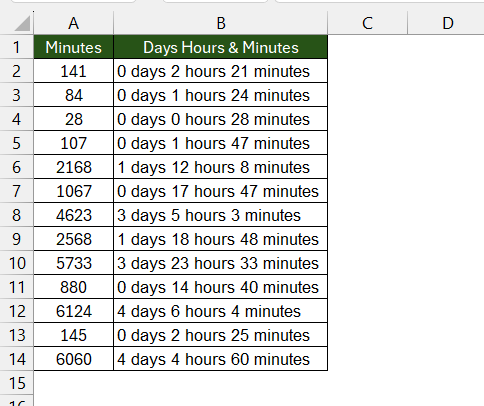
STEP 4: Drag the formula down.
FAQs
What is the formula used to convert minutes to days?
You can use a simple arithmetic formula to convert minutes to days.
= minutes / 1440
This is because there are 1440 minutes in a day.
How to convert minutes to days in bulk?
For converting large volumes of minutes to days and hours in Excel, consider the INT formula: =INT(minutes/1440) & " days " & INT((minutes/1440 - INT(minutes/1440)) * 24) & " hours ". Apply this to your data range, and Excel will compute and display the transformation in a days and hours format.
Pro Tip: Utilize the Fill Handle to drag the formula down to apply it to multiple rows of minute data.
What if my conversion results seem incorrect?
If your conversion results seem incorrect, double-check that the cell formatting is set to an appropriate data type (e.g., General, Number, or Time). Also, verify the accuracy of your formulas and make sure that you’re using the correct conversion factors. If issues persist, consult Excel’s function help or seek advice from online forums.
How to convert numbers to days hours minutes in Excel?
To convert numbers to a format of days, hours, and minutes in Excel, use this formula: =INT(number/1440) & " days " & INT(MOD(number,1440)/60) & " hours " & MOD(number,60) & " minutes". This breaks down the total number of minutes into separate components of days, hours, and minutes.
Be sure the cell is formatted as text to view the full string result.

John Michaloudis is a former accountant and finance analyst at General Electric, a Microsoft MVP since 2020, an Amazon #1 bestselling author of 4 Microsoft Excel books and teacher of Microsoft Excel & Office over at his flagship MyExcelOnline Academy Online Course.

 30 Days - Full Access









