 Free Practice Workbook
- Excel can easily convert millimeters to feet using simple formulas.
- Divide millimeters by 304.8 to get the value in feet.
- The CONVERT function can also be used to change units.
- Excel helps to save time and reduce costs.
- You can use Excel to do bulk conversion easily.
Table of Contents
How to Convert mm to Feet & Inches
Method 1 – Simple Division
Before we dive into Excel, it is important to understand the conversion factor between millimeters and feet. There are 304.8 millimeters in a foot. Thus, to convert millimeters to feet, you can use the following formula:
Feet = mm/304.8
Follow the steps below to convert mm to feet:
STEP 1: Enter the values in millimeters.
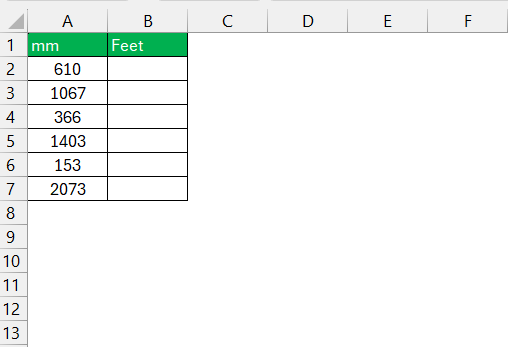
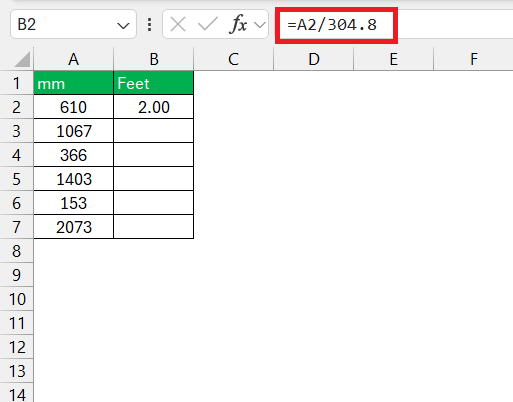
STEP 2: In the adjacent column, enter the conversion formula.
=A2/304.8
STEP 3: Drag the fill handle down.
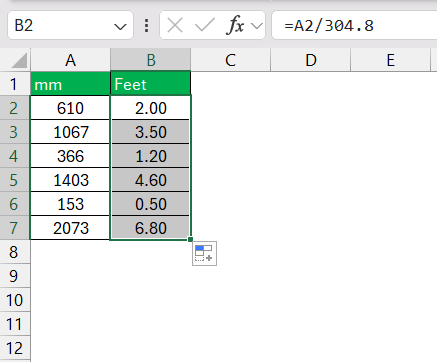
This will convert millimeters to feet.
Method 2 – CONVERT Function
The CONVERT function is used to change values from one unit to another. The syntax of this function is:
=CONVERT (number, from_unit, to_unit)
By specifying the value to be converted (number) and defining the current (from_unit) and desired units (to_unit), you can transform measurements like a wizard. This function supports an array of unit types, such as weight, distance, pressure, and much more, catering to virtually any need you might have for unit conversion.
Follow the steps below to convert mm to feet in Excel using the Convert function –
STEP 1: Click on the cell where you want your converted value to appear
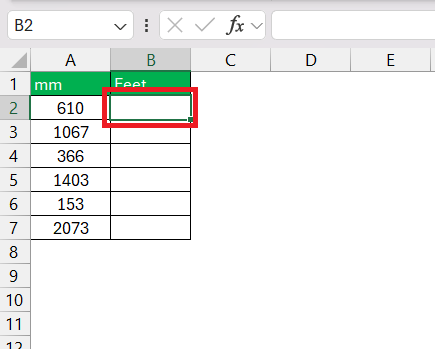
STEP 2: Type in =CONVERT( to initiate the function.
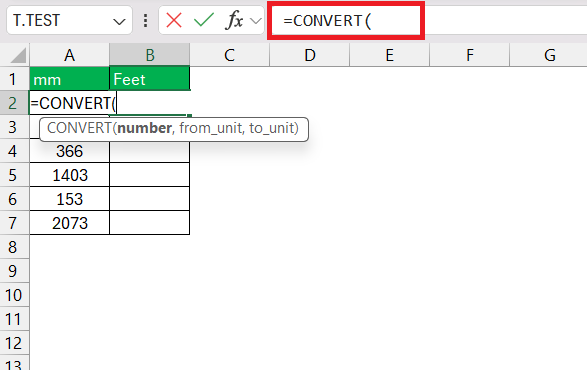
STEP 3: Input the numerical value you are converting, or reference the cell that contains it.
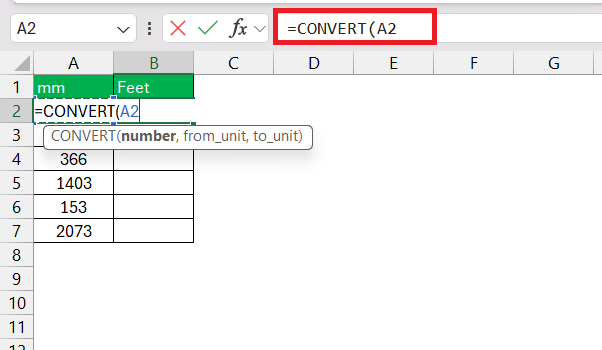
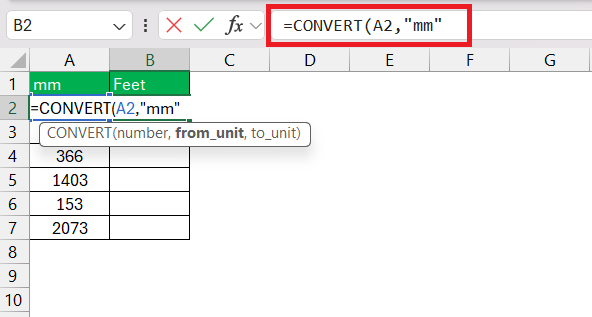
STEP 4: After the number, enter a comma and type in “mm”, to set the original measurement unit.
STEP 5: After a comma, type in “ft” to indicate the desired unit.
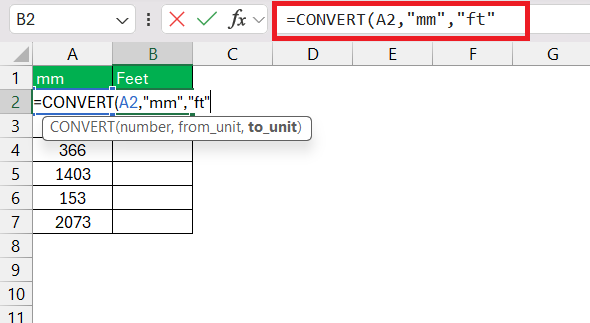
STEP 6: Close parentheses and press Enter.
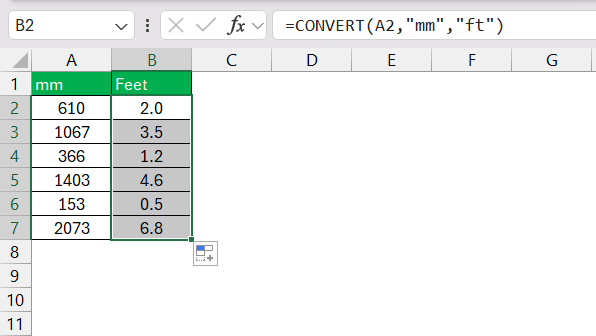
The value in feet will now display in the cell where you’ve entered the formula.
FAQs
How to convert mm into feet in Excel?
To convert millimeters to feet in Excel, use the CONVERT function: enter =CONVERT(cell_reference, "mm", "ft") in a cell, replacing cell_reference with the actual cell containing the mm value.
How to accurately convert millimeters to feet in Excel?
You can use the formula below to convert the value in millimeters to feet:
=CONVERT(number, “mm”, “ft”)
How to convert millimeters to inches in Excel?
To change mm to inches in Excel, use the formula
=CONVERT(A1, “mm”, “in”)
This will give you the equivalent inches.
How to calculate feet in Excel?
To calculate feet in Excel:
- Divide the value in inches by 12
- Use the INT function to get the whole number: =INT(A1/12)
This will return the value in feet.

John Michaloudis is a former accountant and finance analyst at General Electric, a Microsoft MVP since 2020, an Amazon #1 bestselling author of 4 Microsoft Excel books and teacher of Microsoft Excel & Office over at his flagship MyExcelOnline Academy Online Course.

 30 Days - Full Access









