Quick Guide to Convert Years to Days or Months to Days in Excel

John Michaloudis
 Free Practice Workbook
Excel stores dates and times as serial numbers, which enables it to handle time-based calculations easily.
It is important to understand this concept to be able to do time conversion, calculate duration, and time difference.In this article, we will cover different methods that can be used to convert years to days in Excel.
How to Convert Years to Days
DATE Function
The DATE function in Excel is your go-to tool when you need precision in handling dates, including converting years and months to days. It combines individual year, month, and day components to create a date serial number, which Excel recognizes and can be formatted as a date. For example, to represent the 28th of April, 2015, you can use this formula:
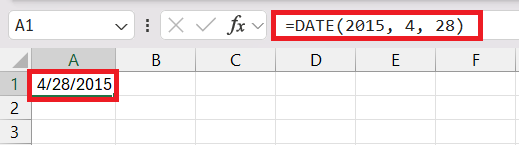
This function is particularly useful when you know the exact date components and want to make sure that Excel interprets them correctly as a date.
DATEDIF Function
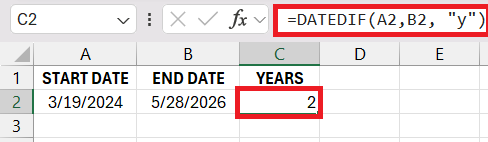
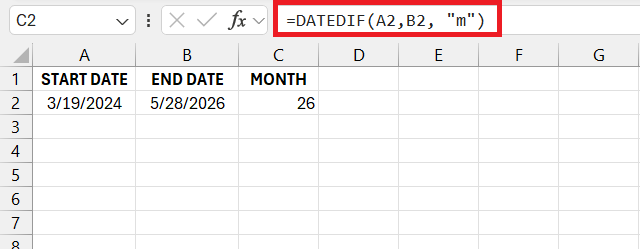
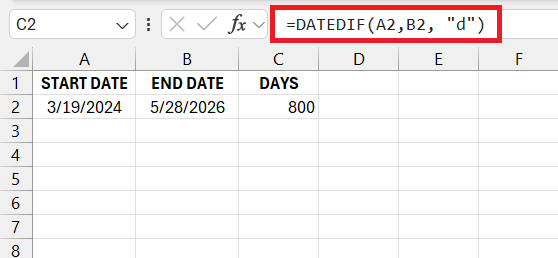
The DATEDIF function is a powerful, lesser-known function used to calculate the time difference between two dates in Excel. The time difference can be in years, monthss or days. This can be done by adjusting the unit argument in the formula.
To calculate the difference in the number of complete years.
To calculate the difference in remaining months after complete years.
To calculate the difference in remaining days after complete months.
It is important to note that Excel does not show the DATEDIF function in its built-in function list or in ribbon help.
Dynamic DATE Formula Usage
You can make your DATE function dynamic by combining it with other functions like TODAY or NOW. This will update your date to the current date automatically.

Now, use this date with NETWORKDAYS.INT to get the timeline of a project.
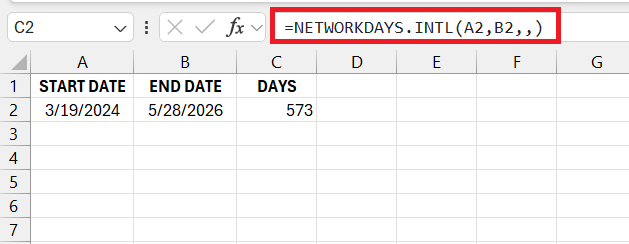
By making the calculations dynamic, you can make sure that there is no need for manual updates.
Practical Example
Below is a practical example of using Excel date functions to calculate project deadlines.
STEP 1: Enter start date and duration in months for each task.
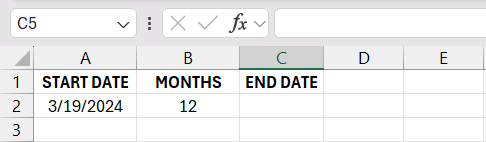
STEP 2: Use the EDATE function to calculate the end date.
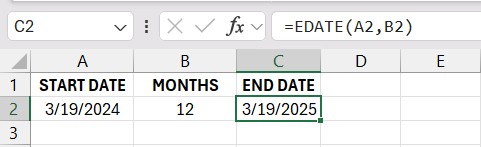
This is how you can efficiently use Excel to get a project’s end date.
Common Errors and How to Fix Them
Invalid Date Formats
Invalid date formats can cause headaches when you’re trying to sort, filter, or perform calculations on dates in Excel. If you encounter a situation where Excel can’t recognize your dates, follow these steps to troubleshoot:
- Use Find and Replace feature to replace delimiters like dots with slashes in dates.
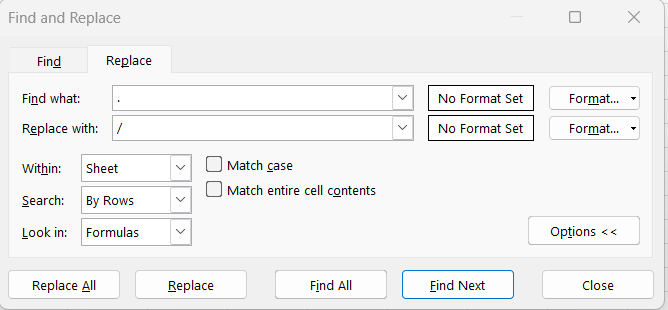
- Use the SUBSTITUTE function to replace dots in dates with slashes.
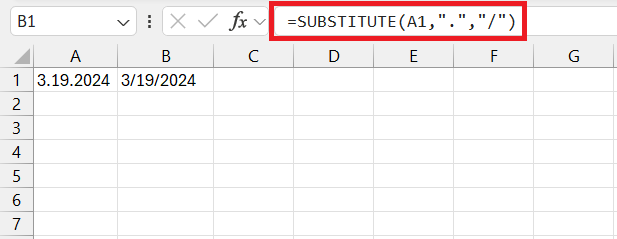
- Check that Excel is set to recognize dates in your local format through the Advanced setting
FAQs
How to convert years to days without making any mistakes?
To avoid mistakes when converting years to days in Excel, make sure you use the correct number of days per year (365 or 366 for leap years), apply formulas consistently, and double-check your calculations. It’s also wise to use Excel functions like DATE and DAYS, which automatically account for leap years, thus reducing human error.
Can Excel Automatically Account for Leap Years?
Yes, Excel can automatically account for leap years when performing date calculations. Using functions like DATE and YEARFRAC considers whether a year is a leap year, adjusting the days in February as necessary.
How to convert a date from years to days in Excel?
You can use the YEARFRAC function to calculate the difference between two dates in years. You can then multiply the result by 365 to convert it to days.
What is the formula for year days?
To calculate year days in Excel, you can use the formula =DATE(YEAR(A2),12,31)-A2 which subtracts a given date (in cell A2) from the last day of that year, providing the number of days remaining in the year.
How to convert numbers to years and days in Excel?
In Excel, to convert a number representing days into years and days, divide the number by 365 and use the MOD function to find the remaining days. Use the formula =INT(A2/365) & " years, " & MOD(A2, 365) & " days" where A2 is the cell containing the number of days.
John Michaloudis is a former accountant and finance analyst at General Electric, a Microsoft MVP since 2020, an Amazon #1 bestselling author of 4 Microsoft Excel books and teacher of Microsoft Excel & Office over at his flagship MyExcelOnline Academy Online Course.

 30 Days - Full Access









