Microsoft Copilot is a useful AI assistant available inside Excel. It is used to analyse and summarize data, create formulas, edit workbooks, and much more. Sometimes, the Copilot button may not be visible or it may not respond to the prompts. In this article, you will learn why Copilot in Excel not showing or not working and how to fix it.
Key Takeaways:
- Check if your Microsoft 365 license contains Copilot.
- Check privacy and connected experience settings.
- Save the workbook to OneDrive or SharePoint.
- Make sure that AutoSave is enabled.
- Use Microsoft’s troubleshooters if Copilot still does not work.
Table of Contents
Why Copilot in Excel Not Showing?
Microsoft Copilot availability depends on several factors such as license, Excel version, network connection, etc. If your Copilot stops showing or working in Excel, it could be because of one of these reasons:
- Your Microsoft 365 plan does not include Copilot.
- You are signed in with the wrong Microsoft account.
- Your Excel installation is outdated.
- Your organization has disabled Copilot or connected experiences.
- Your network is blocking Copilot services.
- Your workbook is saved in an unsupported location or format.
- AutoSave is turned off.
- Your Excel privacy settings are preventing Copilot from working.
How to Fix Copilot Issue
Check Microsoft Subscription
First, you need to check whether your Microsoft 365 subscription supports Copilot in Excel. To check your subscription:
STEP 1: Open Microsoft 365.
STEP 2: Sign in to your Microsoft account.
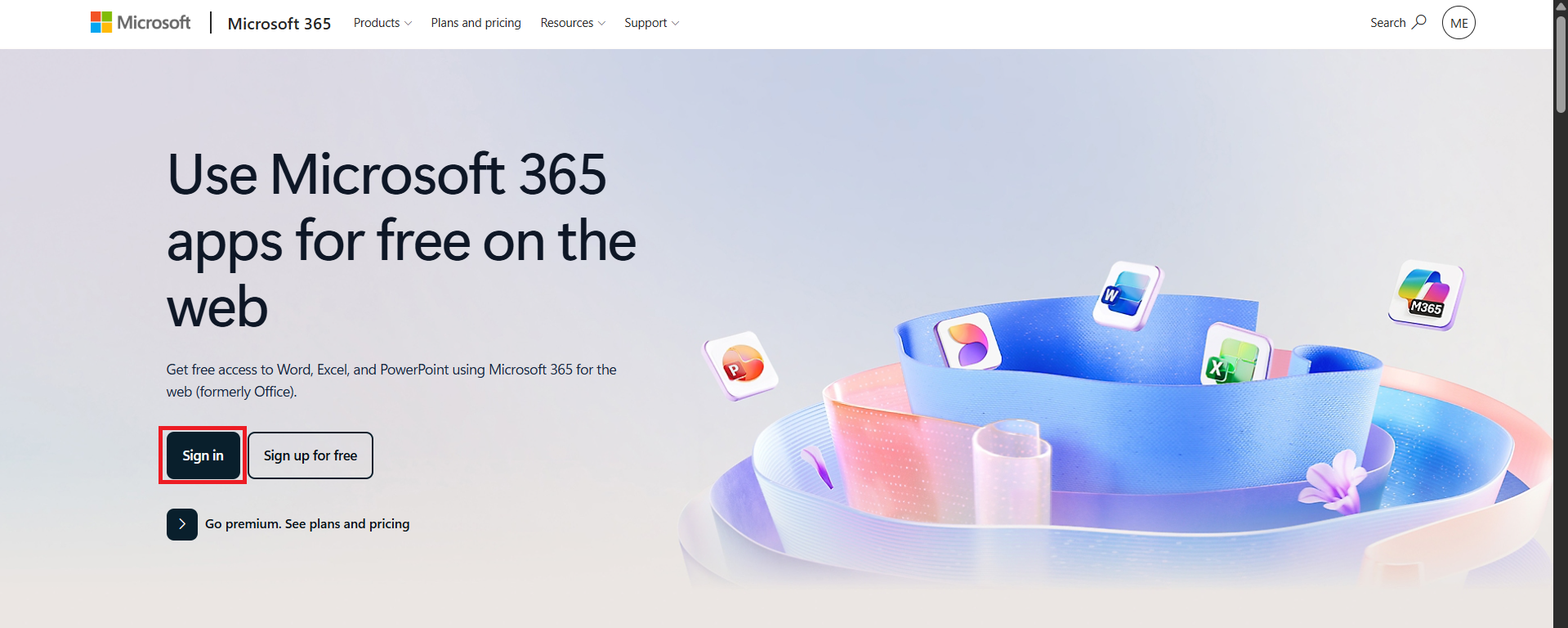
STEP 3: Click on the picture icon on the top right of the screen. Click on My Microsoft account.
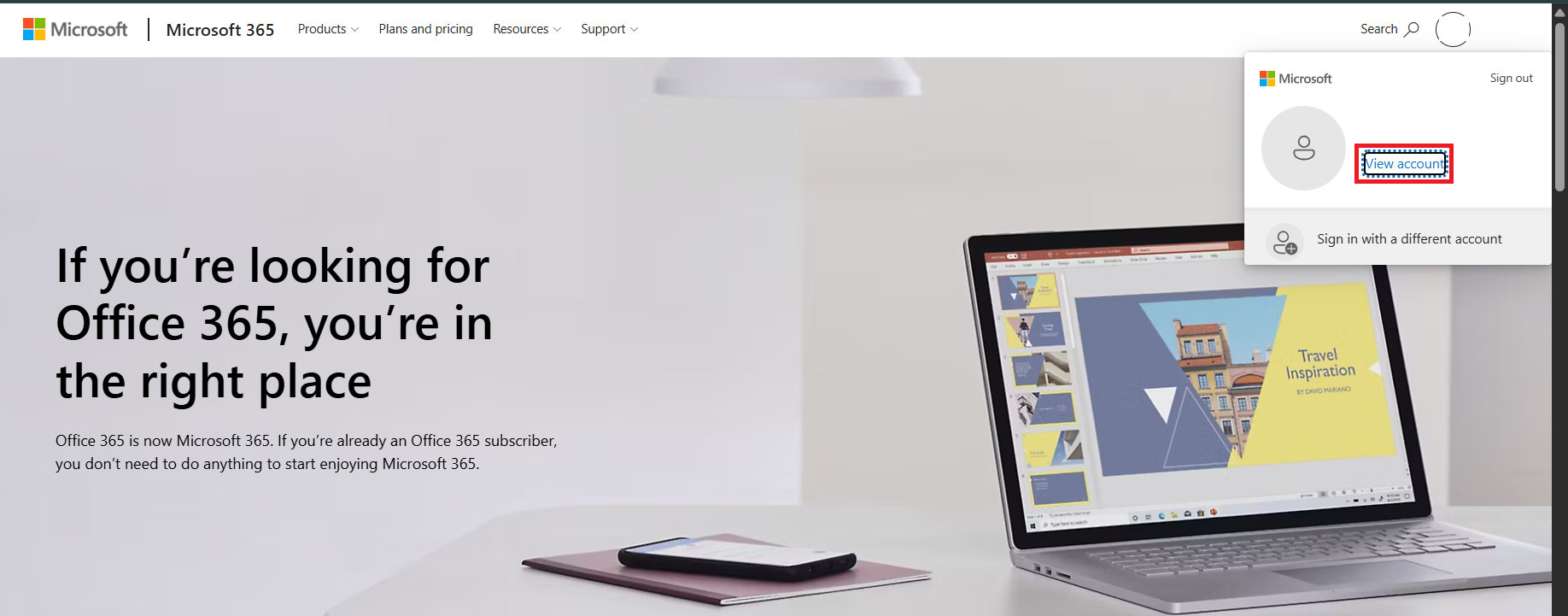
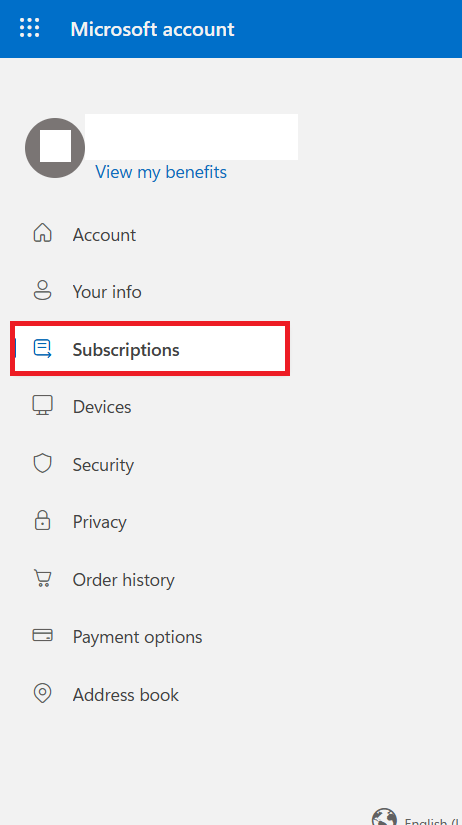
STEP 4: Click on Subscription.
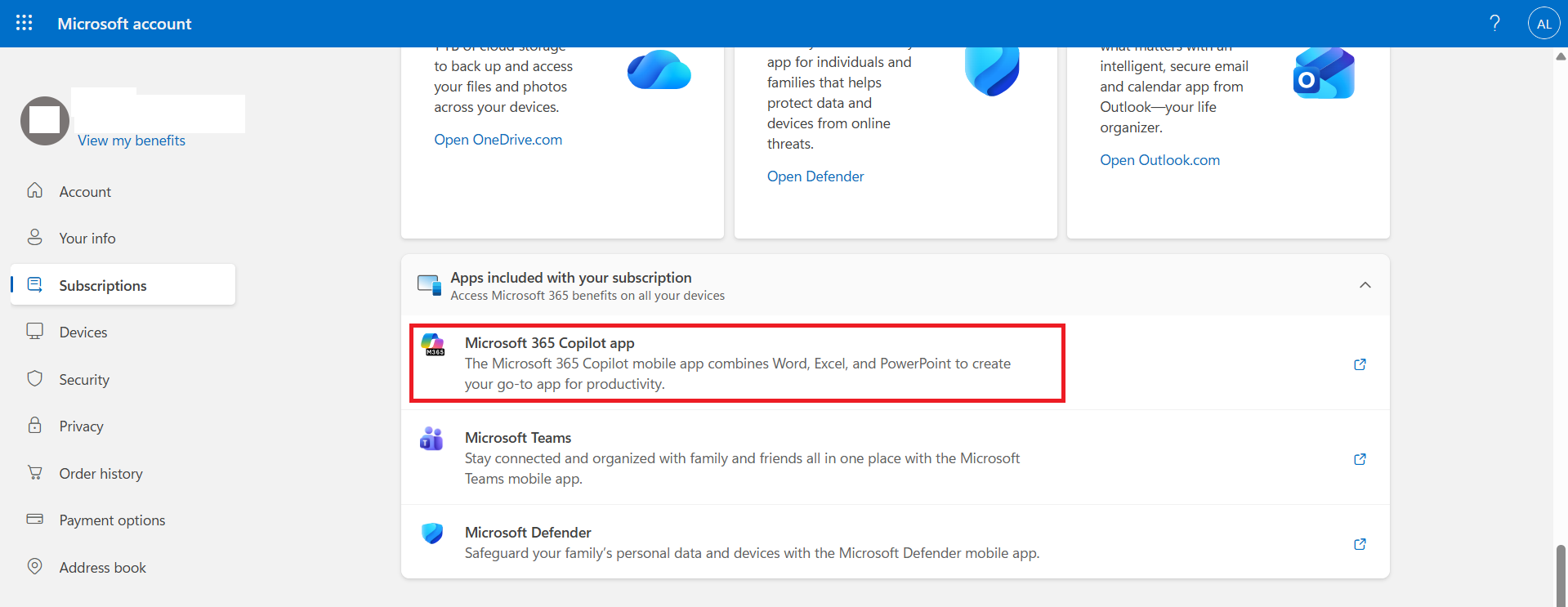
STEP 5: Confirm that Copilot is included.
Check Account Usage
If you have multiple accounts signed in to Office, you need to check whether you are using the correct account.
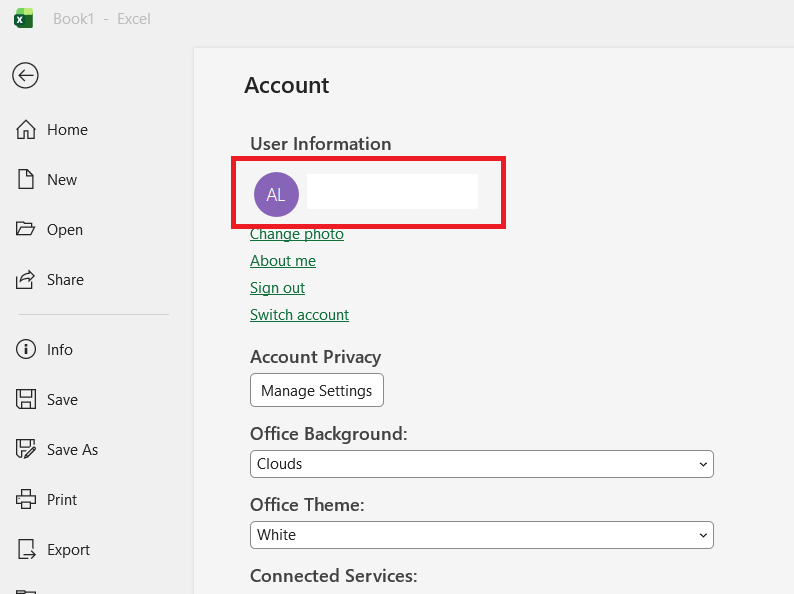
- Go to File > Account

- Check the account shown under User Information.
Check Excel Version
An outdated version of Excel can cause Copilot features to behave incorrectly. To update Excel:
- Open Excel.
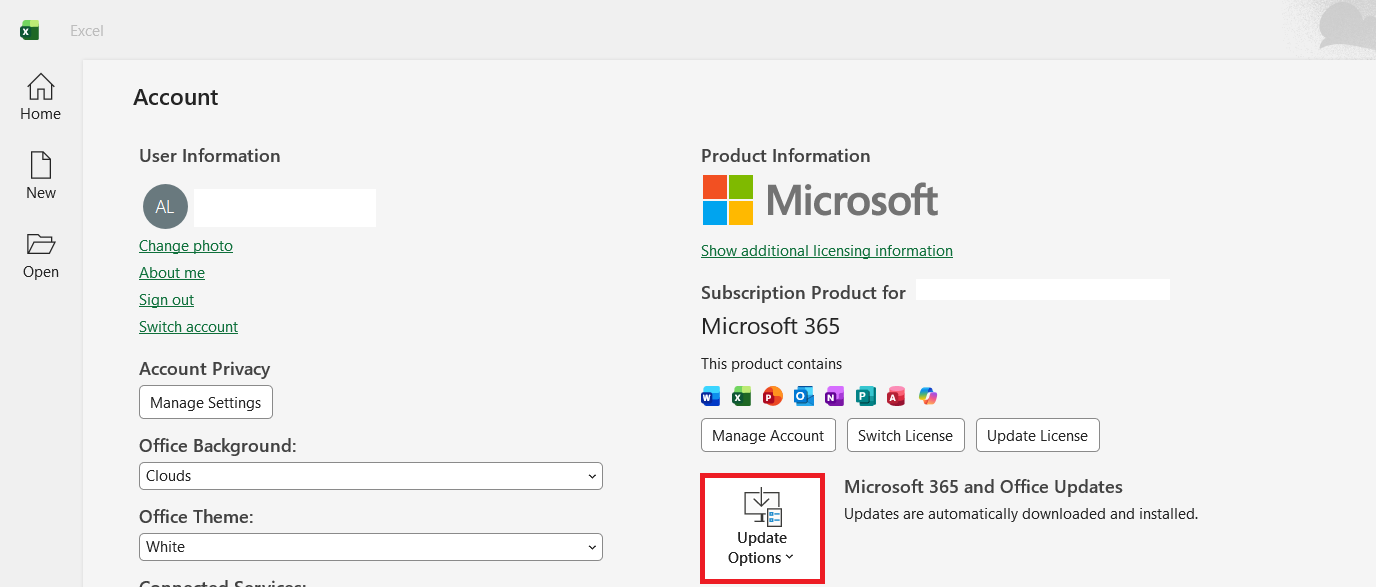
- Go to File > Account.
- Under Product Information, select Update Options.
- Click Update Now.
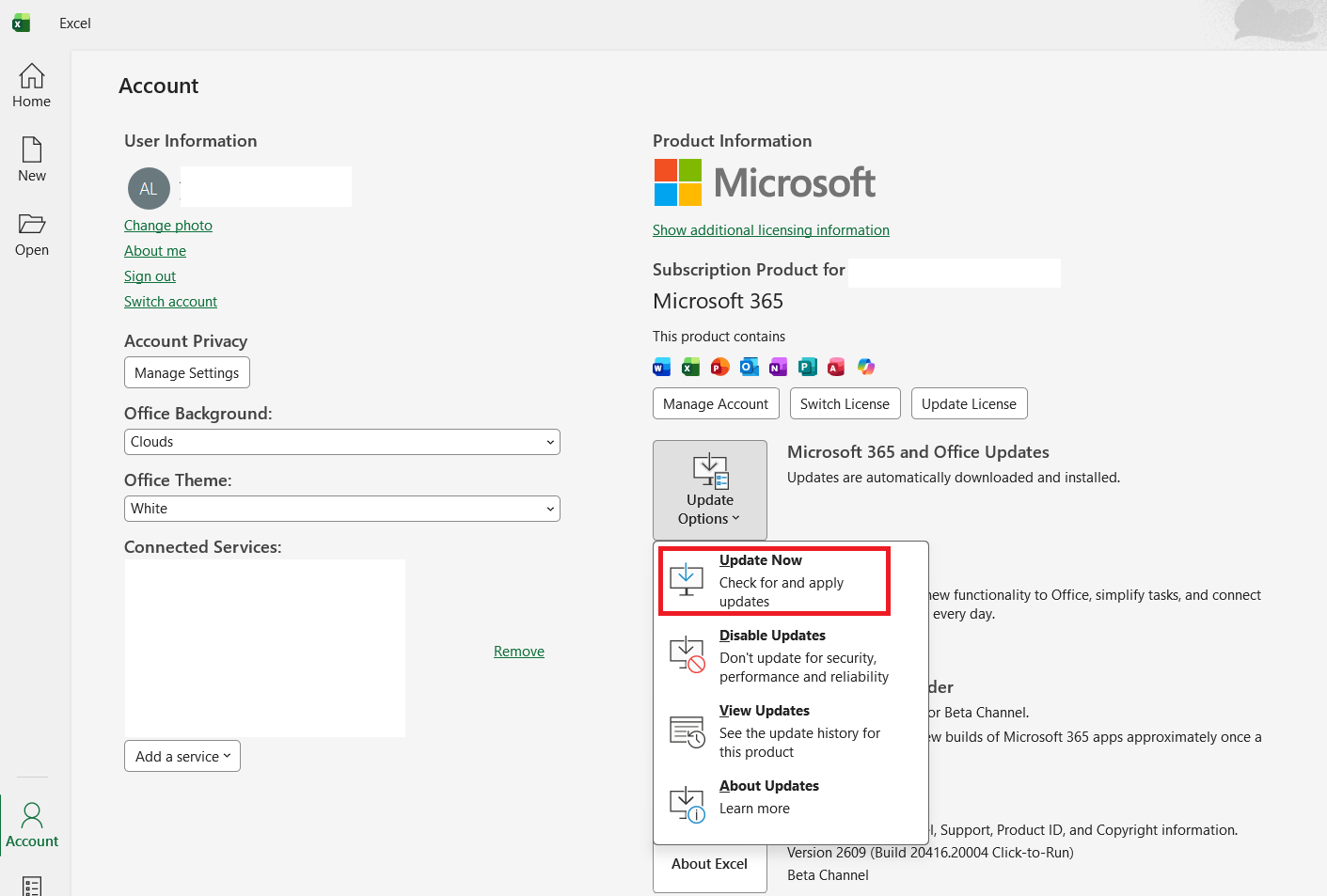
- Wait for the update to finish.
- Restart Excel.
Check Your Privacy Settings
If the connected experiences and privacy settings are disabled, Copilot may not work properly. Make sure the required connected experiences are enabled before using Copilot.
Check Your Internet Connection
If your internet connection is unstable or organization’s firewall is blocking Copilot, it may not load or respond.
You can try:
- Disconnecting and reconnecting to the internet.
- Restarting Excel.
- Trying another network.
- Temporarily testing Excel on a different connection.
Check Where the Excel File Is Saved
The workbook should be saved to OneDrive or SharePoint.
If your file is stored on:
- Your local computer
- A network drive
- A third-party cloud storage service
- An unsupported file format
try moving or copying it to OneDrive or SharePoint.
Make Sure AutoSave Is Turned On
AutoSave is important for Copilot in Excel. To check it:
- Open your workbook.
- Look at the AutoSave switch near the top-left of Excel.
- Turn it On.
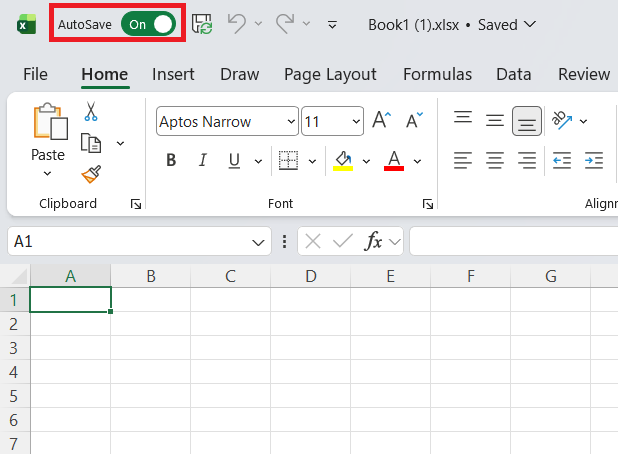
- Make sure the workbook is saved to OneDrive or SharePoint.
FAQs
Why is Copilot not showing in Excel?
Copilot may not appear because of an unsupported Microsoft 365 license, an incorrect account, an outdated Excel version, privacy settings, or organization policies.
Why is Copilot in Excel not working?
Check your internet connection, update Excel, make sure AutoSave is enabled, and save the workbook to OneDrive or SharePoint. You can also run Microsoft’s Copilot troubleshooters.
How do I restart Copilot in Excel?
Close Excel completely and reopen it. If Copilot still does not work, restart your computer and sign in to Microsoft 365 again.
How do I use the Copilot troubleshooter?
To use the Copilot troubleshooter,
- Go to the Get Help app
- Search for Copilot
- Run the connectivity troubleshooter
- Follow the recommended steps
Why does Copilot work in Excel online but not in the app?
If Copilot is not working in the app, it must be because of a problem with installation, settings, or updates. You need to update or repair Microsoft 365 and then restart your computer.

John Michaloudis is a former accountant and finance analyst at General Electric, a Microsoft MVP since 2020, an Amazon #1 bestselling author of 4 Microsoft Excel books and teacher of Microsoft Excel & Office over at his flagship MyExcelOnline Academy Online Course.

 30 Days - Full Access









