 Free Practice Workbook
- The WEEKDAY function returns a number that represents the day of the week.
- It treats 1 as Sunday and 7 as Saturday.
- The TEXT function is used to convert date into the name of the day.
- Customize day abbreviation using the CHOOSE and WEEKDAY functions.
- WEEKDAY function is useful in scheduling tasks and filtering weekends.
Table of Contents
How to Get Day of the Week in Excel
WEEKDAY Function
The WEEKDAY Function is a nifty tool in Excel’s DATE and TIME suite that makes it a breeze to determine the day of week for any given date. What does it do? =WEEKDAY(A2)
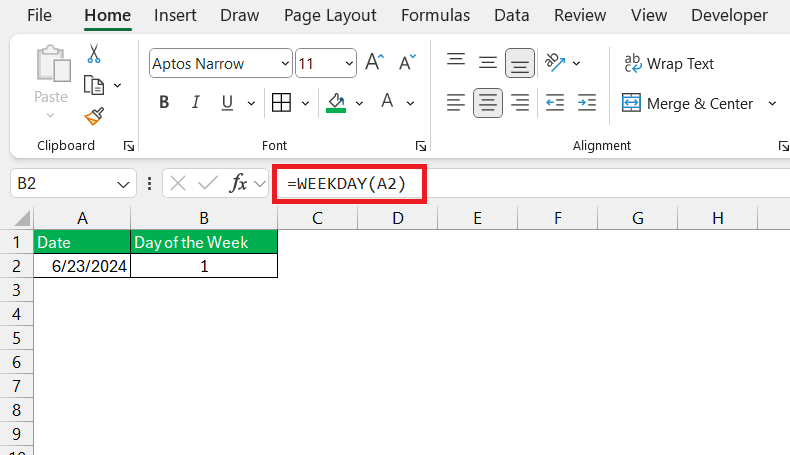
It returns an integer from 1 to 7 that corresponds to a day of week, starting with Sunday. By default, 1 would represent Sunday and 7 would stand for Saturday.
This little function is incredibly handy when it comes to planning, scheduling, or conducting any form of date-related analysis. Whether it’s to identify the busiest weekday to staff your store or to filter out weekends while tracking working days, the WEEKDAY function has got you covered.
Displaying Day Names
You can use the TEXT function to change dates to a day in Excel. The formula will be:
=TEXT(A2. “dddd”)
This will quickly convert the date to the day name.
For example, 23rd June 2024 will return the day name as Sunday.
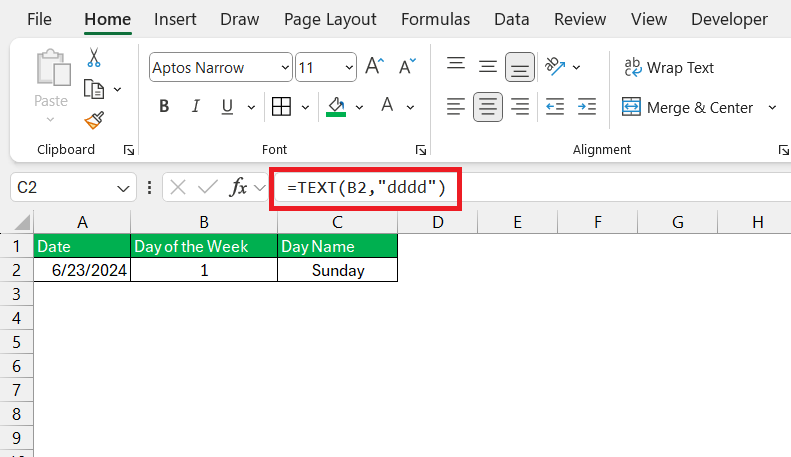
You can also use the second argument of the formula as “dd”, to get the abbreviated version of the day name.
=TEXT(A2, “ddd”)
For this formula, Excel will return the value as Sun.
Customize Abbreviations
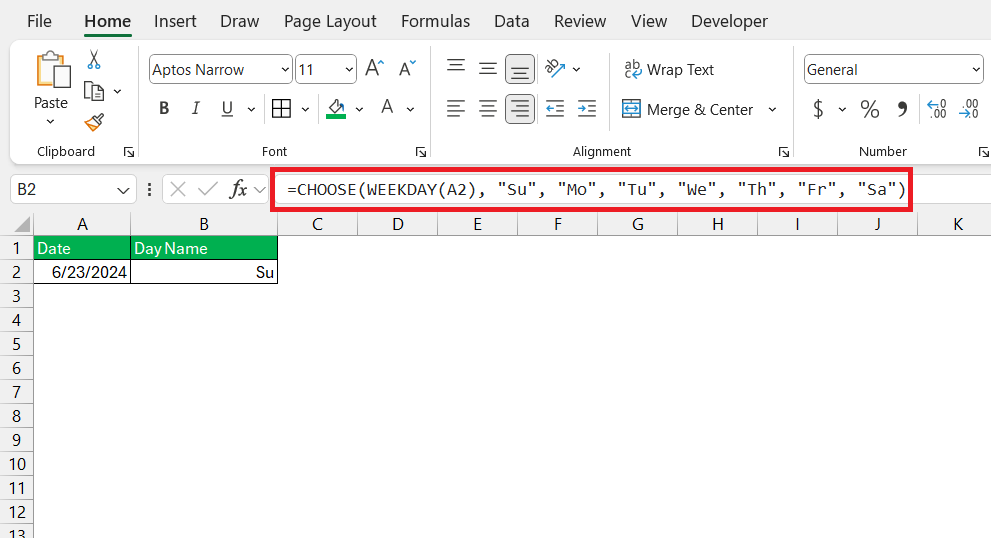
To get the day name in a abbrevauted form with just two letters, you can use this formula:
=CHOOSE(WEEKDAY(A2), "Su", "Mo", "Tu", "We", "Th", "Fr", "Sa")
Advanced Weekend Analysis Techniques
Identify and Highlight Weekends
Visual cues in Excel can be a real timesaver, and what better way to spot weekends at a glance? You can use conditional formatting combined with the mighty WEEKDAY function to make weekends stand out.
Here’s a bit of Excel magic: by defining a rule with the formula =WEEKDAY($A2, 2)<6 for workdays or =WEEKDAY($A2, 2)<5 for weekends, you’ve essentially created a visual indicator. Apply color to these formatted cells, and voilà, your weekend dates are now distinguishable with ease.
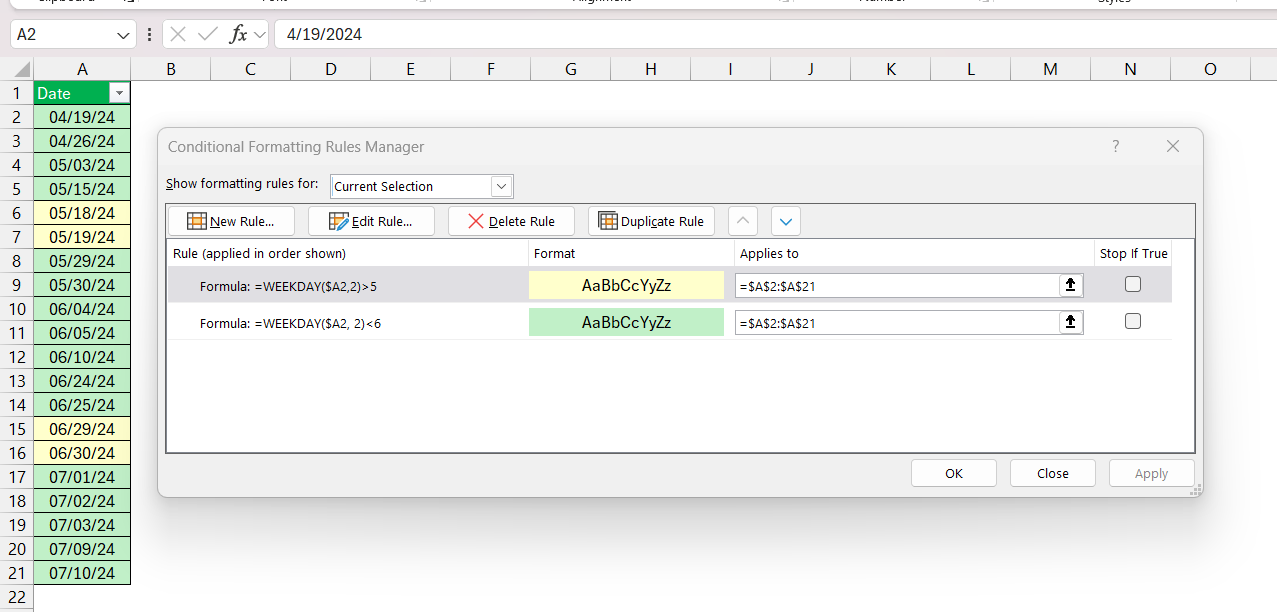
This particularly shines when juggling project timelines, planning social media content, or managing staffing rotas. Instantly, with colors popping out at you, there’s no mistaking which dates fall on those precious Saturdays and Sundays.
Counting Weekends and Workdays
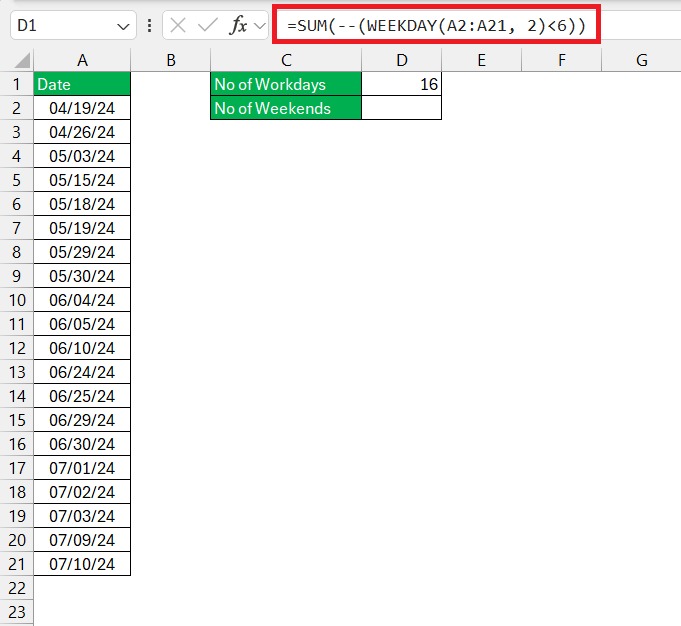
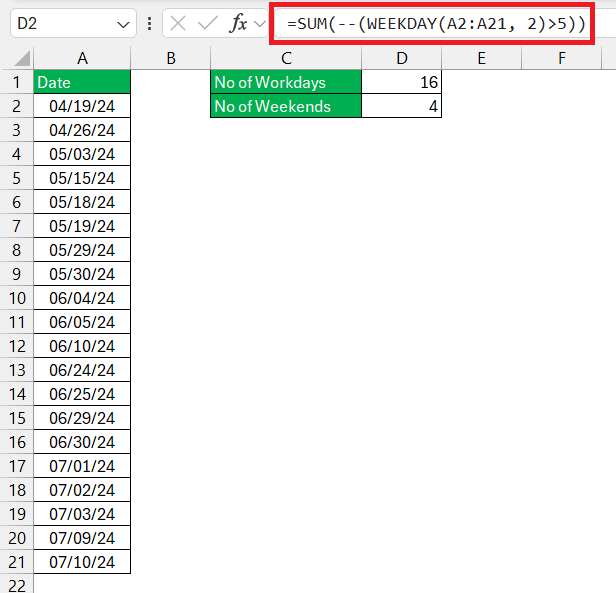
It is important to know how many workdays you have when working on projects. You can use the SUM and WEEKDAY function to count the number of weekends and workdays in Excel.
Use this formula ot get the number of workdays:
Use this formula ot get the number of weekends:
Troubleshoot Errors
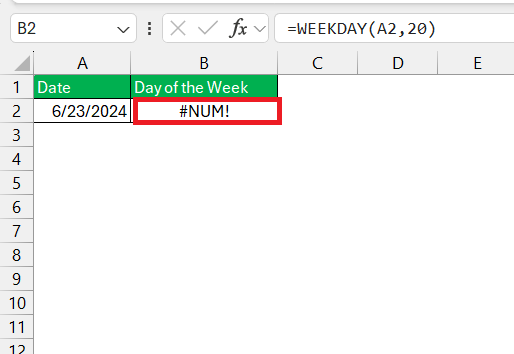
- A #NUM! error is usually displayed when the return type argument is outside the permistted range of 1 to 3 or 11 to 17.
- A #VALUE! error is displayed when a non numeric data is entered as the date argument.
Encountering a #VALUE! error? This likely indicates a non-numeric value where a numeric one is expected or a date that’s outside of Excel’s acceptable range (January 1, 1900, to December 31, 9999 in the Gregorian calendar).
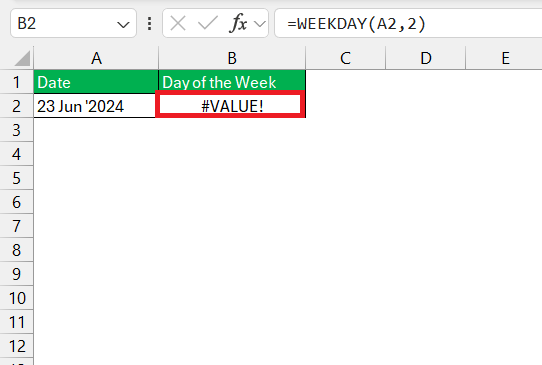
- #VALUE! error can also be displayed when the date entered is outside the acceptable range i.e. January 1, 1900, to December 31, 9999 in the Gregorian calendar.
Tips & Tricks
- Use the DATE function to enter a date instead of typing it manually.
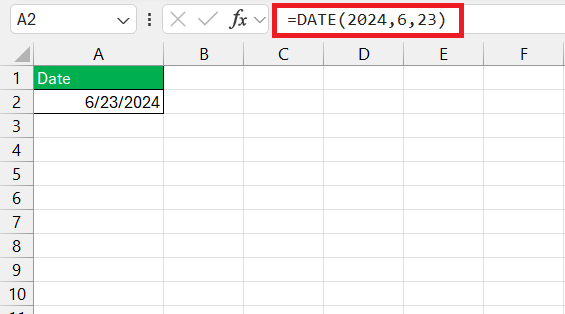
- Check the date format setting on your computer. If the date format in your region is DD/MM/YYYY and you are entering the date in MM/DD/YYYY format, the calculations will be incorrect.
- Use the DATEVALUE formula to convert text to date in Excel.
FAQs
Is there a formula for day of week in Excel?
Yes, you can use the WEEKDAY formula to get the day of the week for a particular date. It will return a number 1 if the value is Sunday and 7 if the value is Saturday.
How to find the day of the week in Excel?
You can use the TEXT function to find the day of the week in Excel.
=TEXT(date, “dddd”)
How to use the weekday formula in Excel?
To use the WEEKDAY formula in Excel, follow the steps below:
- Click on the cell.
- Type the formula: =WEEKDAY(
- Enter the cell that contains the date: =WEEKDAY(A1)
- Press Enter
Excel will display the day of the week as a number. This formula treats 1 as Sunday and 7 as Saturday by default.

John Michaloudis is a former accountant and finance analyst at General Electric, a Microsoft MVP since 2020, an Amazon #1 bestselling author of 4 Microsoft Excel books and teacher of Microsoft Excel & Office over at his flagship MyExcelOnline Academy Online Course.

 30 Days - Full Access









