 Free Practice Workbook
The diameter symbol in Microsoft Excel is indispensable for technical professionals. It signifies the width of a circle and improves clarity in diagrams and documents. Using this symbol elevates precision and comprehension in data analysis and design.
Key Takeaways:
- The diameter symbol is vital for engineers, architects, and mathematicians for circle measurements.
- The diameter symbol can be used in for manufacturing parts documentation, architectural plans, and geometric calculations.
- Add the diameter symbol in Excel using keyboard shortcuts.
- Use the CHAR function to insert the diameter symbol into formulas or text.
- Improve productivity by incorporating automation and shortcuts.
Table of Contents
Insert a Diameter Symbol
Keyboard Shortcuts
Windows:
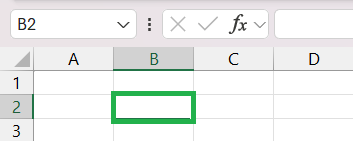
STEP 1: Click on the cell.
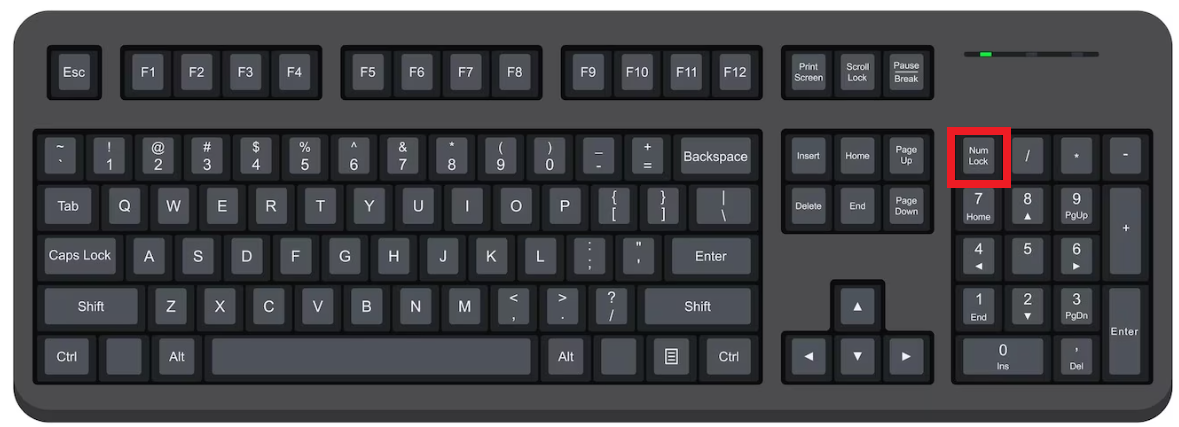
STEP 2: Press the Num Lock key. This will activate the numeric keypad.
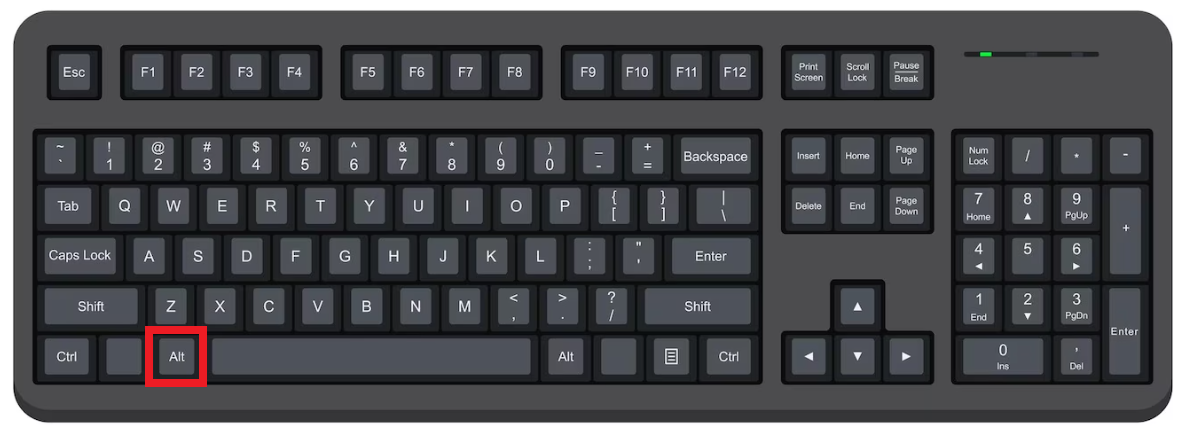
STEP 3: Hold down the Alt key.
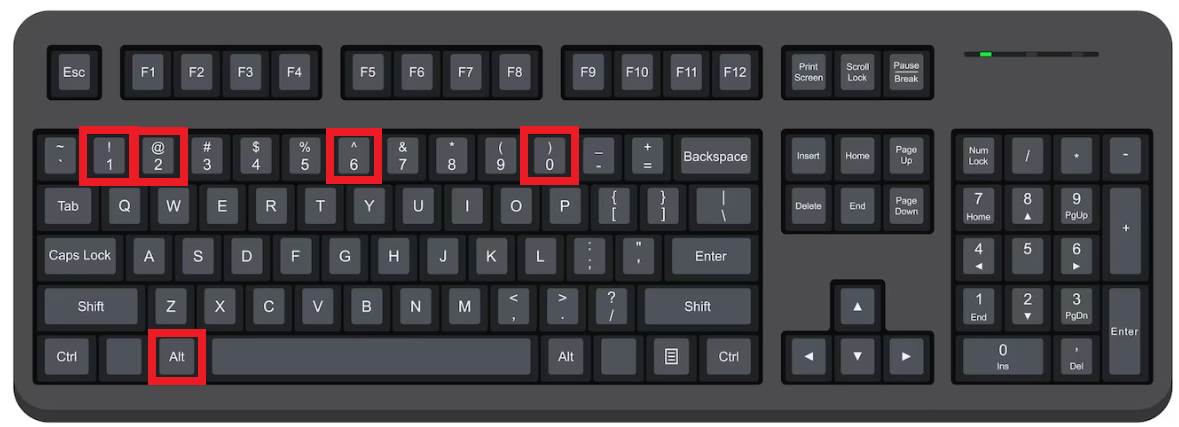
STEP 4: While holding the Alt key, type 0216 on the numeric keypad.
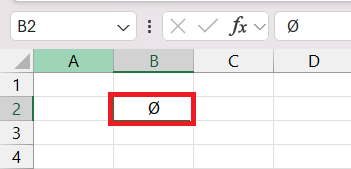
STEP 5: Release the Alt key, and the diameter symbol (Ø) will appear in the cell.
For Mac users:
STEP 1: Click where you want to insert the diameter symbol.
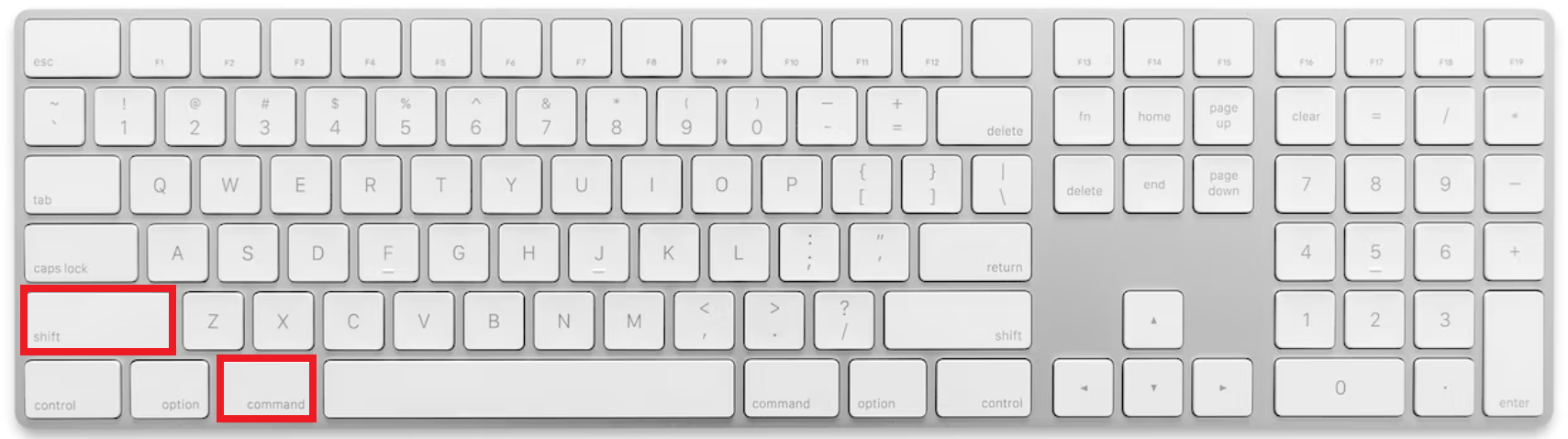
STEP 2: Press and hold Shift and Option keys together.
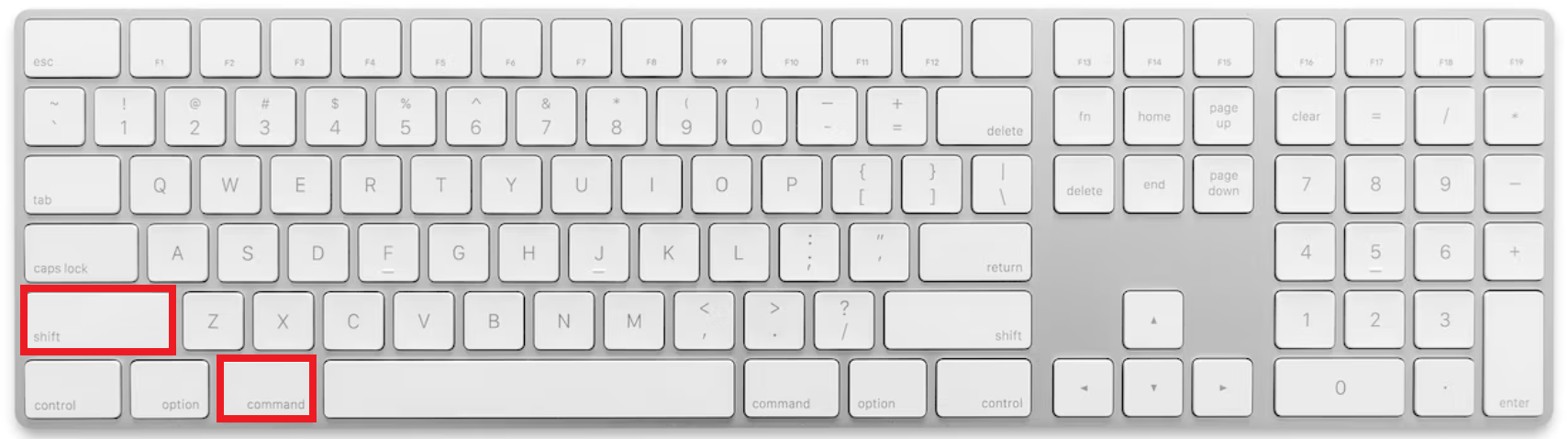
STEP 3: While holding them, press the “O” key (not zero).
These shortcuts are a quick way to improve your workflow.
CHAR Function
You can use the CHAR function in Excel to add a diameter symbol. Each symbol has a unique code, and the code for the diameter symbol is 0216.
Follow the steps below to use the CHAR function:
STEP 1: Select the cell.
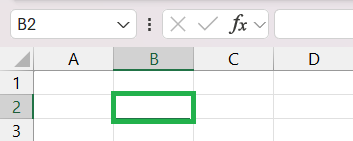
STEP 2: Use the CHAR formula with the argument 216.
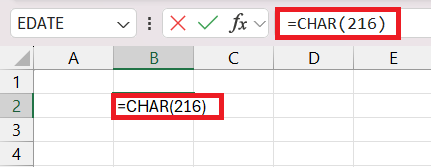
STEP 3: Press Enter.
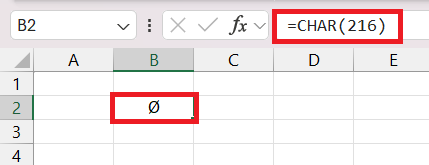
The diameter symbol will appear.
Tips & Tricks
Functions to Use with Diameter Symbol
The different functions that can be used in combination with the diameter symbol are:
- COUNTIF function – It is used to tell you how many times the diameter sumbol appear in the range of cells.
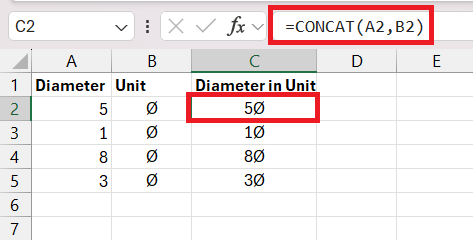
- CONCATENATE function – It is used to combine diameter symbol with other text or numbers in the cell.
FAQs
How to add a diameter symbol using shortcuts?
The fastest way to add a diameter symbol in Excel is to use keyboard shortcuts:
- Windows: Alt + 0216
- Mac: Option + Shift + 0
Why diameter symbol not displayed correctly?
The diameter symbol may not appear correctly because of the following reasons:
- Font does not support this symbol.
- Symbol not compatible across different Excel versions.
Make sure that you are using a standard font like Arial.

John Michaloudis is a former accountant and finance analyst at General Electric, a Microsoft MVP since 2020, an Amazon #1 bestselling author of 4 Microsoft Excel books and teacher of Microsoft Excel & Office over at his flagship MyExcelOnline Academy Online Course.

 30 Days - Full Access









