 Free Practice Workbook
Adding a specific number of weeks to a date in Microsoft Excel is a straightforward process that leverages the consistent length of a week. Using basic arithmetic formulas, one can easily add n weeks to project future or past timelines. This task can be accomplished without the use of complicated functions, as multiplying the number of weeks by 7 converts weeks into days, which can then be added to or subtracted from the original date. Whether for planning, scheduling, or calculating deadlines, Excel provides flexible solutions to manage dates efficiently.
Key Takeaways
- Utilize simple formulas by multiplying the number of weeks by 7 and then adding to the original date cell (e.g., =A2+3*7 to add 3 weeks).
- For subtracting weeks, adjust the formula to subtract the total number of days (e.g., =A2()-2*7 to subtract 2 weeks).
- Leverage Excel’s fill handle feature to apply the addition or subtraction formula across multiple cells efficiently.
- Use the Fill Series option to autofill a series of dates in Excel.
Download the Excel Workbook and follow along with the tutorial on How to Add N Weeks in Excel – Download excel workbookAdd-N-weeks-in-Excel.xlsx
Table of Contents
Quick Methods to Add Weeks to a Date
Using Simple Formulas to Add N Weeks
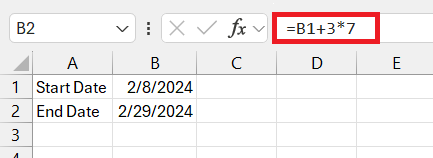
To swiftly add weeks to a date in Excel, you’ll rely on simple arithmetic formulas. The concept is straightforward: since a week always consists of 7 days, simply multiply the number of weeks you want to add by 7, and add that to your original date. For example, to add 3 weeks to the date in cell B1, use the formula =B1+3*7. It’s an easy yet powerful trick to project dates into the future without complications.
Benefits:
- Saves time with fast computations
- Increases accuracy in date management
- Improves productivity in planning phases
- Useful for project scheduling
- No need for manual counting of days
Cons:
- You may have to format the result.
- Not a traditional date formula
Fill Handle
The Fill Handle in Excel is a potent tool for quickly adding weeks to a given date. This feature offers a drag-and-drop approach to extend a series of dates just by dragging the cell corner. To add weeks using the Fill Handle, enter a start date in a cell and a date one week later in an adjacent cell. Then, select both dates and drag the corner of the selection box downward or to the side. Excel intelligently fills in the following dates in weekly increments. It’s a simple and effective way to populate a column or row with consecutive dates.
Benefits:
- Greatly reduces the time for entering sequential dates
- No manual calculation errors
- User-friendly
- Useful for creating timelines and schedules
- Integration into Excel’s workflow is effortless
Cons:
- Can inadvertently create incorrect patterns if not set up properly
- May not work as expected with more complex date intervals
Excel’s Hidden Gems for Date Calculations
The EDATE Function Explored
Amidst the arsenal of date functions in Excel, the EDATE function stands out for its simplicity and laser focus on manipulating months. While weeks are not the primary unit of this function, knowing the intricacies of EDATE can still boost your date calculation prowess.
The EDATE function is straightforward:
=EDATE(start_date, months)
This function rolls the calendar precisely the number of months forward (positive value) or backward (negative value) from the start_date. While it’s built around months, you can repurpose EDATE for week adjustments by converting weeks into months.
- Determine the number of weeks you need to adjust.
- Convert these weeks into approximate months (consider 4 weeks as a rough month).
- Use the converted value in the EDATE function.
For example, if you’re looking to project 20 weeks into the future, you might approximate this to about 5 months, and use the EDATE formula accordingly.
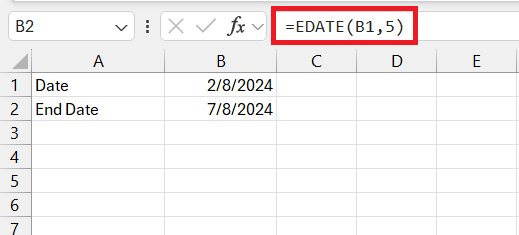
Remember, EDATE is especially helpful for monthly cycles or billing periods and can serve as a complementary function when combined with other date functions to manage weekly calculations.
Subtracting Weeks
Subtract Weeks from a Given Date
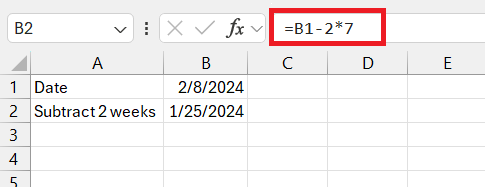
Excel can be used to move dates backwards by subtracting days from a date. To subtract weeks, you can simply multiply the number of weeks by 7 to get the total number of days to subtract. For example, if you want to move 2 weeks backwards, you can subtract 2*7, i.e., 14 days from the given date. This is a useful calculation when determining deadlines, checking past events, or changing timelines.
Benefits:
- Backward scheduling
- Used in historical data analysis
- Maintains accuracy and consistency in records
- Aids in forecasting and planning
- Reduces the complexity of date manipulation in Excel
Cons:
- Use correctly, or else you may get negative date values.
- Date should be formatted correctly.
Use Series Fill
You can move backwards and get past dates in Excel using the Series Fill option. It lets you automatically continue a pattern of dates in cells without manually typing it. Follow the steps below to know how –
STEP 1: Type the Start Date.
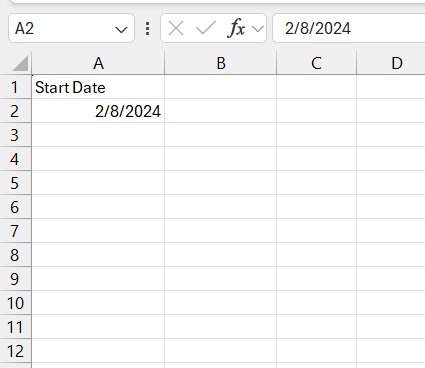
STEP 2: Go to the Home > Fill > Series.
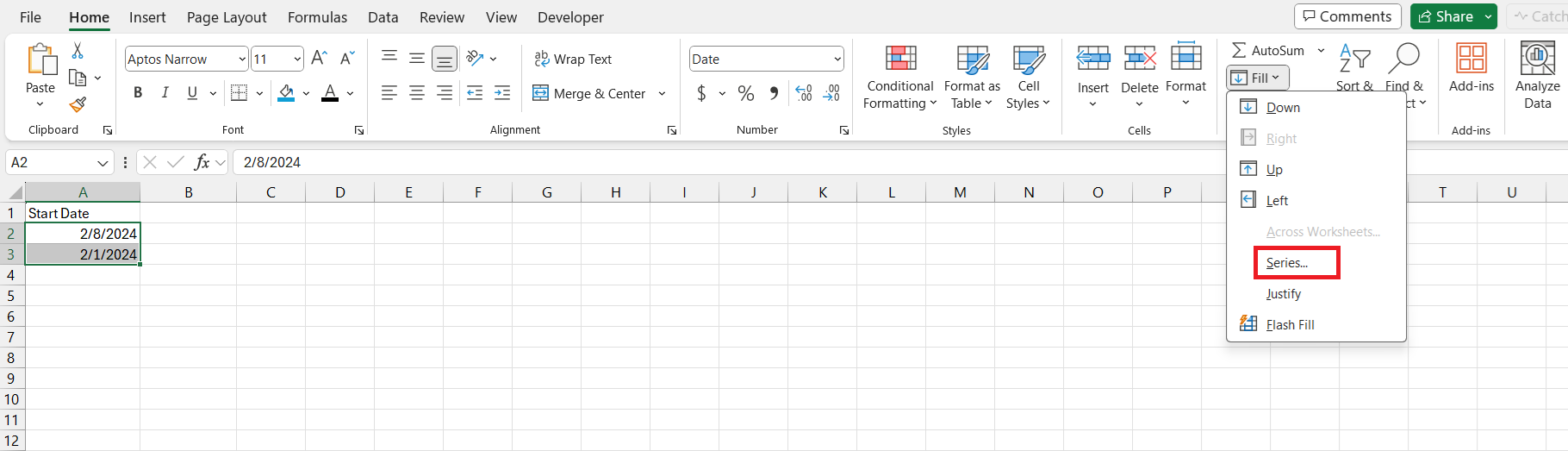
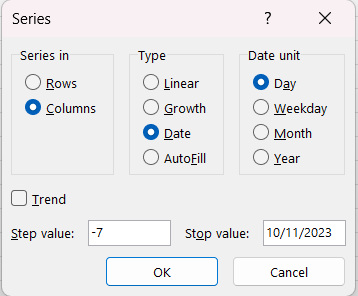
STEP 3: In the dialog box,
- Select Rows
- Select Date
- Select Day
- Type -7 as Step value
- Type stop value as 10/11/2023
- Hit OK
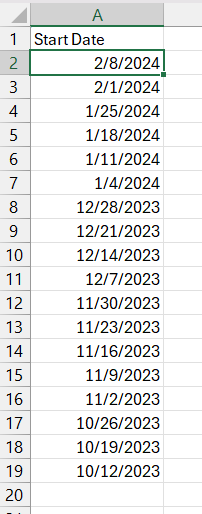
Past dates will be automatically added to the cells below. This will help you work on the dates quickly without having to perform any complicated calculations.
Benefits:
- Saves significant amounts of time in data preparation
- Increase the accuracy of backdated periods
- Visual way to subtract dates
- Useful for historical data tasks
Cons:
- May not be easy to use for new users.
- More steps than other methods
Advanced Tips and Tricks
The following tips and tricks should be considered when working with dates in Excel –
- Use a simple addition formula: To add n weeks to a date, multiply the number of weeks (n) by 7 to get the number of days, and then add that to the original date (e.g., `=A2+n*7`).
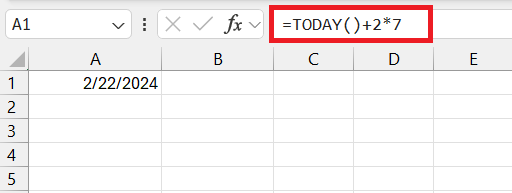
- Leverage the TODAY() function to add weeks to the current date: If you need to work from today’s date, use `=TODAY()+n*7′.
- Cell format is set to Date: Remember to make sure that the dates are formatted correctly. You can do this by choosing your desired date format under the ‘Home’ tab.
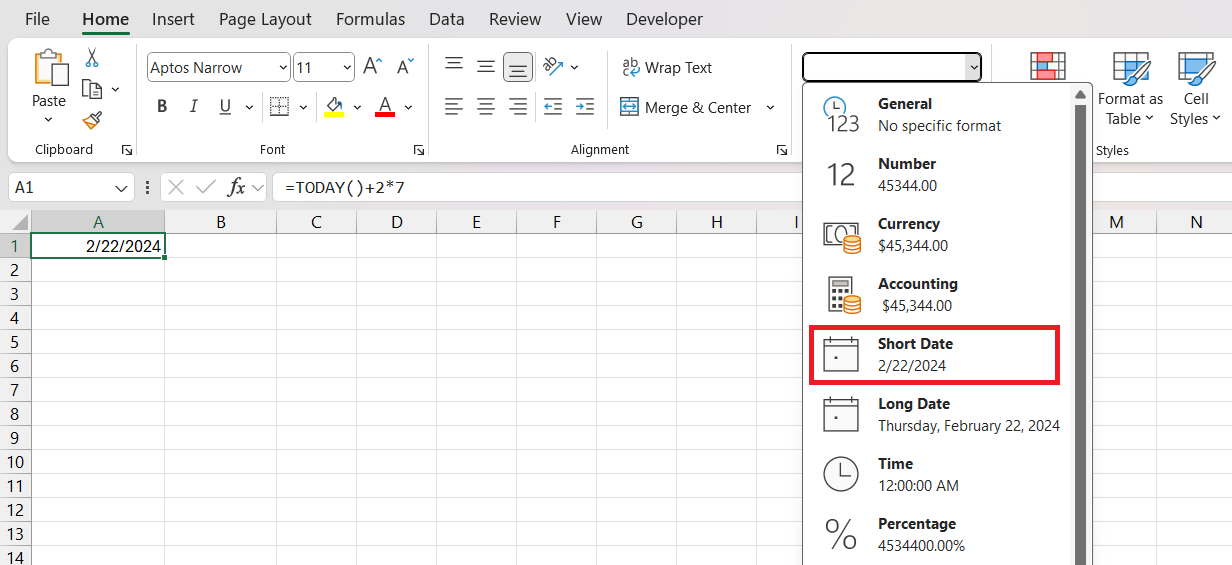
- Use the Fill Handle to quickly apply the same operation to multiple cells: Enter your formula in the first cell and then drag the Fill Handle down or across to fill other cells with the formula.
- Remember Excel’s date limitation: Excel’s date system begins on January 1, 1900. Make sure your dates fall within the valid range for Excel’s date system (January 1, 1900, to December 31, 9999 for Windows).
FAQs
How to calculate N weeks from today in Excel?
To add N weeks from today’s date, you can use the formula =TODAY() + N*7. The TODAY() will extract the current date, and then N*7 days will be added to the current date. If you want to go back N weeks from today’s date, you can use the formula =TODAY() – N*7.
Why are dates showing up as numbers?
If your result is displayed in either a number or text format, you can change the format of the cell. To change the format, go to Home > Number group > Date format. This will make your numbers appear as dates.
How to add 3 weeks to a date in Excel?
To add 3 weeks to a given date, you can use the formula =Date + (3*7). This formula will add 3*7, which is 21 days to the start date. Make sure that the dates are formatted correctly.
How to add weeks to a date without using a formula?
To add weeks to a date, you can use either the Fill handle or the Series fill option. They will automatically generate weekly dates without having to create any complicated formulas.
Which is better to work with for dates – Series fill or Formulas?
Series Fill is great for visual date sequences, while formulas are better for dynamic calculations.

John Michaloudis is a former accountant and finance analyst at General Electric, a Microsoft MVP since 2020, an Amazon #1 bestselling author of 4 Microsoft Excel books and teacher of Microsoft Excel & Office over at his flagship MyExcelOnline Academy Online Course.

 30 Days - Full Access









